
The Next Order Coupon feature in the WiseCampaign WooCommerce Discount Manager is designed to enhance customer retention by automatically providing shoppers with a unique discount code for their subsequent purchase.
1. Initialization and Setup
To begin creating a Next Order Coupon campaign:
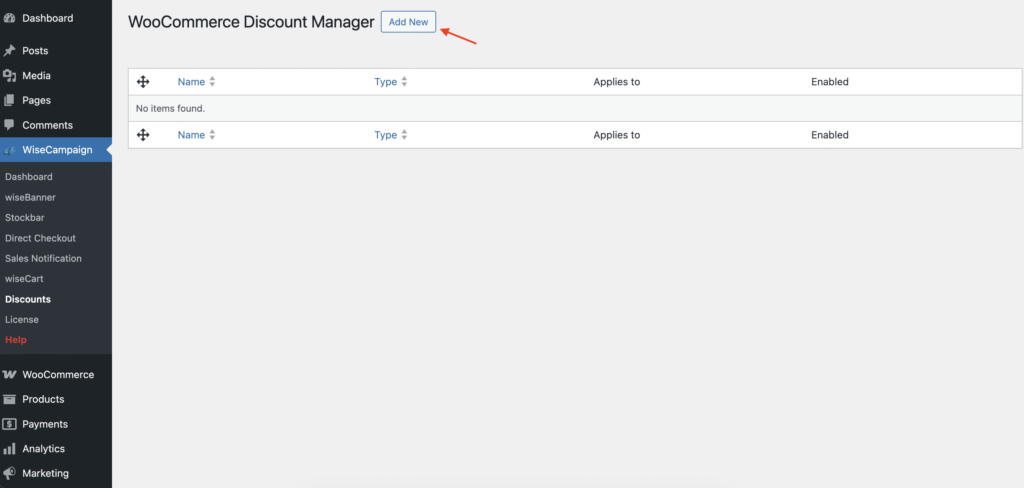
Access the Dashboard: Navigate to WiseCampaign > Discounts in your WordPress sidebar.Create New: Click the Add New button at the top of the WooCommerce Discount Manager screen.
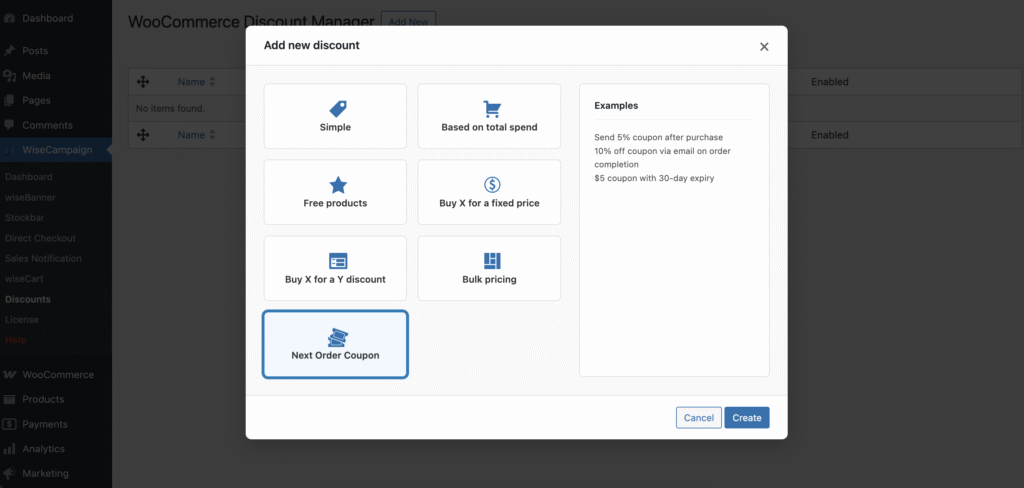
Select Template: In the “Add new discount” modal, choose Next Order Coupon and click Create.
2. Discount Details and Coupon Configuration
Once the settings page opens, configure the core parameters of your offer:
- Discount Name: Enter a descriptive name for internal tracking.
- Coupon Code Prefix: Set a prefix (e.g., “THANKYOU”) to help identify auto-generated codes.
- Discount Value: Choose between a Percentage or Fixed amount and enter the Discount Amount.
-
Usability Rules:
- Coupon Expiry: Define how many days from the order date the code remains valid.
- Minimum Cart Subtotal: Set the minimum spend required to use the coupon.
- Usage Limit: Establish how many times a single coupon can be used.
3. Display and Delivery Options
Control how and where your customers receive their reward:
-
Popup Notification: Enable a popup modal on the “Order Received” page.
- Customize the Popup Title, Content (using dynamic tags like
{discount_percent}), and Background Color.
- Customize the Popup Title, Content (using dynamic tags like
-
Email Delivery: Enable the Send email to customer option.
- Specify the Email Delivery Method (e.g., embed within standard WooCommerce order emails) and the Coupon Position in Email.
4. Generation Rules and Safeguards
To prevent abuse and manage campaign frequency, use the Coupon Generation Rules & Limits section:
- Prevent Infinite Loops: Enable this to ensure a customer does not receive a new coupon while currently using a next-order discount.
- Cooldown Period: Set a mandatory wait time (e.g., 30 days) before a customer is eligible for another coupon.
- Lifetime Limit: Restrict the total number of next-order coupons a single customer can receive.
- Trigger Threshold: Set a Minimum Order Value that the current purchase must meet to generate a coupon.
5. Advanced Conditions and Targeting
Fine-tune your campaign under Conditions & Display Rules:
- Product Targeting: Apply the discount to all products, selected categories, or specific products.
- User Eligibility: Target everyone or only selected user roles.
- On-Page Promotion: Use the Product page content editor to inform customers of the reward before purchase and select its Content location (e.g., “Before Product Summary”).
Final Step: Once all settings are configured, click Save Discount to activate the campaign.