
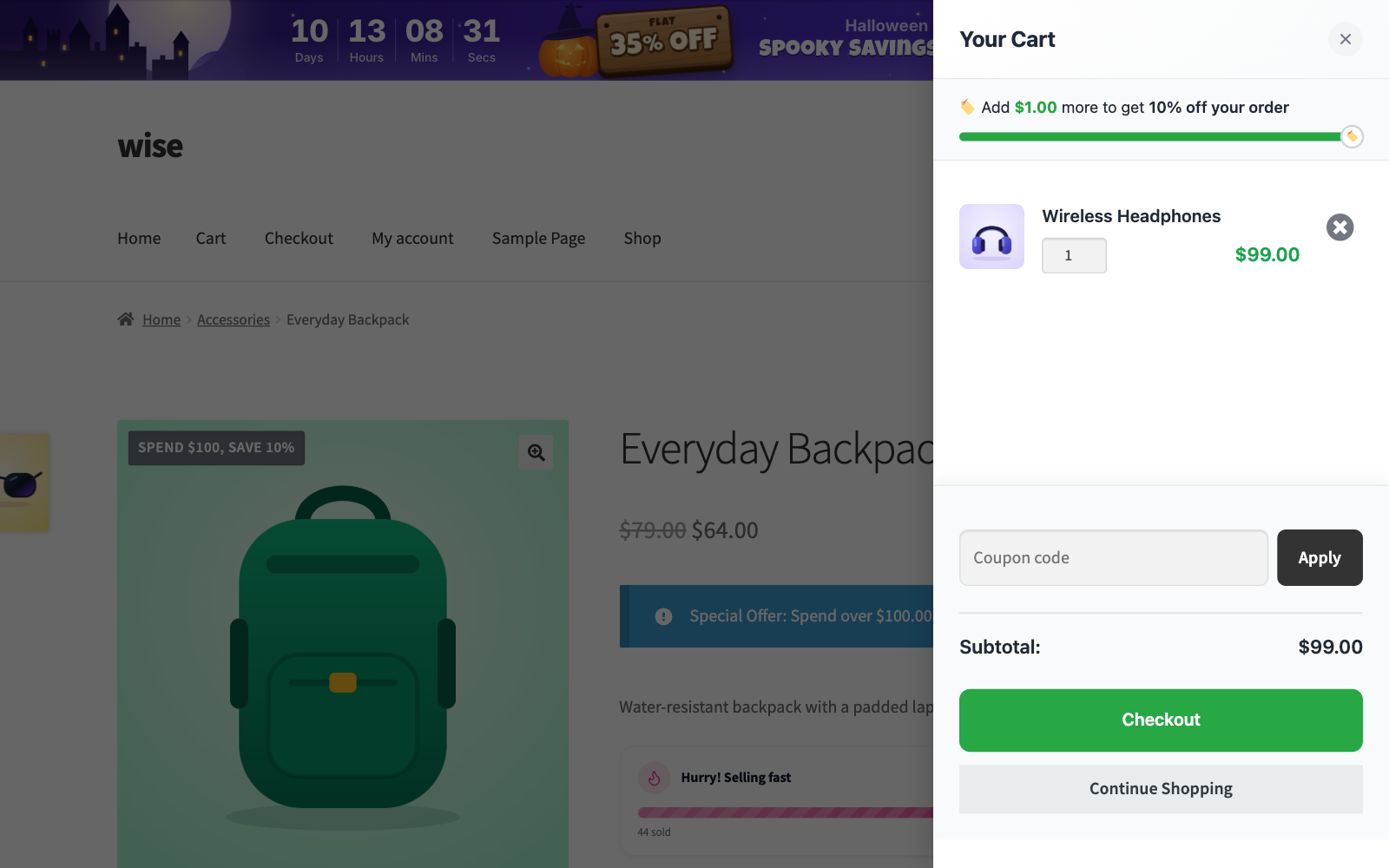
wiseCart replaces the WooCommerce cart page with a cart that slides out from the side of the screen. Shoppers see what is in their cart, how much more they need for the next reward, and what they are saving, all without leaving the page they are on.
Step 1: Open the wiseCart editor
Go to wiseCampaign → wiseCart. Settings are on the left; the preview on the right shows the Cart Button, the Cart Drawer, the Empty Cart and the Order Success message. Click the cart button or the backdrop in the preview to try it. Click Save Changes when you are done.
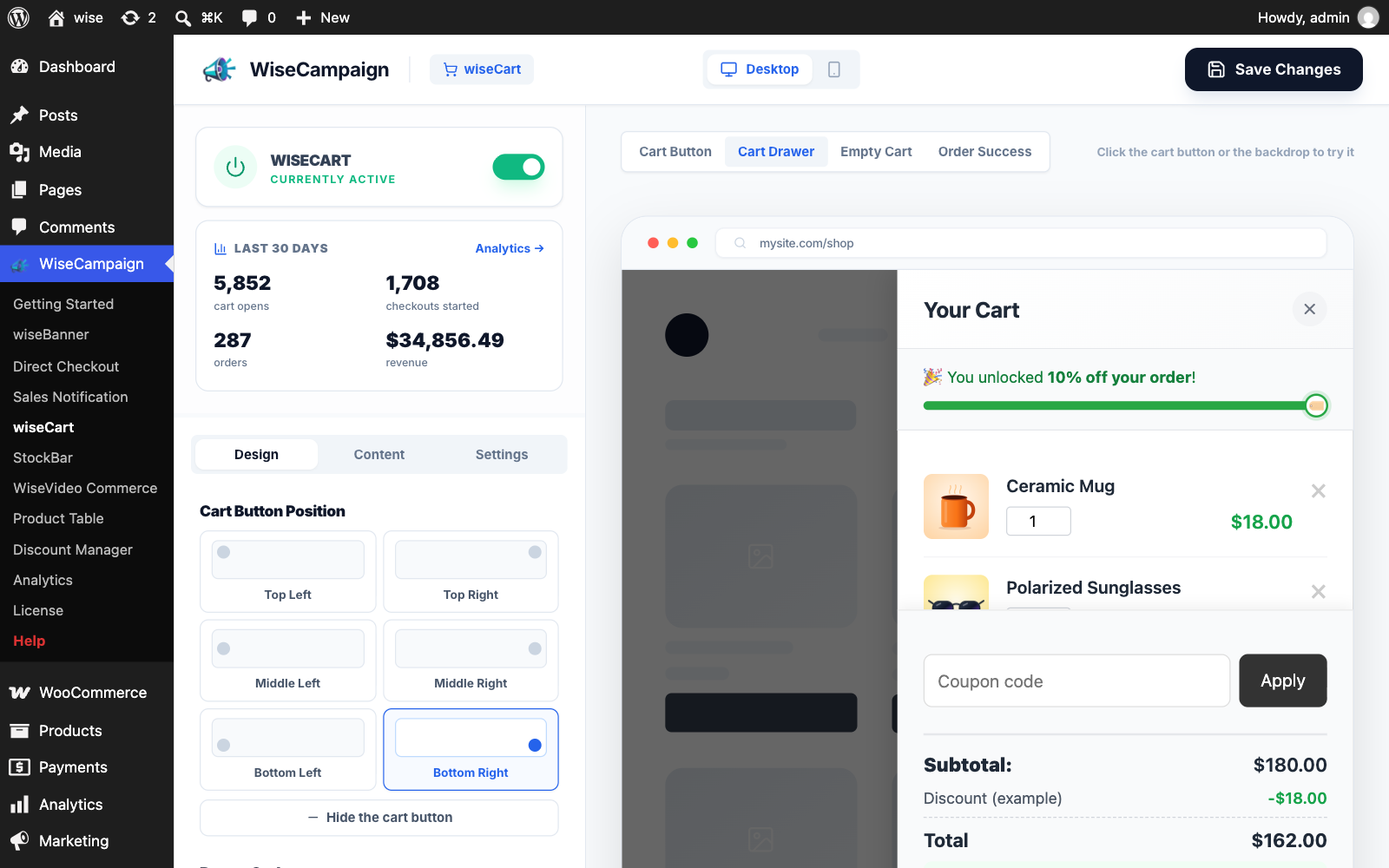
Use the wiseCart switch at the top to turn it on or off. The Last 30 days card shows cart opens, checkouts started and, with Pro, the orders and revenue from shoppers who checked out from the cart.
Step 2: Design the cart button and drawer
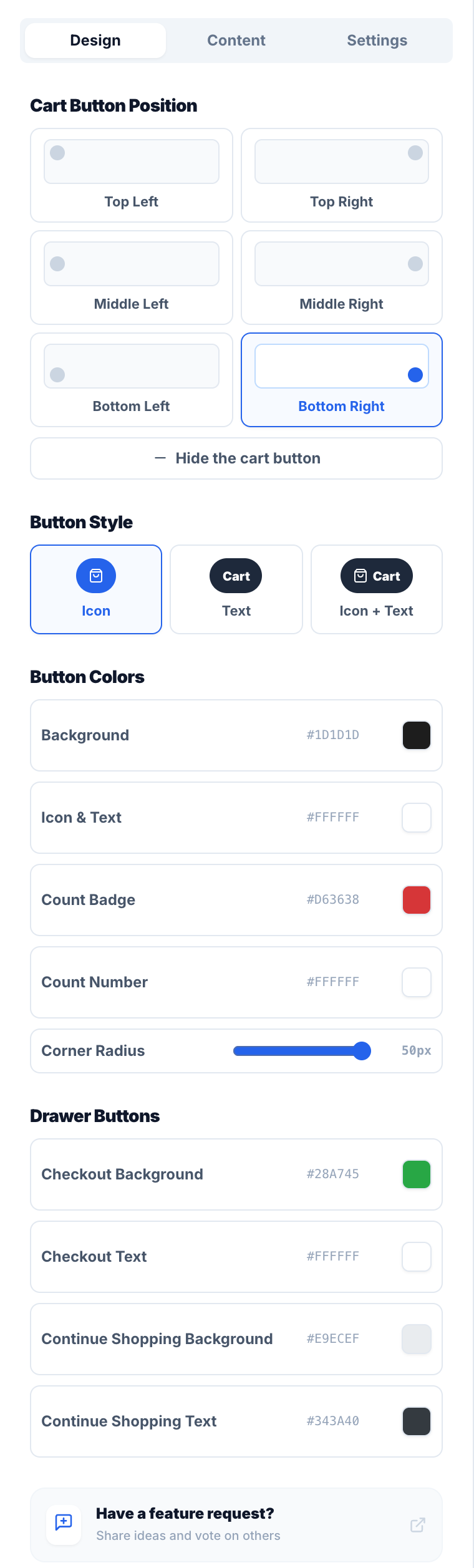
- Cart Button Position: top left, top right, middle left, middle right, bottom left or bottom right, or Hide the cart button if your theme already has one.
- Button Style: icon only, text only, or icon and text.
- Button Colors: background, icon and text, the item count badge and number, and the corner radius.
- Drawer Buttons: the colors of the Checkout and Continue Shopping buttons.
Step 3: Choose what the cart shows on the Content tab
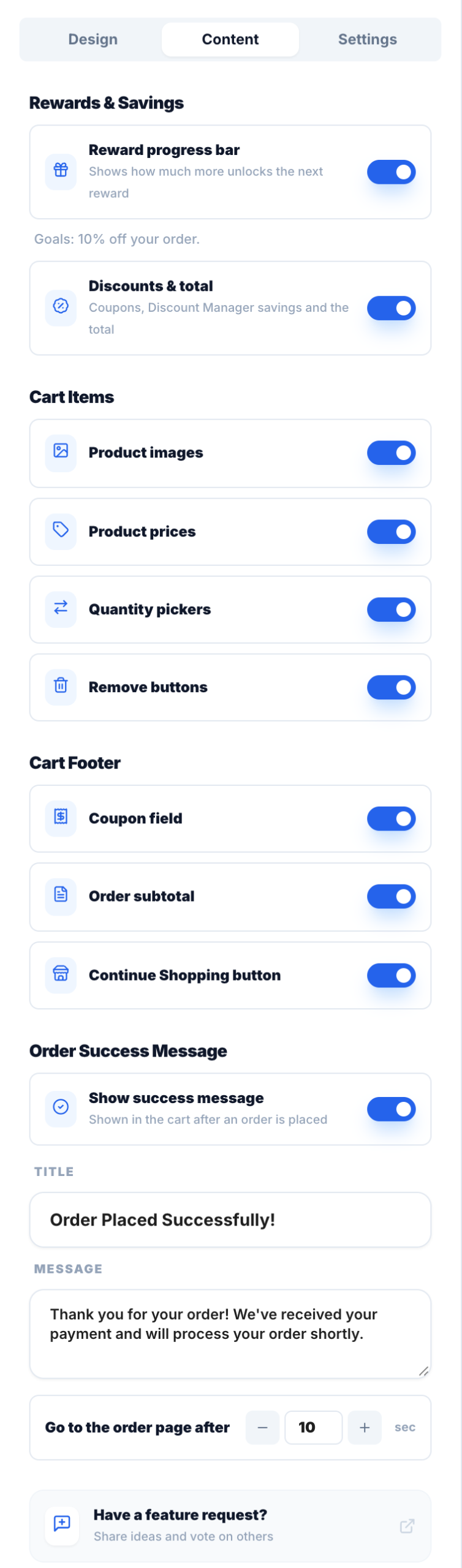
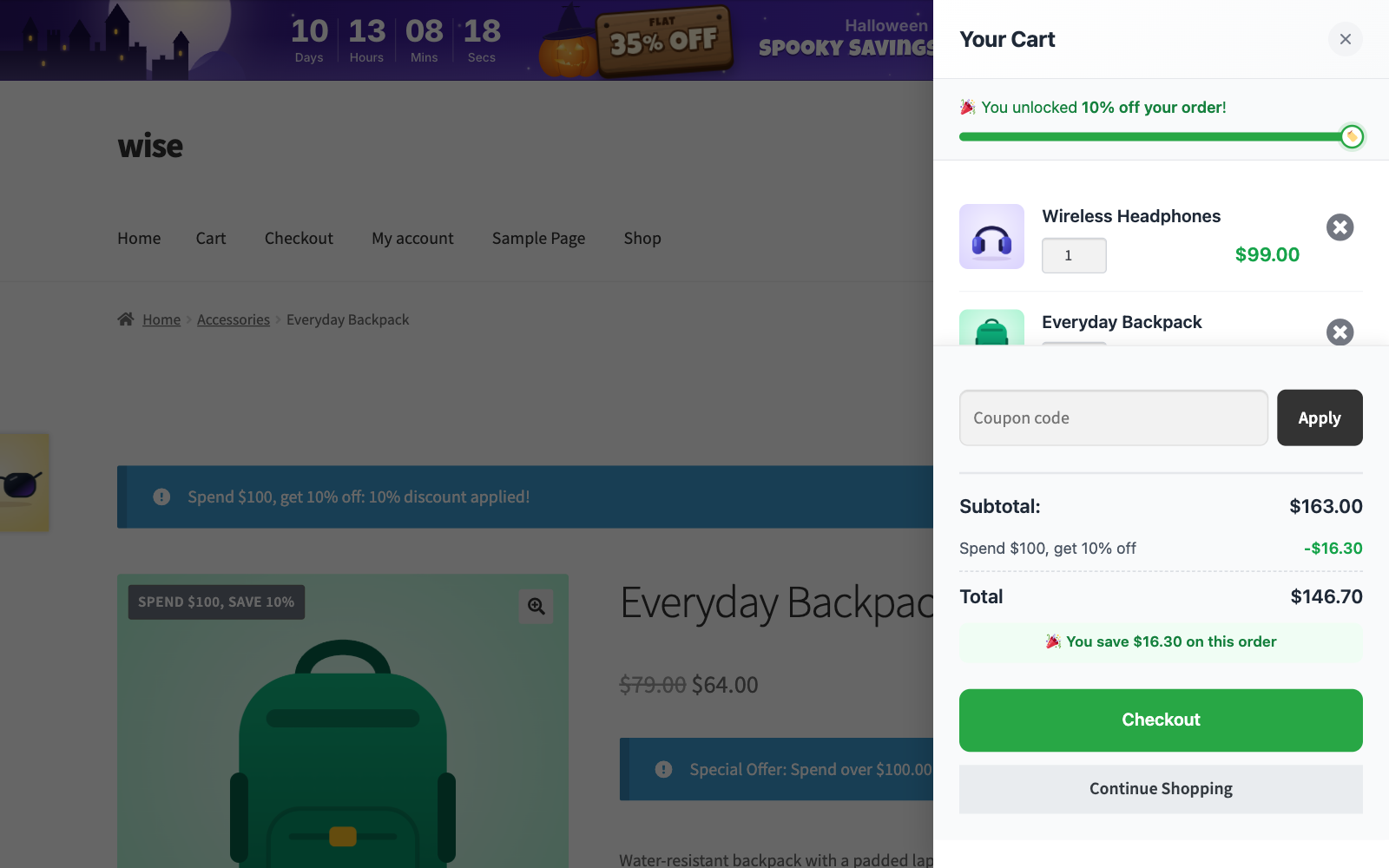
- Reward progress bar: shows how much more the shopper needs to spend to unlock the next reward. Goals come from the minimum amount of your WooCommerce Free shipping method and from Total Spend discounts in Discount Manager (Pro).
- Discounts & total: shows coupons, Discount Manager savings and the order total, with a “You save” line.
- Cart Items: product images, prices, quantity pickers and remove buttons.
- Cart Footer: the coupon field, the order subtotal and the Continue Shopping button.
- Order Success Message: the title and message shown in the cart after an order is placed there, and how many seconds before the shopper is taken to the order page.
Step 4: Choose how the cart behaves on the Settings tab
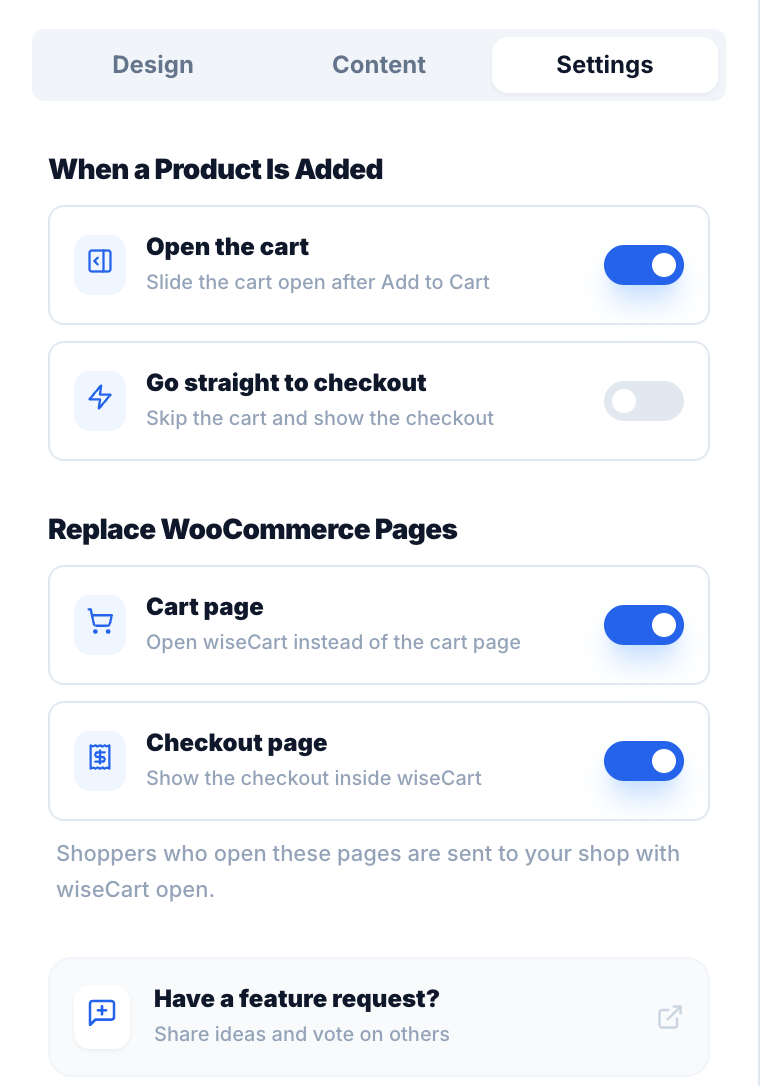
- Open the cart: slides the cart open after a product is added.
- Go straight to checkout: skips the cart and shows the checkout after a product is added.
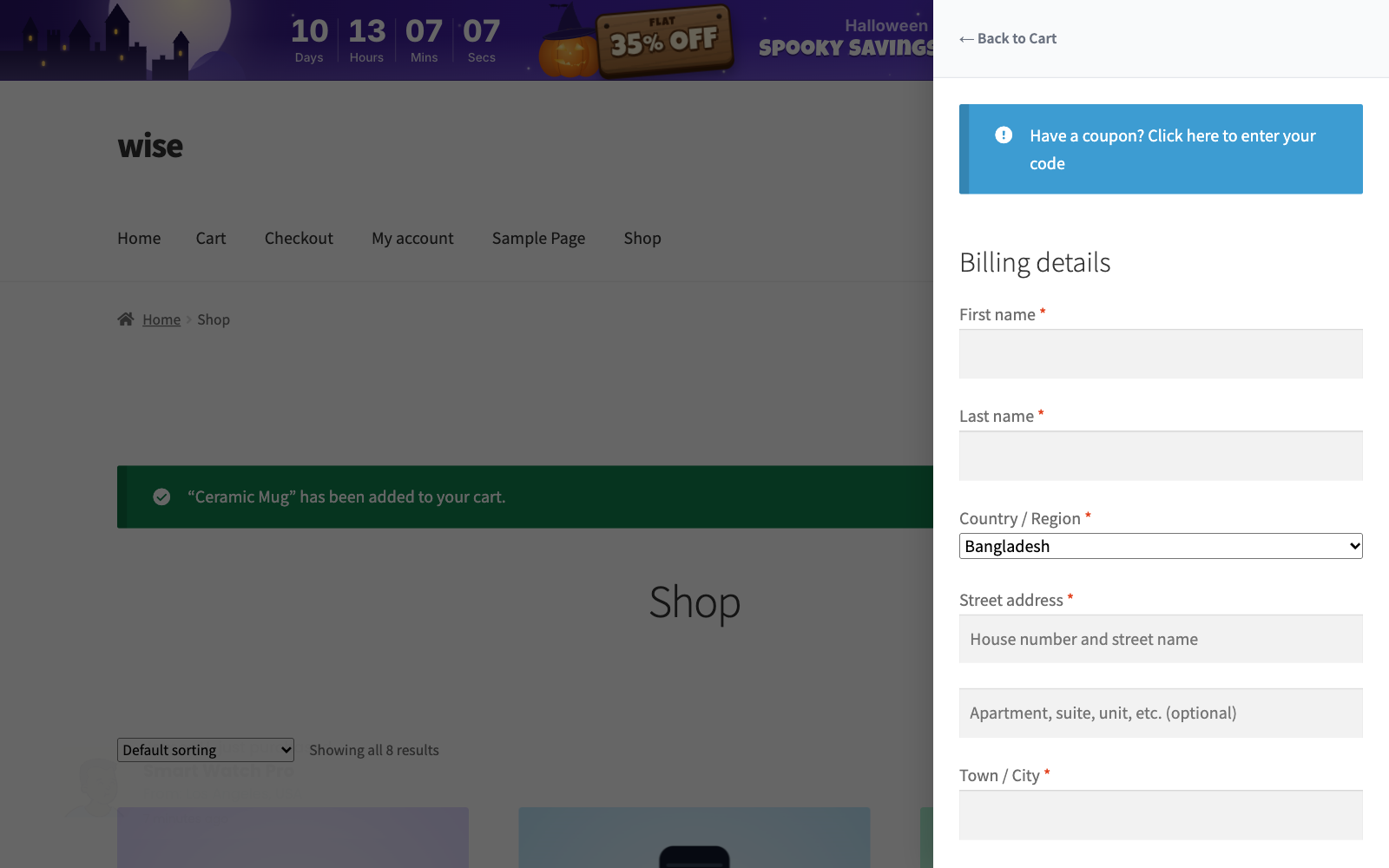
- Replace WooCommerce Pages: with Cart page on, shoppers who visit the cart page get wiseCart instead; with Checkout page on, the checkout form is shown inside wiseCart. Shoppers who open these pages are sent to your shop with wiseCart open.
Note: With Checkout page replaced, the Direct Checkout Buy Now button and every checkout link open wiseCart straight on its checkout form.
Step 5: Save
Click Save Changes. wiseCart now opens from the cart button on every page.
wiseCart with Discount Manager (Pro)
When you run discounts with the Discount Manager, wiseCart shows them as they happen: the progress bar counts toward a Spend $X reward, each discount appears as its own line, and the shopper sees how much they save on the order.
Best practices
- Turn on Open the cart so shoppers see their cart, and their next reward, every time they add a product.
- Set a Free shipping minimum or a Total Spend discount: the progress bar is one of the best ways to raise the average order value.
- Use clear, contrasting colors for the Checkout button.