
The exit-intent popup shows a last-chance offer when a visitor is about to leave your store.
It runs alongside your wiseBanner bar. You design it in the same editor, with its own template, text and settings.
The exit-intent popup is free with the Basic templates. Features marked PRO need an active wiseCampaign Pro license.
Watch the video
Jump to: What is exit intent · Pick a template · Settings · Go live
How it works
- Desktop: the popup opens when the cursor leaves the page towards the browser tabs, the address bar or the close button. It waits until the visitor has been on the page for at least 3 seconds.
- Phones and tablets: the popup opens when a visitor who scrolled down swipes back up quickly. You can choose a delay instead.
- Once per visit: a visitor sees the popup at most once per visit. You choose when it can show again.
- Never on checkout: the popup never opens on the WooCommerce checkout page, so it can’t get in the way of a payment.
Free vs Pro
- FREE show the popup on your store with the 5 Basic templates, with its text, coupon code, countdown, button and all behavior settings.
- PRO Flash Sale and seasonal templates, background effects, button animations, specific display pages and hiding the “Made with wiseCampaign” branding.
Open the popup editor
- Go to WordPress Dashboard → WiseCampaign → wiseBanner.
- At the top of the sidebar, click Exit Popup (next to Banner).
The preview shows your popup over a sample page, with your live banner behind it. Until the popup is on, the preview says Preview only: the popup is off.
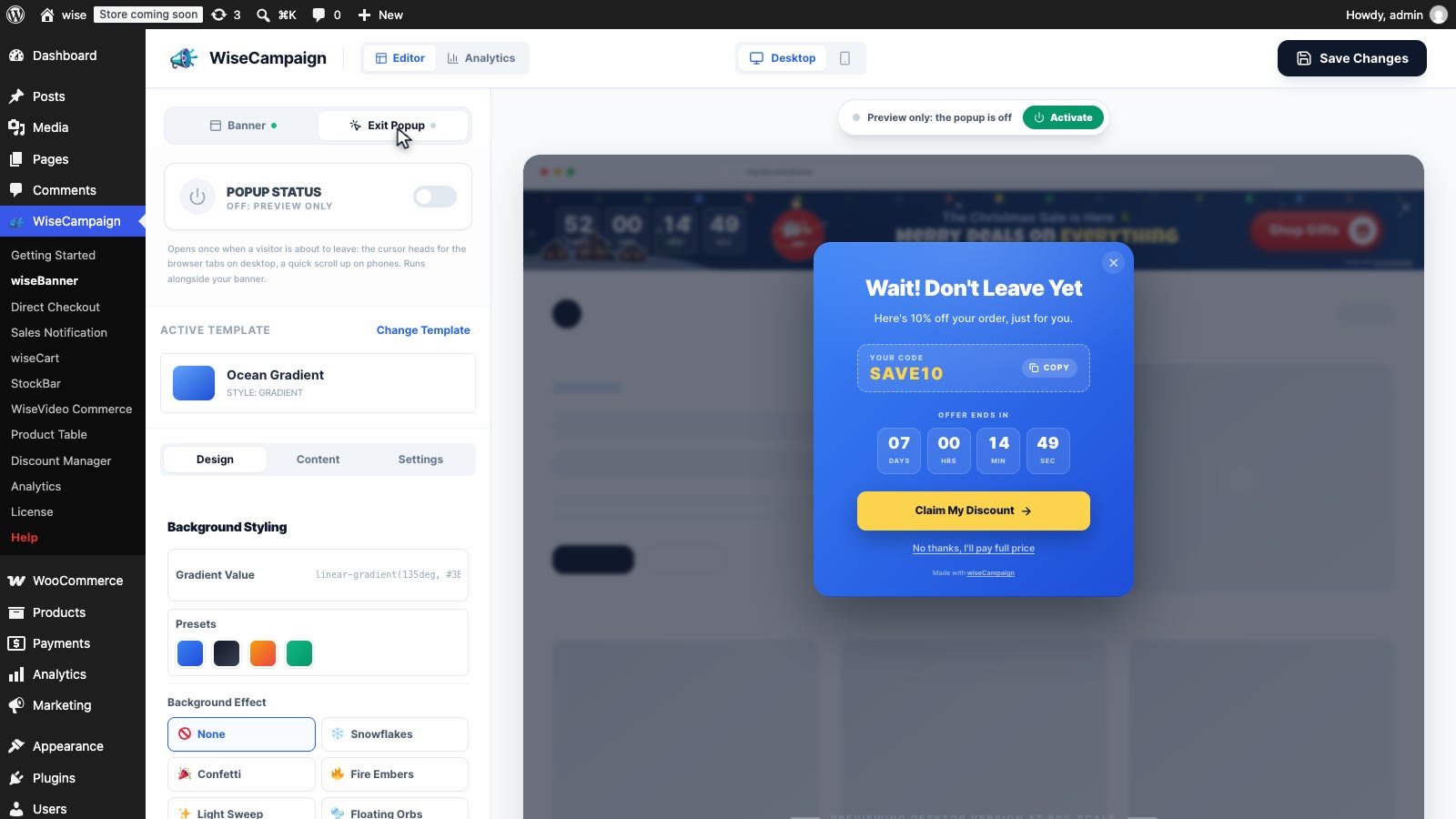
Step 1: Choose a template
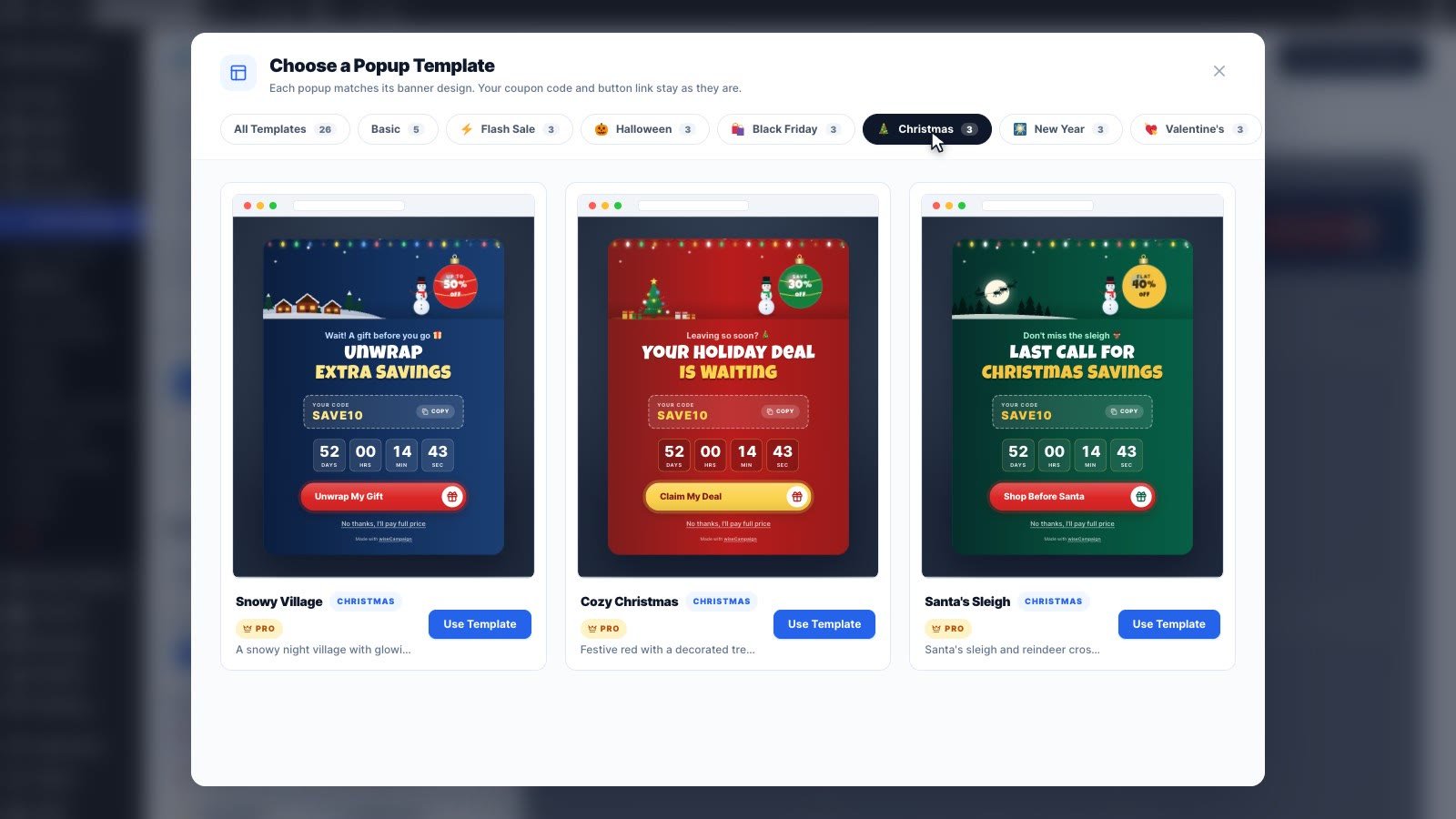
- Click Change Template.
- Pick a category: Basic, Flash Sale, Halloween, Black Friday, Christmas, New Year, Valentine’s or Eid.
- Click Use Template on the design you like. Basic templates are free. Flash Sale and seasonal templates are PRO.
Every banner template has a matching popup, so your popup can look like your banner. Switching templates changes the design and the popup text. Your coupon code and button link stay as they are.
Step 2: Add your offer (Content tab)
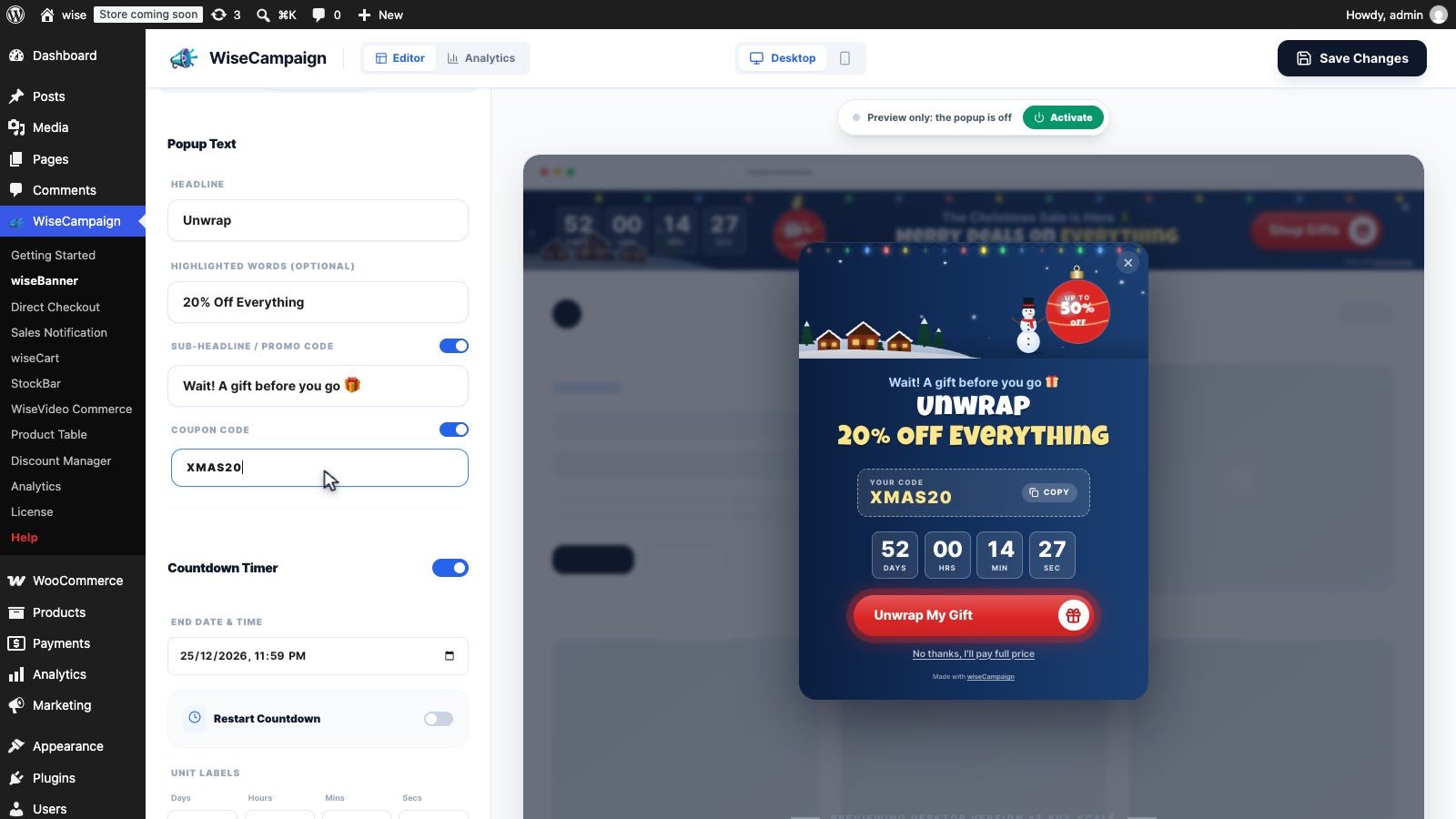
Popup Text
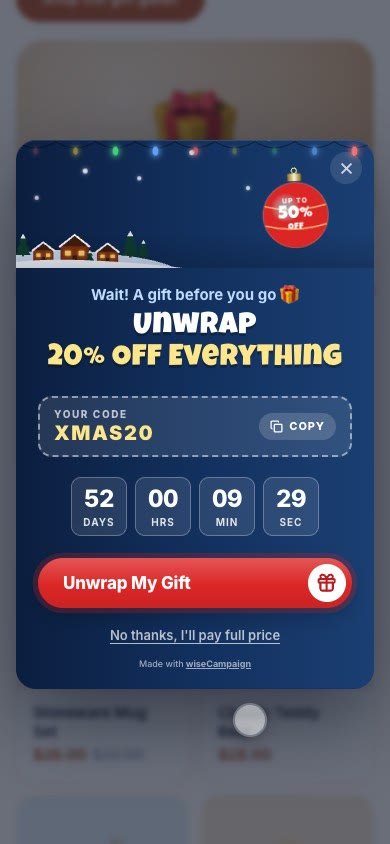
- Headline: the main line, for example “Wait! Don’t Leave Yet”.
- Highlighted Words (Optional): shown on their own line in the highlight color, for example “20% Off Everything”.
- Sub-headline: a short supporting line. Turn it off with its toggle.
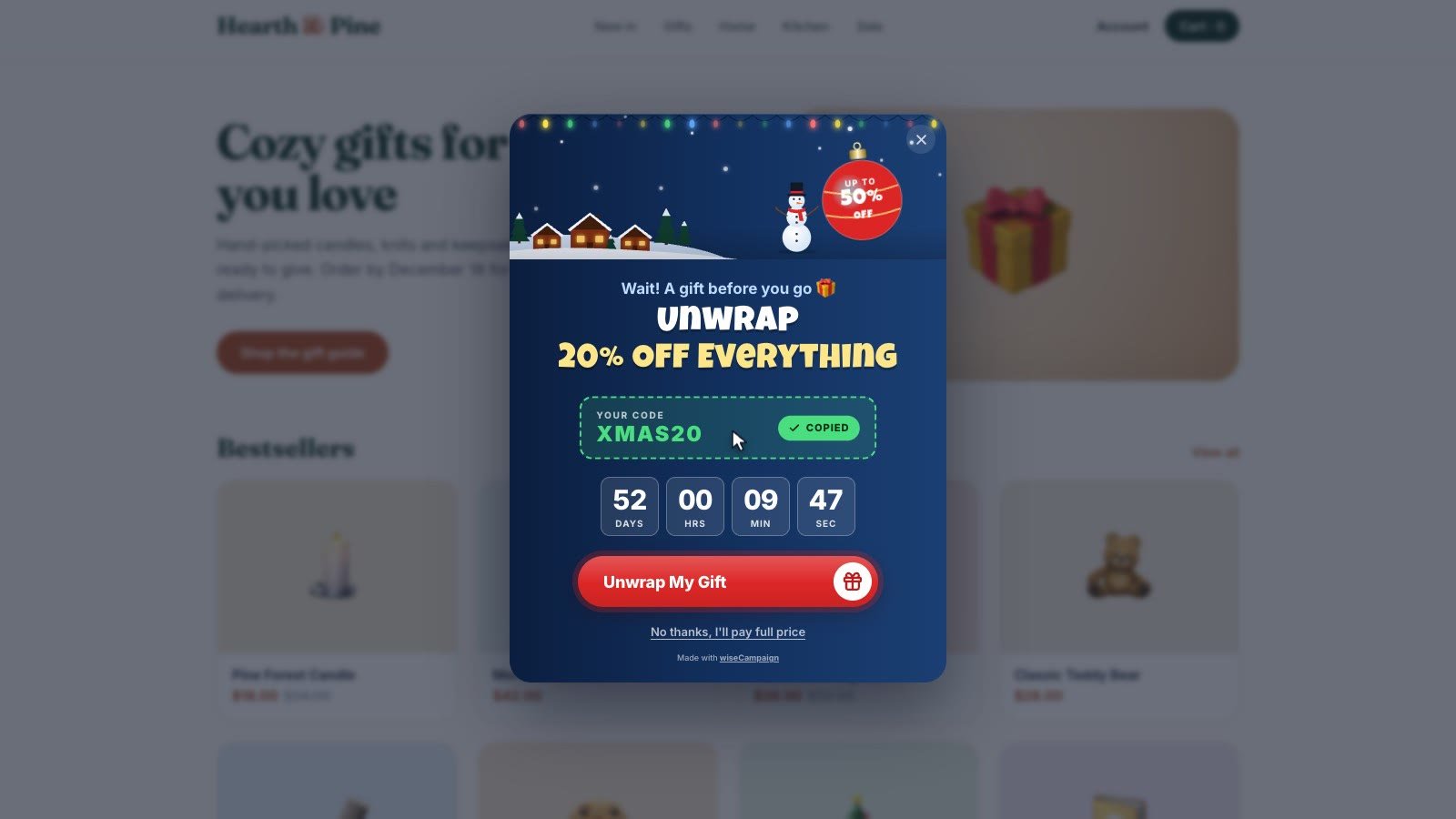
- Coupon code: shown as a ticket. Visitors click it to copy the code. Create the same code in WooCommerce → Marketing → Coupons.
Countdown Timer
- End Date & Time: when the offer ends.
- Restart Countdown: starts the countdown again after it ends. Useful for ongoing offers.
- Label Text and Unit Labels: the words shown with the timer.
If the countdown has ended and Restart Countdown is off, the popup still shows, without the timer.
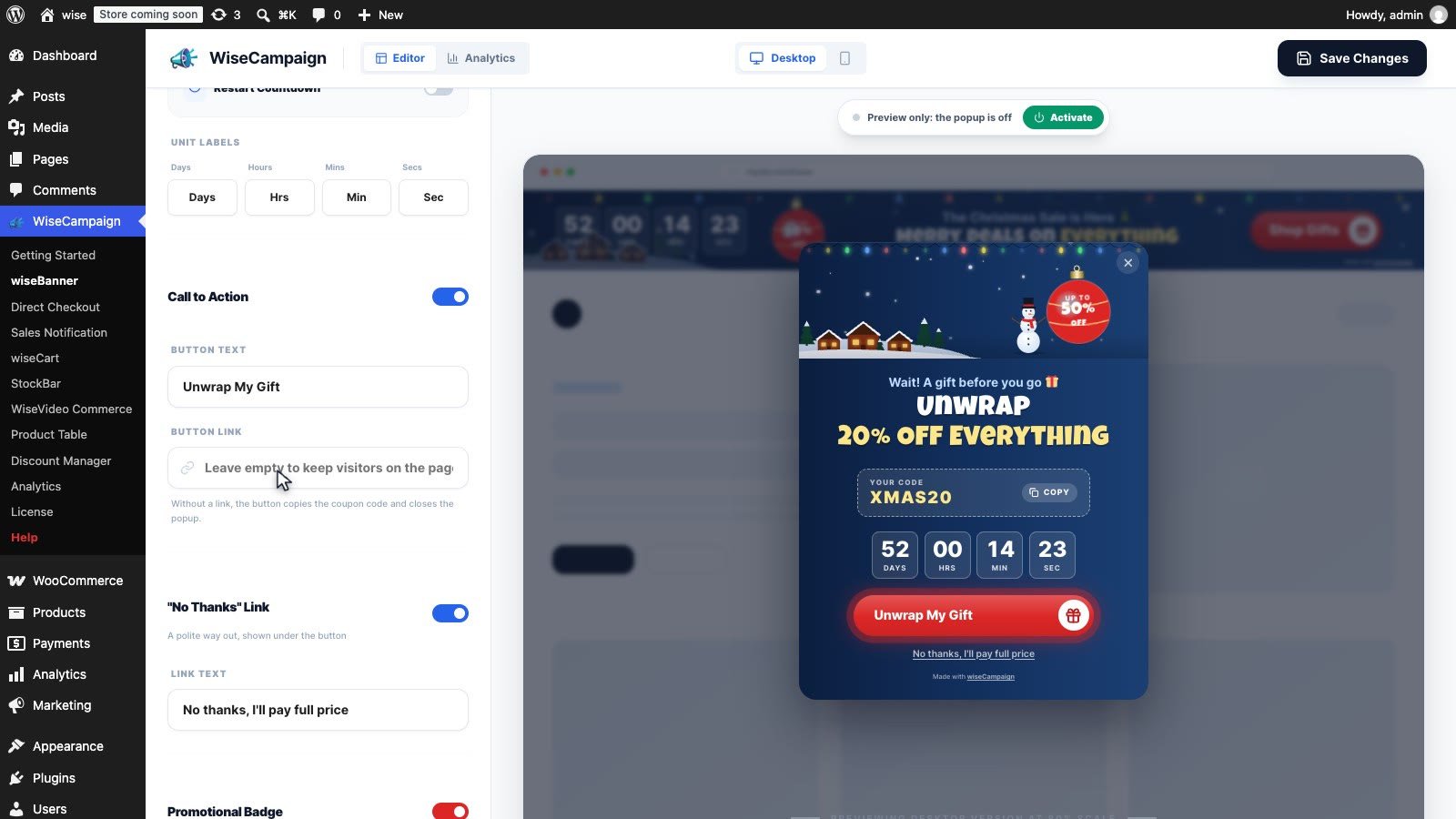
Call to Action
- Button Text: for example “Claim My Discount”.
- Button Link: where the button goes. Leave it empty and the button copies the coupon code and closes the popup, so the visitor keeps shopping.
“No Thanks” Link
A small link under the button that closes the popup. Change its Link Text or turn it off with its toggle.
Promotional Badge and Popup Background
These work like the banner’s: show a badge with your own text or image, and choose a gradient, solid color or image background.
Step 3: Style your popup (Design tab)
The Design tab has the same options as the banner: background styling, background effect PRO, typography, and timer, button and badge styling. Seasonal templates also let you pick a scene.
Use the Desktop and Mobile switch at the top to check both versions.
Step 4: Choose where and when it shows (Settings tab)
Display Locations
- All Pages: show the popup across your site.
- PRO Specific Pages: choose the home page or single pages.
These settings are separate from the banner’s, so the banner and the popup can show on different pages.
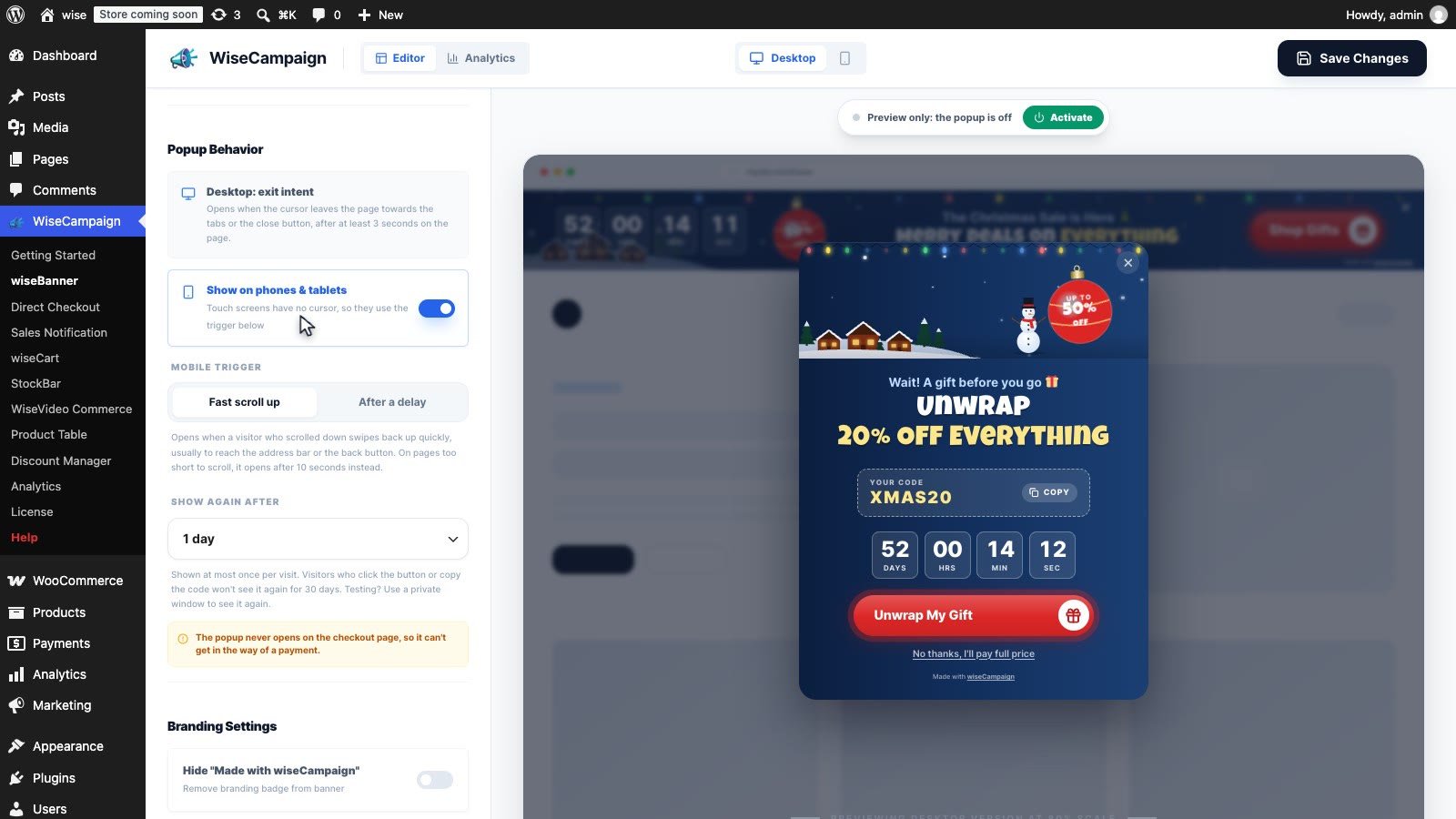
Popup Behavior
- Desktop: exit intent: always on for desktop visitors.
- Show on phones & tablets: turn it off to show the popup on desktop only.
- Mobile Trigger: Fast scroll up (default) or After a delay (3 to 120 seconds). On pages too short to scroll, Fast scroll up opens the popup after the delay instead (10 seconds by default).
- Show Again After: Next visit, 1 day, 3 days, 7 days or 30 days. Visitors who click the button or copy the code won’t see the popup again for 30 days.
Branding Settings
- PRO Hide “Made with wiseCampaign”: removes the small branding line from the popup.
Step 5: Turn it on and save
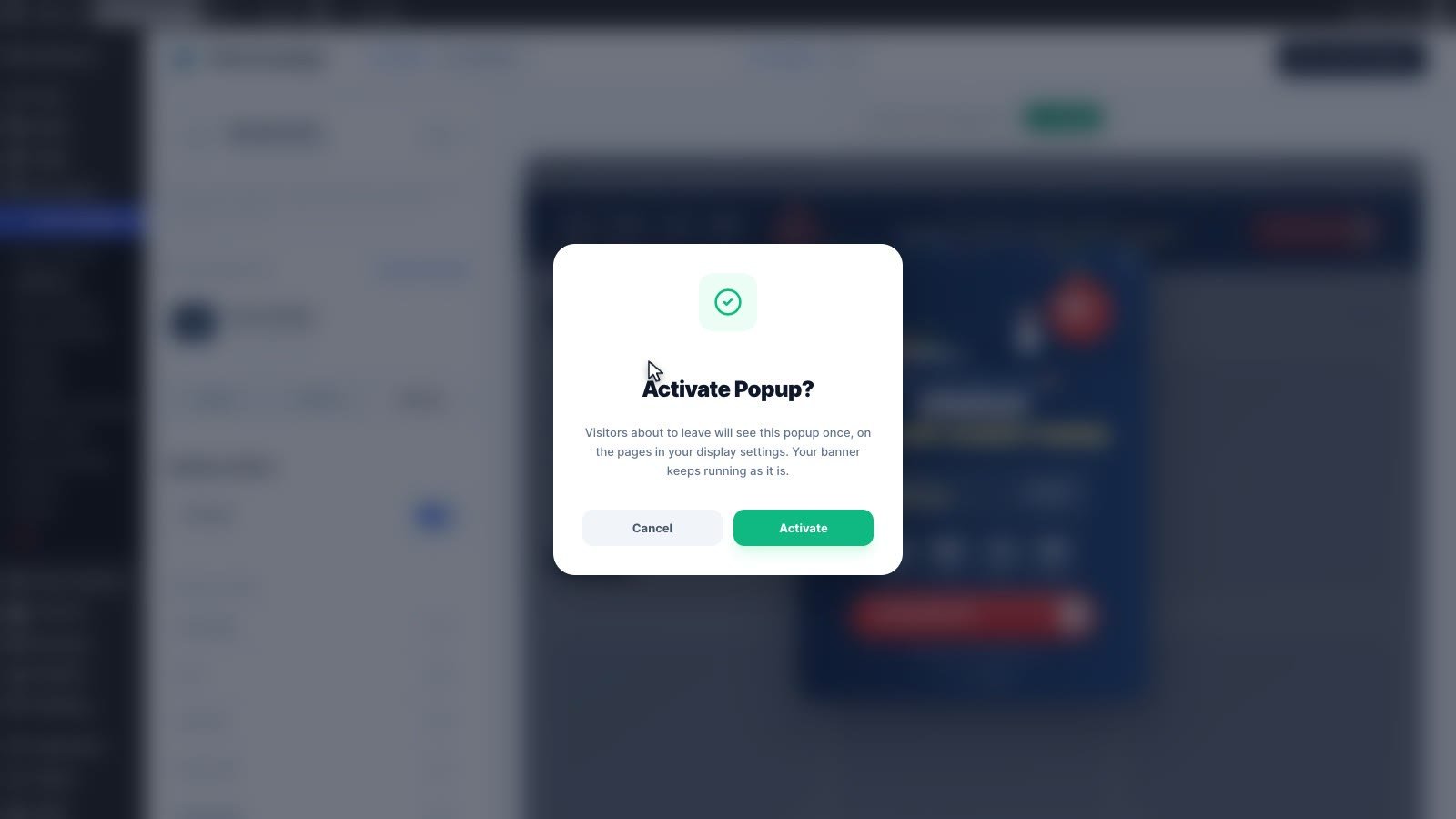
- Click Popup Status at the top of the sidebar.
- Click Activate to confirm. This saves the popup and turns it on.
- Click Save Changes to save any other edits.
Your banner keeps running as it is. To stop the popup, turn Popup Status off.
What visitors see
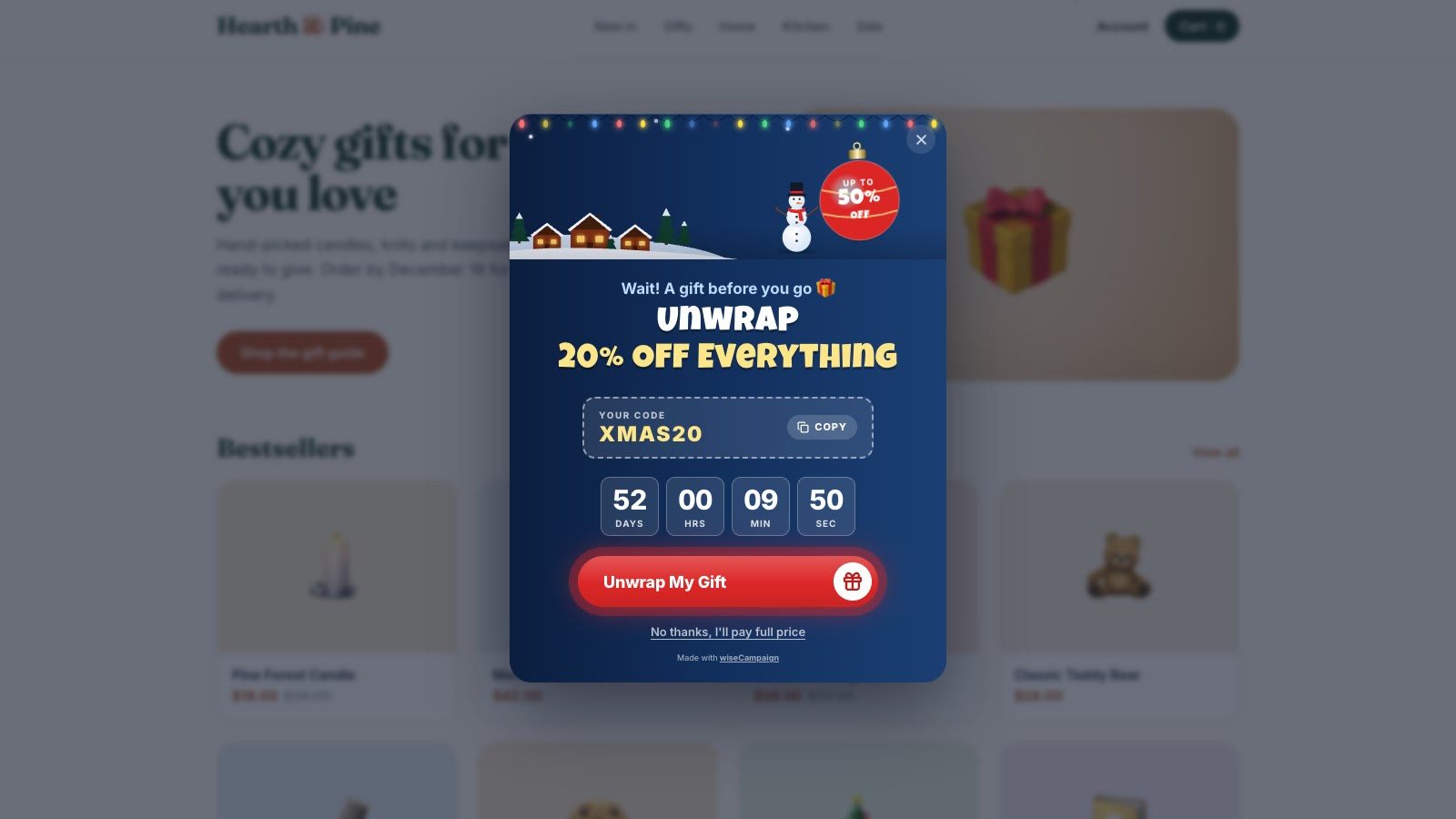
The popup opens once and dims the page behind it. Visitors close it with the close button, the “No thanks” link, the Esc key or a click outside the popup.
Popup Analytics
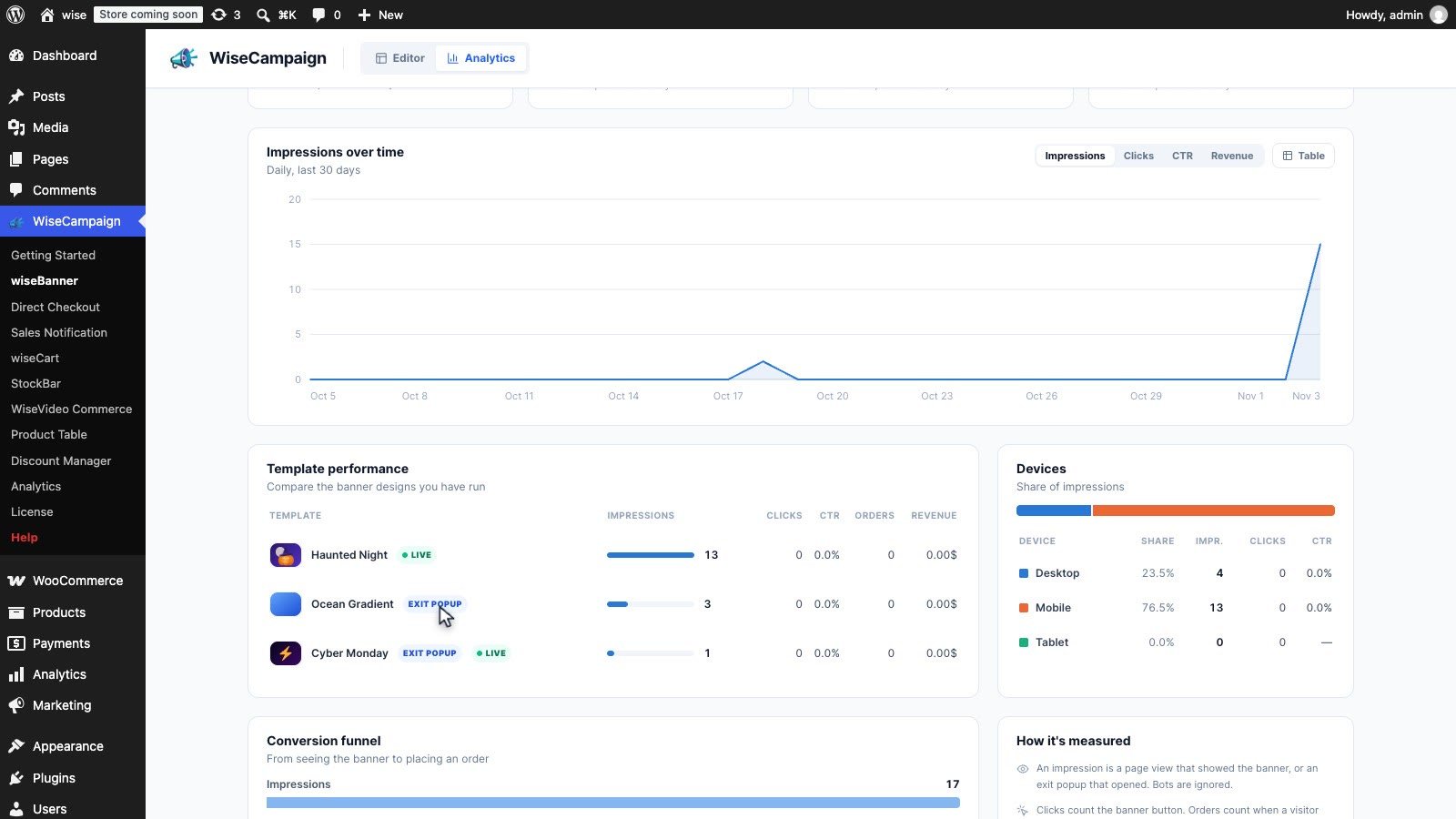
- Click Analytics at the top of the wiseBanner editor.
- In Template performance, the popup has its own row marked EXIT POPUP, apart from the banner.
- An impression is counted when the popup opens, not when the page loads. Clicks, coupon copies and dismissals are counted too. Orders and revenue are tracked after a visitor clicks the popup button, as for the banner.
By default, visits by administrators aren’t counted. To test the popup like a visitor, open your store in a private window.
FAQ
Can I use the popup and the banner at the same time?
Yes. They are separate designs, each with its own template, status and display pages.
I saw the popup once and now it doesn’t show. Is something wrong?
No. Each visitor sees it at most once per visit, then not again until the Show Again After time has passed. To see it again while testing, open your store in a private window.
Why doesn’t the popup open on my phone?
Check that Show on phones & tablets is on and that the page is in your Display Locations. With Fast scroll up, scroll down the page first, then swipe back up quickly.
Does the popup show on the checkout page?
No. It never opens on the WooCommerce checkout page.
Do I need Pro?
No. The popup works in the free plugin with the Basic templates. Pro adds the Flash Sale and seasonal designs, background effects, button animations, specific pages and hiding the branding. See wiseCampaign Pro.