
Discount Manager lets you run automatic WooCommerce discounts without coupon codes: percentage or fixed discounts, spend-based rewards, buy-one-get-one, bundles, bulk pricing and next-order coupons. It is part of wiseCampaign Pro.
What you need
- WooCommerce
- wiseCampaign (the free plugin)
- wiseCampaign Pro 2.0 or later, with an active license
Step 1: Install wiseCampaign Pro
Go to Plugins → Add New Plugin, click Upload Plugin, choose the wisecampaign-pro.zip file from your account and click Install Now, then Activate.
Step 2: Activate your license
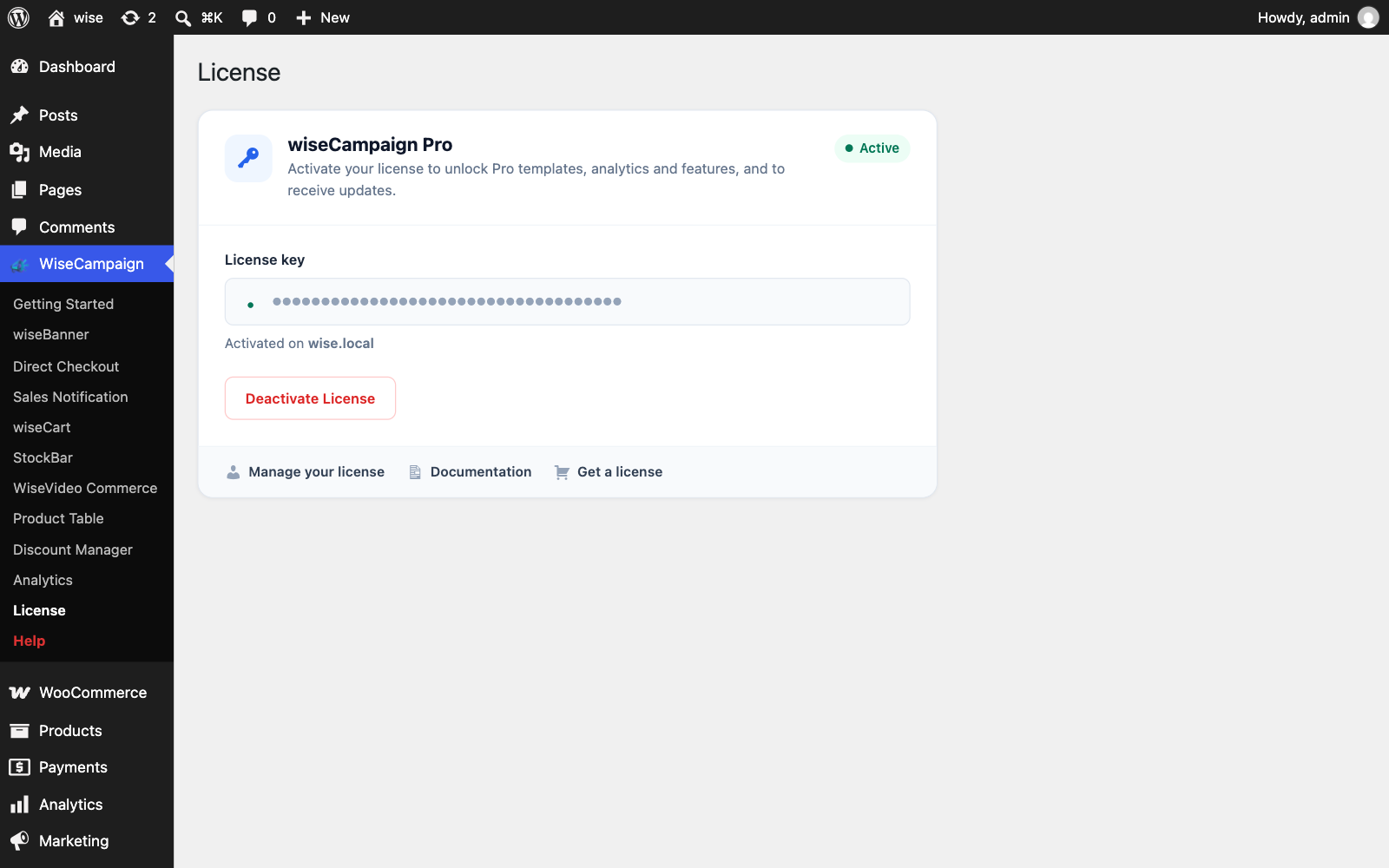
Go to wiseCampaign → License, paste the license key from your purchase email or account, and click Activate License. The status changes to Active.
Step 3: Make sure the module is on
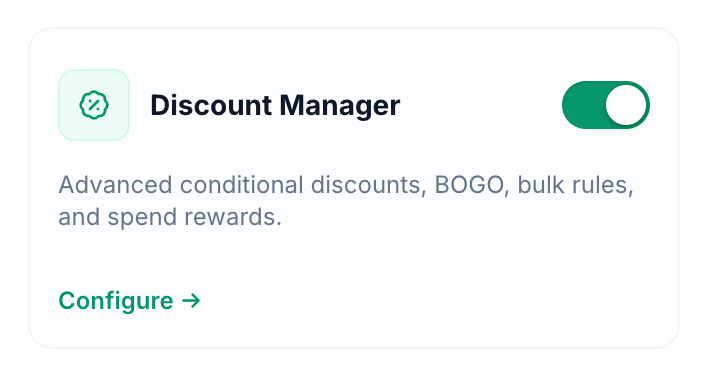
Discount Manager is on by default. You can check it, or turn it off later, under wiseCampaign → Getting Started. When it is off, its menu page is hidden and no discounts are applied.
Step 4: Open Discount Manager
Go to wiseCampaign → Discount Manager. Every discount you create is listed here with its name, type, the products it applies to and an Enabled switch.
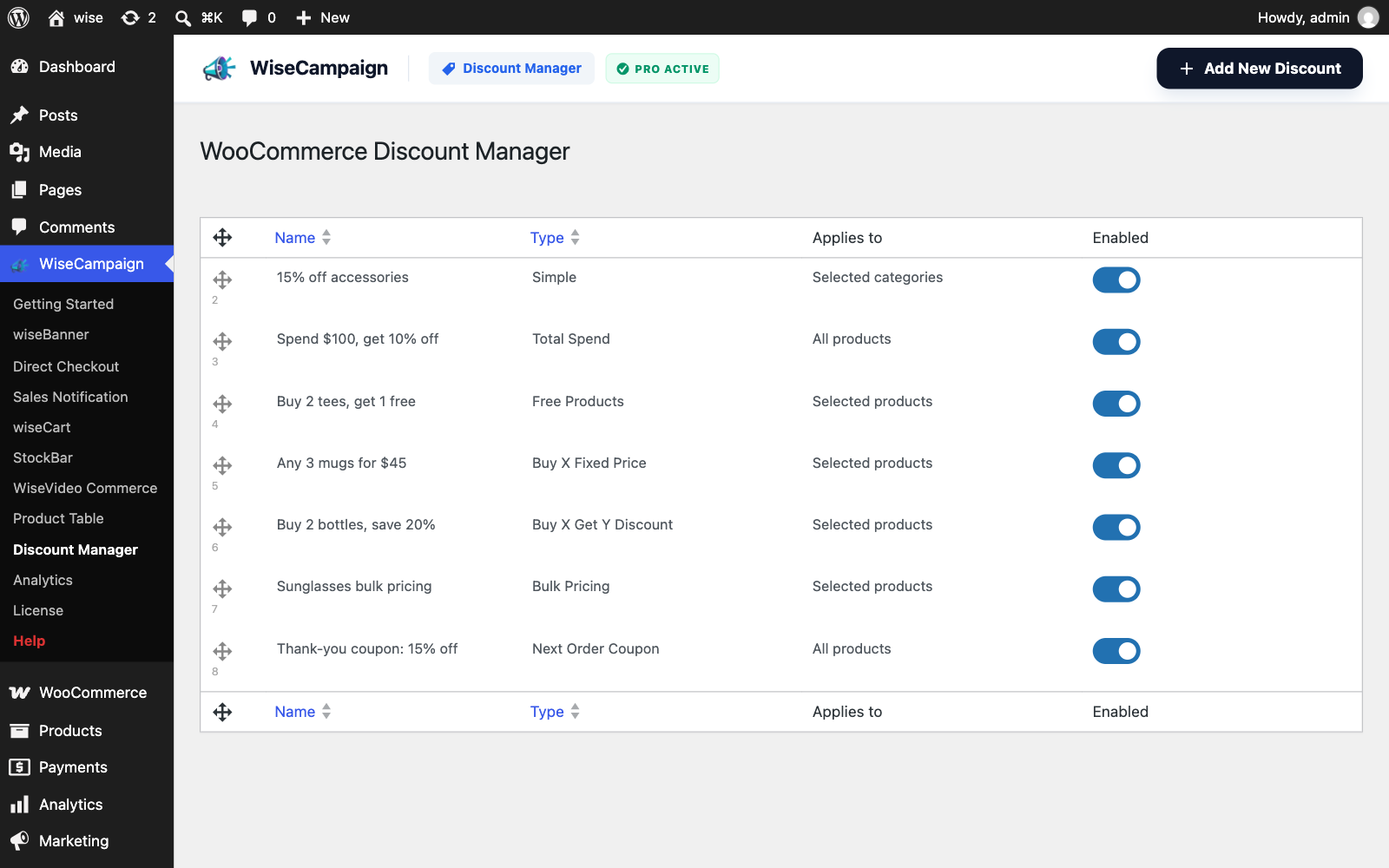
- Point at a discount’s name for Edit, Duplicate and Delete. Edit opens the discount right in the list.
- Use the switch to pause or resume a discount without deleting it.
- Drag the handle on the left to change the order. Discounts are applied in this order.
Create a discount
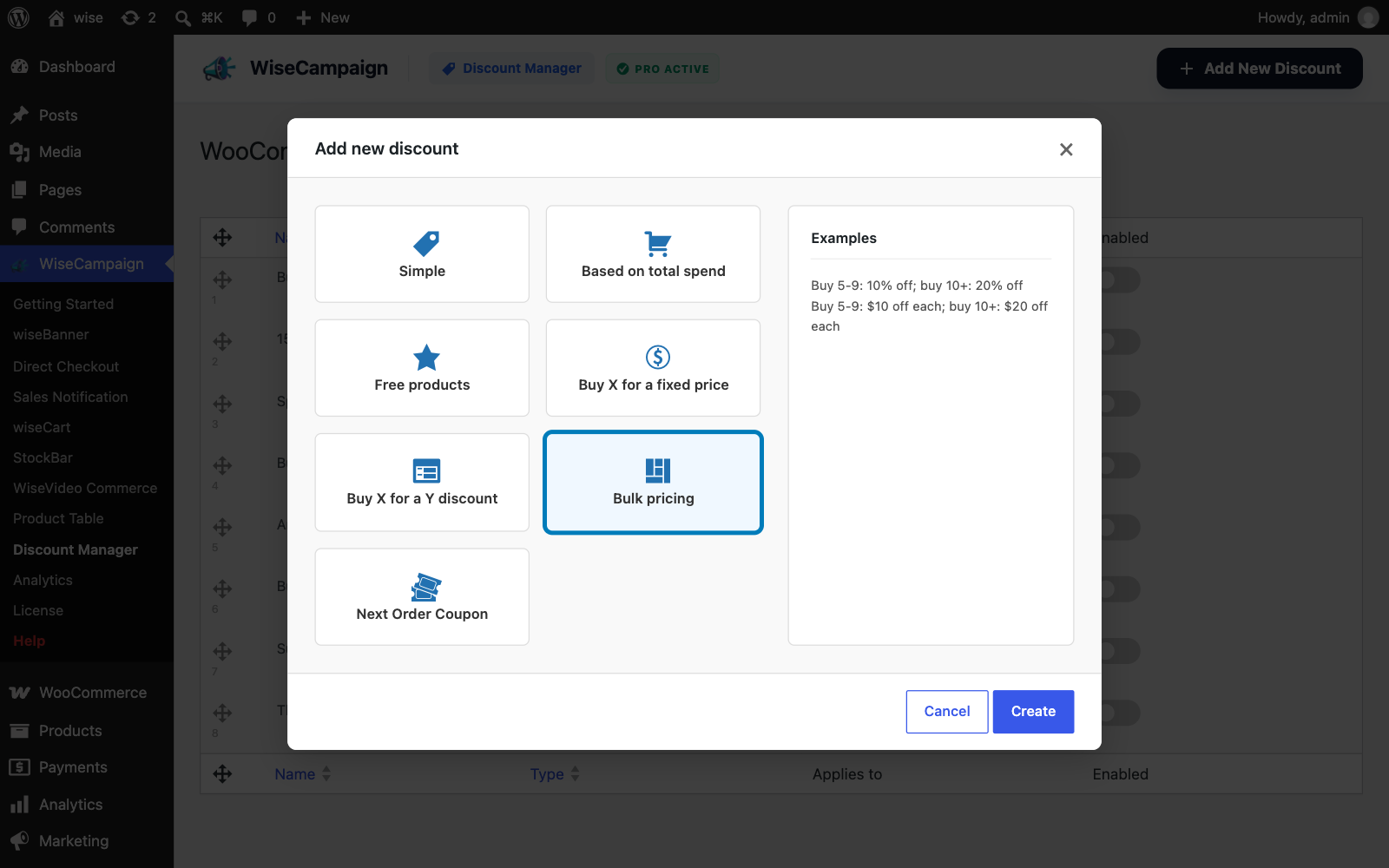
Click Add New Discount, choose a type and click Create. Selecting a type shows examples of what it can do.
| Discount type | What it does | Guide |
|---|---|---|
| Simple | A percentage or fixed discount on products | Simple Discount |
| Based on total spend | A discount once the cart reaches a set amount | Spend-Based Discount |
| Free products | Buy X, get Y free (BOGO) | Free Products Discount |
| Buy X for a fixed price | A bundle price, such as 3 for $45 | Buy X for a Fixed Price |
| Buy X for a Y discount | A discount when the shopper buys a set quantity | Buy X Get Y Discount |
| Bulk pricing | Tiered prices: buy more, pay less per item | Bulk Pricing |
| Next Order Coupon | A personal coupon for the customer’s next order | Next Order Coupon |
See how your discounts perform
Go to wiseCampaign → Analytics to see the orders, revenue and discount given for each Discount Manager rule, and compare them with your other orders.
Tip: Discounts show up in wiseCart as they apply, with a progress bar toward spend rewards and a “You save” line.