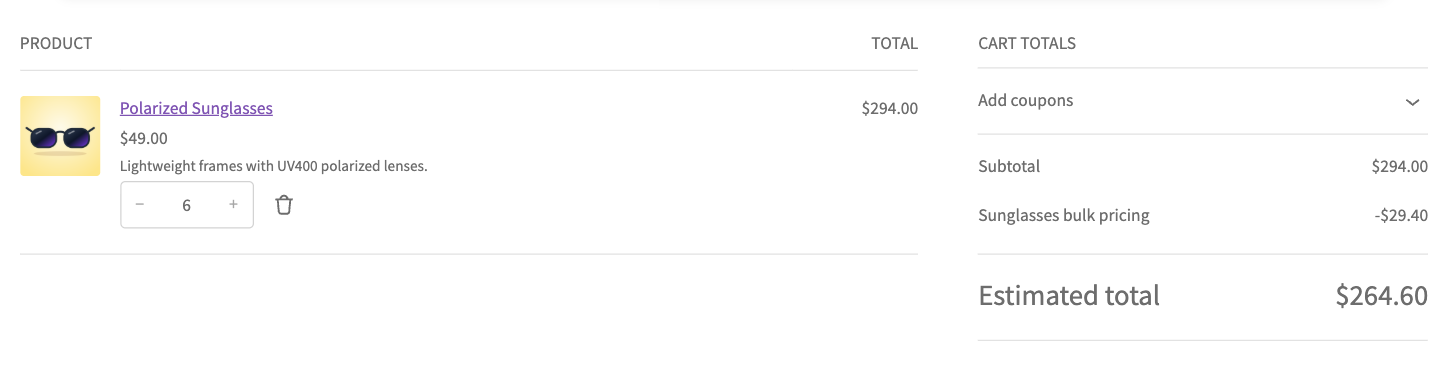
Bulk pricing gives a better price the more the shopper buys, in tiers: for example 5% off for 3 to 5 items, 10% off for 6 to 9, and 15% off for 10 or more. It is ideal for wholesale buyers and products bought in quantity.
Step 1: Create the discount
- Go to wiseCampaign → Discount Manager.
- Click Add New Discount in the top right corner.
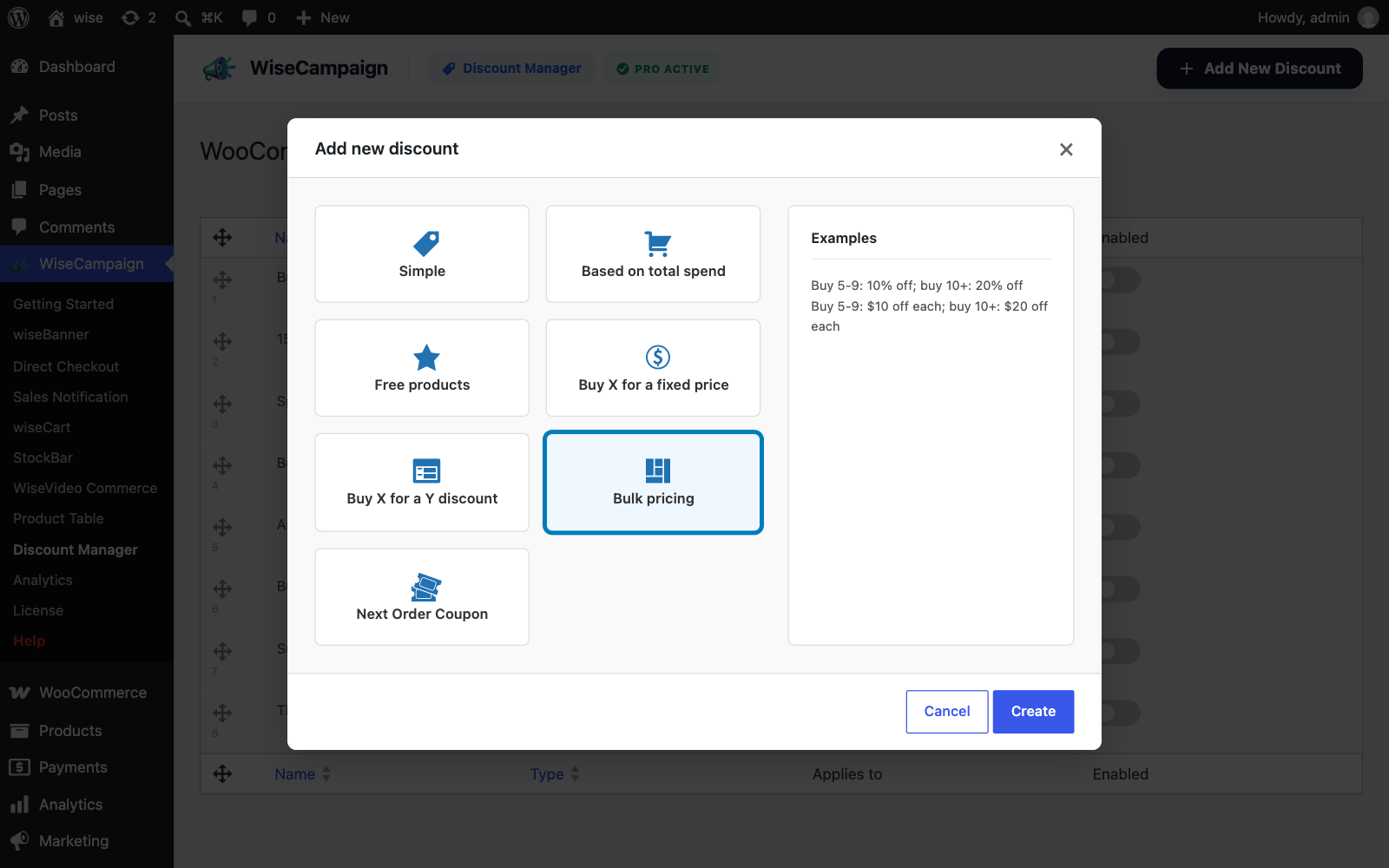
- In the Add new discount window, choose Bulk pricing. The right side shows examples of what this type can do.
- Click Create. The discount form opens.
Step 2: Set the pricing tiers
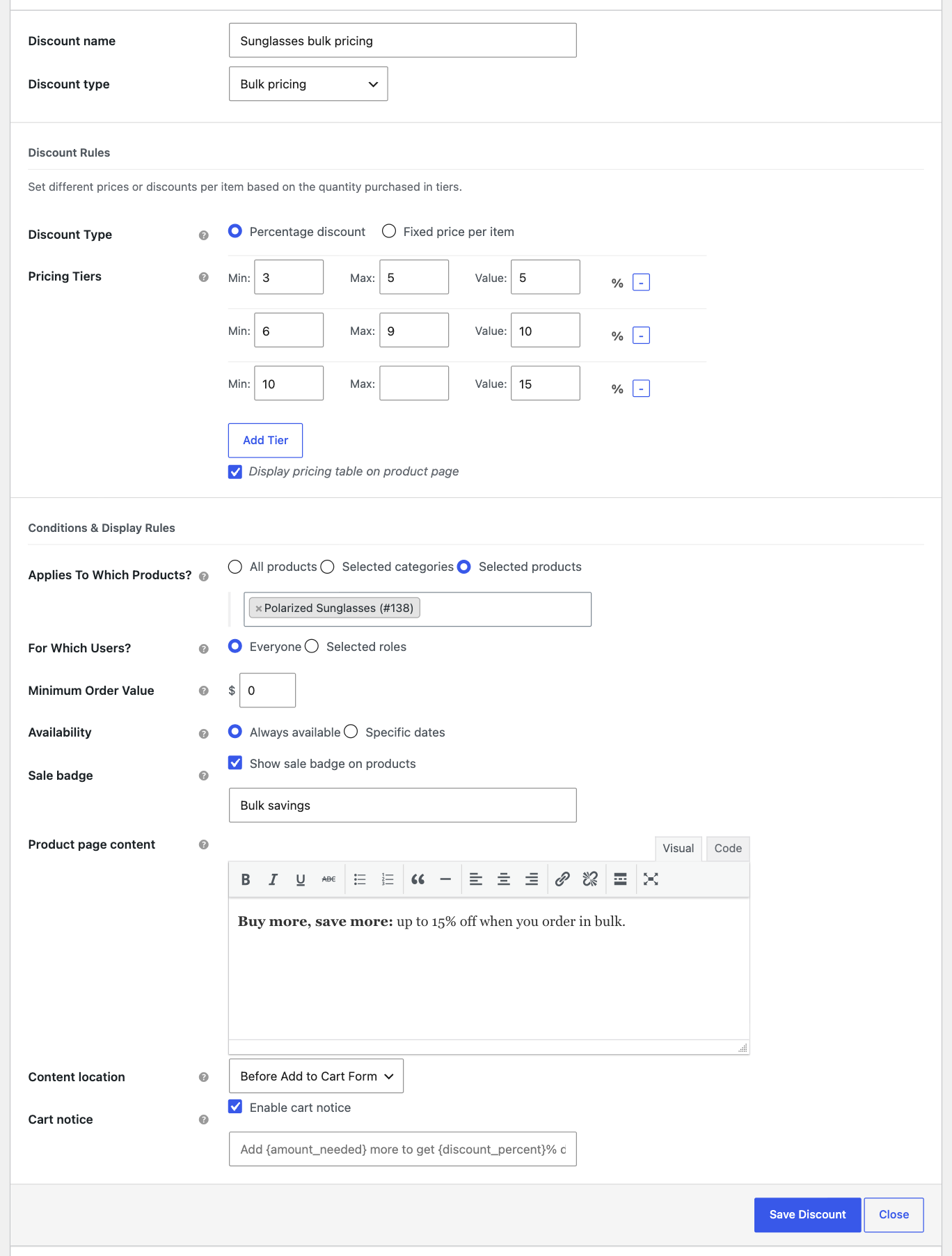
- Discount Type: Percentage discount or Fixed price per item.
- Pricing Tiers: for each tier, enter the Min and Max quantity and the Value. Leave Max empty on the last tier for “and up”. Click Add Tier for more tiers.
- Display pricing table on product page: shows the tiers to shoppers as a table.
Step 3: Choose where the discount applies and how it is shown
The Conditions & Display Rules section is the same for every discount type:
- Applies To Which Products? All products, selected categories, or selected products.
- For Which Users? Everyone, or only users with selected roles (for example Customer or Wholesale).
- Minimum Order Value: the cart total needed before the discount applies. Use 0 for no minimum.
- Availability: always available, or only between specific dates. With specific dates you can also show the promotion dates and a countdown timer on the product page.
- Sale badge: shows your badge text on product images in the shop and on the product page.
- Product page content: your own message (text, images, styling) shown on eligible product pages, with Content location to choose where it appears.
- Default Notice: tick Hide the default discount notice if you only want your own message, not the automatic “Special Offer” notice.
-
Cart notice: a notice in the cart and checkout. You can write your own text with the placeholders
{amount_needed},{discount_percent},{discount_amount},{discount_title}and{min_order_value}.
Step 4: Save the discount
Click Save Discount. The new rule appears in the Discount Manager list and starts working right away. Use the switch in the Enabled column to pause or resume it at any time.
How it looks in your store
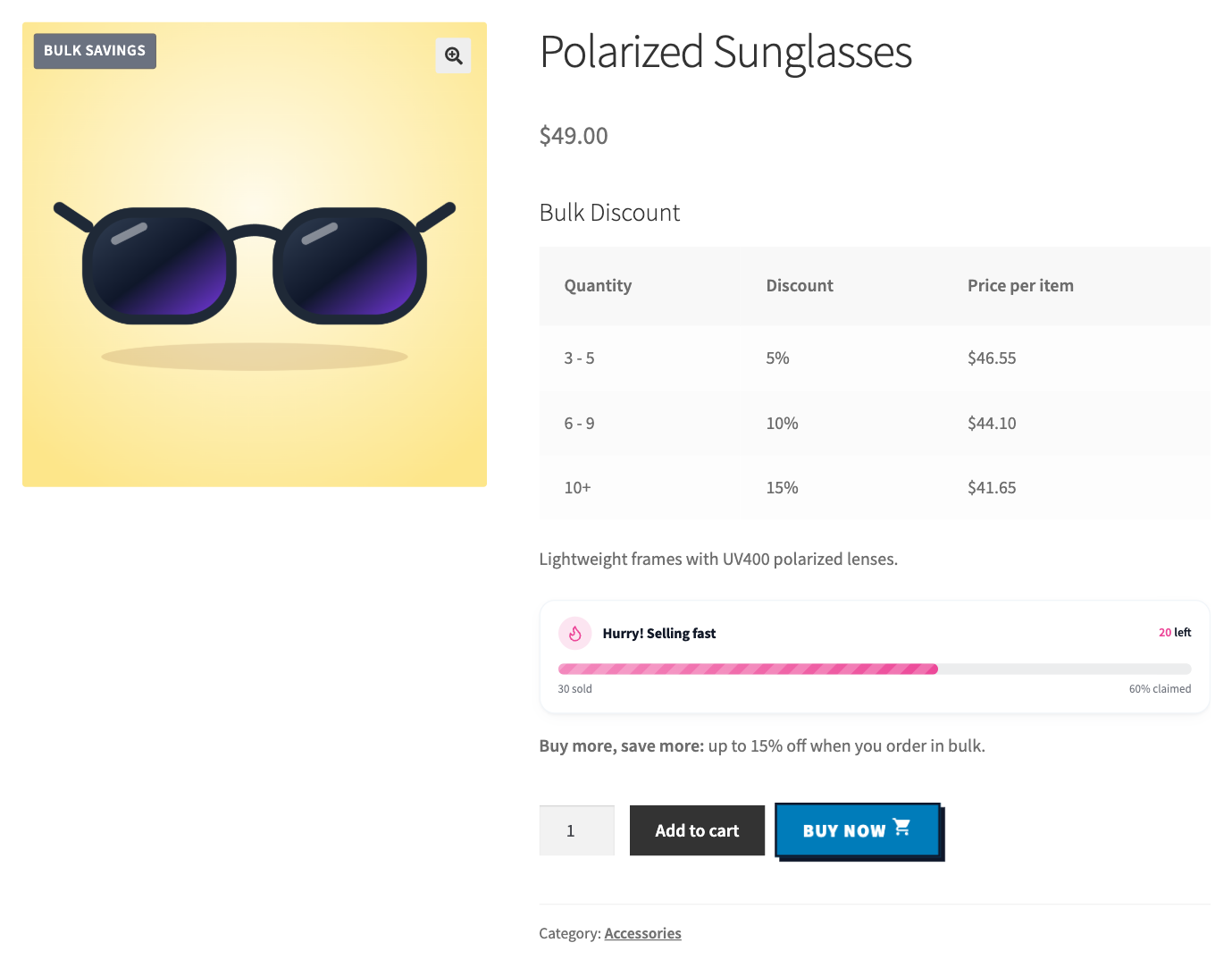
The pricing table shows the price per item for each tier, so shoppers can see the saving before they choose a quantity:
In the cart, the tier that matches the quantity applies: