
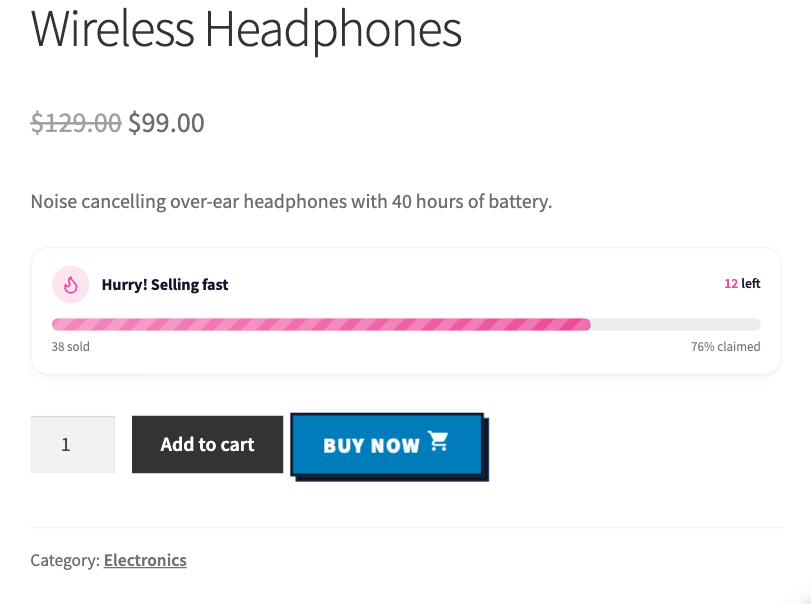
Direct Checkout adds a Buy Now button to your products. One click adds the product to the cart and takes the shopper straight to checkout, so there are fewer steps between “I want this” and a paid order.
Step 1: Open the Direct Checkout editor
Go to wiseCampaign → Direct Checkout. Settings are on the left and a live preview of your product page is on the right. Point at the button in the preview to try its hover effect, and switch to Shop Page to see it in your product grid. Click Save Changes when you are done.
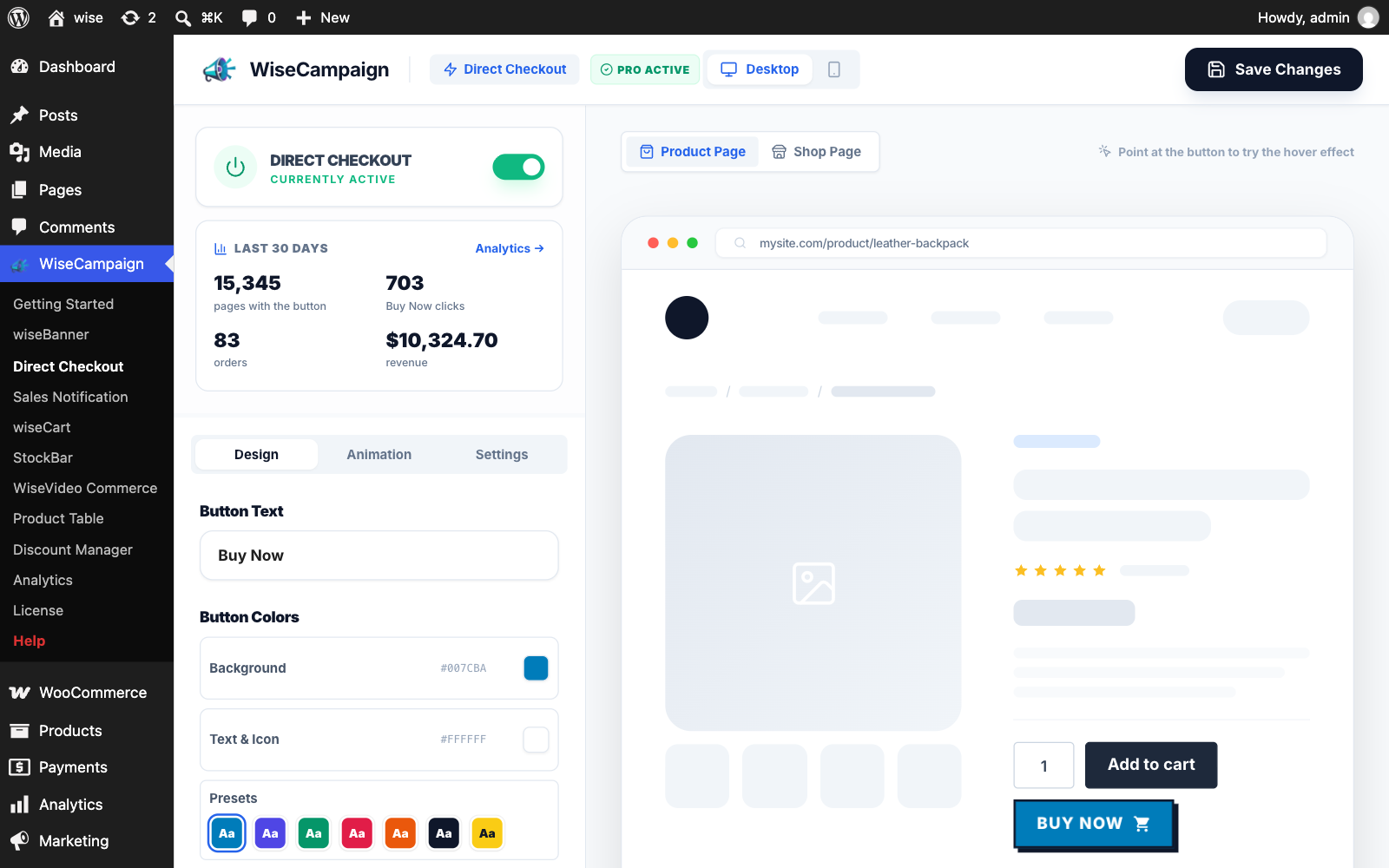
Use the Direct Checkout switch at the top to turn the button on or off. The Last 30 days card shows how many pages showed the button, how many times it was clicked and, with Pro, the orders and revenue it brought in.
Step 2: Style the button on the Design tab
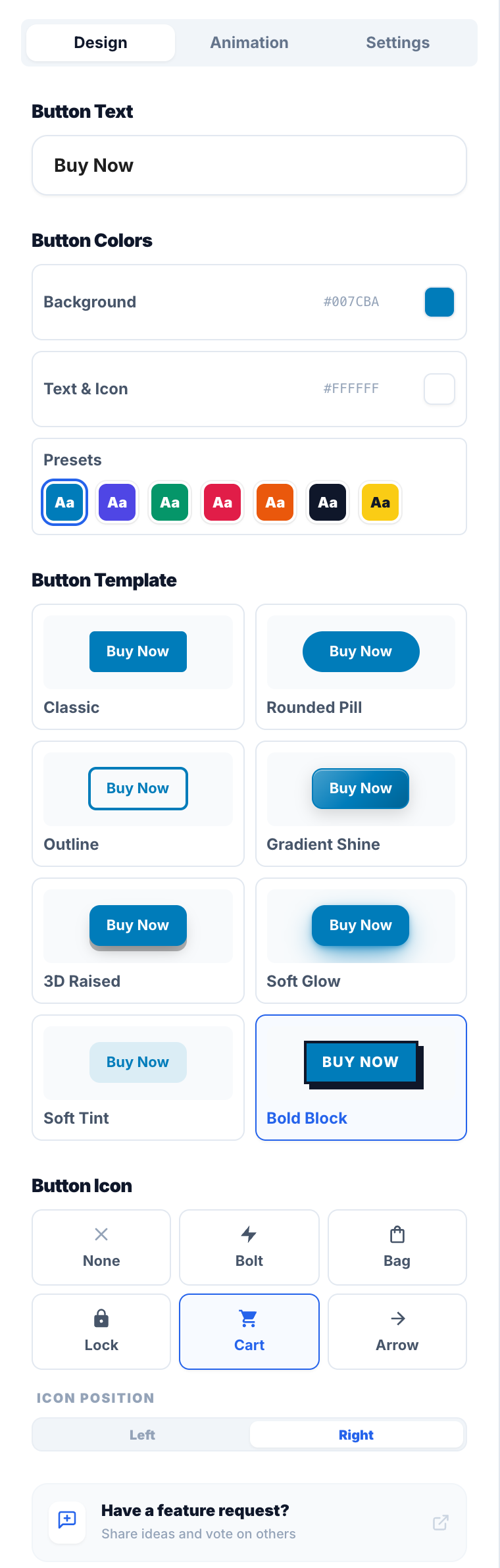
- Button Text: for example “Buy Now”, “Buy Instantly” or “Checkout Now”.
- Button Colors: the Background and the Text & Icon color, or one click on a Preset.
- Button Template (Pro): Classic, Rounded Pill, Outline, Gradient Shine, 3D Raised, Soft Glow, Soft Tint or Bold Block. Classic is free.
- Button Icon (Pro): none, bolt, bag, lock, cart or arrow, shown on the left or right of the text.
Step 3: Add motion on the Animation tab (Pro)
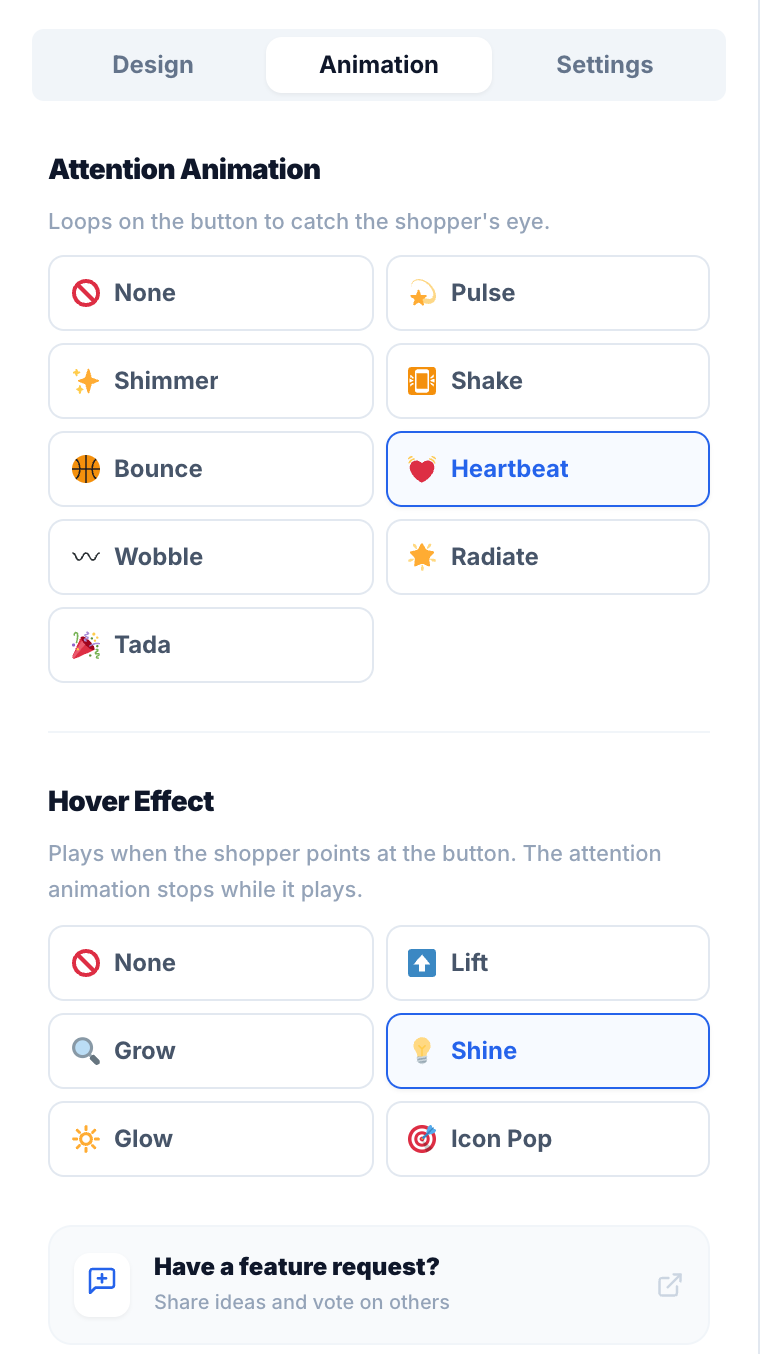
- Attention Animation loops on the button to catch the eye: Pulse, Shimmer, Shake, Bounce, Heartbeat, Wobble, Radiate or Tada.
- Hover Effect plays when the shopper points at the button: Lift, Grow, Shine, Glow or Icon Pop. The attention animation pauses while it plays.
Step 4: Choose where it shows and where it goes on the Settings tab
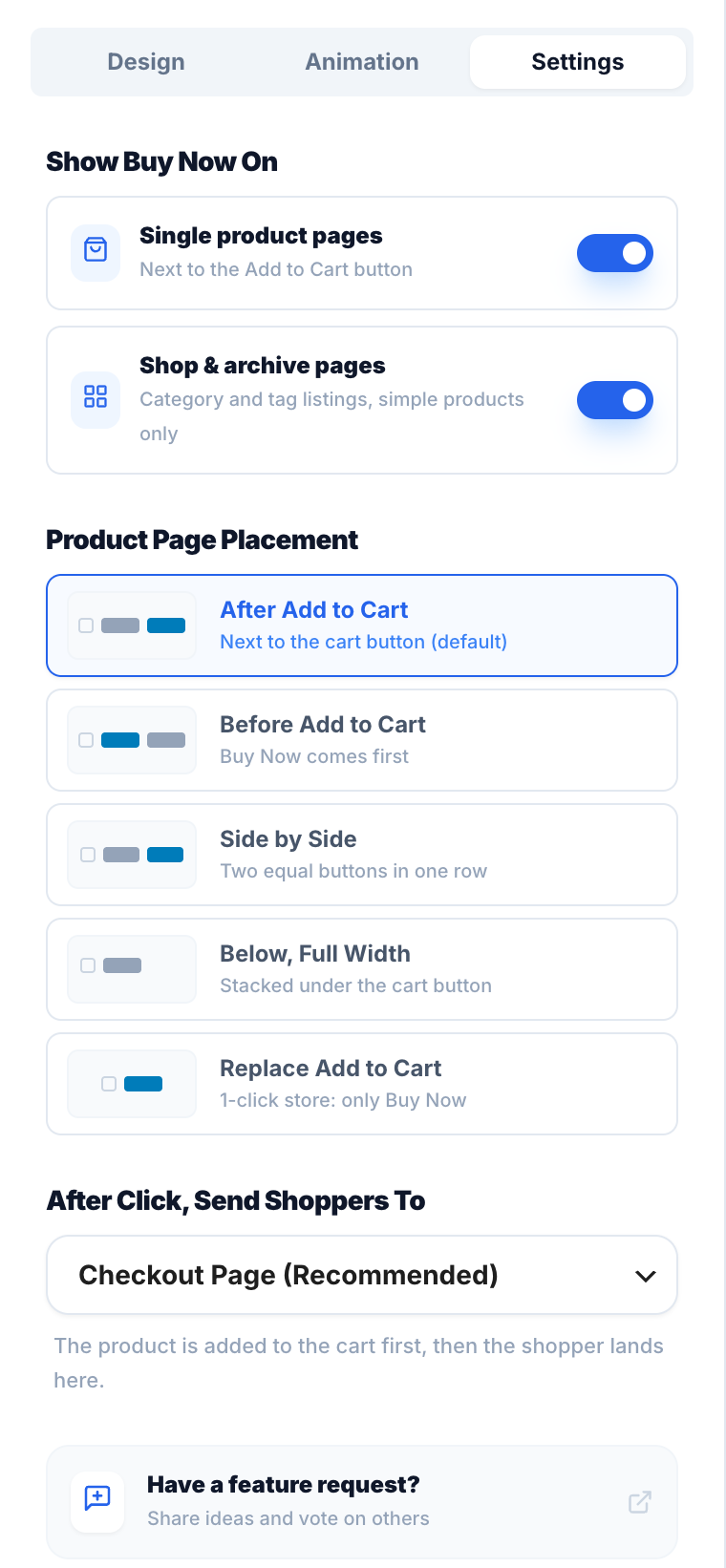
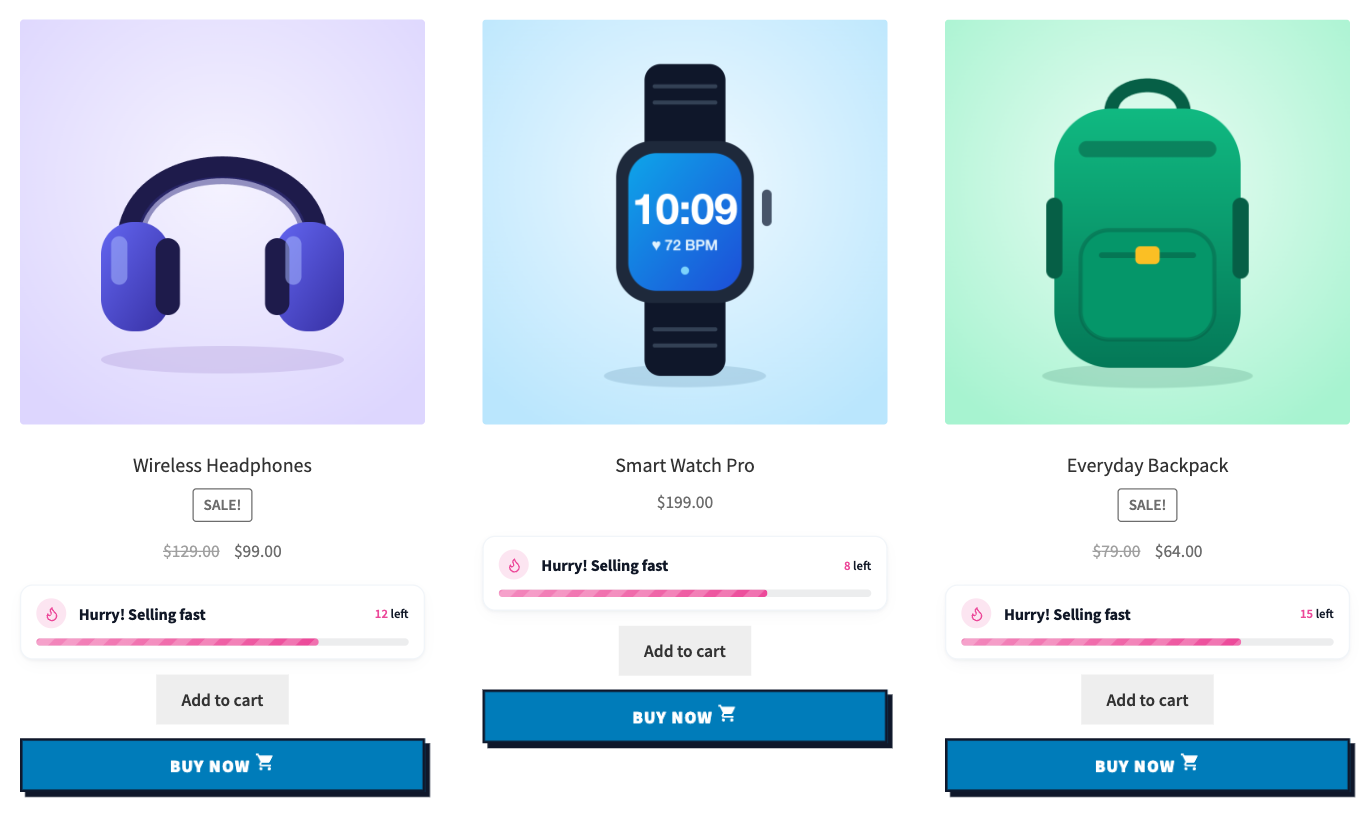
- Show Buy Now On: Single product pages and/or Shop & archive pages. In the shop grid, the button is shown on simple products.
- Product Page Placement (Pro): After Add to Cart (default), Before Add to Cart, Side by Side, Below, Full Width, or Replace Add to Cart for a one-click store that only shows Buy Now.
- After Click, Send Shoppers To: the Checkout Page (recommended), the cart, or a custom URL. The product is always added to the cart first.
Step 5: Save
Click Save Changes. The Buy Now button now appears on the pages you chose.
Using Buy Now with wiseCart
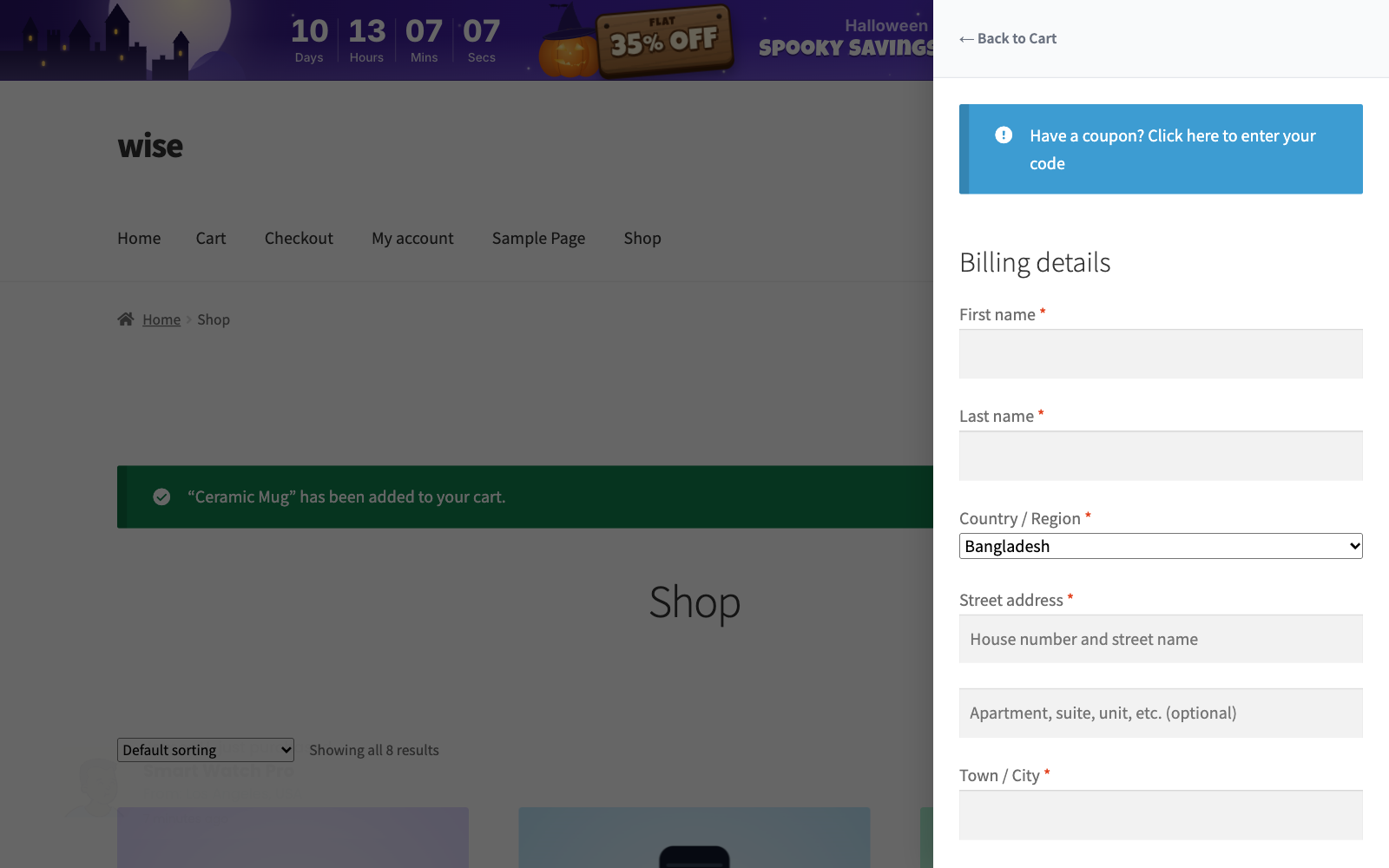
If wiseCart is set to show the checkout inside the cart (see the wiseCart guide), Buy Now opens the slide-out cart directly on its checkout form, so shoppers can pay without leaving the page.
Free and Pro
| Feature | Free | Pro |
|---|---|---|
| Buy Now on product and shop pages | Yes | Yes |
| Button text, colors and presets | Yes | Yes |
| Send shoppers to checkout, cart or a custom page | Yes | Yes |
| Classic button template | Yes | Yes |
| 7 more templates, icons, animations and hover effects | Yes | |
| Product page placement options | Yes | |
| Orders and revenue from Buy Now | Yes |