Sales Notification shows small “just purchased” popups in a corner of your website, for example “Sarah M. just purchased wiseCampaign Pro, From: New York, USA, 5 minutes ago”. These popups build trust and a sense of urgency. They can come from your real WooCommerce orders, or from simulated orders that you write yourself.
Most of Sales Notification is free. Features marked PRO need an active wiseCampaign Pro license. The table below shows what is in each plan.
Watch the video
Free vs Pro
| Feature | Free | Pro |
|---|---|---|
| Popups from your recent WooCommerce orders | ✓ | ✓ |
| Popups from WooCommerce orders you pick | ✓ | ✓ |
| Simulated orders: your own buyer names, locations and products | — | ✓ |
| Works without WooCommerce (with simulated orders) | — | ✓ |
| Buyer avatars, or your own photos and logos (simulated orders) | — | ✓ |
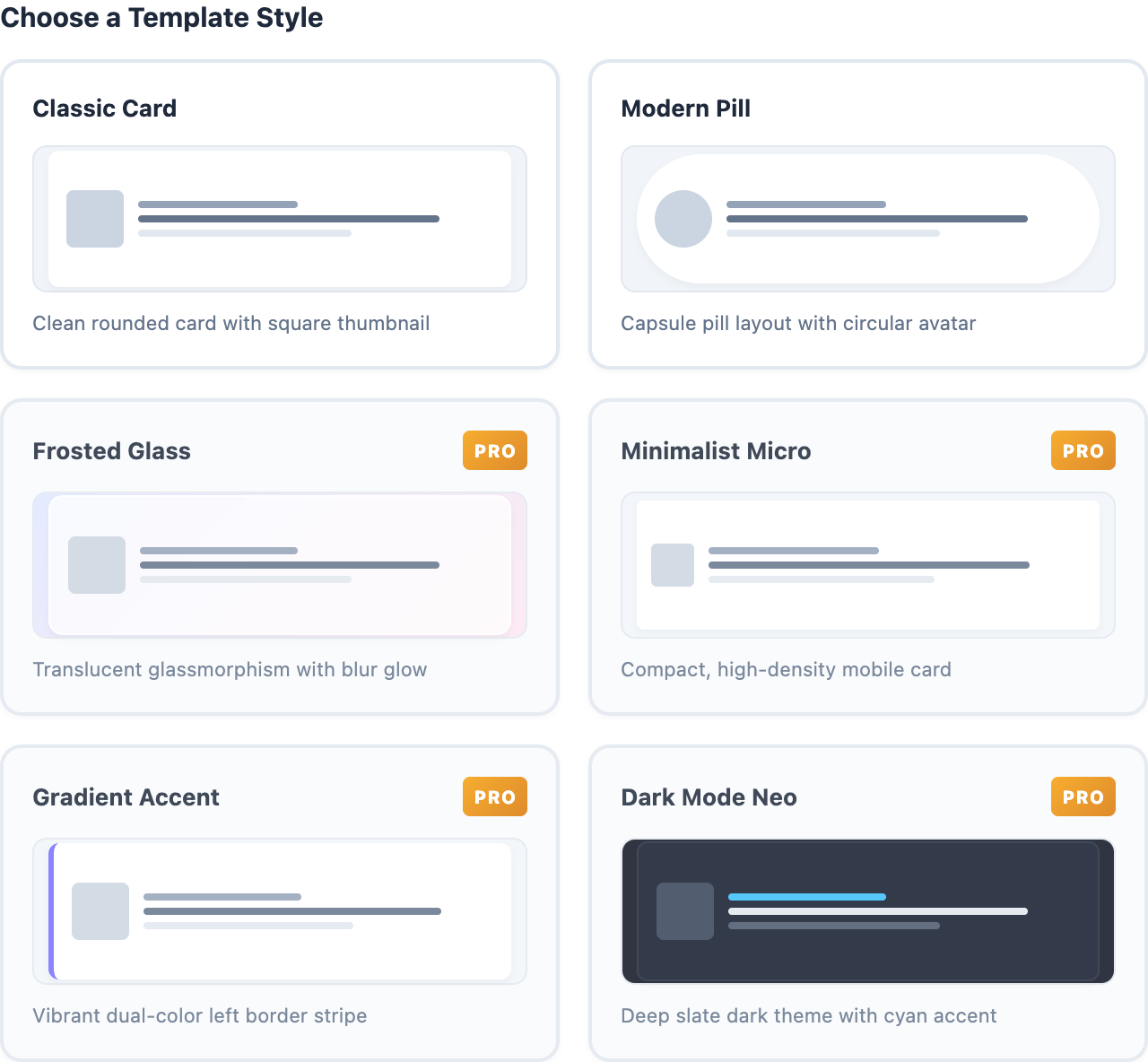
| 2 templates: Classic Card and Modern Pill | ✓ | ✓ |
| 4 more templates: Frosted Glass, Minimalist Micro, Gradient Accent and Dark Mode Neo | — | ✓ |
| Position, colors, border, corner radius and font | ✓ | ✓ |
| Show on every page or on selected pages | ✓ | ✓ |
| Random order, loop, display time and delay | ✓ | ✓ |
| Hide the “by wiseCampaign” link | — | ✓ |
Open Sales Notification
Go to WordPress Dashboard → WiseCampaign → Sales Notification.
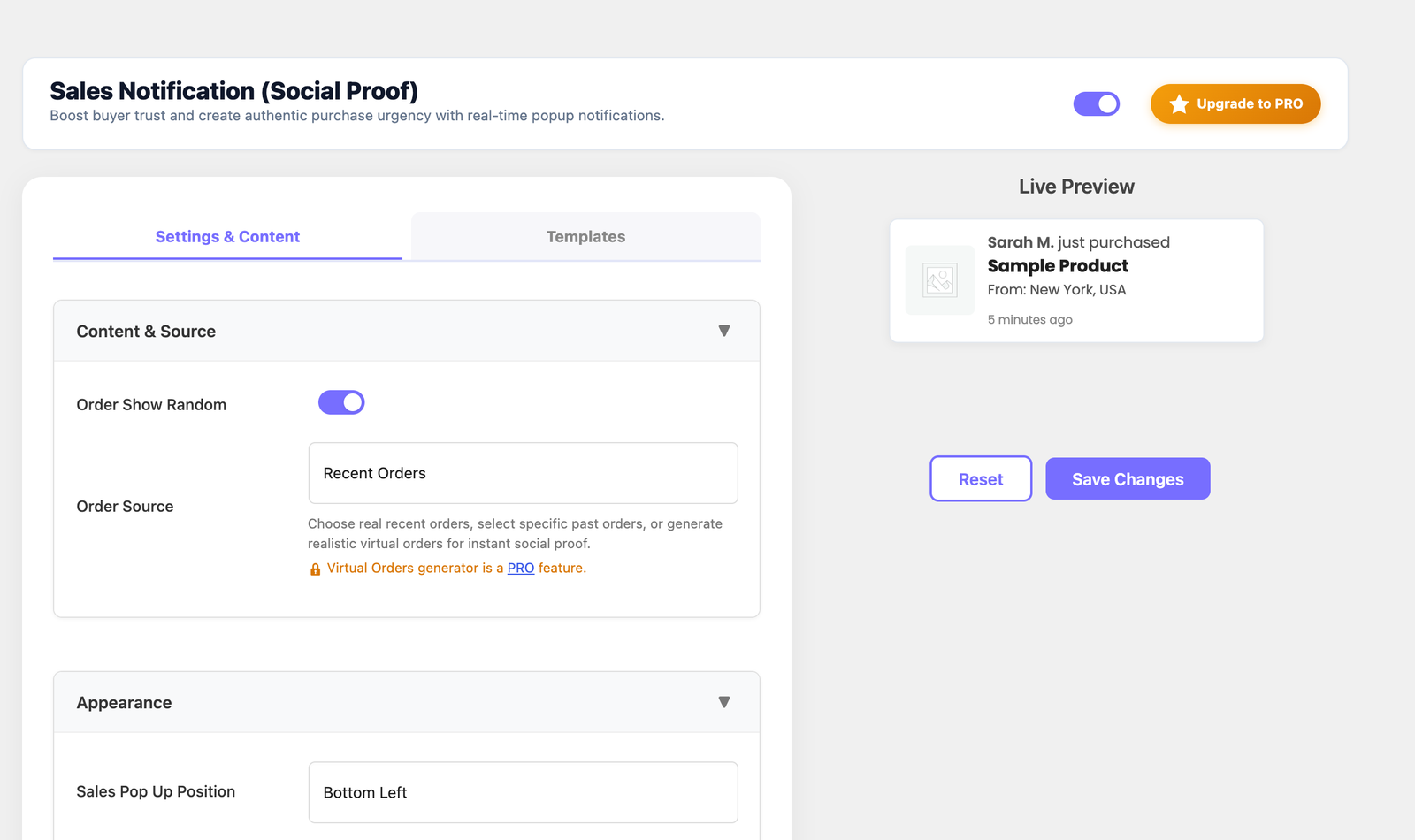
- The switch at the top turns popups on or off for your whole site. It is on by default and saves right away.
- Upgrade to PRO shows when Pro is not active. With an active license it changes to PRO Activated.
- Settings & Content and Templates: the two tabs where you set up the popups.
- Live Preview: shows how a popup will look while you change the settings.
- Save Changes saves your settings. Reset puts every setting back to its default after you confirm.
Step 1: Choose where the orders come from
Open the Content & Source section in the Settings & Content tab.
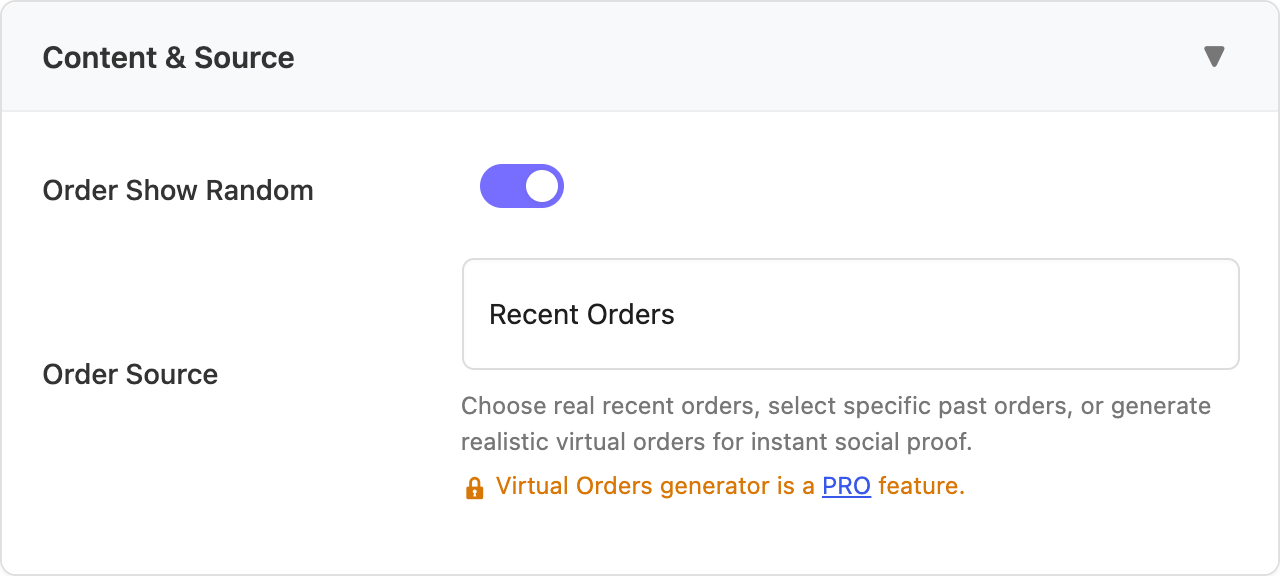
- Order Show Random: shows the popups in a random order. When it is off, they show in order.
- FREE Order Source: Recent Orders: your last 10 completed WooCommerce orders. Each product in an order gets its own popup.
- FREE Order Source: Selected Orders: only the orders you pick. Only completed orders are shown.
- PRO Order Source: Custom / Virtual Orders (Simulated): popups built from names, locations and products you enter. See below.
Popups from real orders show the buyer’s first name, city and country. Mention this in your privacy policy if your store needs it.
Simulated orders PRO
Choose Custom / Virtual Orders (Simulated) to show popups without real orders. This is useful for new stores, services and sites without WooCommerce.
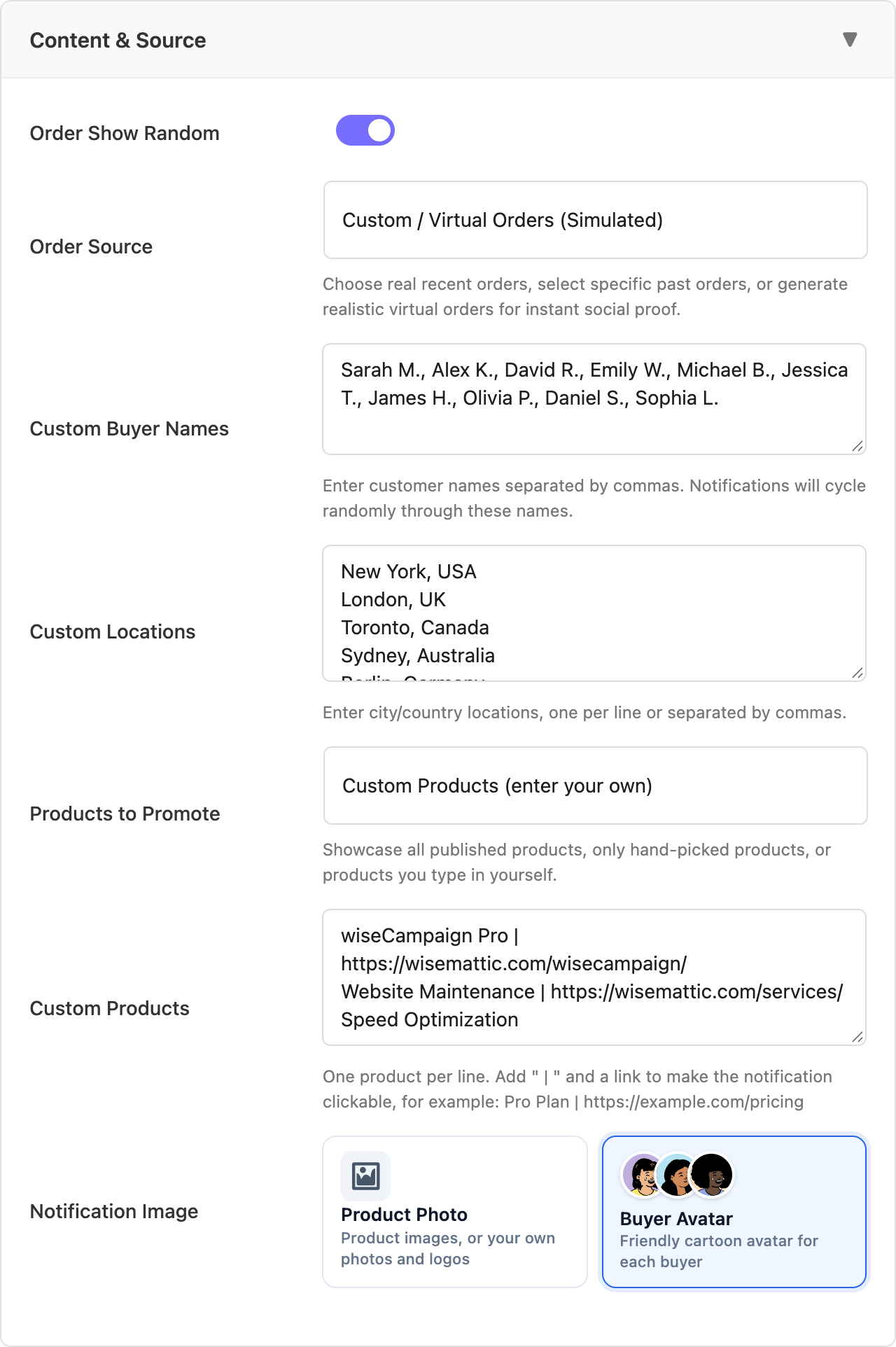
- Custom Buyer Names: names separated by commas, for example “Sarah M., Alex K.”.
- Custom Locations: one location per line, for example “London, UK”.
- Products to Promote: All In-Stock Products (a random mix of your published products), Specific Selected Products, or Custom Products (enter your own).
- Custom Products: one product or service per line. Add ” | ” and a link to make the popup clickable, for example “Pro Plan | https://example.com/pricing”. Without a link, the popup is not clickable.
- Notification Image: Product Photo uses product images, or your own photos and logos added with Add Images. Buyer Avatar shows a friendly cartoon avatar, and the same name always gets the same avatar.
- The time in each popup, such as “3 minutes ago”, is picked at random.
Without WooCommerce
Sales Notification also works on sites without WooCommerce. Recent Orders and Selected Orders then show “(requires WooCommerce)” and are turned off. The source is always Custom / Virtual Orders (Simulated), and Products to Promote offers only Custom Products (enter your own). Because simulated orders are a Pro feature, popups without WooCommerce need PRO.
Step 2: Choose a template
Open the Templates tab and click a template.
- FREE Classic Card (clean rounded card with a square image) and Modern Pill (capsule shape with a round image).
- PRO Frosted Glass, Minimalist Micro, Gradient Accent and Dark Mode Neo.
- A template sets its own colors, border and corners. You can still change them in Appearance. Classic Card uses all your Appearance settings; the other templates keep some of their own styling, such as their corner shape.
Step 3: Style the popup
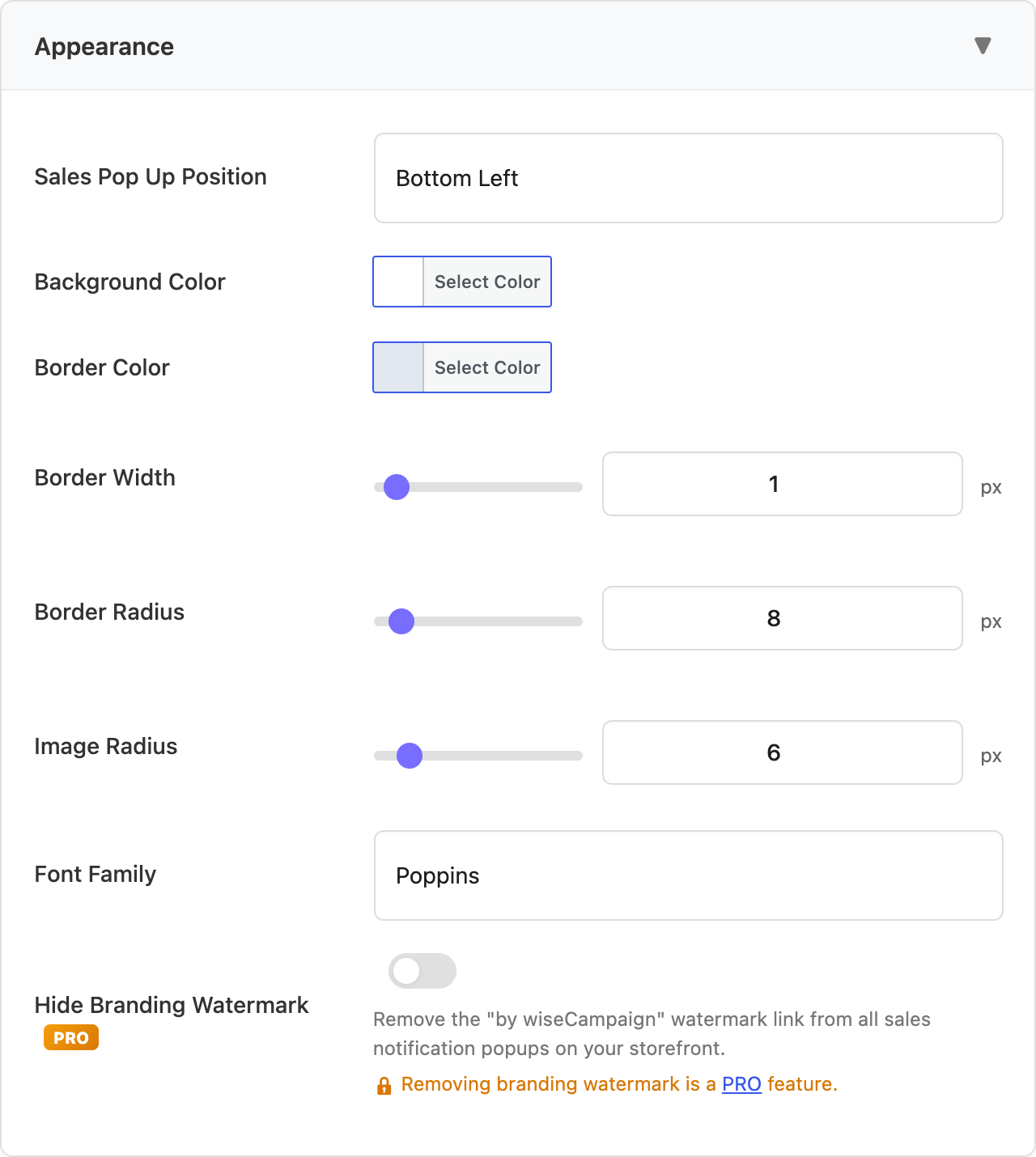
Open the Appearance section in the Settings & Content tab. Everything here is free except hiding the branding.
- Sales Pop Up Position: Bottom Left, Bottom Right, Top Left or Top Right.
- Background Color and Border Color.
- Border Width (0–20px), Border Radius (0–100px) and Image Radius (0–50px).
- Font Family: Poppins or Roboto.
- PRO Hide Branding Watermark: removes the “by wiseCampaign” link from the popups.
Step 4: Choose where and when popups show
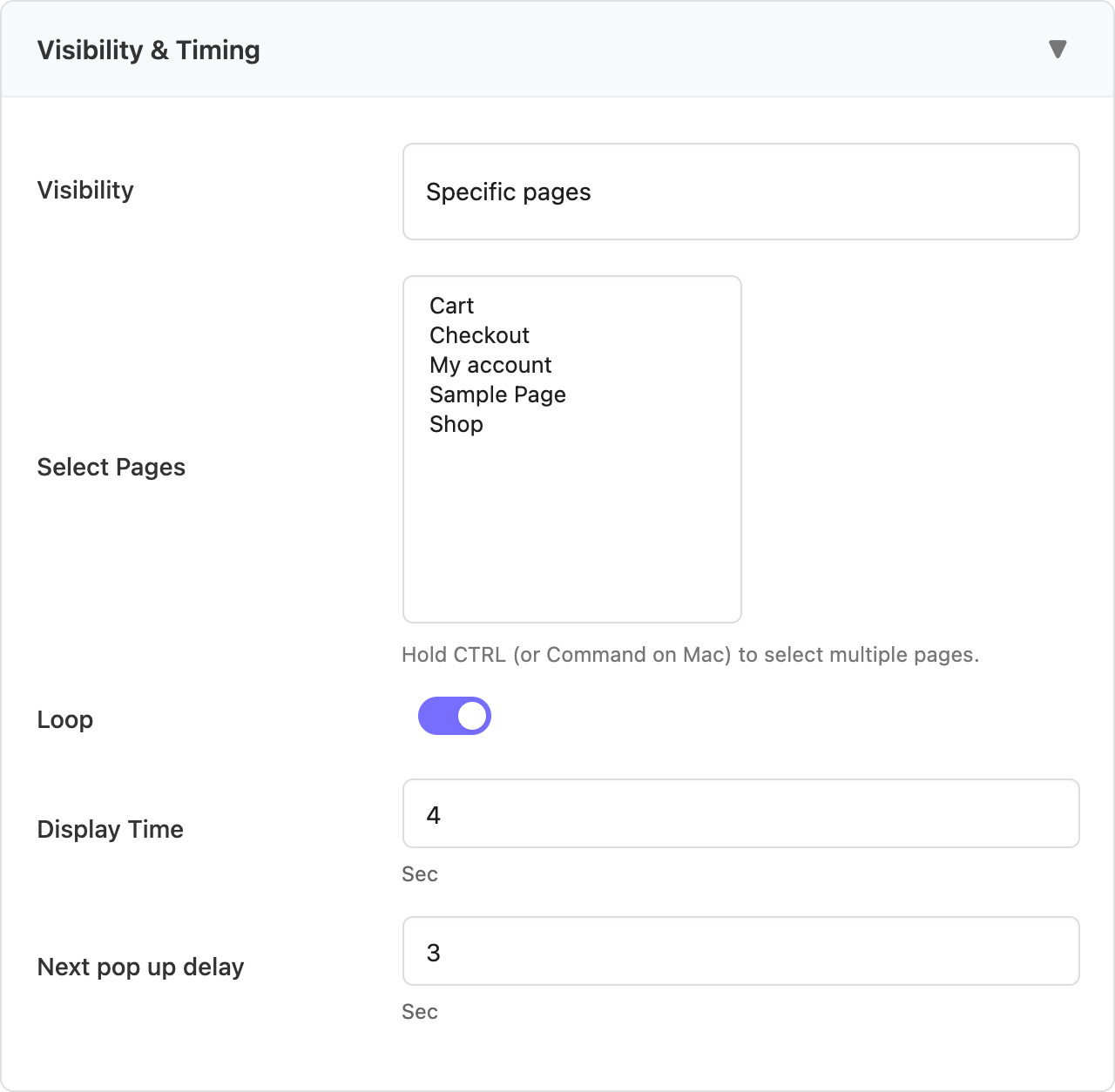
Open the Visibility & Timing section. All of these settings are free.
- Visibility: Show on every page, or Specific pages. For specific pages, hold Ctrl (Command on a Mac) to select more than one. This works with regular WordPress pages, not with posts, single products or the WooCommerce shop page.
- Loop: starts again from the first popup after the last one. When it is off, each popup shows once per page view.
- Display Time: how many seconds each popup stays on screen.
- Next pop up delay: how many seconds to wait before the next popup.
- The first popup appears 3 seconds after the page loads.
Step 5: Save and check your site
- Click Save Changes.
- Check the Live Preview.
- Open your site in a private browser window to see the popups as visitors do.
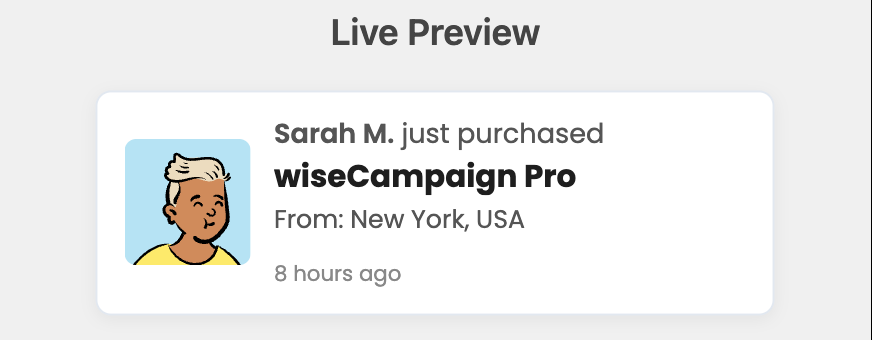
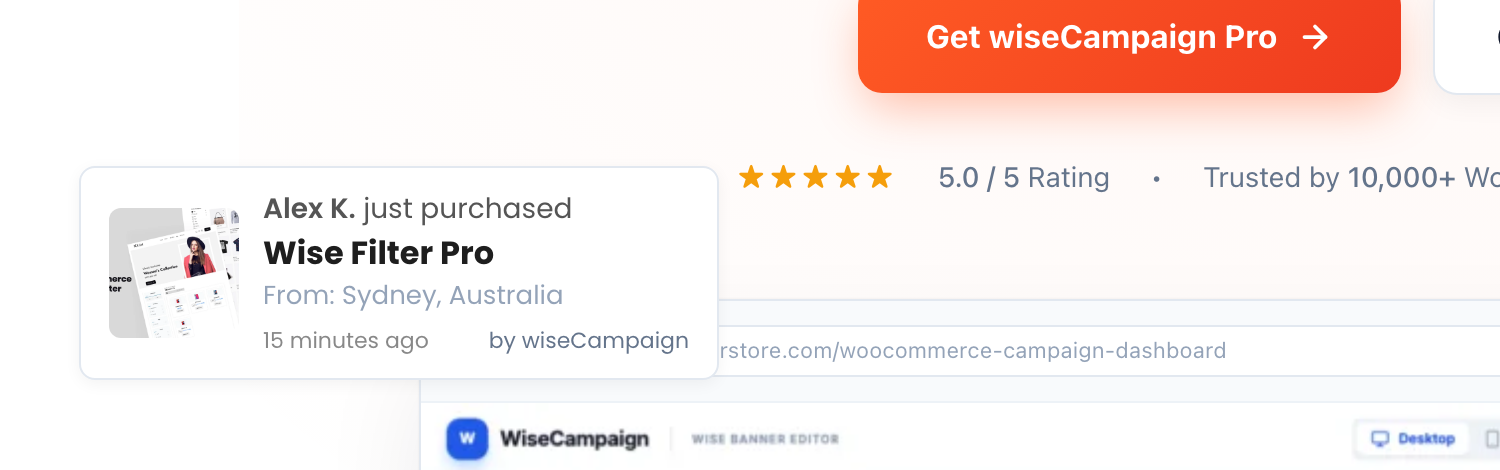
Clicking a popup opens that product’s page. The “by wiseCampaign” link opens in a new tab.
FAQ
Do I need WooCommerce?
On the free plan, yes: popups come from your WooCommerce orders. With Pro, you can use simulated orders and run Sales Notification without WooCommerce.
I don’t see any popups
Check that the switch at the top is on and that you clicked Save Changes. With Recent Orders or Selected Orders, you need at least one completed order; processing orders are not shown. With Custom Products, enter at least one product. Also check Visibility, and clear your cache if you use a caching plugin.
What happens if my Pro license expires?
Simulated orders stop showing until you renew. Pro templates and the hidden branding stay until you next save your settings; after that, the popup switches to Classic Card and shows the “by wiseCampaign” link.
Do popups show on phones?
Yes. Popups show on all devices with the same settings.
Want simulated orders, all six templates and popups without branding? See wiseCampaign Pro plans.