
When a shopper selects a variant — for example a different color — the slider jumps to that variant’s photo, so shoppers always see the option they picked.
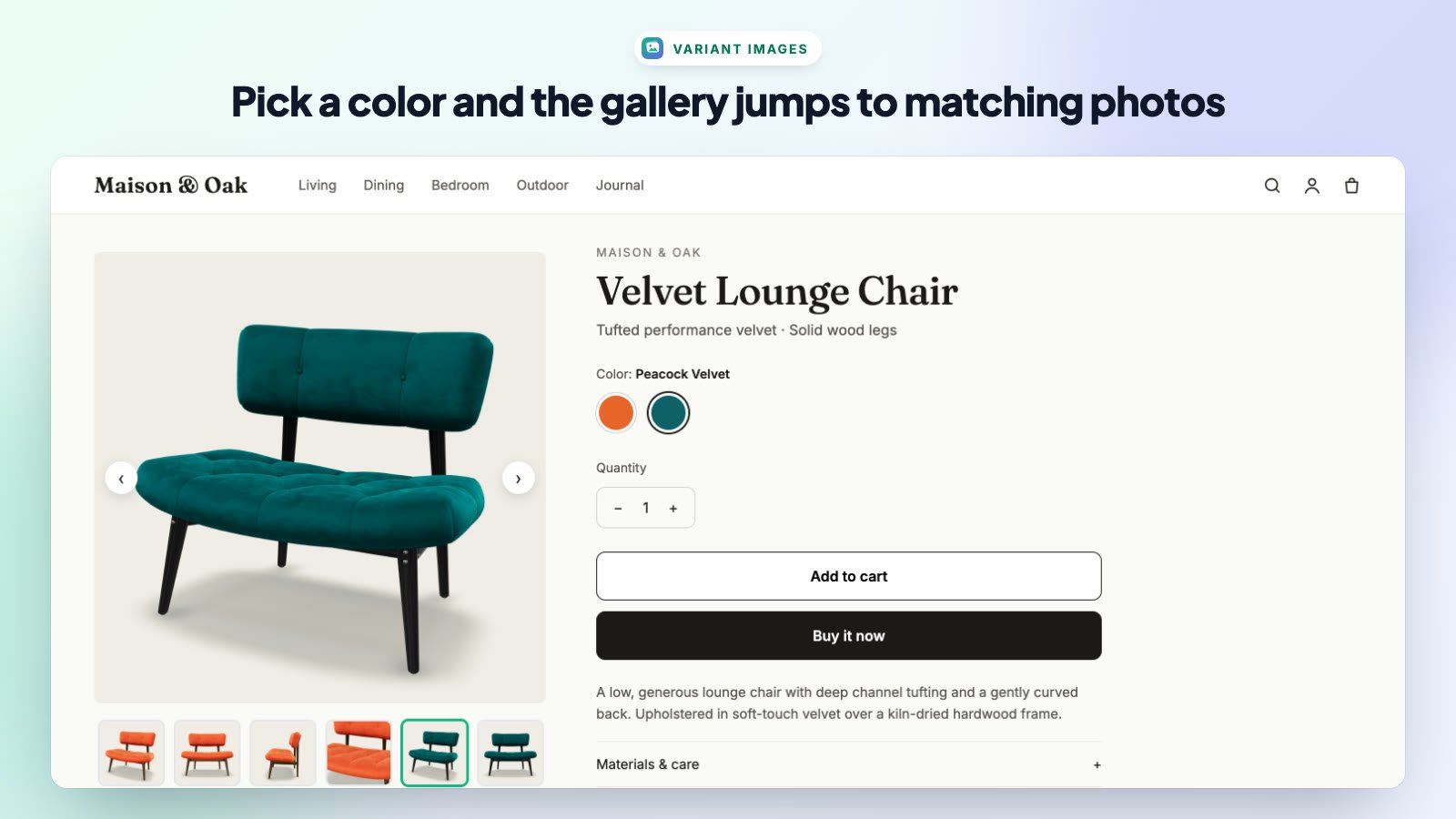
Set Up Variant Images in Shopify
- In Shopify admin, open Products and select the product.
- Upload photos for every variant in the product’s Media.
- In the Variants list, click a variant’s image placeholder and choose its photo. Repeat for each variant.
- Save the product.
Turn On Matching in the App
On the Configuration page, open the Variant images tab and make sure Variant Image Auto-Switch is on, then click Save changes. Use the color dots in the preview to test it.
Note: Variant image matching uses your theme’s standard variant selector. Most Online Store 2.0 themes are supported out of the box.