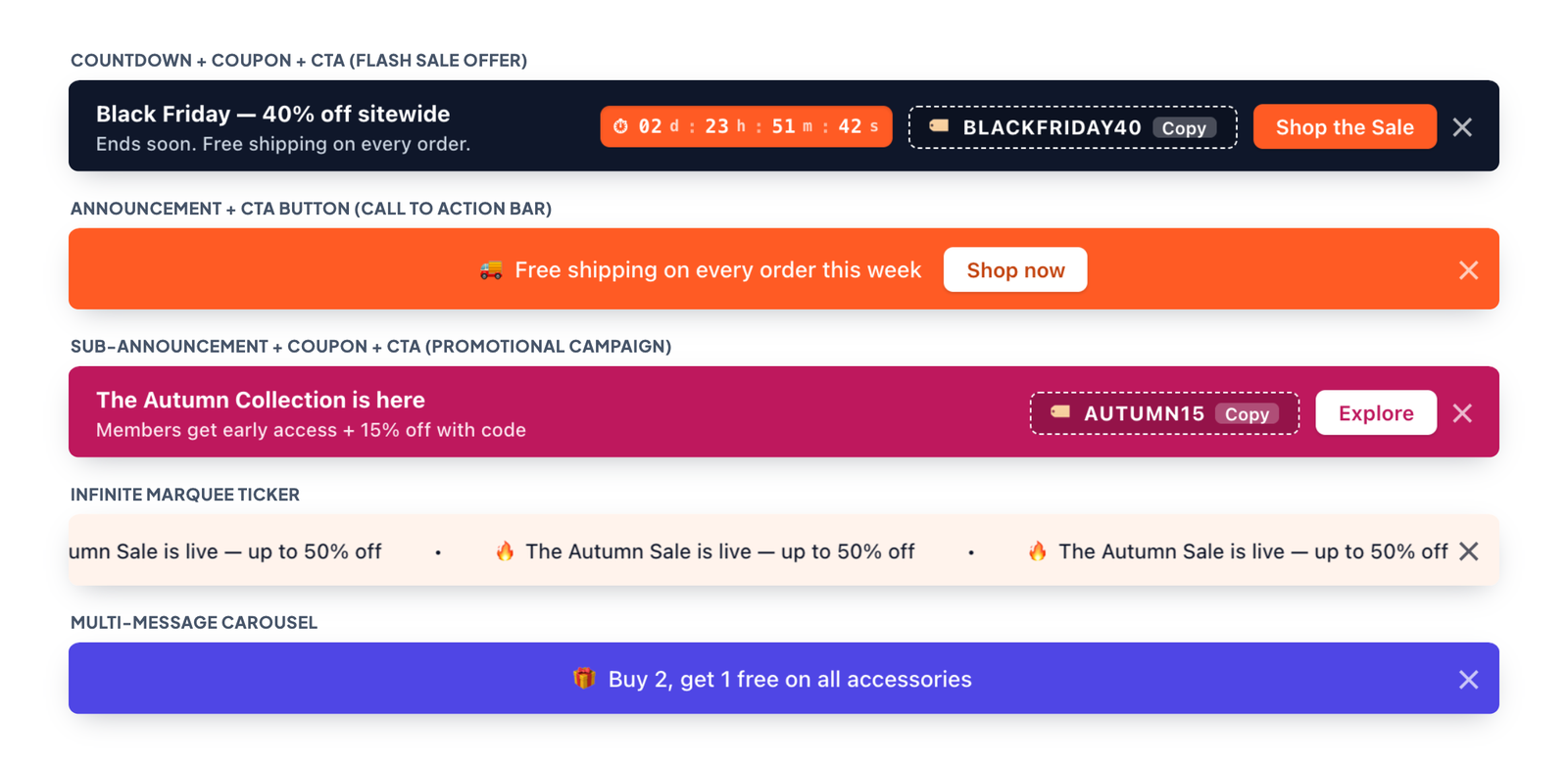
Templates give you a ready-made layout in one click. Choosing one switches on the right components (countdown, coupon, button and so on) and keeps your text, so you can try different looks safely.
Change the template
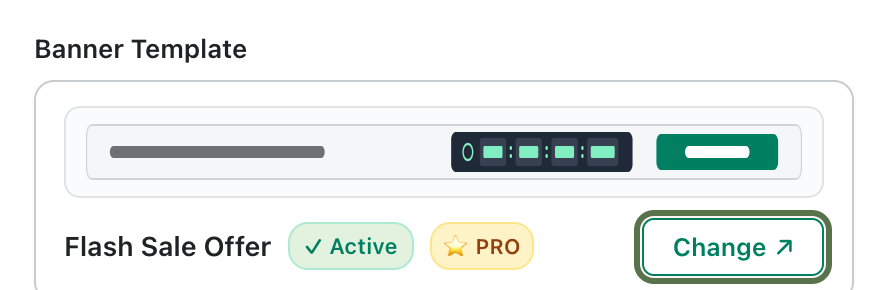
- On the Setup Banner tab, find the Banner Template card at the top of Banner Content & Options.
- Click Change.
- Pick a template and click Use Template. The live preview updates immediately.
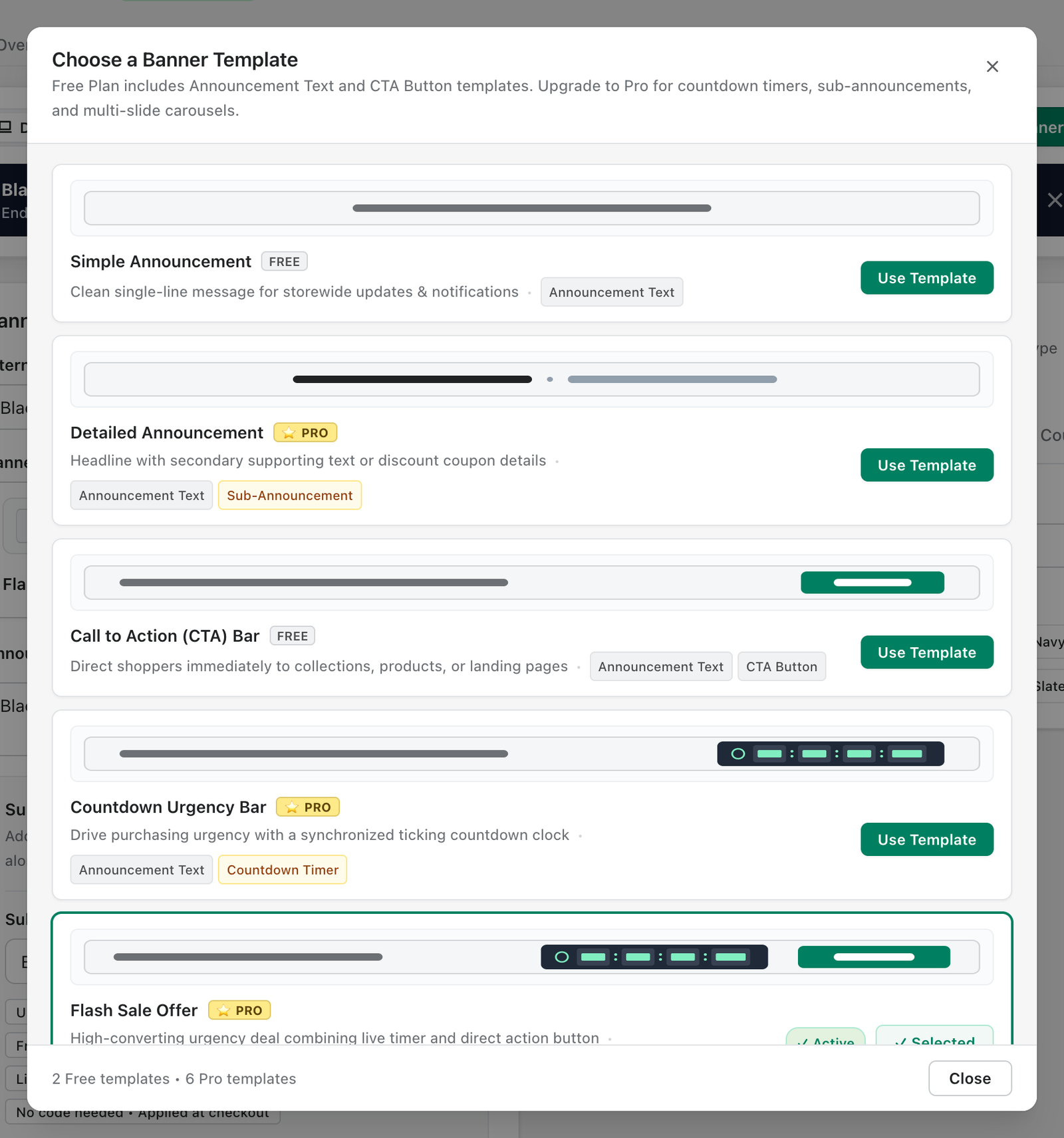
Available templates
- Simple Announcement (Free): a clean single-line message.
- Call to Action (CTA) Bar (Free): message plus a button to a collection, product or page.
- Detailed Announcement (Pro): headline with a secondary line of supporting text.
- Countdown Urgency Bar (Pro): message with a live ticking countdown.
- Flash Sale Offer (Pro): countdown, coupon code and button together.
- Promotional Campaign (Pro): headline, sub-announcement and button.
- Multi-Message Carousel (Pro): rotates between up to 3 announcements.
- Infinite Marquee Ticker (Pro): a smooth, continuously scrolling ticker.