
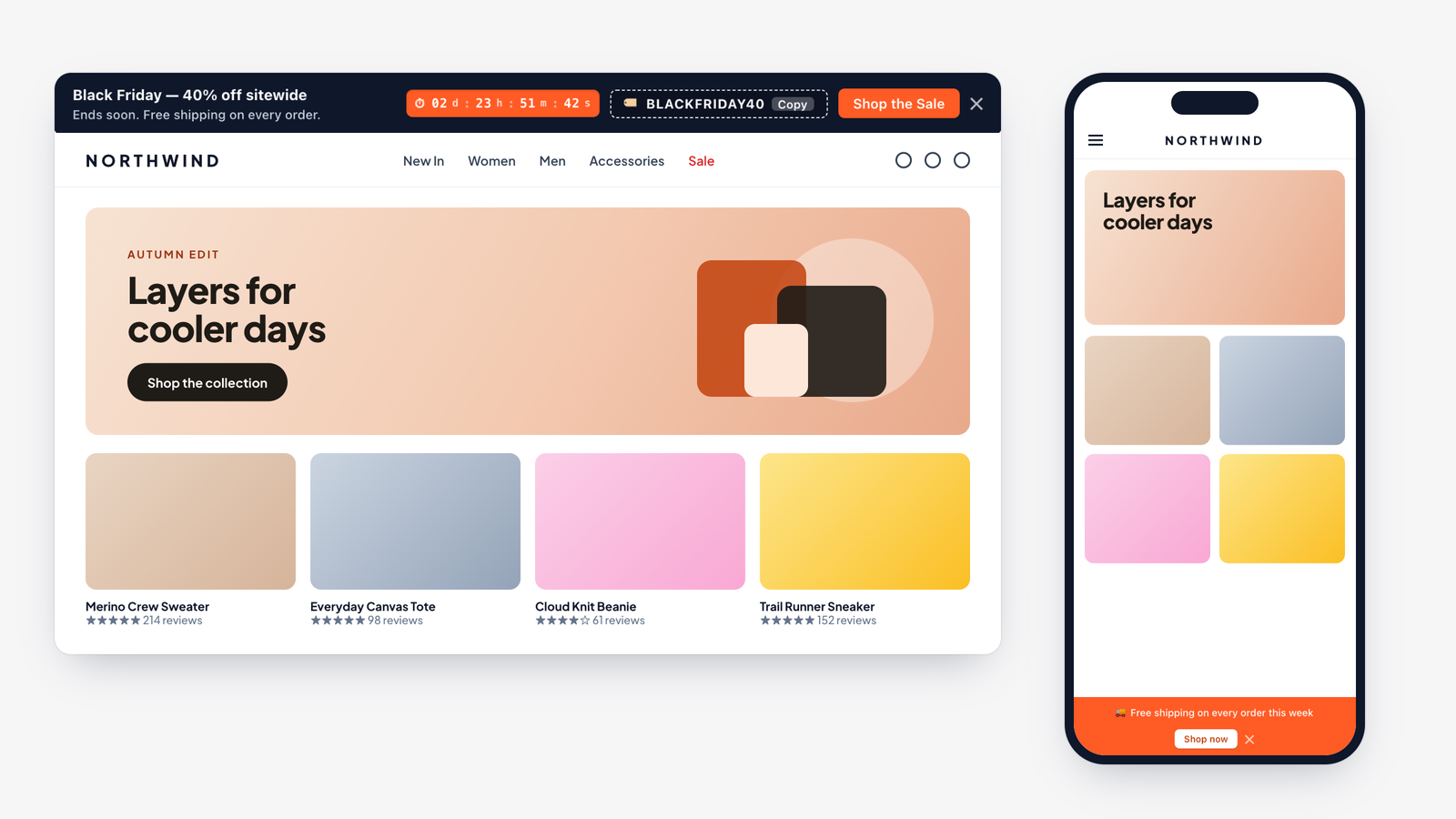
wiseBanner shows on your storefront through a theme app embed. After installing, turn the embed on once and every banner you save appears on your store automatically.
1. Install the app
- Open wiseBanner on the Shopify App Store and click Install.
- Approve the permissions. wiseBanner only needs access to your themes so it can display the announcement bar.
- You land on the wiseBanner Overview tab inside your Shopify admin.
2. Turn on the wiseBanner app embed
- On the Overview tab, click Enable in Theme Editor. Your theme editor opens on the App embeds panel.
- Find wiseBanner and switch the toggle on.
- Click Save in the top-right corner of the theme editor.
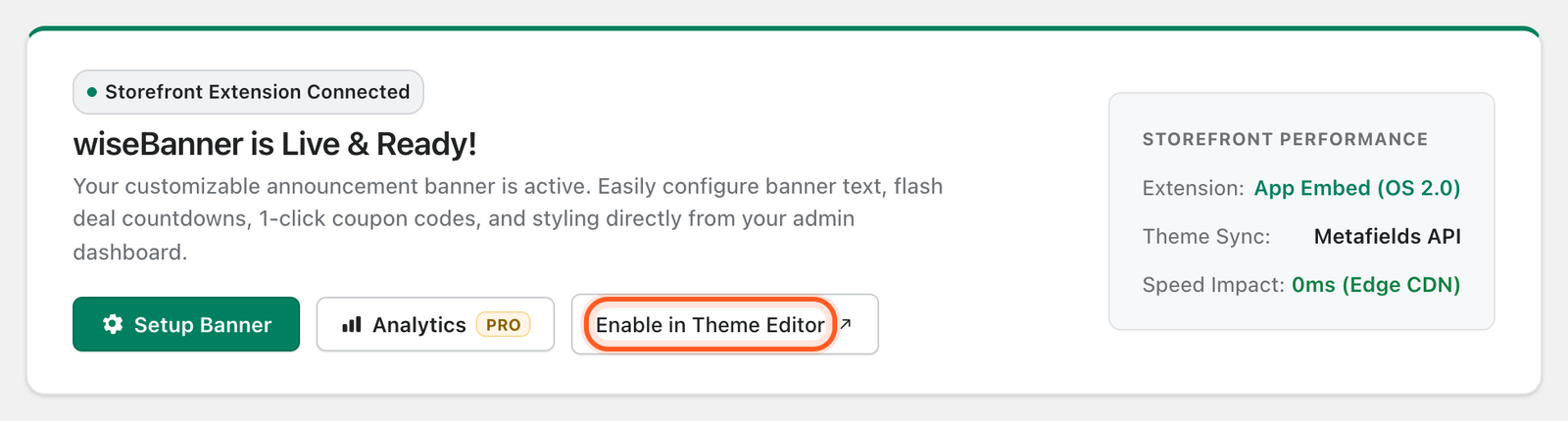
Tip: You can also get there manually: Online Store → Themes → Customize → App embeds (the puzzle-piece icon in the left sidebar).
3. Create and save your first banner
Go to the Setup Banner tab, choose a template, write your announcement and click Save Banner. Visit your store to see it live. The next articles explain every setting.
Uninstalling
If you uninstall wiseBanner, the banner disappears from your store. Because it runs as a theme app extension, no code is left behind in your theme.