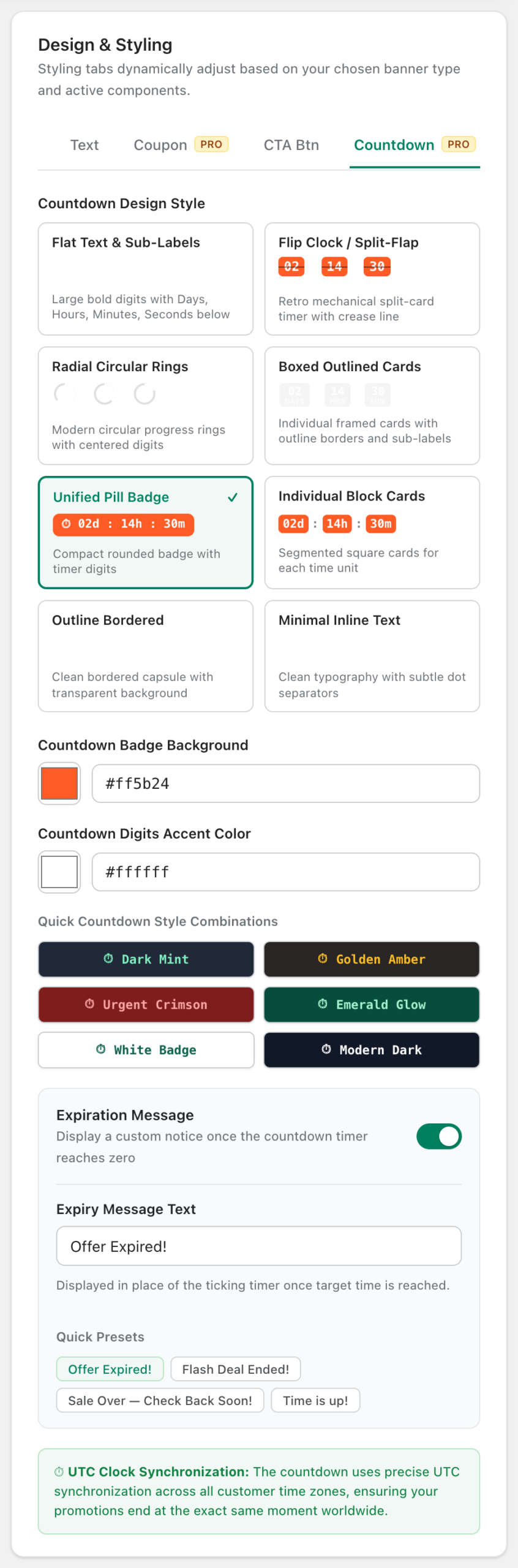
⭐ This is a wiseBanner Pro feature. On the Free plan, turning it on opens an upgrade prompt.
A live countdown gives shoppers a clear reason to act now. Every visitor sees the same end time, because the countdown is synchronized to UTC.
Add a countdown
- Switch on Countdown Timer.
- Set Countdown Target Date & Time (UTC), or click a quick preset: +24 Hours, +48 Hours, +3 Days or +7 Days.
- Click Save Banner.
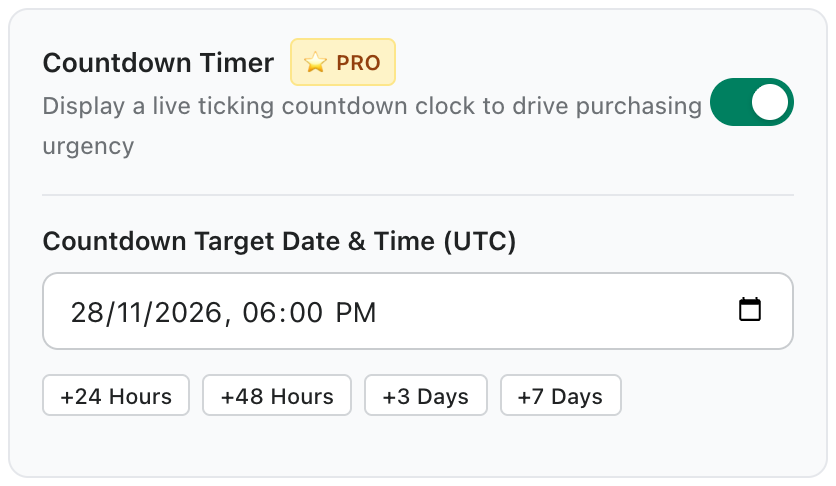
Choose a countdown style
Open the Countdown tab in Design & Styling to pick one of eight styles: Flat Text & Sub-Labels, Flip Clock / Split-Flap, Radial Circular Rings, Boxed Outlined Cards, Unified Pill Badge, Individual Block Cards, Outline Bordered or Minimal Inline Text. You can also set the badge and digit colors or pick a quick style combination.
When the countdown ends
Turn on Expiration Message to replace the timer with a message such as “Offer Expired!” or “Flash Deal Ended!” once the end time is reached.