⭐ This is a wiseBanner Pro feature. On the Free plan, turning it on opens an upgrade prompt.
Show a discount code right in the bar. Shoppers copy it with one click, with no hunting through emails or pop-ups.
Add a coupon code
- Create the discount in Shopify first: Discounts → Create discount.
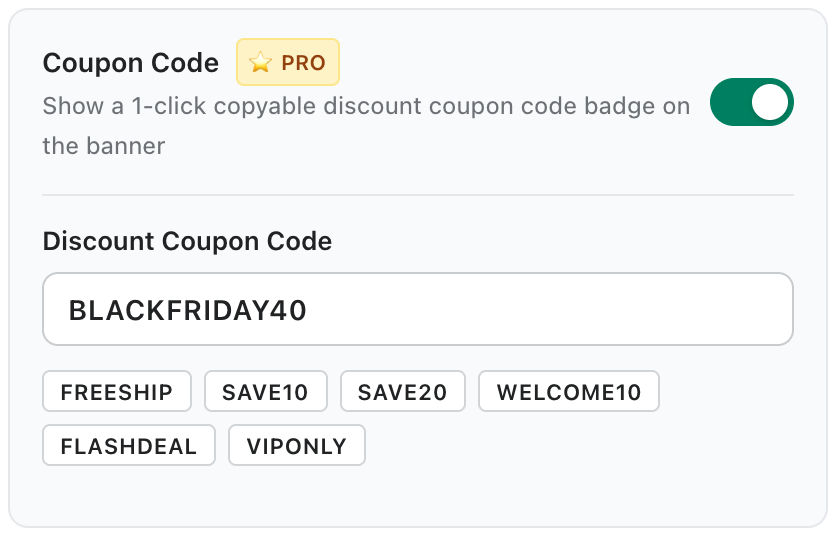
- In wiseBanner, switch on Coupon Code.
- Enter the exact code in Discount Coupon Code, or click a quick code such as FREESHIP, SAVE10 or WELCOME10 if you created it in Shopify.
- Click Save Banner.
Important: wiseBanner displays the code. The discount itself must exist and be active in Shopify, or it will not apply at checkout.
Style the coupon
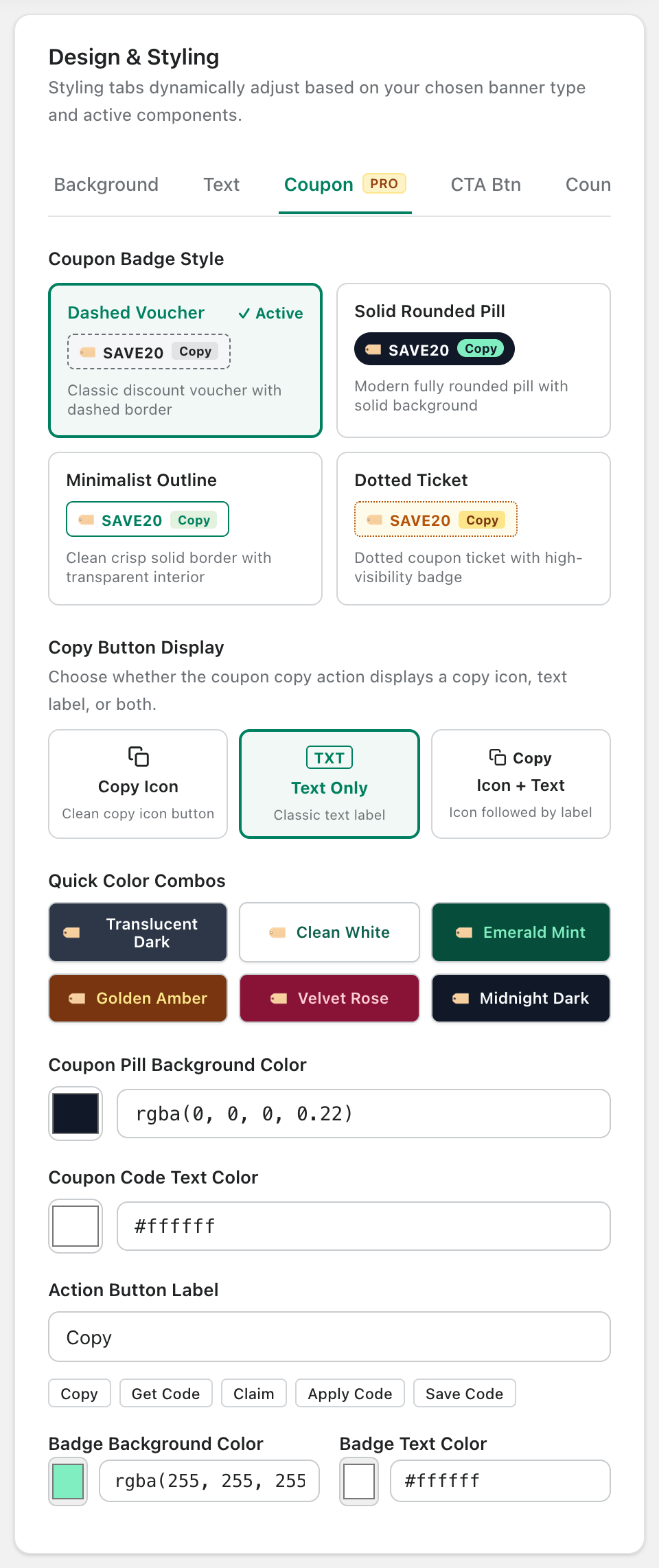
On the Coupon tab in Design & Styling, choose a badge style (Dashed Voucher, Solid Rounded Pill, Minimalist Outline or Dotted Ticket), how the copy button looks (icon, text or both), its label (Copy, Get Code, Claim and more) and the colors.