Add a button that takes shoppers straight to your sale, a collection or a product. Available on every plan.
Add a button
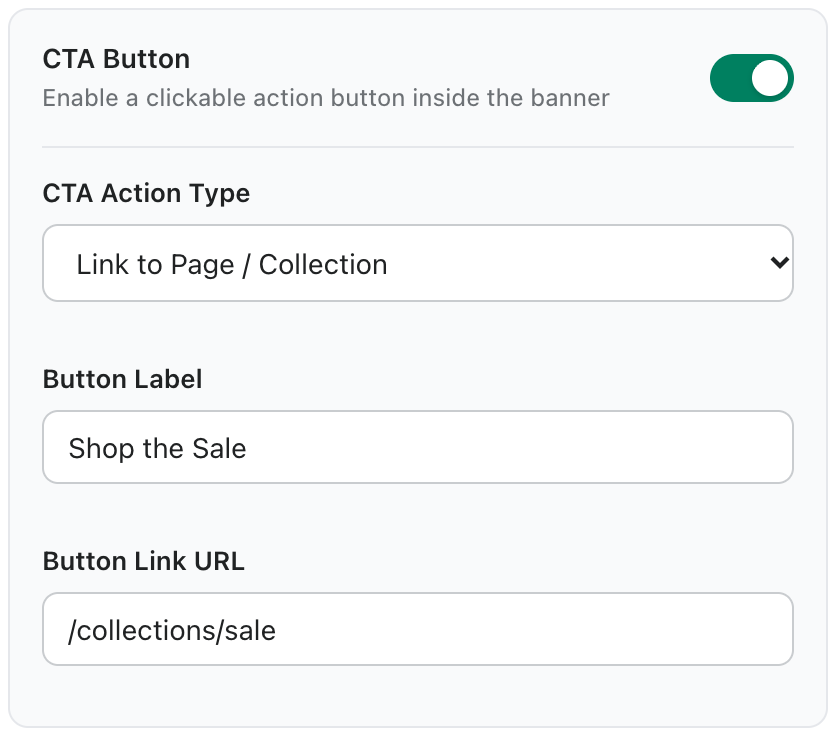
- Switch on CTA Button.
- Choose the CTA Action Type: Link to Page / Collection opens a URL; 1-Click Discount Coupon Copy copies your coupon code when clicked (Pro).
- Enter the Button Label, for example Shop the Sale.
- For links, enter the Button Link URL, for example
/collections/saleor a full product URL. - Click Save Banner.
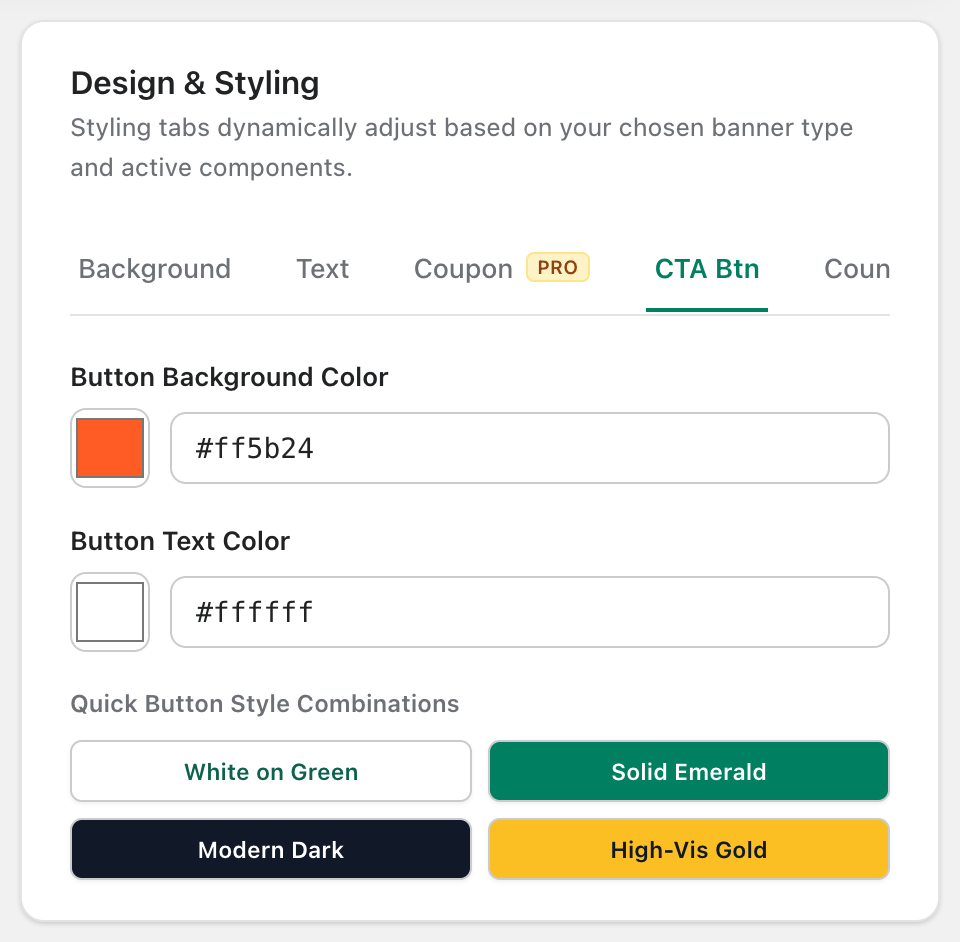
Button colors
Use the CTA Btn tab in Design & Styling to set the button background and text colors, or pick a quick combination such as White on Green or Modern Dark.