


A countdown timer is one of the simplest ways to boost sales. You have felt it yourself: a deal is about to end, the clock is ticking, and “I’ll think about it” turns into “I’ll buy it now.”
Used well, a countdown timer to boost sales gives shoppers an honest reason to decide today. Used badly, with fake clocks that reset on every visit, it damages trust and can break consumer law. This 2026 guide covers why timers work, which type to use, where to put it, the rules to follow and how to add one to a WooCommerce store step by step.

In this guide
- Why countdown timers work
- 4 types of countdown timers
- Where to place a countdown timer
- Keep it honest: fake timers and the law
- How to add a countdown timer in WooCommerce
- FAQ
Why countdown timers work
A timer doesn’t change your product or your price. It changes when people decide. Three well-studied effects are at work.
1. Urgency: a deadline forces a decision
Without a deadline, “later” is always an option, and later often turns into never. A visible end time makes the choice simple: buy before the clock hits zero, or miss this price.
2. Scarcity: limited things feel more valuable
In a classic experiment, people rated cookies in scarce supply as more desirable than the same cookies in abundant supply. Cookies whose supply dropped from abundant to scarce were rated as more valuable still, and scarcity caused by high demand beat scarcity caused by an accident (Worchel, Lee and Adewole, 1975). A sale that is about to end, or a stock bar that shows items selling, taps into the same effect.
3. Loss aversion: missing out hurts
Kahneman and Tversky’s prospect theory showed that losses loom larger than gains of the same size (Econometrica, 1979). A timer frames the deal as something you are about to lose, not just something you could gain. That is the FOMO (fear of missing out) feeling behind “Only 3 hours left.”
One honest note: you will find blog posts claiming countdown timers lift sales by a fixed percentage. We could not trace those numbers to independent research, so treat any figure as a guess and measure the result on your own store.
4 types of countdown timers (and when each is honest)
Not every timer works the same way. Pick the type that matches how your offer really works.
| Type | How it works | Best for | Honest when |
|---|---|---|---|
| Fixed deadline | One end date and time for every visitor | Black Friday, launches, holiday shipping cut-offs, webinars | The offer really ends at that moment |
| Evergreen (per visitor) | Starts when a visitor first arrives, so each person gets their own deadline | Welcome offers, course and webinar funnels | The offer really expires for that person and does not restart on refresh |
| Daily recurring | Restarts on a schedule, such as every day at midnight | Daily deals, “order by 3 pm for same-day dispatch” | Something real resets each cycle: a new deal or a real cut-off |
| Stock-based | Counts down units left instead of, or as well as, time | Limited runs, flash sales, low-stock items | The number comes from your real inventory |
In wiseCampaign, our WooCommerce plugin, the wiseBanner top bar covers fixed deadlines and, with its restart option, recurring ones. StockBar covers stock-based urgency and can add a flash-sale timer. Both show the same deadline to every visitor, so for per-visitor evergreen timers you would need a dedicated tool.
Where to place a countdown timer
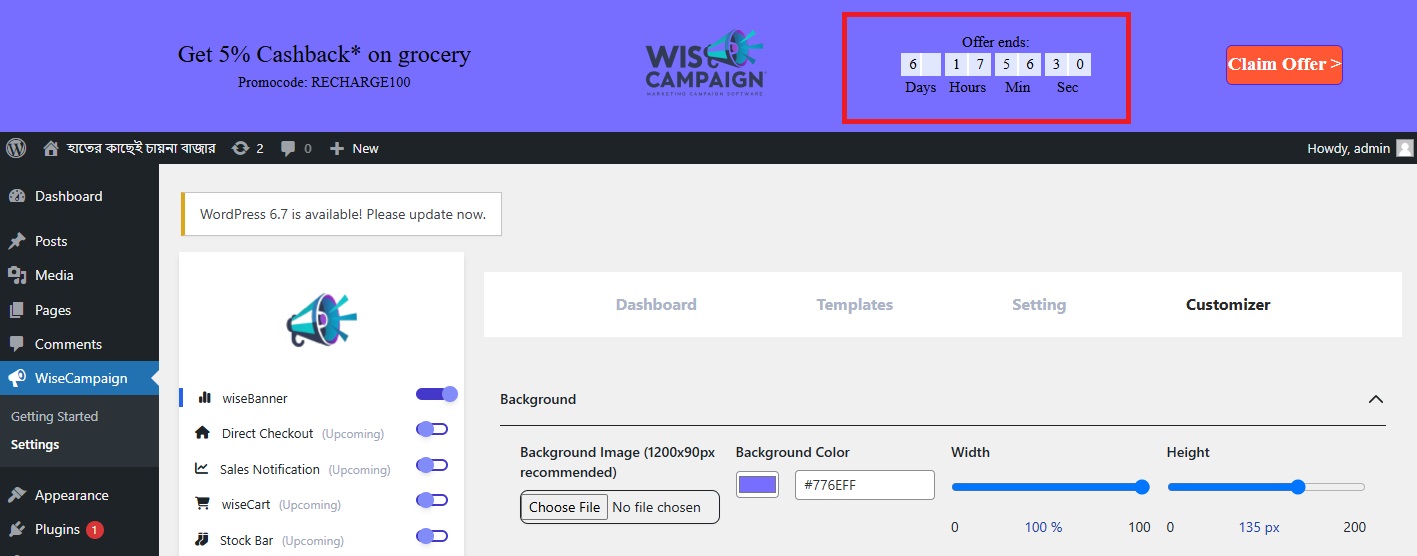
1. Top bar (site-wide)
A slim bar above your header is seen on every page, which makes it the best spot for a store-wide sale. Put the offer, the timer, the coupon code and one button in the bar, and nothing else. Our guide on how to add a top bar banner in WordPress walks through the setup.
2. Product pages
The buying decision happens next to the price and the Add to Cart button. A short line like “Sale price ends in 05:12:40” or a stock bar showing how many are left works better here than a big banner.
3. Cart and checkout
Keep it light. A small reminder that the sale price ends tonight can help, but popups and flashing clocks distract people who are already paying. Only use a “your cart is reserved for 10 minutes” timer if items really are held for that time, as with event tickets.
4. Email
Launch emails, “last chance” emails and abandoned cart reminders are natural places for a deadline. Email timers are usually animated images, and some desktop email apps show only the first frame, so make sure that frame still shows the end date in words. Put the deadline in the subject line too, and only promise one in a cart email if the discount really expires.
5. Landing pages and event sign-ups
For webinars, live events and product launches, a timer counting down to the start time or registration close gives people a reason to sign up now instead of bookmarking the page.
Design tips for a timer that converts

- Label it. Put “Sale ends in” or “Offer expires in” next to the digits. A clock without context is just decoration.
- Show the offer and the deadline together, for example “25% off with code WINTER25, ends Sunday at midnight.”
- Use one clear call to action. “Shop the sale” beats three competing links.
- Aim for contrast, not chaos. Pick a color that stands out from your header, but skip flashing effects that make the page feel like spam.
- Match the units to the time left. Days and hours for a week-long sale; hours, minutes and seconds on the last day.
- Check your timezone. Timers that use your site time follow Settings → General → Timezone in WordPress. If your customers are spread out, name the timezone in the text.
- Test it on a phone. Make sure the bar doesn’t cover your menu or push the Add to Cart button out of view.
Keep it honest: fake countdown timers and the law
The fastest way to waste a countdown timer is to fake it. Shoppers notice when the same “ends today” sale is back tomorrow, and so do regulators.
- Research: a 2019 study that crawled about 11,000 shopping websites found 393 countdown timers. 157 of them, on 140 sites, were deceptive: they reset after reaching zero, or the “expiring” offer was still available afterwards (Mathur et al., “Dark Patterns at Scale”).
- United States: the FTC’s 2022 staff report Bringing Dark Patterns to Light flags countdown timers designed to make consumers believe they only have a limited time to buy, when the offer is not actually time-limited (FTC, 2022).
- European Union: the Unfair Commercial Practices Directive bans, in all circumstances, falsely stating that a product will only be available for a very limited time to push an immediate decision (Annex I, point 7). When the European Commission and national authorities screened 399 online shops, 42 of them used fake countdown timers (European Commission, 2023).
- United Kingdom: in May 2026, mattress brand Emma Sleep admitted breaking consumer law by using misleading countdown timers and agreed court-backed undertakings to stop. Since April 2025 the CMA can fine companies up to 10% of global turnover for consumer law breaches (CMA, 2026).
The simple rules:
- When the timer hits zero, the offer ends and the price really goes back up.
- Don’t relaunch the same “limited time” deal with a new deadline right after the old one ends.
- Use restarting timers only for things that genuinely repeat, such as a daily deal or a real shipping cut-off.
- Stock counts must come from real inventory, not a made-up number.
This is general information, not legal advice. If you sell into the EU or UK, or run large campaigns, check the rules for each market you sell to.
Common countdown timer mistakes
- Fake or resetting timers. They break trust and, as shown above, can break the law.
- A timer that never goes away. If a sale always ends “today,” shoppers stop believing it and wait for the next one.
- An expired timer left on screen. A bar showing 00:00:00 for days looks abandoned. Decide who switches it off.
- A timer with no offer. Say what ends: the discount, the free gift or the free shipping.
- The wrong timezone, so the sale ends hours early or late for your customers.
- Too much pressure on one page. A timer, a popup and a low-stock warning all at once feels like a hard sell, not a deal.
- Not measuring. Without a before-and-after comparison, you won’t know if the timer helped.
Countdown timer examples you can copy

- Store-wide sale (top bar, fixed): “Winter Sale: 25% off everything with code WINTER25. Ends in 1d 04:12:09” plus a “Shop now” button.
- Black Friday to Cyber Monday (fixed): one timer counting down to the end of Cyber Monday. Planning yours? Use our WooCommerce Black Friday checklist.
- Daily deal (recurring): “Today’s deal: 40% off the canvas tote. Next deal in 06:31:44.” Honest because the deal really changes every day.
- Shipping cut-off (recurring): “Order within 2h 15m for same-day dispatch.”
- Limited run (stock-based): “Only 7 left, 43 sold. Flash price ends in 05:10:22.”
- Webinar (fixed): “Registration closes in 2 days 3 hours.”
How to add a countdown timer in WooCommerce (step by step)
We use wiseCampaign here, the free WooCommerce marketing plugin we build at Wisemattic. Its wiseBanner module adds a top sale bar with a countdown timer, a click-to-copy coupon and a button.
Step 1: Install wiseCampaign
In your dashboard, go to Plugins → Add New, search for “wiseCampaign,” then install and activate it. You can also download it from WordPress.org.
Step 2: Open wiseBanner and pick a template
Go to WiseCampaign → wiseBanner. If the banner is switched off, turn it on under WiseCampaign → Getting Started. Click Change Template, then Use Template on the design you like. The 5 Basic templates are free; the seasonal templates are part of Pro.
Step 3: Write the offer and add a coupon
First create the coupon under Marketing → Coupons in WooCommerce and give it an expiry date that matches your sale. Then, in the wiseBanner Content tab, add a short headline such as “Winter Sale: 25% off everything.” Turn on the coupon code, enter your code and choose where it sits. Visitors click the code to copy it, so they don’t have to remember it at checkout.
Step 4: Set the countdown timer
Under Countdown Timer, set the End Date & Time of your sale. Leave Restart Countdown off for a one-off sale. Turn it on only for an offer that really repeats, then set Restart Every and the Basis (Days, Hours or Minutes), for example every 1 day for a daily deal.
Step 5: Add the button and style the bar
Under Call to Action, add the button text and a link to your sale page or shop. In the Design tab, set the background, font sizes, timer digit color and button colors so the bar stands out from your header.
Step 6: Choose where it shows, then save
In the Settings tab, the free version shows the bar at the top of every page. Pro adds specific-page targeting, bottom and sticky bars, and a close button. Click Save Changes, check that Banner Status reads “Currently Active,” then open your store in a private window and on a phone. Every option is explained in the docs: customize the top banner.
Step 7: Switch it off when the sale ends
Without Restart Countdown, the timer shows zeros when it ends and the bar stays up until you turn it off. Set yourself a reminder for the end time so the bar and the coupon expire together.
Optional: wiseBanner also has an exit-intent popup, free with the Basic templates. It opens when a desktop visitor moves to leave the page, or after a quick upward swipe or a short delay on mobile. It shows once per visit and never opens on the WooCommerce checkout page. See the full list on the wiseBanner features page.
Add a stock bar with a flash-sale timer (StockBar)
For product pages, StockBar (free in wiseCampaign) shows how many items are left and how many have sold, using your real WooCommerce stock. Choose the Flash Sale Timer template and set an end date and time to show a countdown next to the stock count. The timer uses your site’s timezone, and the bar disappears when time runs out or the product sells out.
- Turn on stock management for the product in its Inventory tab. StockBar needs real stock numbers.
- Place the bar above the Add to Cart button (recommended), after the price or below the button. Turn on Display on Shop Page for a compact bar in your product grid.
- Write the message with the {stock}, {sold} and {total} placeholders, for example “Only {stock} left, {sold} sold.”
See templates and settings on the StockBar features page.
Selling on Shopify?
Our wiseBanner app for Shopify adds announcement bars on its free plan: top or bottom, sticky or not, with a button. Live countdown timers and one-click coupon badges are part of the Pro plan, which has a 7-day free trial.
How to tell if your timer is working
Compare like with like: conversion rate, average order value and coupon uses during the timed sale against a similar period without a timer. wiseCampaign’s free analytics count banner impressions, clicks and coupon copies; Pro adds orders, revenue and a conversion funnel. If people click but don’t buy, look at the offer before you blame the timer.
Frequently asked questions
Do countdown timers really increase sales?
They can. A real deadline gives shoppers a reason to decide now instead of later, and scarcity makes an offer feel more valuable. Results depend on your offer and audience, so compare sales with and without the timer instead of relying on a promised percentage.
Are countdown timers legal?
Yes, when the deadline is real. Fake timers that reset, or keep running after the offer was supposed to end, can break consumer law. The FTC lists them as a dark pattern, the EU bans false “limited time” claims, and the UK’s CMA has acted against misleading countdown timers.
How long should a sales countdown timer run?
Match it to the real offer. Flash sales often run from a few hours to a couple of days, launches and pre-orders often count down over one to two weeks, and a Black Friday timer can run to the end of Cyber Monday. Show seconds only on the last day.
What is the difference between a fixed and an evergreen countdown timer?
A fixed timer counts down to the same date and time for everyone. An evergreen timer starts when each visitor first arrives, so everyone gets their own deadline. An evergreen timer is only honest if the offer really expires for that visitor.
How do I add a free countdown timer to WooCommerce?
Install the free wiseCampaign plugin, open WiseCampaign → wiseBanner, choose a template, set the End Date & Time under Countdown Timer, add your coupon and button, then save. For a countdown next to stock levels on product pages, use StockBar’s Flash Sale Timer template.
Start with one honest deadline
A countdown timer works best when a real offer stands behind it: a clear discount, a real end date and a price that really goes back up. Start with one sale, put the timer where shoppers decide, and measure the result.

Leave a Reply