

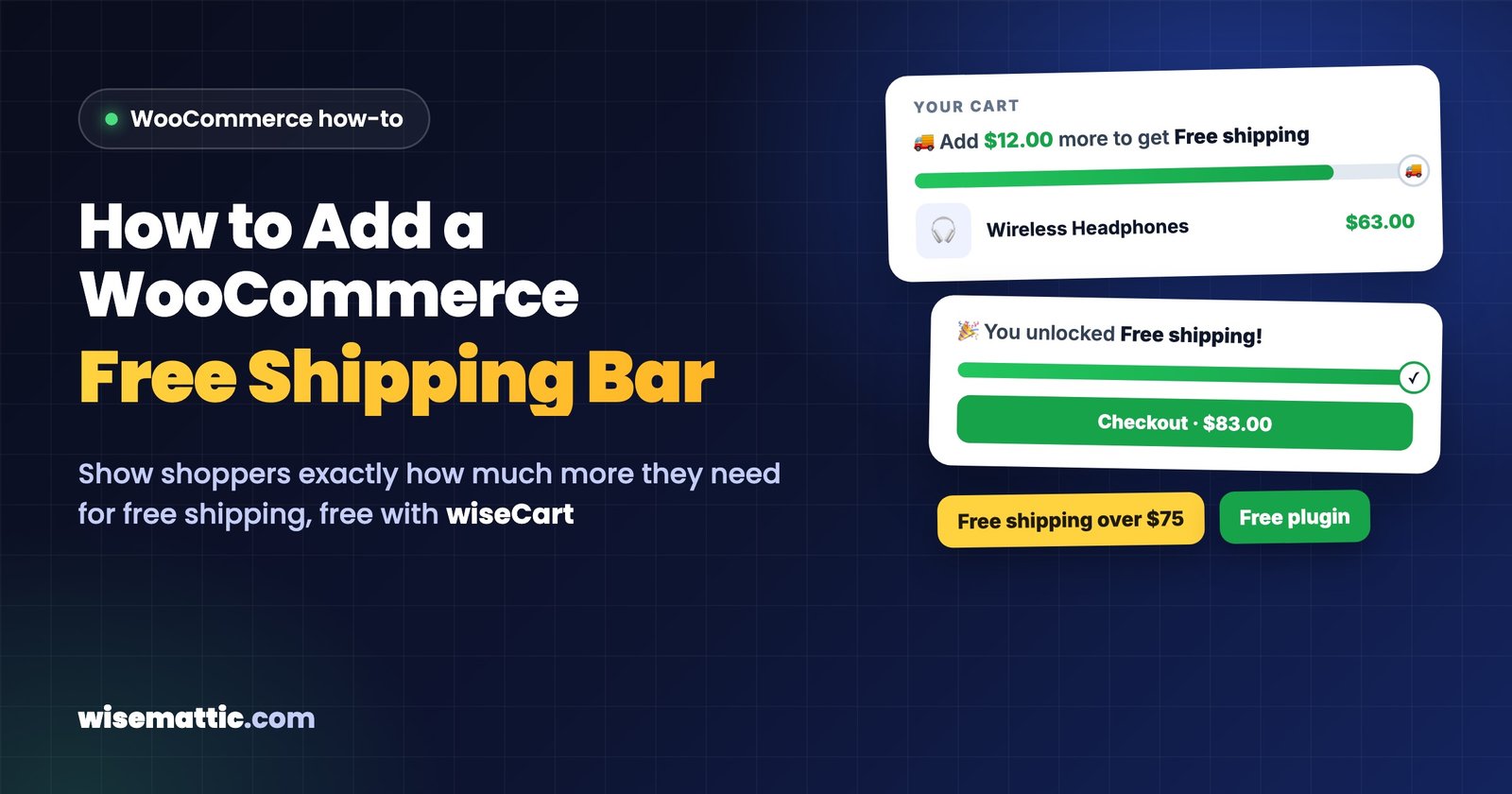
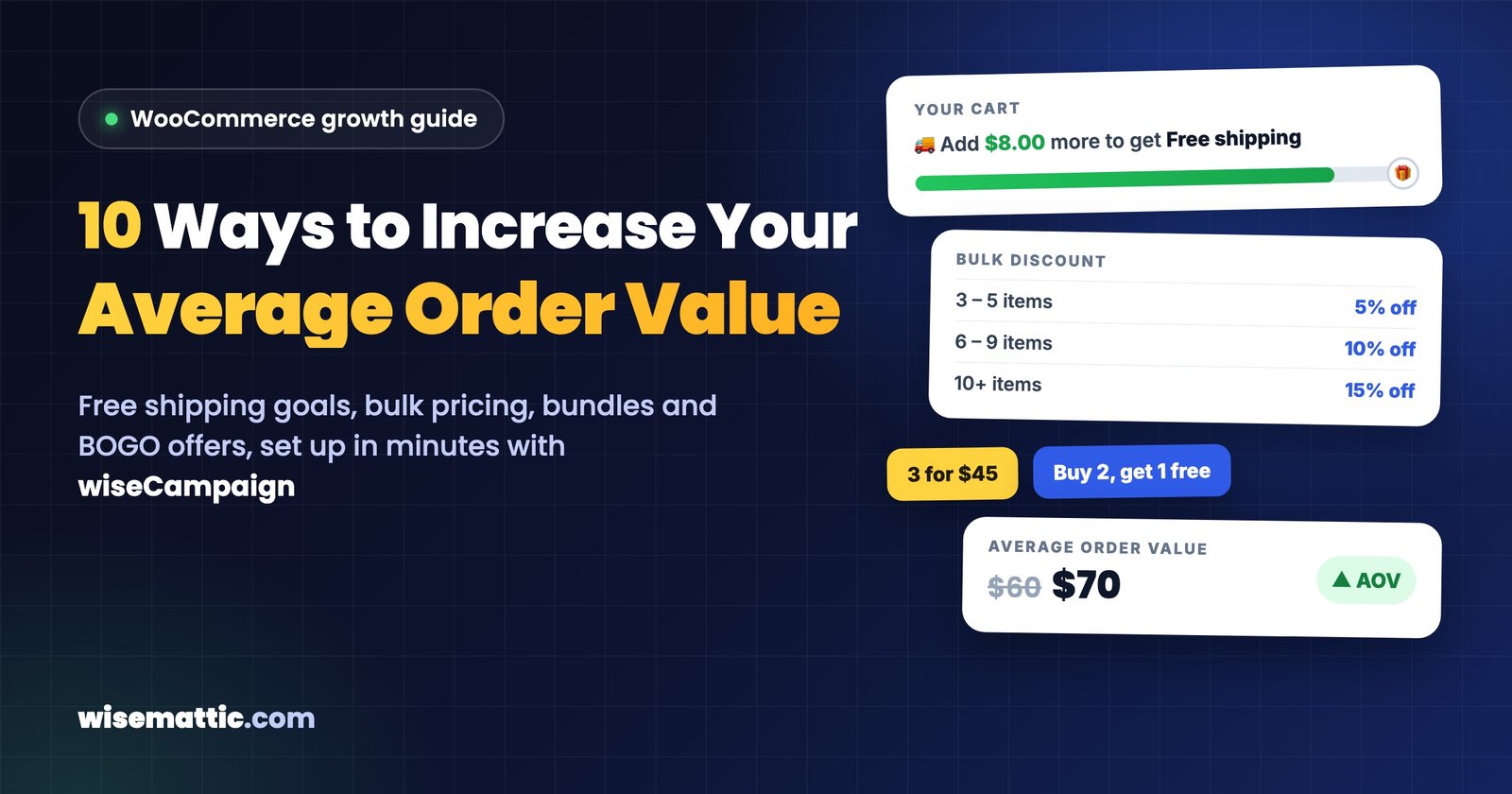
“Add $12.00 more to get free shipping.” That one line in the cart is one of the simplest ways to get shoppers to add another item. WooCommerce can already give free shipping above a minimum order amount, but it does not show shoppers how close they are. A free shipping progress bar fills that gap.
In this guide you will set one up in about ten minutes, without code and without paying for a plugin. You need two things: a free shipping rule in WooCommerce, and wiseCart, the slide-out cart included free in wiseCampaign, which reads that rule and shows the progress bar.
Quick answer
- In WooCommerce → Settings → Shipping, add a Free shipping method to your shipping zone and set “Free shipping requires” to A minimum order amount.
- Install the free wiseCampaign plugin and turn on wiseCart.
- In wiseCart’s Content tab, make sure Reward progress bar is on. The cart now shows “Add $X more to get Free shipping”.
The rest of this guide explains each step, how to choose the right minimum and how to fix the bar if it does not show.
What is a free shipping progress bar?
A free shipping progress bar shows shoppers how much more they need to spend to get free shipping, and fills up as they add products to the cart. When the cart reaches the minimum, the message changes to confirm that free shipping is unlocked.
It works because of a simple idea: people try harder as they get closer to a goal. A shopper who sees they are $8 away will often add a small product rather than pay for delivery. The result is a higher average order value, and shoppers feel they got a better deal. If you want more ways to raise order value, see our guide on 10 ways to increase WooCommerce average order value.
Before you start: choose your free shipping minimum
The bar only helps if the goal is within reach. A good starting point is 20–30% above your current average order value:
- Find your average order value in WooCommerce → Analytics → Orders, for example $60.
- Add 20–30%, which gives a minimum of about $72–$78. Round it to something easy to remember, such as $75.
- Check your margin: the extra product a shopper adds should more than pay for the shipping you now cover.
If the minimum is far above what people usually spend, for example $150 in a store with a $60 average, most shoppers will ignore it.
Step 1: Create a free shipping rule in WooCommerce
- Go to WooCommerce → Settings → Shipping and open the shipping zone you want, for example “United States”.
- Click Add shipping method, choose Free shipping and open its settings.
- Set Free shipping requires to A minimum order amount (or A minimum order amount OR a coupon if you also give free shipping coupons).
- Enter your Minimum order amount, for example 75, and save.
There is also a checkbox called Apply minimum order rule before coupon discount. Leave it off if you want the minimum to count what the shopper pays after coupons, or tick it to count the amount before coupons. wiseCart follows the same setting, so the bar and WooCommerce always agree. WooCommerce explains every option in its free shipping documentation.
Shipping to several regions? Add a free shipping method to each zone. They can have different minimums, for example $75 at home and $150 for international orders. Each shopper sees the goal for their own zone.
Step 2: Install wiseCampaign and turn on wiseCart
- In your dashboard, go to Plugins → Add New, search for wiseCampaign, then install and activate it.
- Go to wiseCampaign → wiseCart and switch wiseCart on.
- In the Settings tab, keep Open the cart on, so the cart slides open after Add to Cart and shoppers see the progress bar right away.
wiseCart replaces the usual trip to the cart page with a slide-out cart. Shoppers can change quantities, apply a coupon and go back to shopping without leaving the page they are on.
Step 3: Turn on the reward progress bar
Open the Content tab. Under Rewards & Savings, make sure Reward progress bar is switched on. Below the switch, wiseCart lists the goals it found, so you can confirm it picked up your free shipping rule. If it says there are no goals yet, go back to step 1.
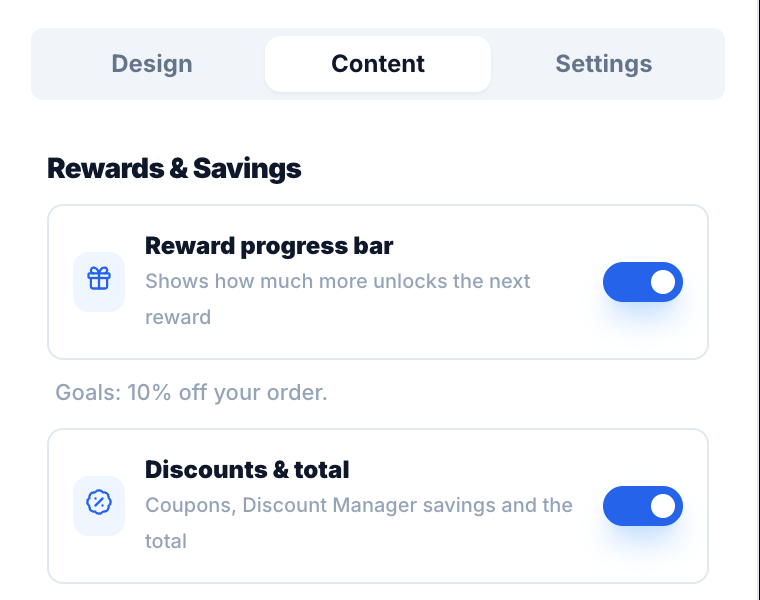
Save your changes. From now on, the cart shows a bar with a 🚚 marker at your free shipping minimum and a message such as “Add $12.00 more to get Free shipping”. When the shopper reaches it, the bar fills up and the message changes to “You unlocked Free shipping!”.
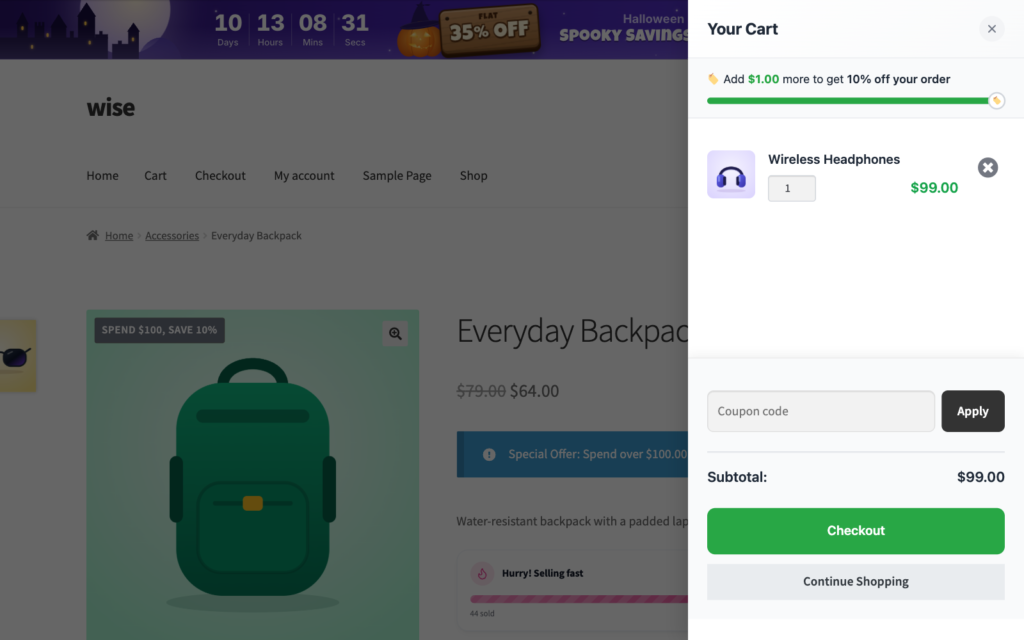
Step 4: Test it like a shopper
- Open your store in a private browser window and add a product below the minimum. The cart should say how much more is needed.
- Add more until you pass the minimum. The message should change to “You unlocked Free shipping!”, and Free shipping should appear at checkout.
- Apply a coupon and check that the remaining amount updates the way you set it in step 1.
- Test on your phone. Most shoppers will see the bar on a small screen.
Step 5 (optional): Announce the offer on every page
The progress bar works in the cart, but shoppers should know about free shipping before they start adding products. Add a top bar with wiseBanner, also free in wiseCampaign, with a message like “Free shipping on orders over $75”. You can show it sitewide or only on selected pages, and add a countdown if the offer is for a limited time.
Add a second goal with a spend-based discount (Pro)
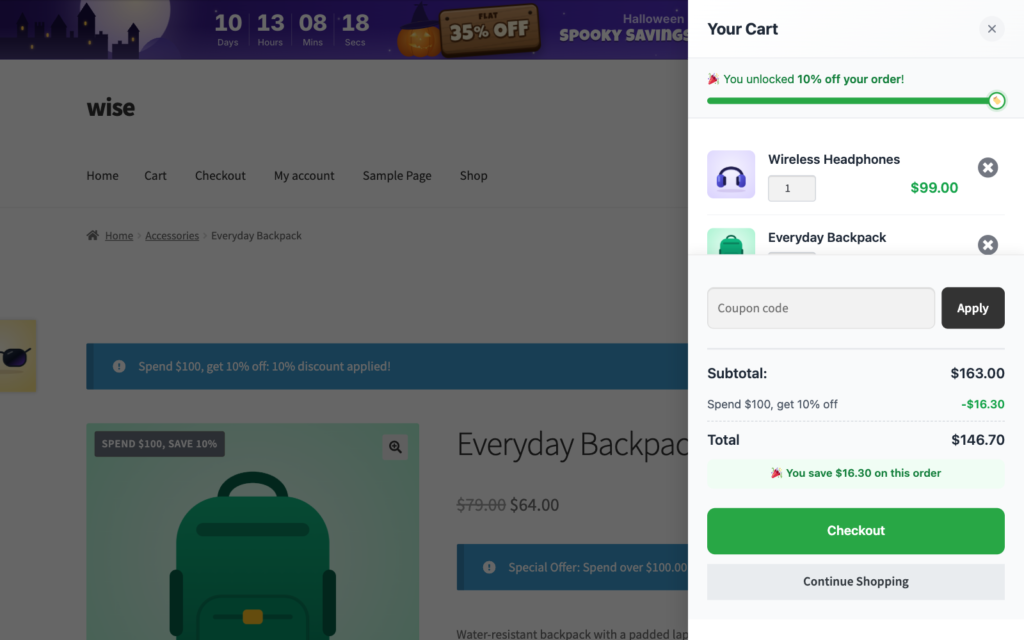
Once free shipping is unlocked, give shoppers a reason to keep going. With wiseCampaign Pro, create a spend-based discount in the Discount Manager, for example “Spend $120, get 10% off”. wiseCart adds it to the same bar as a second step, so shoppers see free shipping first and the bigger reward next.
Tips to get more from your free shipping bar
- Make the gap easy to close. Have a few low-priced products, such as accessories or refills in the $5–$15 range, that shoppers can add to reach the minimum.
- Keep the message short. “Add $12.00 more to get Free shipping” is clearer than a long promotion.
- Show shipping costs early. Unexpected shipping costs at checkout are one of the most common reasons shoppers leave. Our guide on reducing cart abandonment in WooCommerce covers more fixes.
- Review the minimum every few months. If your average order value rises, raise the minimum with it.
Troubleshooting: the bar does not show
- No free shipping goal found. The shopper’s shipping zone needs a Free shipping method that requires “A minimum order amount” or “A minimum order amount OR a coupon”, with an amount above 0. The options “A valid free shipping coupon” and “A minimum order amount AND a coupon” need a coupon, so there is no amount for the bar to count down.
- The switch is off. Check that both wiseCart and Reward progress bar are on.
- Shipping is turned off. If shipping is disabled in WooCommerce’s general settings, there is no free shipping rule to show.
- Wrong zone. The bar uses the same shipping zone WooCommerce picks for the shopper. If a test address falls into a zone without free shipping, no bar appears.
Frequently asked questions
Does WooCommerce have a free shipping progress bar built in?
No. WooCommerce can give free shipping above a minimum order amount, but it does not show shoppers how much more they need. You need a plugin such as wiseCart, included free in wiseCampaign, to show the progress bar.
Is the wiseCart free shipping bar free?
Yes. wiseCart and its reward progress bar are part of the free wiseCampaign plugin on WordPress.org. wiseCampaign Pro adds spend-based discounts that appear on the same bar as extra goals.
What is a good free shipping threshold for WooCommerce?
Start about 20–30% above your current average order value. With a $60 average, a $75 minimum is one small product away for most shoppers. Then check your margin and adjust after a few weeks of data.
Can I set different free shipping minimums for different countries?
Yes. Add a Free shipping method with its own minimum order amount to each shipping zone. wiseCart shows each shopper the goal for the zone WooCommerce uses for their cart.
Does the bar count the cart total before or after coupons?
It follows your WooCommerce setting. By default it counts the subtotal after coupons. If you tick “Apply minimum order rule before coupon discount” in the free shipping method, it counts the amount before coupons.
Can I show the free shipping message outside the cart?
Yes. Use a top bar such as wiseBanner to announce “Free shipping on orders over $75” on every page, and let the wiseCart progress bar show each shopper’s remaining amount in the cart.
Add your free shipping bar today
A free shipping rule and a progress bar take about ten minutes to set up, and they work every day after that. Install wiseCampaign for free, turn on wiseCart and let your cart tell shoppers how close they are.

Leave a Reply