WooCommerce Side Cart with a Free Shipping Progress Bar
wiseCart replaces the cart page with a slide-out cart. A progress bar shows shoppers how much more unlocks free shipping, their savings stay in view, and they can check out without leaving the page. Free, no code.
Cyber Week80% off your first year of any Pro plan. Code BFCM80 is applied at checkout until December 5.
★★★★★5.0 on WordPress.org•Side cart included in the free version•Built for WooCommerce•14-day money-back guarantee
yourstore.com/shop
Shop
👕Organic Cotton Tee$24.00
☕Ceramic Mug$18.00
👜Canvas Tote$21.00
🧢Everyday Cap$15.00
Your Cart
🚚 Add $12.00 more to get Free shipping
🚚
👕Organic Cotton Tee1$24.00
☕Ceramic Mug1$18.00
👜Canvas Tote1$21.00
Subtotal:$63.00
Spend $100, get 10% off
Total
Billing details
First name *Email address *Street address *
Demo only. In your store this is the WooCommerce checkout form, inside the cart.
✓
Order Placed Successfully!
Thank you for your order! We’ve received your payment and will process your order shortly.
Progress bar goals:
A live demo of the wiseCart drawer. Change a quantity and watch the bar, or close the cart and add a product: it slides open again, like wiseCart does after Add to Cart.
At a glance
What is wiseCart?
wiseCart is the WooCommerce side cart module of wiseCampaign, a plugin by Wisemattic. It replaces the cart page with a cart that slides out from the side of the screen, with a progress bar toward free shipping, quantity controls, the shopper’s savings and an optional checkout form inside the cart.
The progress bar reads the minimum order amount from your WooCommerce Free shipping method, so it works with the shipping rules you already have. With wiseCampaign Pro, Discount Manager rewards such as “10% off your order” become extra steps on the same bar.
A side cart is also called a slide-out cart, cart drawer or mini cart. wiseCart is free on WordPress.org.
Free shipping from your WooCommerce minimum (free). Discount Manager spend rewards (Pro)
In the cart
Items, quantity pickers, subtotal, discount lines, savings and total
Checkout
Optional checkout inside the cart, with an order success message
Cart button
6 positions, 3 styles and your colors
Analytics
Cart opens and checkouts started (free). Orders and revenue (Pro)
Price
Free on WordPress.org. Pro from $59 per year
Version
wiseCampaign 2.1.0, November 3, 2026
Average order value
How does a side cart increase average order value?
Average order value (AOV) is your revenue divided by your number of orders. wiseCart changes three things shoppers see between Add to Cart and payment.
A goal in every cart
The bar turns your free shipping minimum into a target the shopper sees each time the cart opens. Someone $12 away has a reason to add one more item instead of paying for shipping.
$63 cart + an $18 mug = an $81 order with free shipping
Savings they can see
Coupons and Discount Manager discounts show as their own lines, with the total and how much the shopper saves. A bigger order feels like a better deal, not a bigger bill.
🎉 You save $16.30 on this order
Fewer steps to pay
No cart page to load. Shoppers change quantities and check out in the drawer, or close it and keep browsing where they were.
Add to cart → the cart slides open → Checkout
Unexpected extra costs, with shipping at the top of the list, are the most common reason shoppers abandon checkout in Baymard Institute’s research, which puts average cart abandonment at about 70%. Showing the free shipping goal in the cart answers the shipping question before checkout. More ideas: how to increase WooCommerce average order value and how to reduce cart abandonment in WooCommerce.
Features
Everything in the wiseCart side cart
Free shipping progress, savings and checkout in one drawer. Pro connects it to the Discount Manager and adds order tracking.
Free shipping progress barFree“Add $12.00 more to get Free shipping”, from the minimum in your WooCommerce Free shipping method.
Spend reward stepsProSpend & save and other Discount Manager rewards with a minimum order value become extra steps on the bar.
Savings and totalFreeProEach coupon gets its own line, with the total and “You save”. Pro adds Discount Manager discounts.
Quantity changesFreeShoppers change quantities in the drawer. The subtotal and the bar update without a page reload.
Live preview editorFreeSee the cart button, drawer, empty cart and order success screen as you edit, on desktop and mobile.
Checkout inside the cartFreeThe WooCommerce checkout form opens in the drawer, with a Back to Cart button.
Order success messageFreeYour own title and message after an order is placed in the cart, then the order page after the seconds you choose.
Replace cart and checkoutFreeShoppers who open the cart or checkout page land on your shop with wiseCart open.
Opens after Add to CartFreeThe cart slides open when a product is added. Or skip the cart and go straight to checkout.
Cart button your wayFree6 positions, icon, text or both, and colors for the button, count badge and corners.
Show only what you needFreeTurn images, prices, quantity pickers, remove buttons, coupons, subtotal and Continue Shopping on or off.
Cart analyticsFreeProCart opens and checkouts started for free. Orders and revenue from cart checkouts with Pro.
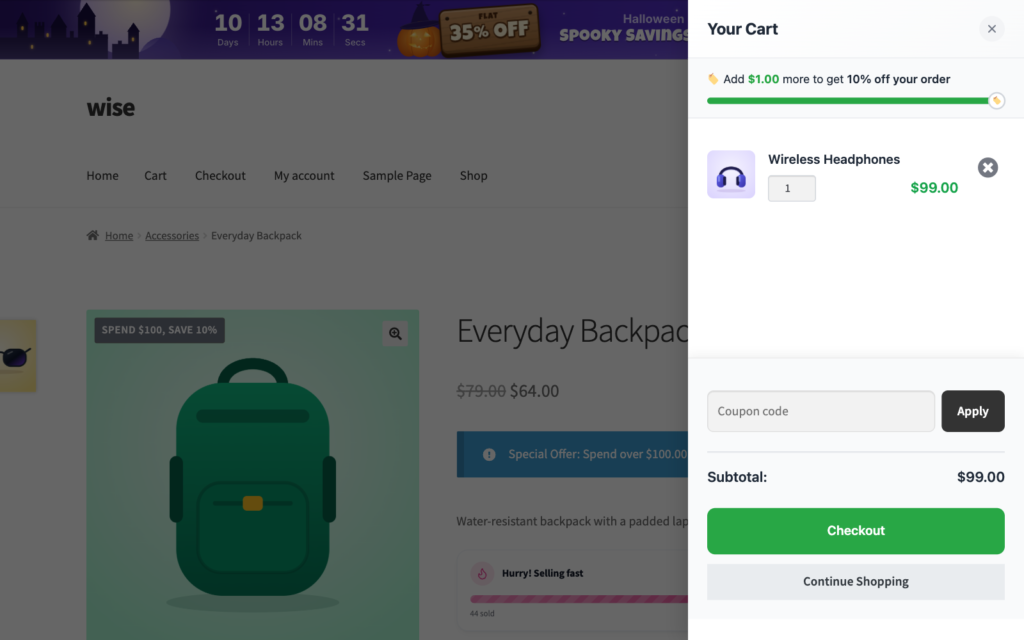
wiseCart on a Storefront test store: $1.00 away from a Discount Manager reward.
Free shipping progress bar
How does the free shipping progress bar work?
You don’t type the amount twice. wiseCart finds the Free shipping method that applies to the cart and reads its minimum order amount, then shows the shopper how far they are from it.
Your WooCommerce minimum: works when Free shipping requires “A minimum order amount” or “A minimum order amount OR a coupon”, in the shipping zone that matches the shopper’s address.
The amount WooCommerce checks: the subtotal after coupons, unless your method applies the minimum before coupon discounts.
A clear message: “Add $12.00 more to get Free shipping”, then “You unlocked Free shipping!” once the cart gets there.
More steps with Pro: Discount Manager rewards with a spend target, such as “10% off your order”, get their own marker, and the message always points to the next one.
Your colors: the bar follows your Checkout button color, and it hides itself when there is no goal to reach.
See the wiseCart slide-out cart on a WooCommerce store
Screenshots from a Storefront test store with wiseCampaign 2.1 turned on.
yourstore.com • wiseCart
Savings and total
Show shoppers what they save
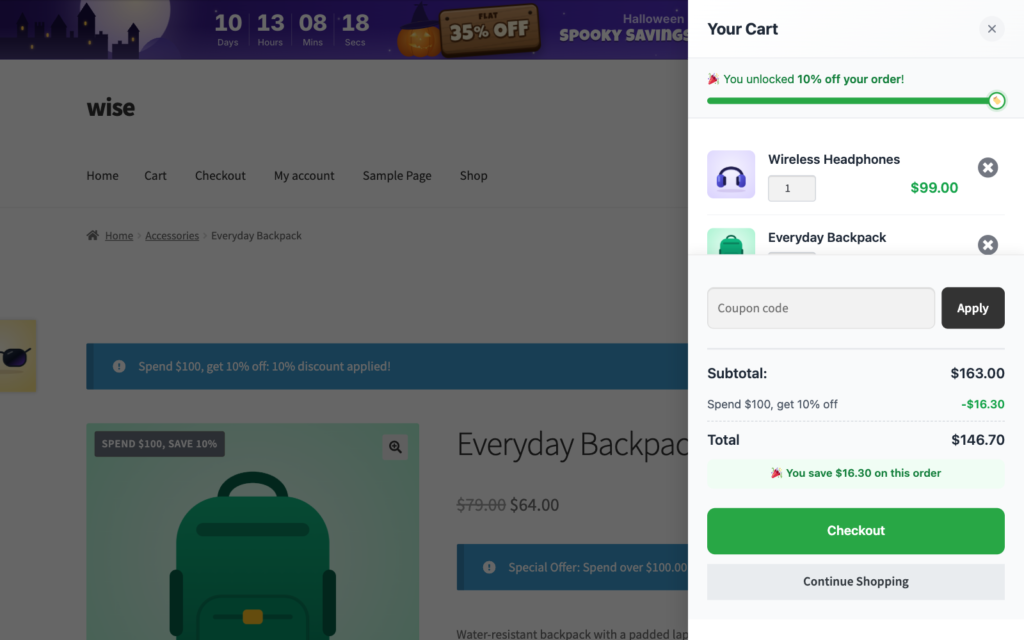
When the cart has a coupon or a Discount Manager discount, wiseCart lists each one under the subtotal, then the total and a “You save” line. Shoppers see the reward they just unlocked.
✓One line per discount: each coupon and each Discount Manager discount (Pro).
✓Total before shipping: items after discounts, with “Shipping is calculated at checkout” when it applies.
✓“You save $16.30 on this order”: the coupon and discount savings added up.
yourstore.com/shop • checkout in wiseCart
Checkout inside the cart
Check out without leaving the page
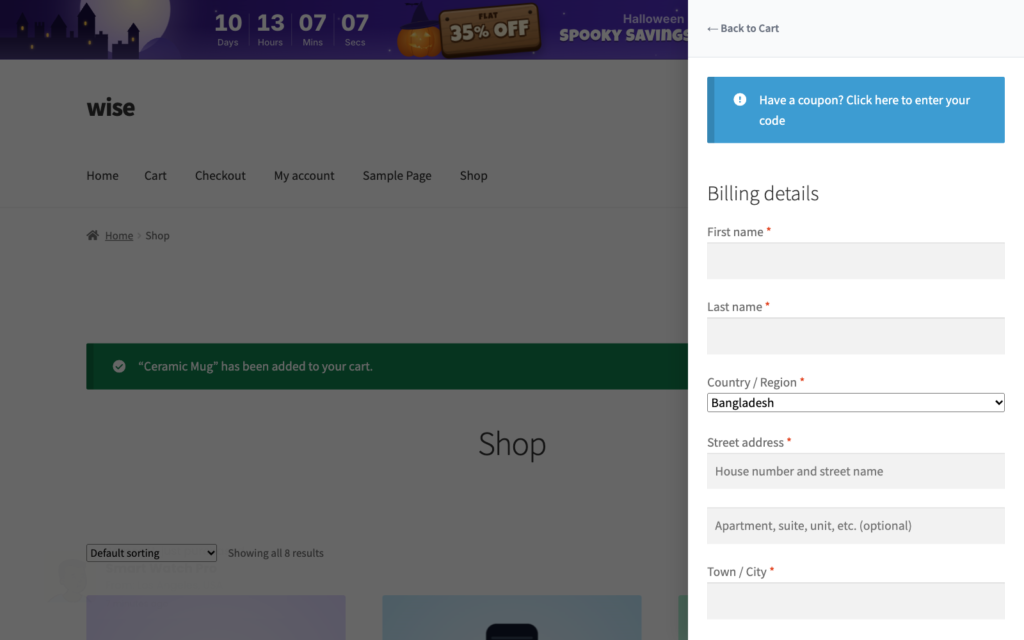
Turn on Checkout page and the checkout form opens inside wiseCart. The Checkout button, checkout links and the Direct Checkout Buy Now button all open the drawer on its checkout form.
✓Back to Cart: one click returns to the items and the progress bar.
✓Order success message: your title and text in the cart, then the order page after 1 to 120 seconds (10 by default).
✓Order received stays: the WooCommerce order received page is never replaced.
Cart behavior
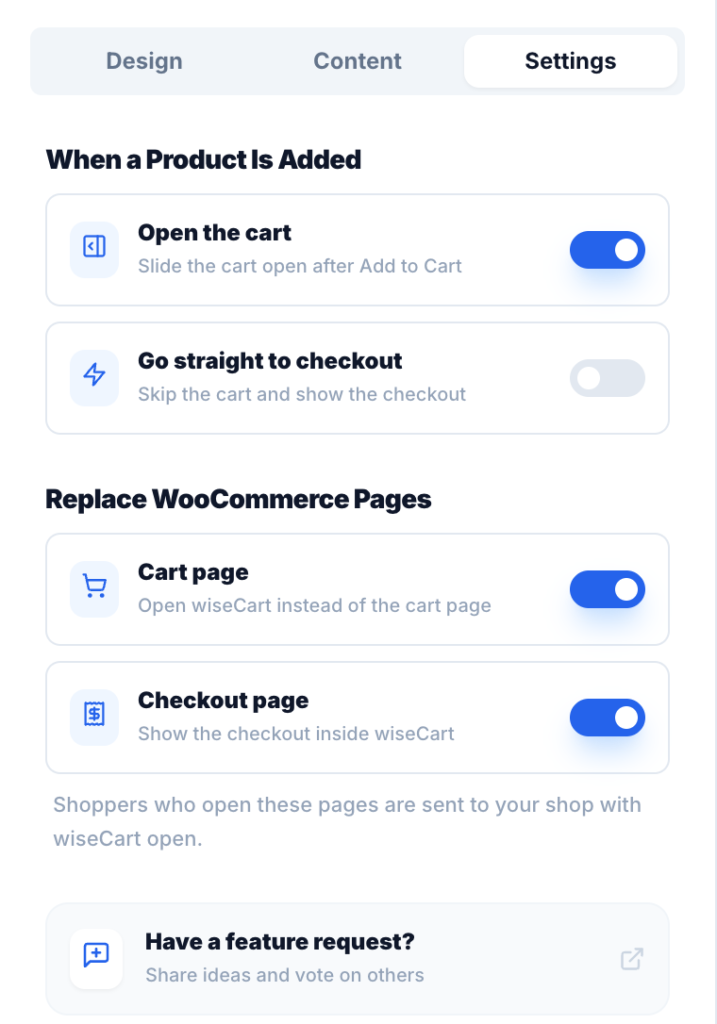
Choose what happens after Add to Cart
The Settings tab decides how shoppers meet the cart. Each switch is independent, so you can keep your cart page and still use the drawer.
✓Open the cart: slide the cart open after Add to Cart, on by default.
✓Go straight to checkout: skip the cart and show the checkout.
✓Cart page and Checkout page: open wiseCart instead of the WooCommerce cart page, and show the checkout inside it.
Install wiseCampaign from Plugins > Add New, then go to WordPress Dashboard > WiseCampaign > wiseCart.
1
Turn wiseCart on
Switch wiseCart on at the top of the editor. It stays off until you do, so nothing changes on your store before you are ready.
2
Set a free shipping minimum
In WooCommerce > Settings > Shipping, open a zone, add or edit Free shipping, set Requires to “A minimum order amount” and enter the amount. The bar picks it up.
3
Style it and save
Pick the button position and colors on Design, what the cart shows on Content, and how it behaves on Settings. Then click Save Changes.
Pro unlocks every wiseCampaign module too, including the Discount Manager. From $59 per year, with a 14-day money-back guarantee.
Reviews
What store owners say about wiseCampaign
Reviews from WordPress.org, where wiseCampaign is rated 5.0 out of 5.
★★★★★
Great Plugin for Boosting WooCommerce Sales
wiseCampaign is an excellent plugin for creating flash sales, countdown timers, and attractive discount offers. The features are useful for increasing customer engagement and encouraging more purchases. Highly recommended for any WooCommerce store owner!
Saiful Islam · ★★★★★
Great for Countdown timer and Sales notifications.
wiseCampaign is a useful WooCommerce plugin for running flash sales and promotional campaigns. The countdown timer and sales notification features are particularly impressive, helping create urgency and boost customer engagement. Easy to use and a great addition to any WooCommerce store!
Mahmudur Rahman Labib · ★★★★★
Must-Have Plugin!
wiseCampaign makes creating banners and managing campaigns so easy! Great features, simple setup, and excellent targeting options.
About wiseCart, the free shipping progress bar and checkout inside the cart.
What is wiseCart?
wiseCart is the WooCommerce side cart module of the wiseCampaign plugin by Wisemattic. It replaces the cart page with a cart that slides out from the side of the screen, with a free shipping progress bar, quantity controls, a savings line and an optional checkout form inside the cart.
Is wiseCart free?
Yes. wiseCart and all of its settings are part of the free wiseCampaign plugin on WordPress.org, including the free shipping progress bar, coupon and savings lines, checkout inside the cart and page replacement. wiseCampaign Pro, from $59 per year, adds Discount Manager spend rewards as steps on the progress bar, Discount Manager discounts in the cart, and order and revenue tracking.
How do I add a side cart to WooCommerce?
Install wiseCampaign from Plugins > Add New and go to WiseCampaign > wiseCart. Switch wiseCart on, choose the cart button position and colors on the Design tab, what the cart shows on the Content tab and how it behaves on the Settings tab, then click Save Changes. The cart button then opens wiseCart on every page.
How does a side cart increase average order value?
It keeps the next reward in view. Each time the cart opens, the progress bar shows how much more the shopper needs for free shipping or, with Pro, a spend discount, and the savings line shows what the order already saves. Shoppers who are close to the goal have a reason to add one more item, and the drawer lets them do it without leaving the page.
Where does the free shipping progress bar get its minimum amount?
From WooCommerce. wiseCart reads the minimum order amount of the Free shipping method in the shipping zone WooCommerce matches to the cart’s shipping address. The method must require “A minimum order amount” or “A minimum order amount OR a coupon”. If no such method applies and there is no other goal, the bar stays hidden.
Do coupons count toward the free shipping goal?
The bar uses the same amount WooCommerce checks: the cart subtotal after coupon discounts. If your Free shipping method is set to apply the minimum order rule before coupon discounts, the bar uses the subtotal before coupons instead.
Can the progress bar show more than one reward?
Yes, with wiseCampaign Pro. Active Discount Manager rules with a spend target, such as a Spend & save discount or any discount with a minimum order value, are added to the bar next to free shipping. Each goal gets a marker, the message points to the next one, and the bar says “You unlocked” once all of them are reached.
Can customers check out inside the side cart?
Yes. Turn on Checkout page on the Settings tab and the WooCommerce checkout form opens inside wiseCart, with a Back to Cart button. After the order is placed, the cart shows your order success message and then takes the shopper to the order page after the number of seconds you choose, 10 by default.
Can wiseCart replace the WooCommerce cart and checkout pages?
Yes, and each is optional. With Cart page on, shoppers who open the cart page are sent to your shop with wiseCart open. With Checkout page on, they land on the shop with the drawer open on its checkout form. The order received page is never replaced.
Can I change where the cart button appears?
Yes. Place it at the top, middle or bottom of the screen, on the left or right, and show an icon, text or both. You can set the button, icon, count badge and corner colors. You can also hide the button, but wiseCart then leaves the cart drawer off your pages too.