Pro The Discount Manager is part of wiseCampaign Pro

WooCommerce Discount Rules That Apply Without a Coupon

Run BOGO deals, bulk pricing tiers, bundle prices and spend & save offers that apply on their own in the WooCommerce cart. The Discount Manager in wiseCampaign Pro shows each offer on the product page, so shoppers add the extra item themselves.

Cyber Week 80% off your first year of any Pro plan. Code BFCM80 is applied at checkout until December 5.

5.0 on WordPress.org In every Pro plan Runs on the free wiseCampaign plugin 14-day money-back guarantee
yourstore.com/product/cotton-tee
Buy 2, get 1 free

Cotton Tee

$29.00

Special Offer: Buy 2, Get 1 Free!

Quantity in the cart 3

Cart totals

Cotton Tee × 3$87.00
Subtotal$87.00
Buy 2 tees, get 1 free−$29.00
Total$58.00

You save $29.00 on this order

Every 3rd tee is free: 1 free tee in this cart.

A live demo that uses the same math as the Discount Manager in the cart. Switch the offer or change the quantity. The progress bar is how the free wiseCart side cart shows a spend reward.

What is the WooCommerce Discount Manager?

The Discount Manager is the discount rules and dynamic pricing module of wiseCampaign Pro, a WooCommerce plugin by Wisemattic. It applies discounts automatically in the cart, with no coupon code: bulk pricing tiers, buy X get Y free (BOGO), bundle prices, spend & save, quantity discounts, store-wide sales and next-order coupons.

Shoppers see each offer before they reach the cart, through sale badges, product page notices and a bulk pricing table in seven designs, including a Bundle & Save picker, so the reason to add one more item is right next to the quantity box. Every discount shows as its own line in the cart and in wiseCampaign Analytics, so you can see what each rule earns and what it costs.

Page updated

Part of
wiseCampaign Pro, by Wisemattic
Requires
WooCommerce, the free wiseCampaign plugin (active) and a Pro license
Discount types
7: Simple, Spend & save, Buy X get Y free, Buy X for a fixed price, Buy X save Y, Bulk pricing, Next-order coupon
Coupon code
Not needed. Rules apply in the cart when it qualifies
Targeting
Products, categories or the whole store; everyone or user roles; a minimum order value
Schedule
Always on, or from a start date to an end date
Bulk pricing tables
7 designs, your accent color, tier badges and free delivery from any tier
Cart and checkout
Classic and block-based pages, plus the wiseCart side cart
Analytics
Orders, revenue and discount given for every rule
Price
In every wiseCampaign Pro plan, from $59 per year
Version
wiseCampaign Pro 2.2.0 with wiseCampaign 2.2.0

Which WooCommerce discount rules can you create?

Pick a type, set the rule and save. Each type below shows what it does, how the cart works it out and what shoppers see, with screenshots from a WooCommerce test store.

Bulk pricing

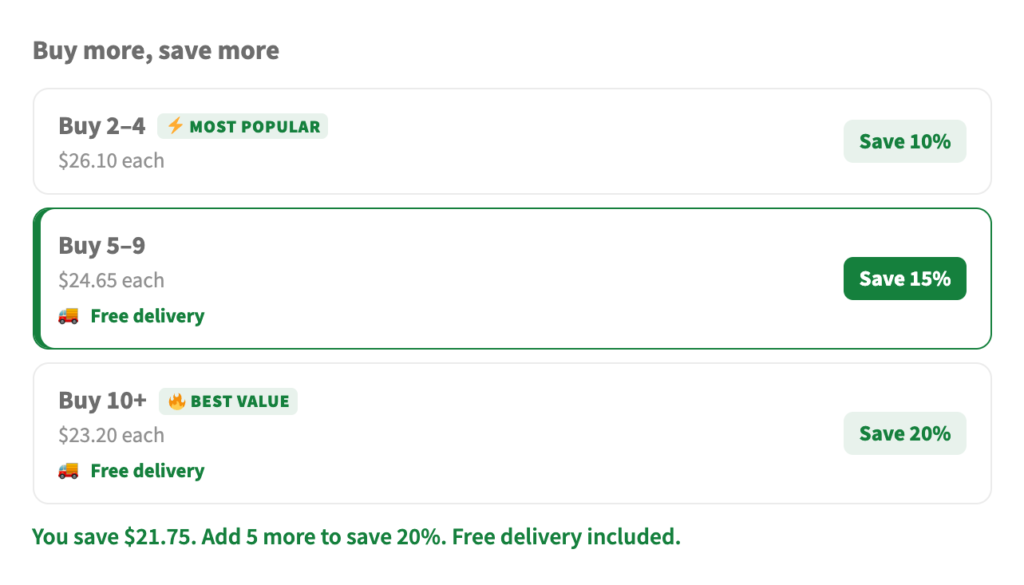
Tiered prices: the more a shopper buys, the less each item costs. Set as many tiers as you need, as a percentage off or a fixed price per item, show them in one of seven table designs and give free delivery from any tier.

Example
2–4 items 10% off, 5–9 items 15% off with free delivery, 10 or more 20% off
How the cart works it out
The quantities of all eligible items are added up, so shoppers can mix products in the rule. The tier that matches applies to every eligible item. Leave Max empty on the last tier for “and up”.
Table designs
Seven designs, from a plain table that follows your theme to Tier cards and a Bundle & Save picker. Pick your accent color and heading, add a badge such as “Most popular” to any tier, and check it all in the live preview.
Free delivery
Tick Free delivery on a tier, and every shipping method is free once the cart reaches that tier or a higher one.
Shoppers see
The tier for their quantity highlighted, what they save and how many more to add, a cart banner that points to the next tier, and the saving as its own line in the cart.
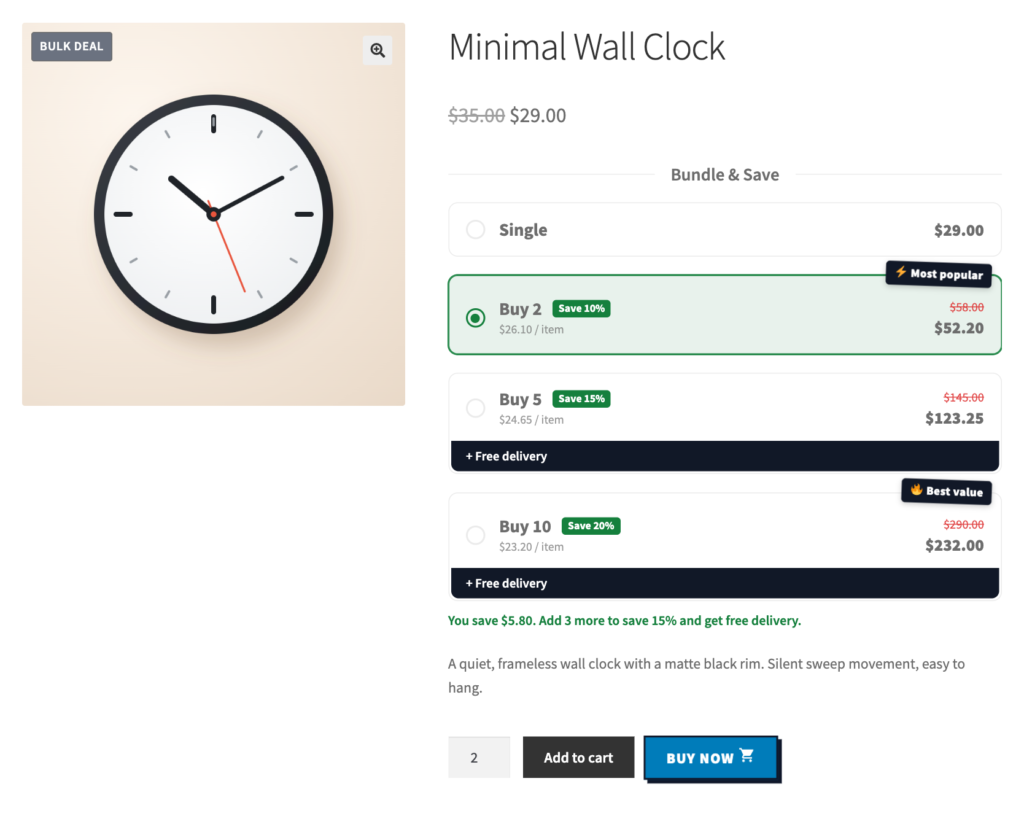
WooCommerce product page of a wall clock with the Bundle & Save choices and Buy 2 selected
Product page: Bundle & Save design
Checkout shipping options: Standard delivery FREE and Express delivery FREE
Checkout: every delivery method is free from 5 items

Buy X, get Y free (BOGO)

Classic WooCommerce BOGO deals: buy 1 get 1 free, 3 for the price of 2, or buy 4 get 1 free. In the plugin this type is called Free products.

Example
Buy 2 tees, get 1 free
How the cart works it out
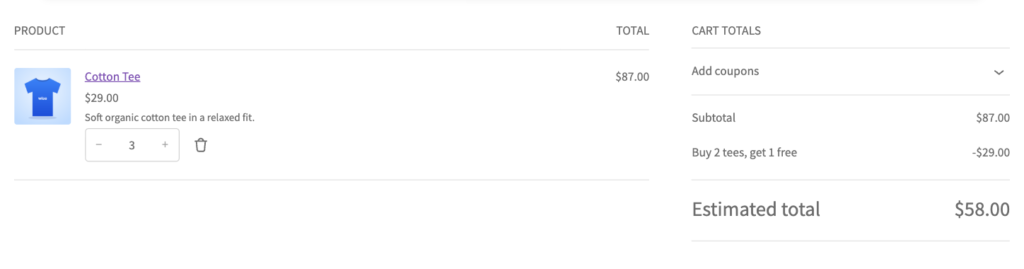
For every full group of eligible items (paid plus free), the cheapest ones are free. With buy 2 get 1, 3 tees give one free tee and 6 tees give two. Shoppers add the items themselves; nothing is added to the cart for them.
Shoppers see
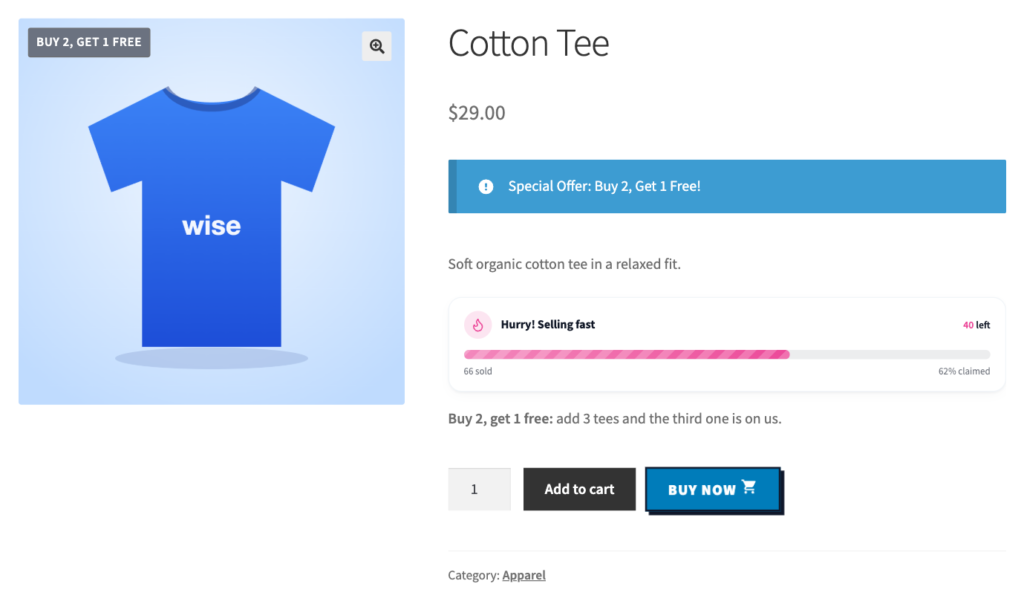
“Special Offer: Buy 2, Get 1 Free!” on the product page, your badge on the product image, and the free item as a discount line in the cart.
Cotton Tee product page with a Buy 2, get 1 free badge and the Special Offer: Buy 2, Get 1 Free! notice
Product page
WooCommerce cart with 3 tees and a Buy 2 tees, get 1 free line of -$29.00
Cart

Buy X for a fixed price

Bundle deals with one clear price, such as any 3 mugs for $45 or 2 t-shirts for $25. Pick a category to make it a mix-and-match bundle.

Example
Any 3 mugs for $45
How the cart works it out
Each full set of eligible items costs your fixed price. The most expensive eligible items go into the sets first, and items outside a full set keep their normal price.
Shoppers see
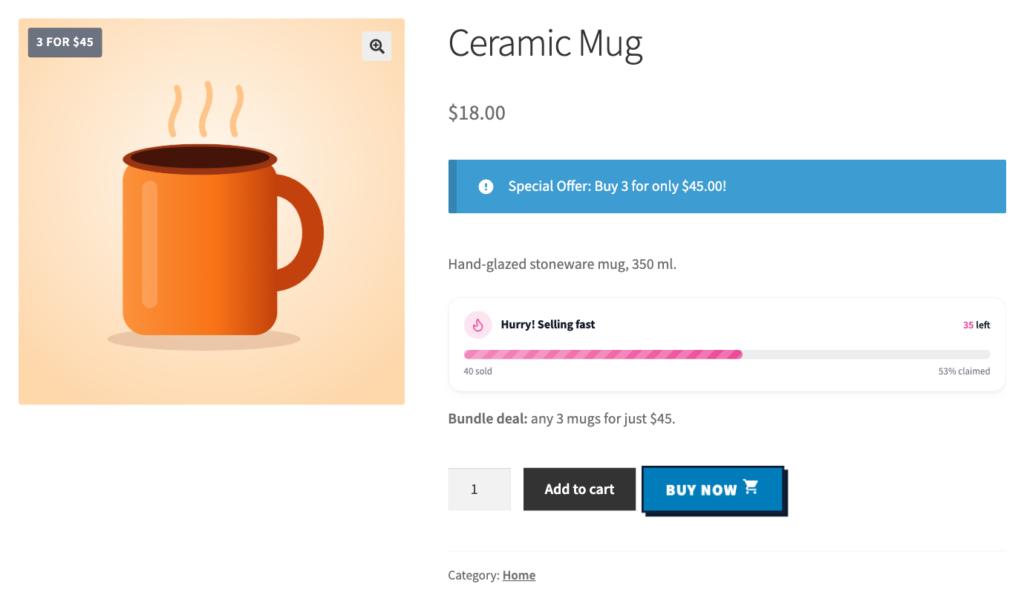
“Special Offer: Buy 3 for only $45.00!” on the product page, and the bundle saving in the cart: 3 mugs at $18 become $45.
Ceramic Mug product page with a 3 for $45 badge and the bundle offer
Product page
WooCommerce cart with 3 mugs at $54.00 and an Any 3 mugs for $45 line of -$9.00, for a total of $45.00
Cart

Spend & save

A discount on the whole order once the cart reaches an amount you set. In the plugin this type is called Based on total spend.

Example
Spend $100, get 10% off (or $10 off)
How the cart works it out
When the cart subtotal reaches the required spend, the percentage comes off the subtotal, or the fixed amount comes off the order. Simple discounts are taken into account first.
Shoppers see
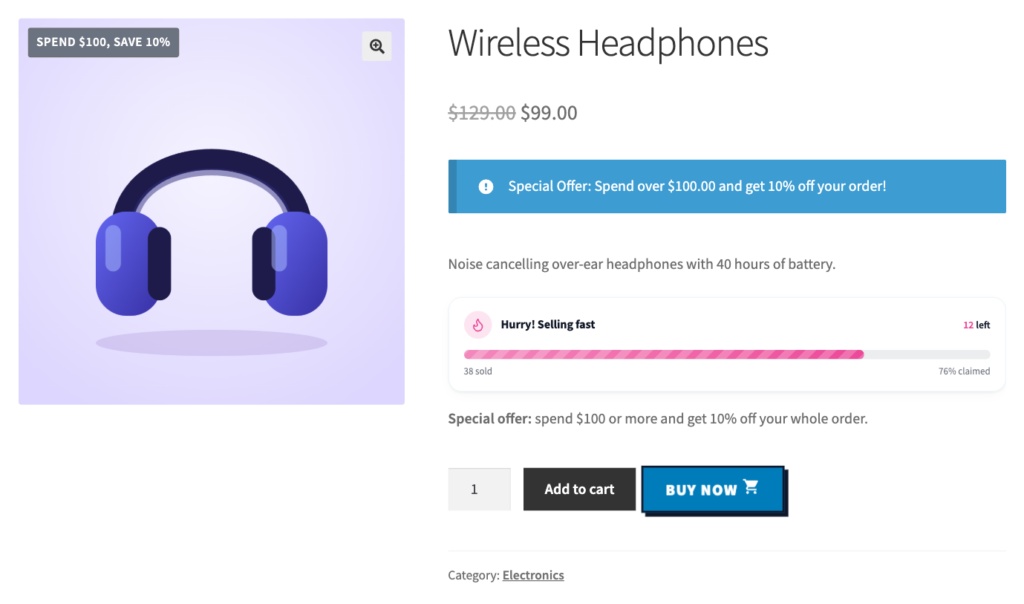
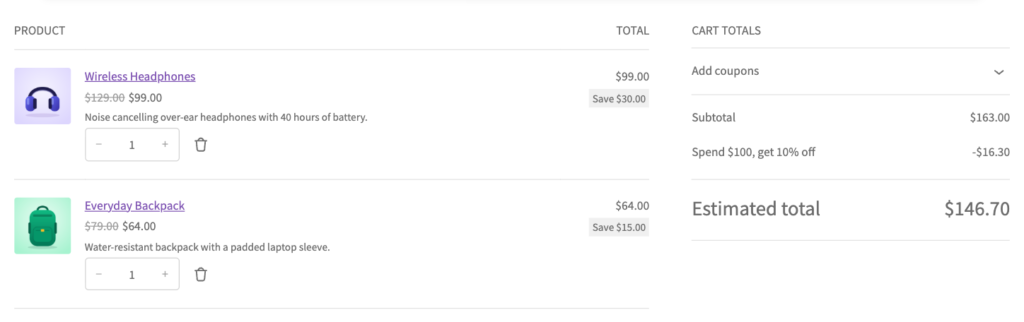
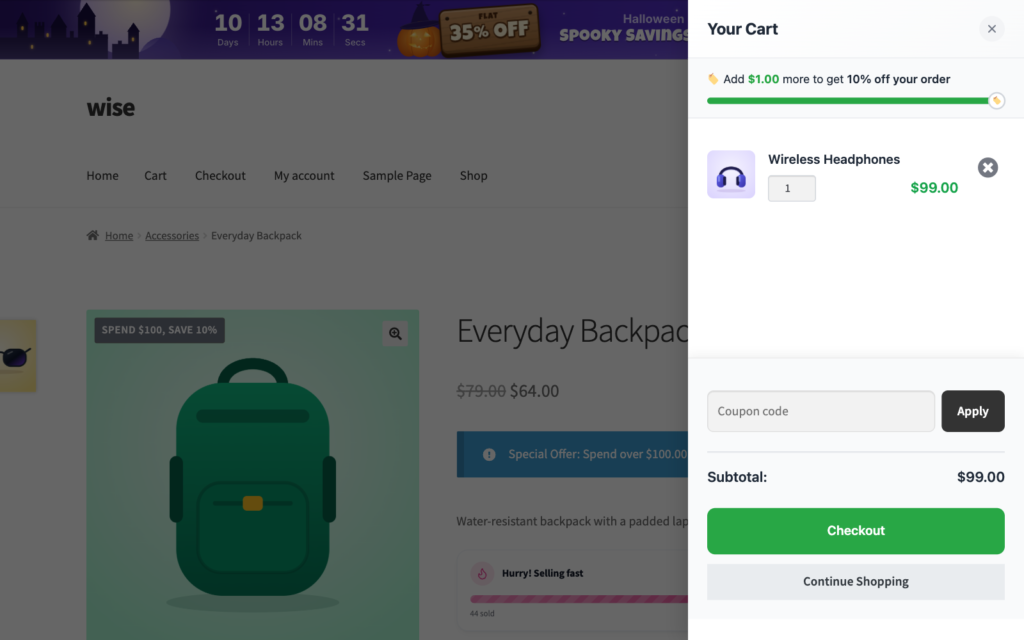
“Special Offer: Spend over $100.00 and get 10% off your order!” on product pages, then its own line in the cart. With wiseCart, a progress bar shows how much more to spend.

WooCommerce product page with the Spend over $100.00 and get 10% off offer
Product page
WooCommerce cart with a $163.00 subtotal and a Spend $100, get 10% off line of -$16.30
Cart

Buy X, save Y

A discount once the shopper has a set number of eligible items. In the plugin this type is called Buy X for a Y discount.

Example
Buy 2 bottles, save 20%, or buy 4 t-shirts and get $5 off
How the cart works it out
When the cart holds at least the required quantity, the percentage comes off all eligible items, or the fixed amount comes off once.
Shoppers see
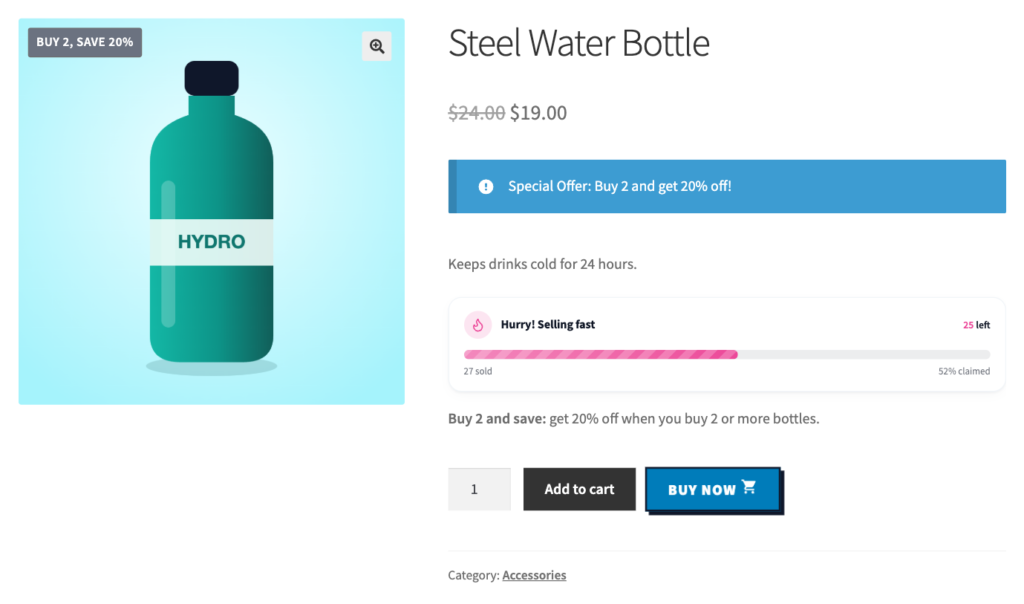
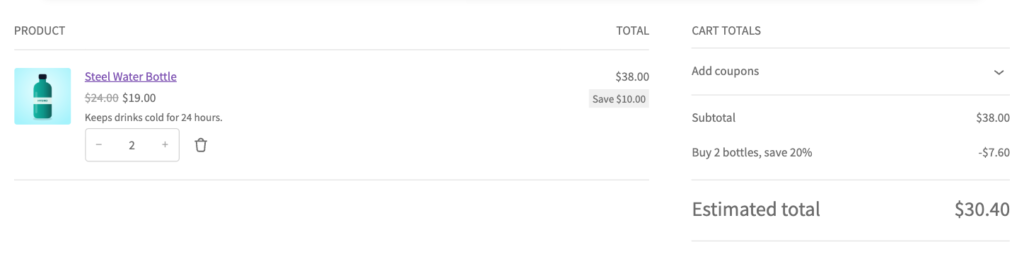
“Special Offer: Buy 2 and get 20% off!” on the product page and the saving in the cart. For several quantity steps, use Bulk pricing.
Steel Water Bottle product page with a Buy 2, save 20% badge and offer
Product page
WooCommerce cart with 2 bottles and a Buy 2 bottles, save 20% line of -$7.60
Cart

Simple

A percentage or fixed amount off selected products, a category or the whole store. Use it for a store-wide sale, a category sale or member prices.

Example
15% off everything in Accessories
How the cart works it out
It lowers the item price itself. If several Simple rules match one product, the lowest price wins; they do not add up.
Shoppers see
The old price crossed out next to the new one on shop and product pages (for variable products, the whole price range), and the lower price in the cart. With a minimum order value, the price stays as it is and the notice mentions the minimum.
WooCommerce product page with the price reduced from $64.00 to $54.40 and the offer notice
Product page
Accessories in a WooCommerce shop with 15% OFF badges and crossed-out prices
Shop page

Next-order coupon

A personal WooCommerce coupon for the buyer’s next order, created after checkout. It brings first-time buyers back for a second order.

Example
15% off your next order, valid for 30 days
How it works
A unique code is created for each qualifying order. It is single use by default, works only with the buyer’s email and can’t be combined with other coupons.
Shoppers see
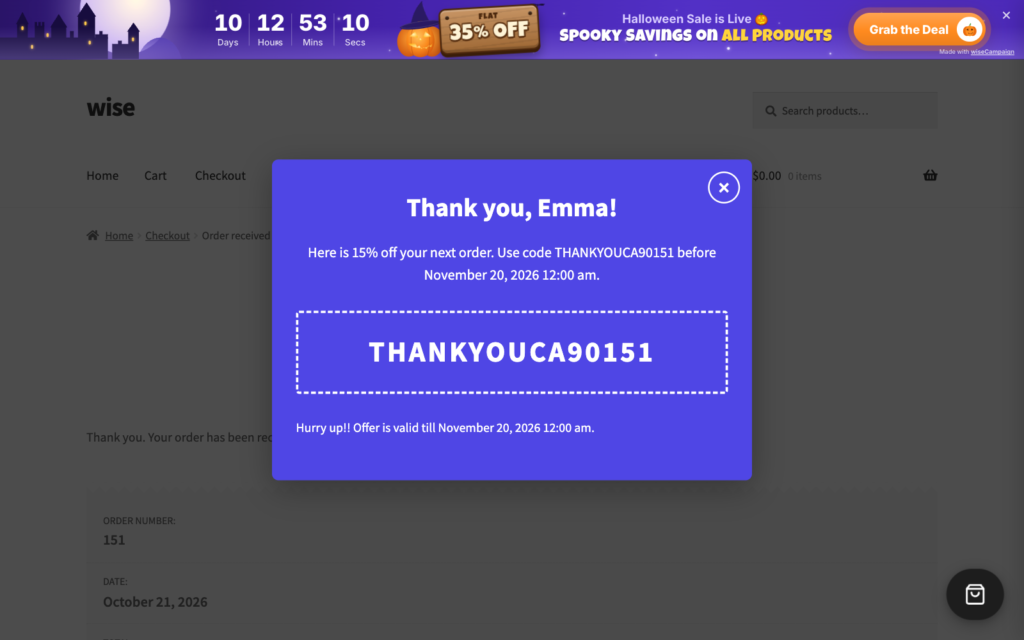
Your message on the product page before they buy, then the code in a thank-you popup or an inline box on the Order Received page, and by email.
WooCommerce product page with the message Order today and get 15% off your next order
Product page
Inline next-order coupon box on the WooCommerce Order Received page
Order Received page

Seven ways to show your bulk prices

Pick a design for each bulk pricing rule and set your own accent color. Text on the color switches between white and dark, so it stays readable, and the editor shows a live preview as you change tiers.

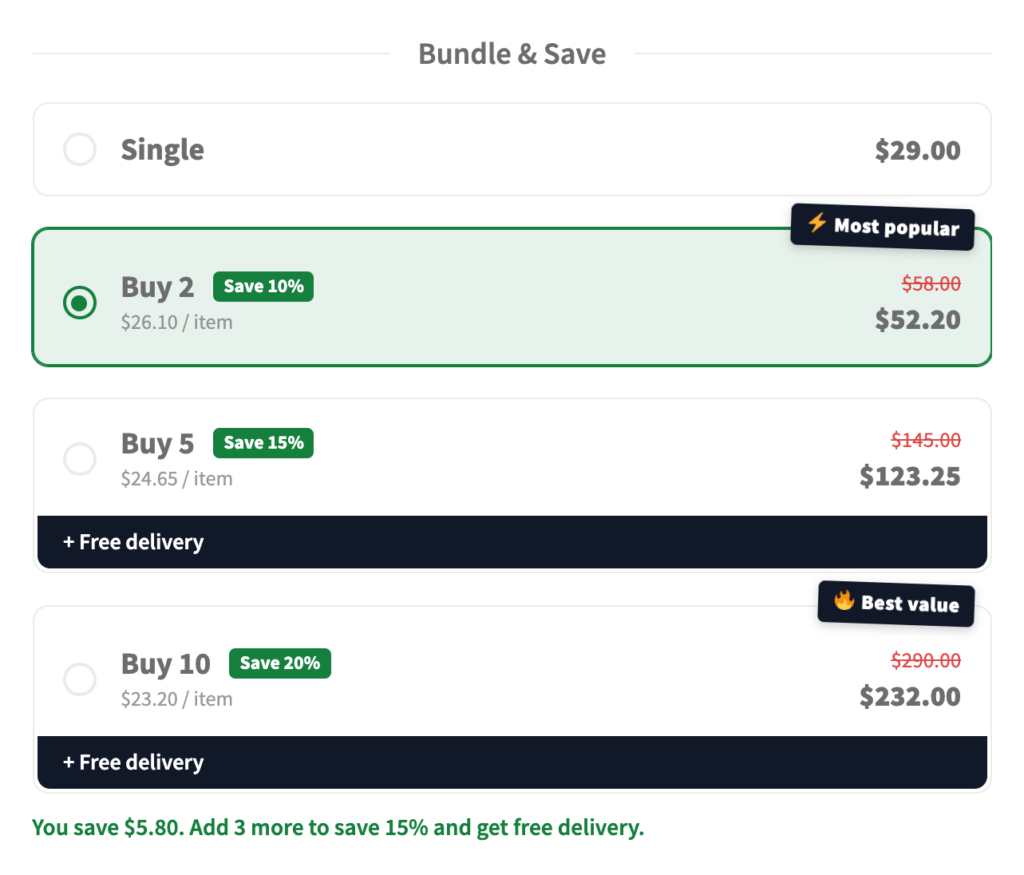
Bundle & Save design: Single, Buy 2 (Most popular), Buy 5 with free delivery and Buy 10 (Best value)
Bundle & SaveEach tier is a choice with the bundle total and the price per item. Picking one sets the quantity.
  • The tier follows the quantity. As the shopper changes the quantity, the matching tier lights up. Clicking a tier sets that quantity.
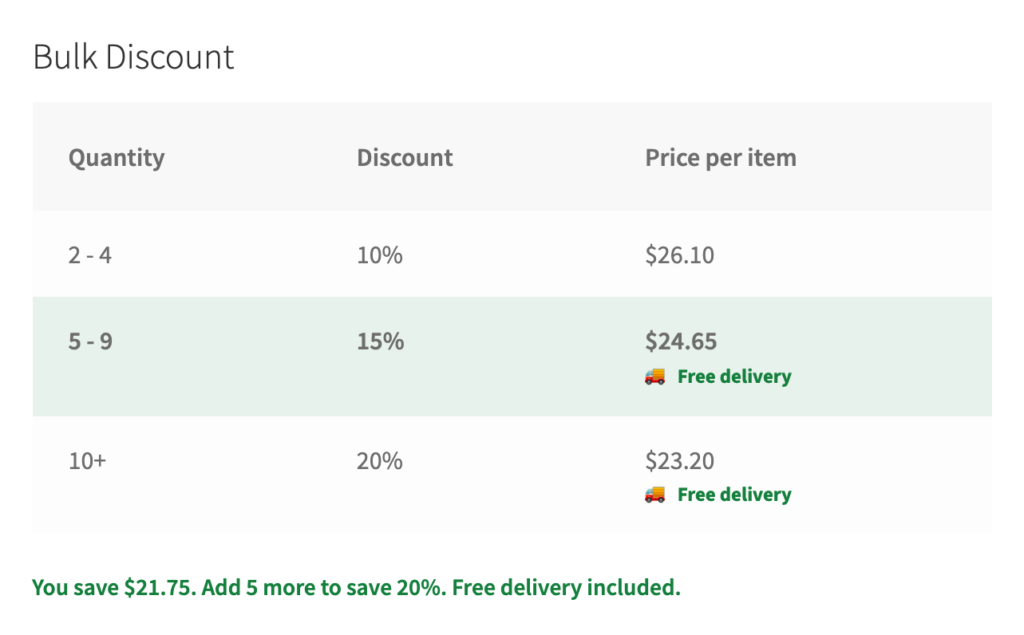
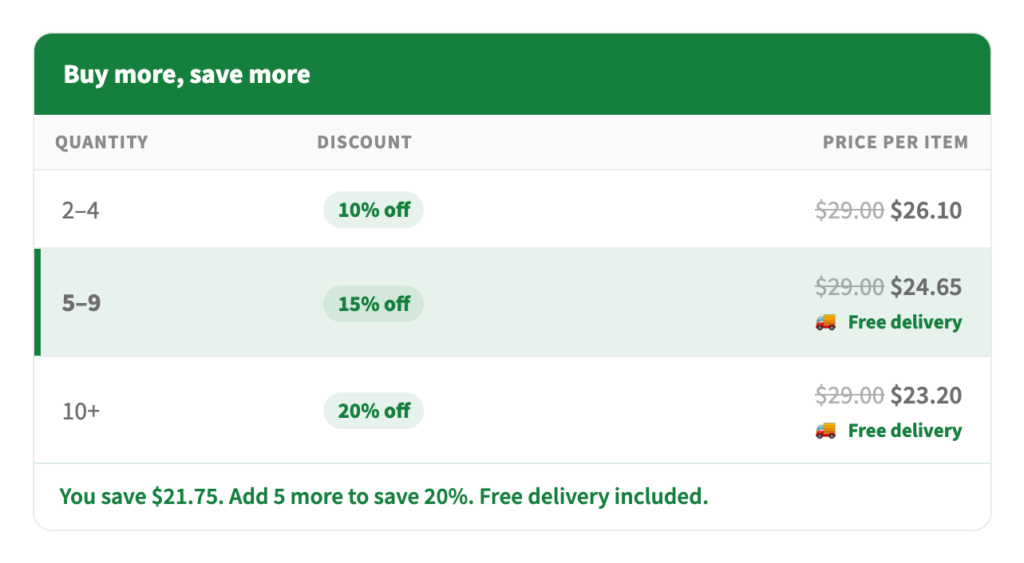
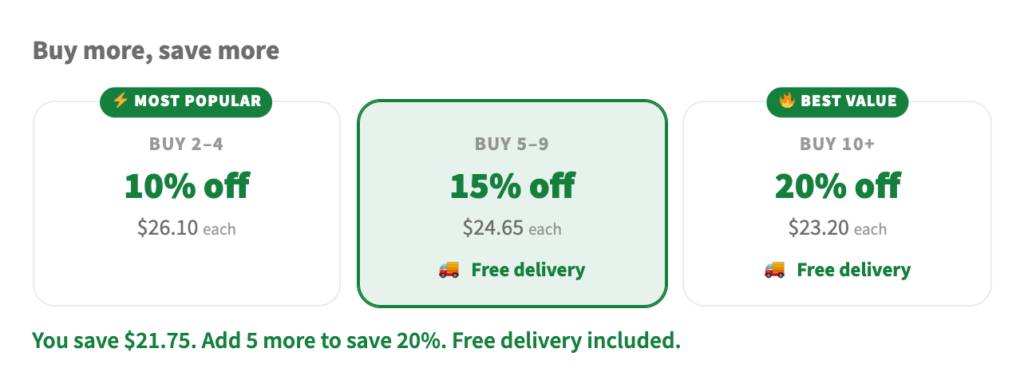
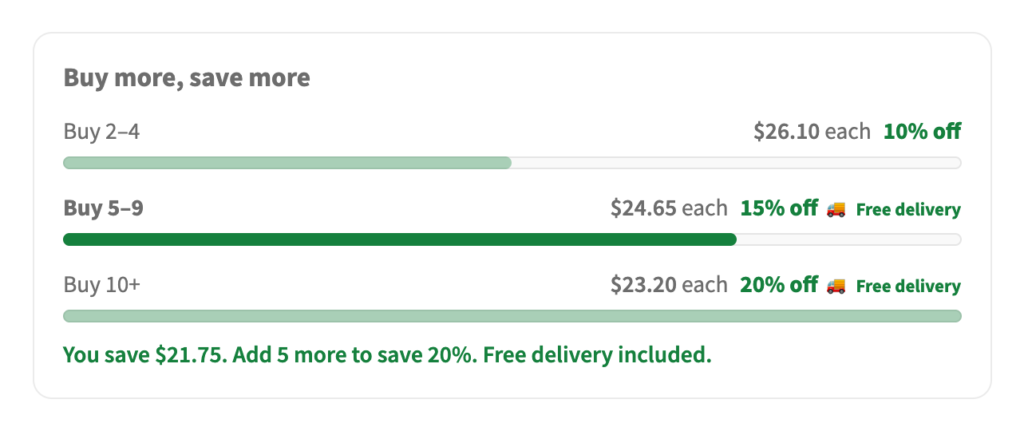
  • A savings line under the table. “You save $21.75. Add 5 more to save 20% and get free delivery.” It updates with every change.
  • Badges and notes on any tier. “Most popular”, “Best value” or your own words, plus a strip such as “+ Free gift” in the Bundle & Save design.
  • Free delivery from a tier. Tick it on a tier and every shipping method is free once the cart gets there. The table, the cart banner and the checkout all say so.
  • Bundle-only buying. Show or hide a “Single” choice, and hide the quantity box, so shoppers pick a bundle.
Theme default table with Quantity, Discount and Price per item, and the 5-9 row highlighted
Theme defaultA plain table in your theme’s own style.
Modern table design with a colored header and the 5-9 tier highlighted
Modern tableA colored header and a “% off” pill on every row.
Tier cards design: Buy 2-4 10% off, Buy 5-9 15% off with free delivery, Buy 10+ 20% off
Tier cardsOne card per tier, with the badge on top.
Compact chips design: 2-4 10% off, 5-9 15% off, 10+ 20% off
Compact chipsA single row of chips for tight layouts.
Savings ladder design with a bar for each tier and the 5-9 tier highlighted
Savings ladderA bar for each tier that grows with the discount.
Clean list design with Save 10%, Save 15% and Save 20% badges
Clean listRows with a “Save %” badge on the right.

How do discount rules increase average order value?

Average order value (AOV) is your revenue divided by your number of orders. A discount raises it only when the reward is tied to buying more. Every Discount Manager offer is tied to a quantity, a cart total or the next order.

More items in each order

Bulk pricing, BOGO, bundle prices and Buy X save Y reward the second and third item. The offer sits next to the quantity box, where shoppers decide how many to buy.

1 mug for $18, or any 3 for $45

A bigger basket

Spend & save and minimum order values give shoppers a target just above their cart. Cart notices and the wiseCart progress bar show how much more they need.

Spend $100, get 10% off

More orders from each buyer

A next-order coupon arrives right after checkout, so buyers have a reason to come back. It raises orders per customer rather than the size of one order.

15% off your next order

Which discount type should I use?

Your goal Discount type Example
Sell more of one product Bulk pricing 10 or more: 15% off each
Get one more item into the cart Buy X, get Y free Buy 2 tees, get 1 free
Sell accessories as a set Buy X for a fixed price Any 3 mugs for $45
Lift every cart above a target Spend & save Spend $100, get 10% off
Reward buying a few of a kind Buy X, save Y Buy 2 bottles, save 20%
Run a store-wide or category sale Simple 15% off Accessories
Give members or wholesale buyers a price Simple with user roles 10% off for the Wholesale role
Bring first-time buyers back Next-order coupon 15% off the next order

Set each reward so your margin still works at the qualifying quantity. Our Discount Manager best practices and 10 ways to increase your WooCommerce average order value show how.

Control who gets each discount, where and when

Every discount type shares the same conditions and display settings, in one form.

Products or categories All products, selected categories or selected products. The variations of a variable product count too.
User roles Everyone, or only logged-in customers with the roles you pick, such as Wholesale or Subscriber.
Minimum order value The discount waits until the cart subtotal reaches your amount, and the product notice says so.
Start and end dates Run a rule always, or from a start date to an end date, and show the offer dates on the product page.
Sale badges Your badge text, such as “3 for $45”, on shop and product images, in place of the WooCommerce Sale! badge.
Product page notices An automatic “Special Offer” notice, plus your own content with images and styling in one of 5 places on the page.
Cart and checkout notices Tell shoppers how to qualify, such as “Add $20.00 more” for a rule with a minimum order. Classic and block-based cart and checkout.
Priority, pause and duplicate Drag rules into order, switch one off without deleting it, or duplicate it for the next sale.
Analytics per rule The orders, revenue and discount given for every rule, for the last 7, 30 or 90 days.

These settings are part of wiseCampaign Pro. Read the Discount Manager guide.

yourstore.com • wiseCart
wiseCart side cart with a progress bar: Add $1.00 more to get 10% off your order
Works with wiseCart

Show shoppers how close they are to the reward

wiseCart is the free slide-out side cart in wiseCampaign. With the Discount Manager, every rule with a spend target becomes a step on its progress bar, next to free shipping.

  • ✓Spend steps: spend & save rules and minimum order values, such as “Add $1.00 more to get 10% off your order”.
  • ✓Savings in view: each discount as its own line, plus “You save” on the order.
  • ✓On every page: the drawer opens where the shopper is, without a trip to the cart page.

In the video: creating the rule, coupon settings, popup and email delivery, the abuse limits, and product, category and role targeting.

Turn a first order into a second one

Right after checkout, each qualifying buyer gets a personal coupon for their next order, at the moment they are happiest with your store.

  • A unique code per order: your prefix plus a random part, such as THANKYOUCA90151, for a percentage or fixed amount, with an expiry you set (30 days by default).
  • Delivered where buyers look: choose a thank-you popup or an inline box on the Order Received page, the WooCommerce order email (top, before the order summary or bottom) or a separate email.
  • Safe by default: single use, tied to the buyer’s email and not combinable with other coupons. Add a minimum cart subtotal if you like.
  • Limits against abuse: no new coupon for an order that used one, a cooldown between coupons (30 days by default), a lifetime limit and a minimum order value.
  • Easy to find again: logged-in customers see their codes under My Account > My Coupons.

How to add discount rules to WooCommerce in three steps

No code and no coupon setup. A new rule works as soon as you save it.

  1. 1

    Install and activate Pro

    Install the free wiseCampaign plugin and wiseCampaign Pro, then activate your license under wiseCampaign > License. The Discount Manager is switched on by default.

  2. 2

    Add a discount

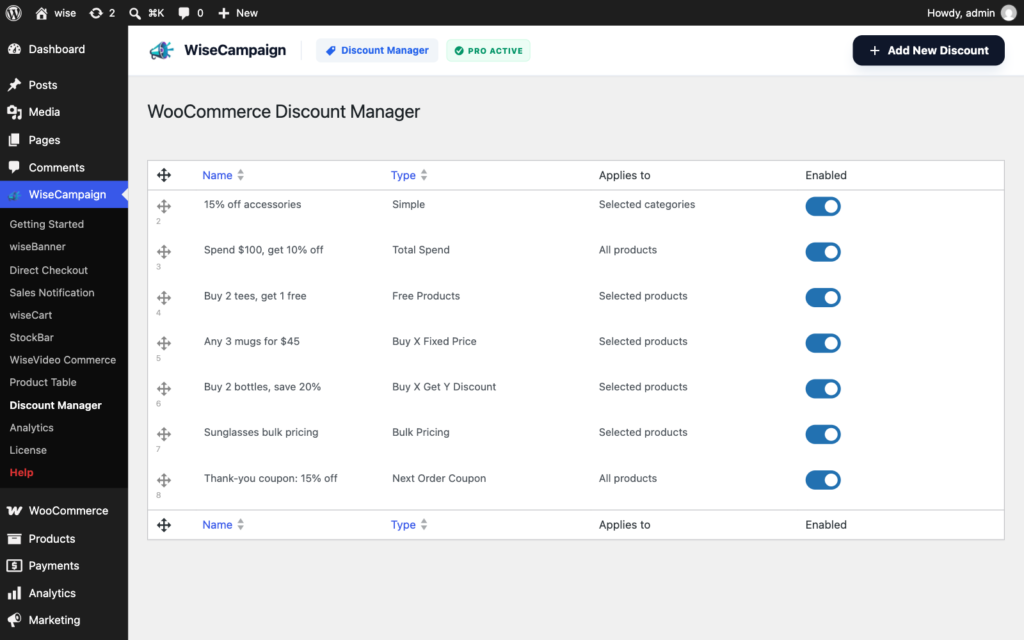
    Go to wiseCampaign > Discount Manager, click Add New Discount, pick one of the 7 types and click Create. Each type shows examples to start from.

  3. 3

    Set the conditions and save

    Choose the products, user roles, minimum order and dates, turn on a badge or a cart notice, and click Save Discount.

The WooCommerce Discount Manager list with seven discount rules, their types, the products they apply to and Enabled switches
All your rules in one list. Drag the handle to change the order, and use the switch to pause a rule.

What do you get with wiseCampaign Pro?

The free plugin gives you the side cart, coupon banners and popups. Automatic discount rules are part of Pro, which runs on top of the free plugin.

Feature Free Pro
wiseCart side cart with a free shipping progress bar ✓ ✓
Coupon codes in the wiseBanner bar and exit-intent popup ✓ ✓
Automatic discount rules: 7 types, no coupon code — ✓
Sale badges, product page notices and bulk pricing tables in 7 designs — ✓
Free delivery from a bulk pricing tier — ✓
Cart and checkout notices for each rule — ✓
Spend rewards as steps on the wiseCart progress bar — ✓
Targeting by product, category, user role, minimum order and dates — ✓
Next-order coupons by popup, inline box and email — ✓
Analytics: views, clicks and adds to cart per module ✓ ✓
Analytics: orders, revenue and discount given per rule — ✓

Personal

$59 per year

1 site

Small Business

$149 per year

5 sites

Agency Plus

$299 per year

Up to 100 sites

Every plan includes the Discount Manager and every other Pro module: Product Table, WiseVideo Commerce, the premium templates and revenue analytics.

Cyber Week: 80% off your first year with code BFCM80, applied at checkout until December 5.

Compare plans and get Pro

14-day money-back guarantee. Secure checkout by Lemon Squeezy.

What store owners say about wiseCampaign

Reviews of the wiseCampaign plugin on WordPress.org, where it is rated 5.0 out of 5.

★★★★★

Great Plugin for Boosting WooCommerce Sales

wiseCampaign is an excellent plugin for creating flash sales, countdown timers, and attractive discount offers. The features are useful for increasing customer engagement and encouraging more purchases. Highly recommended for any WooCommerce store owner!
Saiful Islam ·
★★★★★

Must-Have Plugin!

wiseCampaign makes creating banners and managing campaigns so easy! Great features, simple setup, and excellent targeting options.
sumonpramanik6 ·
★★★★★

Great

Great Tool for Marketers! wiseCampaign made adding banners and promotions to my site effortless. Simple, effective, and highly recommended!
shaonrngbd ·

Read all reviews on WordPress.org →

WooCommerce Discount Manager questions

About discount rules, BOGO, bulk pricing and next-order coupons in wiseCampaign Pro.

What is the WooCommerce Discount Manager?

The Discount Manager is the discount rules module of wiseCampaign Pro, a WooCommerce plugin by Wisemattic. It applies discounts automatically in the cart, with no coupon code, in 7 types: Simple, Spend & save, Buy X get Y free, Buy X for a fixed price, Buy X save Y, Bulk pricing and Next-order coupon. Sale badges, product page notices and cart notices tell shoppers how to qualify.

Is the Discount Manager free?

No. It is part of wiseCampaign Pro, from $59 per year with a 14-day money-back guarantee. You need WooCommerce, the free wiseCampaign plugin from WordPress.org (it must stay active) and an active Pro license. If the license is no longer active, discounts stop applying until you renew; your rules stay saved, and next-order coupons already sent keep working until they expire.

Do shoppers need a coupon code?

No. Discount rules apply on their own as soon as the cart qualifies, and each one shows as its own line in the cart totals. Simple discounts lower the product price instead. Only the Next-order coupon type creates a code, which the buyer uses on a later order.

How do I create a BOGO deal in WooCommerce?

Go to wiseCampaign > Discount Manager, click Add New Discount, choose Free products and click Create. Set Paid Quantity to 2 and Free Quantity to 1 for “buy 2, get 1 free”, pick the products or categories under Applies To Which Products? and click Save Discount. Shoppers add the items themselves, and in each group of 3 eligible items the cheapest one is free.

How does bulk pricing work?

You set quantity tiers, each with a Min, a Max and either a percentage off or a fixed price per item, for example 2 to 4 items 10% off, 5 to 9 items 15% off and 10 or more 20% off. The quantities of all eligible items in the cart are added up, and the matching tier applies to every one of them. On the product page, the tiers show in the table design you pick, the tier for the chosen quantity is highlighted, and a line tells the shopper what they save and how many more to add.

Can I change how the bulk pricing table looks?

Yes. Each bulk pricing rule has seven table designs: Theme default, Modern table, Tier cards, Compact chips, Savings ladder, Clean list and Bundle & Save. You pick an accent color and a heading, add a badge such as “Most popular” to any tier, and the editor shows a live preview. Bundle & Save turns each tier into a choice that sets the quantity, with an optional Single choice and an option to hide the quantity box.

Can bulk pricing give free delivery?

Yes. Tick Free delivery on a tier, and every shipping method costs nothing once the cart reaches that tier or a higher one. The product page, the cart banner and the checkout all show it, and the order records which rule gave free delivery. Free delivery covers the whole order, including other products in the cart.

Can discount rules stack?

Yes. Every active rule that matches the cart applies, each with its own line in the cart totals, so check rules that cover the same products. Simple discounts are the exception: if several match one product, only the lowest price is used. Spend & save and the quantity-based types are worked out on prices after any Simple discount.

Can I limit a discount to certain products, customers or dates?

Yes. Each rule applies to all products, selected categories or selected products, and to everyone or only logged-in users with the roles you choose. You can also set a minimum order value, and run the rule always or between a start date and an end date.

Is this a WooCommerce dynamic pricing plugin?

Yes. The Discount Manager changes what shoppers pay based on quantity, cart total, user role and dates, without coupon codes. Simple discounts change the price shown on shop and product pages, with the old price crossed out, unless the rule has a minimum order value. The other types show the offer on the product page and apply the saving in the cart.

How do next-order coupons work?

After checkout, the Discount Manager creates a unique WooCommerce coupon for the buyer, such as THANKYOUCA90151, with your discount and expiry. It is single use by default, works only with the buyer’s email and can’t be combined with other coupons. Buyers find it in a thank-you popup or an inline box on the Order Received page, in the order email or a separate email, and under My Account > My Coupons.

How do I see which discounts make money?

Open wiseCampaign > Analytics. With Pro, the Discount Manager row lists every rule with the orders it discounted, the revenue of those orders and the total discount given, for the last 7, 30 or 90 days. Only paid orders count, and refunds are taken off.

Launch your first automatic discount today

Get wiseCampaign Pro for the Discount Manager and every Pro module, or start with the free plugin it runs on.

Cyber Week: 80% off your first year with code BFCM80, applied at checkout until December 5.

  • 14-day money-back guarantee
  • Secure checkout by Lemon Squeezy
  • License key by email and in your dashboard