

A WordPress top bar plugin is one of the fastest ways to add a high-converting announcement banner to your site (no coding required). A top bar sits at the very top of every page, above your navigation, visible before visitors scroll a single pixel.
Unlike popups that interrupt and frustrate visitors, a top bar works passively. It creates urgency, communicates promotions, and drives action without blocking content or degrading the user experience.
In this step-by-step guide you will learn exactly how to add a professional top bar banner to your WordPress site using wiseCampaign – with a live countdown timer, click-to-copy coupon code, and custom call-to-action button. The entire setup takes under 10 minutes and requires zero coding.
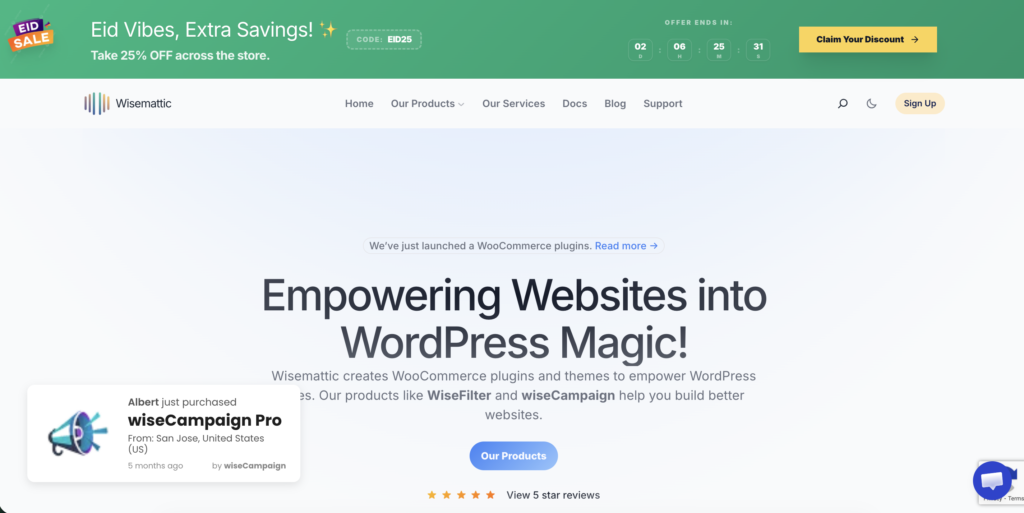
| What you will build: A sticky top bar like the ‘Eid Vibes, Extra Savings – Take 25% OFF’ banner shown in the screenshots above – complete with a live countdown timer, coupon code, and CTA button. Live on your site in under 10 minutes. |
What is a WordPress top bar banner?
A top bar banner is a full-width strip that appears at the very top of your website – above your header and navigation menu. It is one of the most effective conversion tools in WordPress because it is:
- Always visible — no scrolling required to see it
- Non-intrusive — it does not block content like a popup does
- Persistent — it follows visitors across every page of your site
- Clickable — visitors can take action directly from the bar
Top bar banners are used by ecommerce stores, SaaS companies, blogs, and agencies for a wide range of purposes:
How to add a top bar banner in WordPress – step by step
Most WordPress users trying to add a top bar either use a page builder like Elementor (which adds unnecessary overhead) or a plugin that only does one thing. wiseCampaign takes a different approach – it is a dedicated WooCommerce marketing toolkit where the top bar is one of six built-in conversion tools.
| 🎯 wiseBanner Sticky top bar with countdown timers, coupon codes, animated text and CTA buttons | ⏳ StockBar Stock urgency progress bars on product pages | 💳 Direct Checkout Skip the cart page – Buy Now button |
| 📣 Sales Notifications Real-time purchase popups for social proof | 🛒 wiseCart Customizable mini-cart widget | 🎯 Discount Manager 6 types of automated WooCommerce discounts (Pro) |
All six tools are available in one lightweight plugin. The free version on WordPress.org includes the top bar, stock bar, direct checkout, sales notifications and mini-cart. The Discount Manager requires wiseCampaign Pro.
New in v1.1.15: Click-to-copy coupon codes – visitors can click any coupon code in your banner to copy it instantly, with a visual confirmation. This small change significantly reduces the friction between seeing an offer and using it.
What you need before starting
- A WordPress website (any theme)
- WooCommerce installed and active (required for WooCommerce-specific features)
- wiseCampaign installed — free from WordPress.org
- 10 minutes
How to add a WordPress top bar plugin – step by step guide
Follow these six steps to have a live top bar banner on your WordPress site. Each step corresponds to one of the screenshots from the wiseCampaign dashboard shown above.
Step 1 – Install wiseCampaign
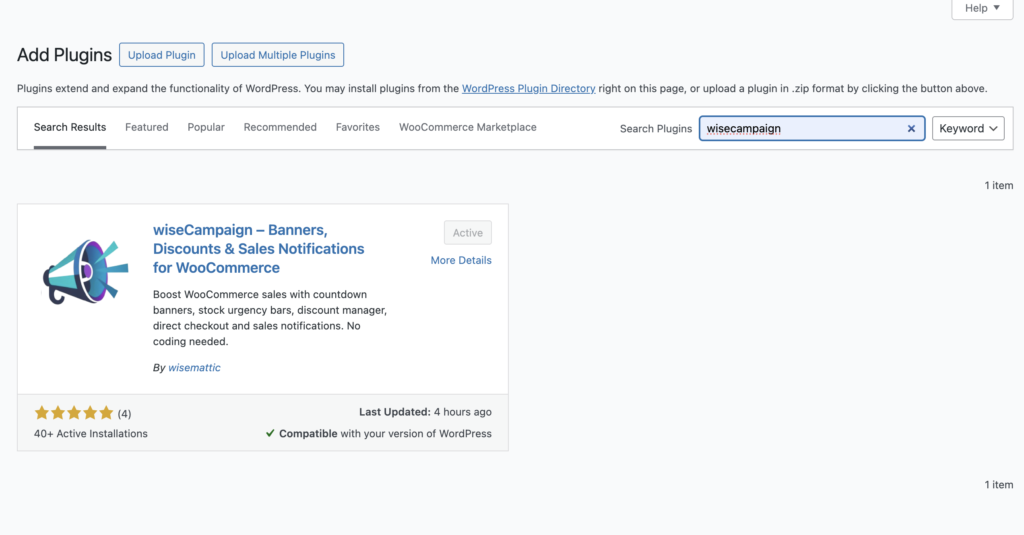
Go to WordPress Dashboard → Plugins → Add New, search for wiseCampaign, click Install Now then Activate. A new WiseCampaign menu appears in your sidebar.
Step 2 – Open wiseBanner
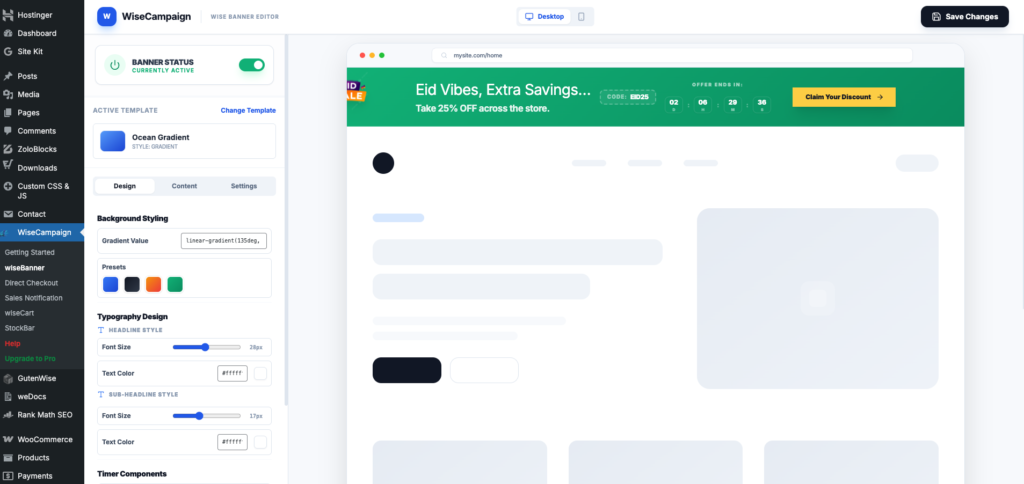
Click WiseCampaign → wiseBanner in your sidebar. You will see the banner editor with a live preview on the right. Toggle between Desktop and Mobile preview at the top.
Step 3 – Add your message and CTA
Click Change Template and choose one — Ocean Gradient is a great starting point. Under the Design tab adjust your background color, headline font size, and countdown timer style. The preview updates instantly.
Step 4 — Add your message and CTA
Click the Content tab and fill in:
- Headline — e.g. Eid Vibes, Extra Savings!
- Sub-headline — e.g. Take 25% OFF across the store
- Coupon code — e.g. EID25 (visitors can click to copy automatically)
- CTA button text and link — e.g. Claim Your Discount
Step 4 – Set display rules
Click the Settings tab and choose:
- Which pages to show on — All Pages or specific ones (Pro feature)
- Which devices — Desktop, Mobile or both
- Which users — all visitors, specific user or guests only
Step 5 – Activate and save
Toggle Banner Status to active. A popup appears — click Activate Now, then confirm by clicking Activate. Finally click Save Changes in the top right. Your banner is now live.
| Quick tip: After activating your banner, open your site in an incognito window to see exactly what visitors see. Check both desktop and mobile views to make sure everything looks right before sending traffic. |
What your top bar can include – full feature breakdown
The wiseCampaign wiseBanner editor gives you a lot more control than most top bar plugins. Here is a complete overview of what you can add to your banner:
Countdown timer
The countdown timer is one of the most effective urgency tools available. Set an end date and time — the banner automatically displays a live countdown showing days, hours, minutes and seconds remaining. When the timer reaches zero you can configure it to hide the banner automatically or display a different message.
- Set any end date and time for your promotion
- Countdown displays in real time — no page refresh needed
- Works across all time zones
- Can be disabled for evergreen banners that do not need urgency
Click-to-copy coupon codes (new in v1.1.15)
This is one of the most user-friendly features added in the latest release. Rather than asking visitors to manually type a coupon code, they can click the code in the banner and it copies to their clipboard instantly. A tooltip and toast notification confirm the copy so they know it worked.
- One-click coupon copy — no typing errors
- Tooltip notification on hover
- Toast notification confirming successful copy
- Works on desktop and mobile
Call-to-action button
Every effective top bar needs a clear CTA. wiseCampaign lets you fully customize the button text, color, and destination URL. You can point it to a sale page, a specific product category, a checkout page with a discount applied, or any external URL.
Gradient and color backgrounds
The background styling gives you full control over your banner’s appearance. Use the preset gradient combinations (blue, dark, orange, green) for a professional look, or enter your own custom CSS gradient value for pixel-perfect brand matching.
Page and device targeting
Show your banner everywhere or target it precisely. Display the banner only on product pages to show a relevant offer, only on the cart page to reduce abandonment, or only on mobile to run device-specific campaigns. Targeting rules ensure the right message reaches the right visitor at the right time.
wiseCampaign top bar vs other methods – comparison
| Feature | wiseCampaign | Manual coding | Elementor widget | Hello Bar |
| Setup time | Under 10 min | Hours | 30+ min | 15 min |
| Coding required | None | HTML/CSS/JS | None | None |
| Countdown timer | Yes — built in | Custom build | Addon needed | Paid plan only |
| Click-to-copy coupon | Yes — v1.1.15 | Custom build | No | No |
| WooCommerce native | Yes | Manual | No | No |
| Page targeting | Yes | Manual | Limited | Yes |
| Free version | Full featured | N/A | Limited | 5,000 visitor cap |
| Site speed impact | Minimal | Varies | Heavy | Moderate |
| Additional tools included | 5 other features | None | Page builder only | Email tools |
Tips for a high-converting top bar banner
Setting up the banner is just the first step. Here is how to make it actually convert:
1. Be specific – not generic
Generic banners like ‘Welcome to our store’ convert poorly. Specific offers convert well. Instead of a vague message use:
| Eid Sale – 25% off everything. Code EID25. Ends in 2 days 6 hours. Claim your discount. |
The more specific your offer and deadline, the higher your conversion rate. Include the discount amount, the code, and the deadline – all in one banner.
2. Use real deadlines
A countdown timer that never reaches zero trains visitors to ignore it. Use real end dates. When the promotion ends, either turn off the banner or update it with your next promotion. Fake urgency damages trust; real urgency drives conversions.
3. Match your banner to the page
Use display rules to show relevant banners on relevant pages. A 25% off clothing sale banner works on clothing product pages – but might be confusing on your contact page. wiseCampaign’s page targeting lets you create multiple banners for different sections of your site.
4. Keep the CTA button text action-oriented
Button text like ‘Claim Your Discount‘ converts better than ‘Click Here‘ or ‘Learn More‘. Use verbs that match what happens when they click: Claim, Shop, Get, Save, Start.
5. Test on mobile before going live
More than 60% of WooCommerce traffic comes from mobile devices. Use the mobile preview toggle in the wiseCampaign editor to check your banner looks right on small screens before activating it.
Frequently asked questions
|
How do I add a sticky top bar in WordPress? Use wiseCampaign — go to WiseCampaign → wiseBanner in your WordPress dashboard, choose a template, customize your message and CTA, then click Activate. The banner sticks to the top of every page on your site. Pro users can also configure it to stick on scroll so it remains visible even as visitors scroll down the page. |
|
Can I add a countdown timer to my WordPress top bar? Yes. wiseCampaign has a built-in countdown timer in the wiseBanner editor. Go to the Design tab, scroll to Timer Components, and set your end date and time. The countdown updates in real time and is visible to all visitors on desktop and mobile. |
|
How do I add a coupon code to my WordPress top bar? In the wiseCampaign wiseBanner editor go to the Content tab and add your coupon code in the coupon field. In v1.1.15 and later, the coupon automatically gets a click-to-copy button — visitors click it and the code copies to their clipboard with a visual confirmation. |
|
Will a top bar slow down my WordPress site? wiseCampaign is optimized for performance and only loads scripts for the features you have enabled. A top bar banner adds minimal overhead — typically under 15kb. It will not measurably affect your page speed or Core Web Vitals scores. |
|
Can I show different top bars on different pages? Yes. wiseCampaign supports page-level targeting. You can create multiple banners and show each one on specific pages — for example a different banner on product pages versus the cart page versus the homepage. Go to the Settings tab in the banner editor to configure page targeting. |
|
Is wiseCampaign free? Yes. wiseCampaign has a completely free version on WordPress.org that includes wiseBanner (with countdown timer and click-to-copy coupons), StockBar, Direct Checkout, Sales Notifications and wiseCart. The Pro version starts at $59/year and adds the Discount Manager, advanced templates, sticky positioning and priority support. |
|
Does the top bar work with any WordPress theme? Yes. wiseCampaign wiseBanner works with all major WordPress themes including Elementor, Divi, Avada, Astra, GeneratePress and more. It injects the banner at the very top of the page independently of your theme so there are no compatibility issues. |
|
What is the difference between a top bar and a popup? A top bar sits at the top of your page and is always visible — it does not interrupt browsing. A popup appears over your content and requires dismissal. Top bars are generally better for WooCommerce promotions because they stay visible throughout the entire shopping journey without frustrating visitors. |
Summary — your top bar checklist
Here is everything covered in this guide in a quick checklist format:
- Install wiseCampaign from WordPress.org — free
- Open WiseCampaign → wiseBanner in your dashboard
- Choose a template that matches your brand
- Set your headline and sub-headline text
- Add a coupon code if applicable — it gets click-to-copy automatically
- Enable the countdown timer and set your end date
- Configure your CTA button text and link
- Set display rules — which pages, which devices, which users
- Click Activate Now → confirm in the dialog
- Click Save Changes
- Preview in incognito window on desktop and mobile
- Monitor performance in your analytics dashboard
| Download wiseCampaign free from WordPress.org and have your top bar live in under 10 minutes. No coding. No monthly fees. No visitor limits. |
Related guides: Best WordPress Notification Bar Plugins 2026 | How to Reduce WooCommerce Cart Abandonment | wiseCampaign vs OptinMonster
|
About wiseCampaign wiseCampaign is a free WooCommerce marketing plugin built by Wisemattic – a team of WordPress developers from Bangladesh building tools for store owners in 180+ countries. It combines 6 conversion tools in one lightweight plugin: top bar banners, stock urgency bars, direct checkout, sales notifications, mini-cart, and a Pro discount manager. Free download: wordpress.org/plugins/wisecampaign/ | Pro: wisemattic.com/wisecampaign/ |
Leave a Reply