

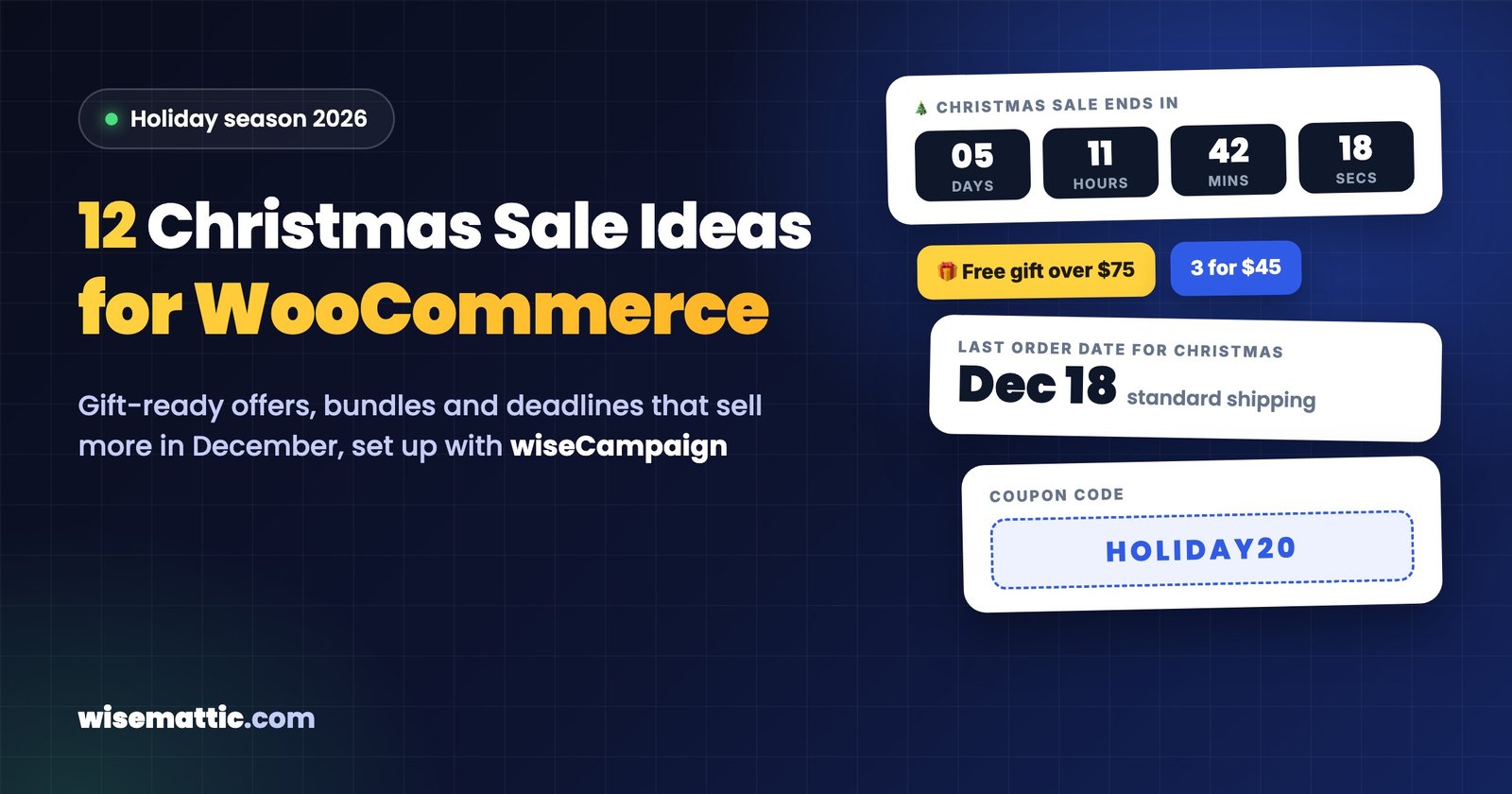
December shoppers are different from Black Friday shoppers. They are not hunting for the deepest discount; they are buying gifts, often for other people, often in a hurry, and they care about one thing more than price: will it arrive before Christmas?
Here are 12 Christmas sale ideas for WooCommerce stores that match how people actually shop in December, from shipping deadlines and gift bundles to last-minute gift cards and after-Christmas offers. For each idea you will see how to set it up, and where wiseCampaign can do the work for you.
Holiday shopping dates 2026
| Date | Event |
|---|---|
| Monday, November 30 | Cyber Monday |
| Monday, December 14 | Green Monday, one of the busiest online shopping days in December |
| Saturday, December 19 | Super Saturday, the last Saturday before Christmas |
| Thursday, December 24 | Christmas Eve |
| Friday, December 25 | Christmas Day |
| Saturday, December 26 | Boxing Day |
| Thursday, December 31 | New Year’s Eve |
1. Count down to your last shipping date, not just the sale
The most useful countdown in December is “Order by December 18 for Christmas delivery”. Check the holiday deadlines your carriers publish, add a day of safety, and put that date at the top of every page. It answers the shopper’s biggest question and gives them a real reason to buy today.
With wiseCampaign: create a top bar in wiseBanner (free) with the message and a live countdown to your cut-off time. After the date passes, change the message to promote gift cards or local pickup instead.
2. Build gift guides by budget and by person
Gift buyers often know who they are buying for and how much they want to spend, but not what to buy. Create a few product categories or tags such as “Gifts under $25”, “Gifts for him” or “Stocking stuffers”, and link to them from your menu, home page and emails. In WooCommerce, a product can belong to several categories, so you don’t need to duplicate anything.
3. Turn bundles into ready-made gifts
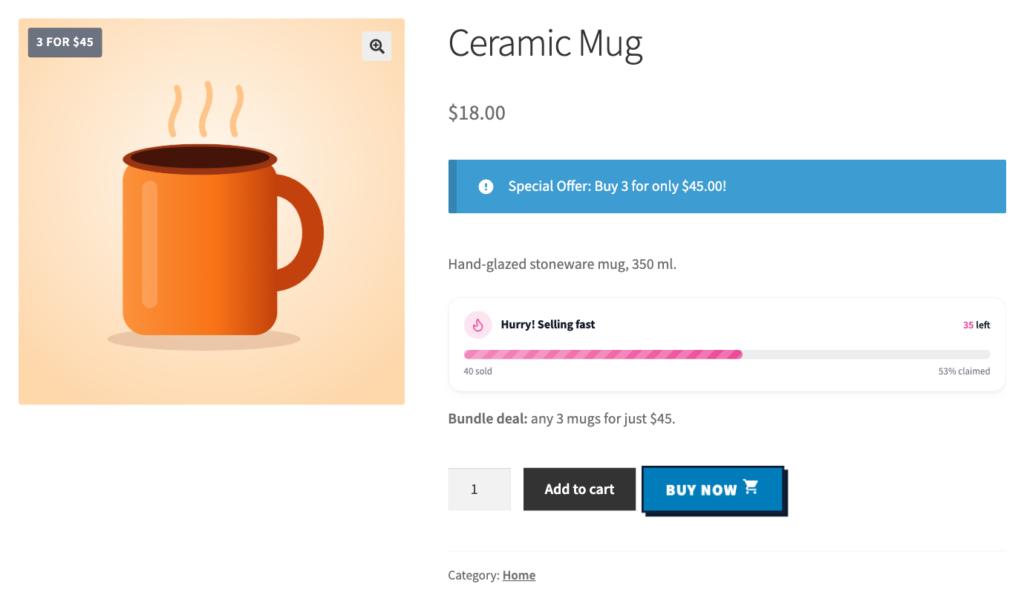
A set of three candles or a “3 mugs for $45” offer is easier to give than a single item, and it raises your order value. Mix-and-match bundles let shoppers choose the colors or scents they want while you keep a clear bundle price.
With wiseCampaign Pro: add a Buy X for a fixed price discount for a category, set the quantity and the bundle price, and a “3 for $45” badge appears on the products.
4. Reward bigger gift orders
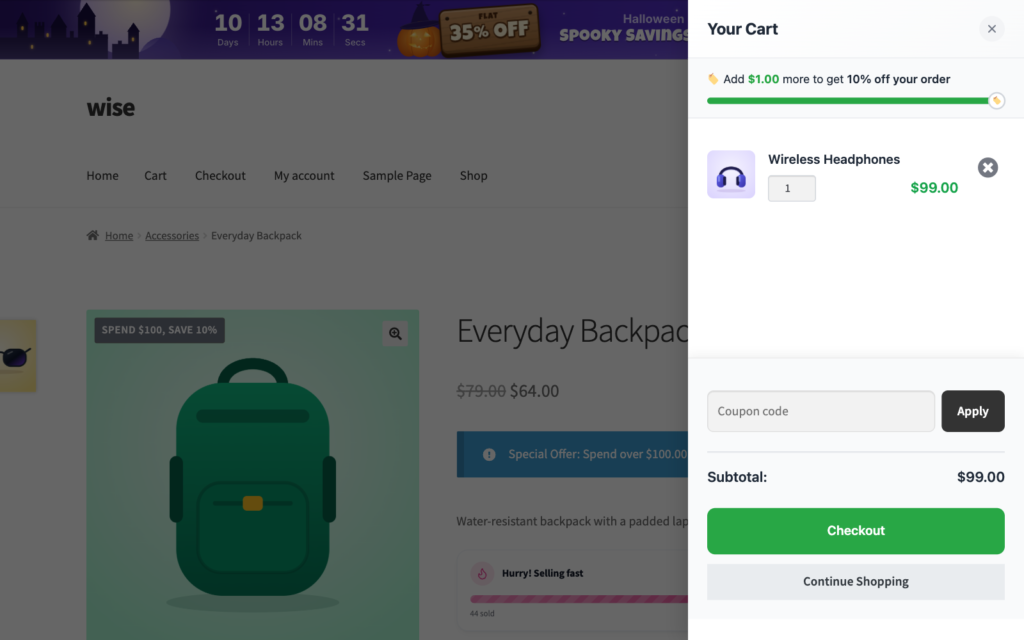
Many December orders include gifts for several people. Reward that with a spend goal, such as “Spend $100, get 15% off”, so the shopper buys all their gifts from you instead of splitting them across stores.
With wiseCampaign Pro: create a spend-based discount with dates set to your Christmas sale. The offer appears on product pages, and wiseCart shows shoppers how much more they need.
5. Offer free shipping above a holiday minimum
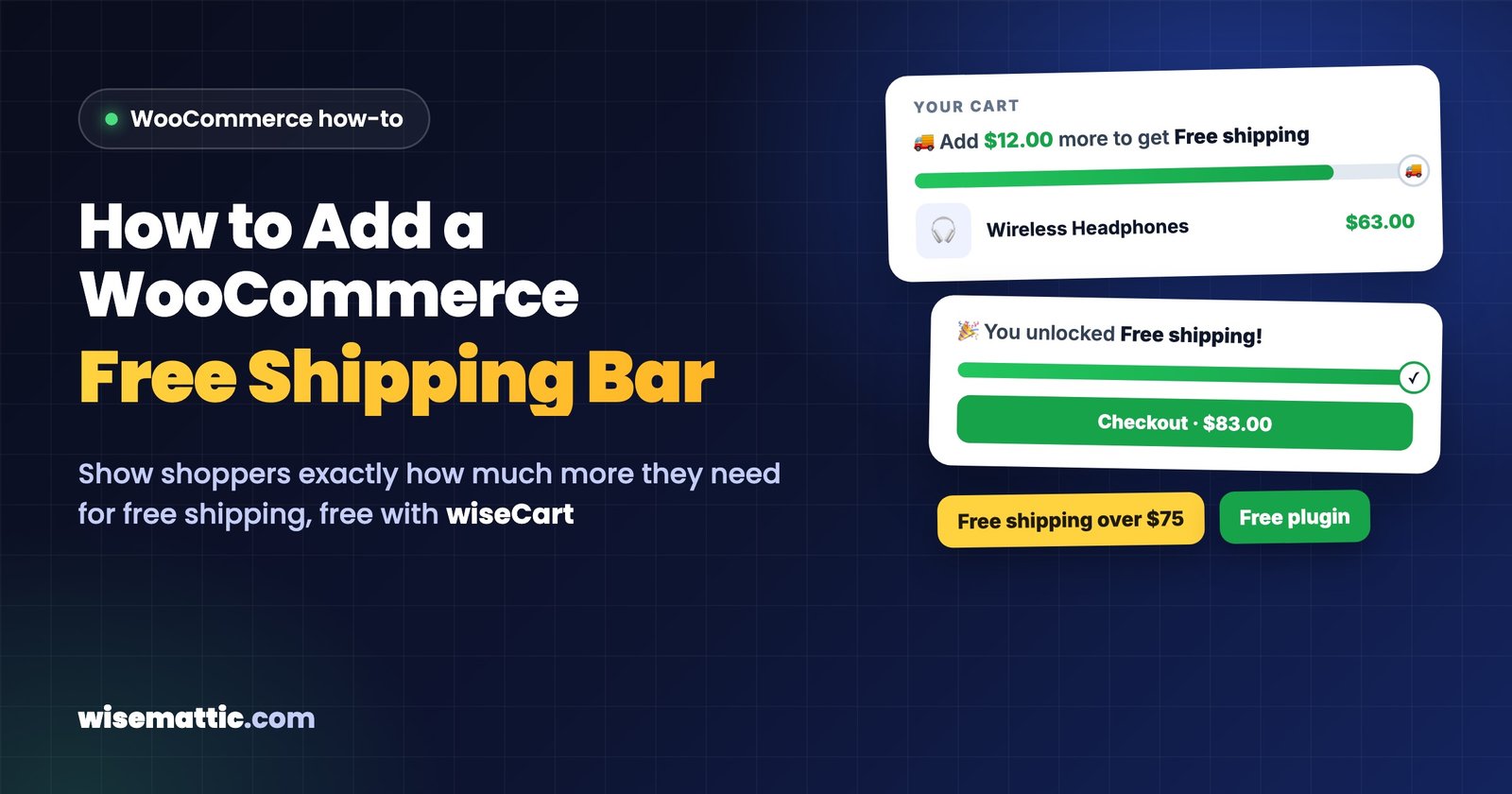
Shipping costs hurt more when every gift is a separate order. A holiday free shipping minimum, shown with a progress bar in the cart, encourages shoppers to combine gifts into one order. Our step-by-step guide shows how to add a free shipping progress bar in WooCommerce for free with wiseCart.
6. Run “12 Days of Christmas” deals
Instead of one long sale, feature a different product or category each day for twelve days. A daily deal gives shoppers a reason to come back and gives you twelve chances to email and post about something new. Announce the full calendar on a landing page, but reveal each deal on its day.
How to set it up: schedule a sale price on each product (click Schedule next to the sale price), or create one discount per day in wiseCampaign Pro’s Discount Manager with Availability set to that single day. Either way, nothing has to be switched on by hand.
7. Sell gift cards to last-minute shoppers
After your last shipping date, physical products are hard to sell, but digital gift cards still work on Christmas Eve. Add a gift card product with a WooCommerce gift card extension or plugin, and promote it in your top bar once shipping deadlines have passed. Gift cards also bring a new customer, the person who receives the card, to your store in January.
8. Offer gift wrapping and gift messages
Gift wrap, a handwritten note or a “gift receipt, no prices” option saves the buyer time and makes your store the easy choice. You can offer wrapping as a low-cost add-on product, or for free above a certain order value. A simple order note field is enough for gift messages.
9. Create limited holiday editions with honest scarcity
A small run of holiday-themed products, such as a winter scent, a festive color or a gift set, sells better when shoppers can see it is limited. Show the real stock level, not an invented one.
With wiseCampaign: StockBar (free) adds a progress bar based on your WooCommerce stock, such as “Hurry! Selling fast, 12 left”.
10. Show gift buyers that others trust you
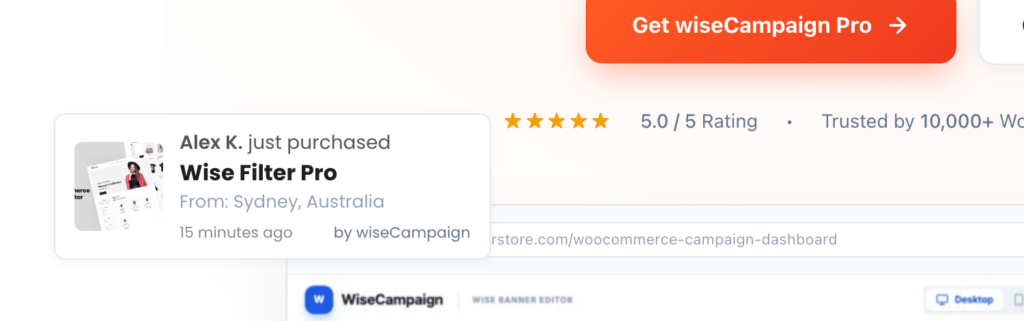
Many December visitors have never bought from you before, and they are spending money on someone else. Reviews, customer photos and small “just purchased” notifications reassure them that the gift is a safe choice.
With wiseCampaign: Sales Notification (free) shows popups from your real recent orders, with control over timing, position and mobile display.
11. Make checkout fast for shoppers in a hurry
Holiday shopping happens on phones, in queues and during lunch breaks. Turn on guest checkout, offer Apple Pay and Google Pay through your payment gateway, and remove fields you don’t need. A Buy Now button helps shoppers who want a single gift, while wiseCart lets everyone else add several gifts without leaving the page. Both are free in wiseCampaign.
12. Plan for after Christmas: Boxing Day and January
The days after Christmas bring people spending gift cards and looking for deals on things they didn’t get. Prepare a Boxing Day or New Year sale in advance, and give every December customer a reason to come back in January.
With wiseCampaign Pro: a Next Order Coupon gives each customer a personal code after checkout, for example 15% off an order in January, shown on the Order Received page or sent by email.
A simple Christmas sale plan
| When | What to run |
|---|---|
| December 1–13 | Gift guides, bundles, a spend-based reward and a holiday free shipping minimum |
| December 1–12 (or 12 days of your choice) | 12 Days of Christmas daily deals |
| December 14–last shipping date | Top bar countdown to your Christmas delivery cut-off |
| After the last shipping date | Gift cards, local pickup and digital products |
| December 26–January | Boxing Day or New Year sale and next order coupons |
If you are still getting ready for the November rush, start with our WooCommerce Black Friday checklist. Most of its steps, such as backups, stock checks and checkout testing, carry straight over into December.
Frequently asked questions
When should a WooCommerce store start its Christmas sale?
Many stores start their Christmas promotions right after Cyber Monday, on December 1. Have your gift guides, bundles and shipping deadline banner ready by then, and plan your last push for the week before your final shipping date.
How do I show a Christmas shipping deadline in WooCommerce?
Check your carriers’ published holiday deadlines, choose your cut-off date and show it in a top bar on every page with a countdown. wiseBanner, free in wiseCampaign, adds a sticky top bar with a live countdown timer.
What sells best after the last Christmas shipping date?
Digital gift cards, digital products and local pickup. Physical products that ship after the cut-off won’t arrive in time, so switch your banners and emails to these options.
How can I schedule a 12 Days of Christmas sale in WooCommerce?
Schedule a sale price on each featured product with start and end dates, or create a discount for each day with fixed availability dates in wiseCampaign Pro’s Discount Manager, so each deal starts and stops on its own.
Should I keep discounting after Christmas?
A short Boxing Day or New Year sale works well, because shoppers have gift cards and money to spend. Keep it short and focused, for example on last season’s stock, and use next order coupons to bring December customers back in January.
Get your Christmas sale ready
Pick three or four ideas from this list rather than all twelve, and set them up before December starts. A shipping deadline banner, a gift bundle and a free shipping minimum are a strong start, and all three can be running in wiseCampaign within an hour.

Leave a Reply