

Black Friday 2026 falls on Friday, November 27, and Cyber Monday on November 30. For most WooCommerce stores, those four days bring more traffic than any other weekend of the year, and also more ways for things to go wrong: a slow checkout, a coupon that doesn’t apply, a product that sells out halfway through the weekend.
This checklist walks you through everything to prepare, in the order you should do it: four weeks out, two weeks out, sale week and the days after. Each step says what to do and where to find it in WooCommerce. Where a step needs a tool, we show how to do it with wiseCampaign, our free WooCommerce sales plugin, but most of the list works with any setup.
Key dates for Black Friday 2026
| Date | Event |
|---|---|
| Thursday, November 26 | Thanksgiving (US) |
| Friday, November 27 | Black Friday |
| Saturday, November 28 | Small Business Saturday |
| Monday, November 30 | Cyber Monday |
| Tuesday, December 1 | Giving Tuesday |
In this checklist
- Four weeks before: plan, protect and prepare (steps 1–8)
- Two weeks before: build the shopping experience (steps 9–15)
- Sale week: launch and monitor (steps 16–19)
- After the sale: keep the customers (steps 20–21)
- The whole checklist at a glance
- Frequently asked questions
Four weeks before: plan, protect and prepare
The first week of November is for decisions and safety nets. Anything technical you change now has time to be tested before real traffic arrives.
1. Set goals based on last year’s numbers
Open WooCommerce → Analytics, set the date range to last year’s Black Friday week and note your revenue (Revenue report), number of orders and average order value (Orders report) and best-selling products (Products report). Use them to set a target for this year, for example “20% more revenue at the same discount level”. A clear goal makes every later decision easier, from how deep to discount to how much stock to order.
2. Back up your store and know how to restore it
Make a full backup of your files and database, and check that you can actually restore it, ideally on a staging site. Many hosts include daily backups, but a backup you have never restored is only a hope. Schedule extra backups for sale week, when every hour brings new orders.
3. Update everything now, then freeze
Update WordPress, WooCommerce, your theme and your plugins in the first half of November, test them on a staging copy first, and fix anything that breaks. Then plan a change freeze from about a week before Black Friday until after Cyber Monday: no new plugins, no theme switches and no big updates unless something is broken or a security fix requires it.
4. Test your speed and your hosting
Run your home page, a category page and a product page through PageSpeed Insights, on mobile first. Fix the biggest problems: oversized images, too many plugins loading scripts on every page, no page caching. Make sure your cache plugin excludes the cart, checkout and My Account pages, as WooCommerce requires. Then ask your host how your plan handles a traffic spike, and upgrade before the sale if you are close to the limit.
5. Check stock and turn on stock tracking
Look at your best sellers from step 1 and order enough stock early, as suppliers get busy in November too. In each product’s Inventory tab, turn on stock tracking and enter the real quantity, so WooCommerce stops selling items you don’t have. Set a Low stock threshold under WooCommerce → Settings → Products → Inventory to get an email before a product runs out.
6. Choose an offer that protects your margin
A flat sitewide discount is the simplest offer, but not always the most profitable. Consider offers that reward bigger orders instead:
- Tiered spend discounts: spend $75, get 10% off; spend $150, get 20% off.
- Bundles: “any 3 for $45” on products people buy together.
- Buy 2, get 1 free on high-margin items or stock you want to clear.
- Free shipping above a minimum order amount.
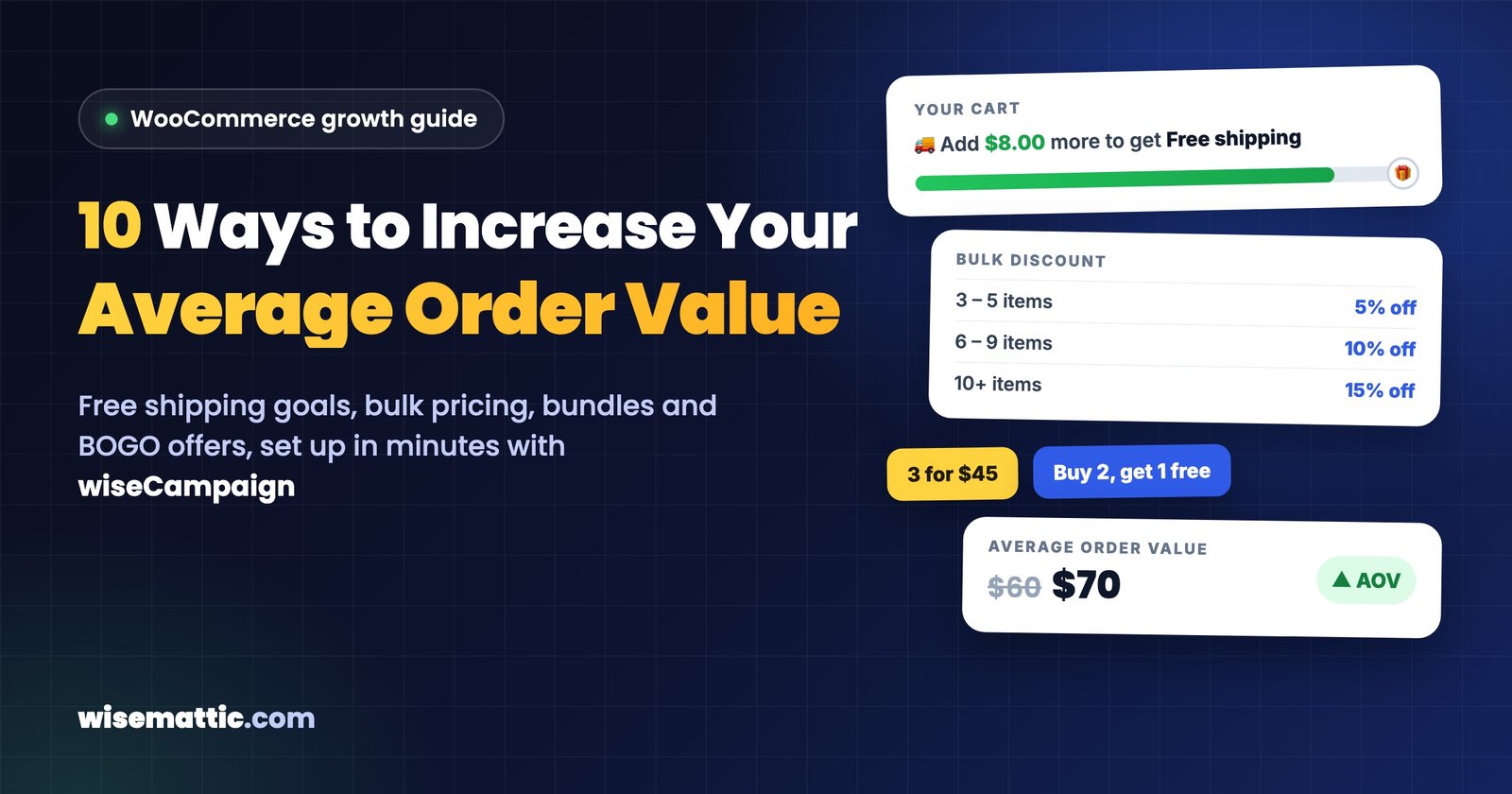
Whatever you pick, calculate the profit on a typical discounted order before you commit. Our guide on how to increase WooCommerce average order value explains each of these offers in detail.
7. Build your discounts early and schedule them
Create every discount now and schedule it, so nothing has to be done by hand at midnight. WooCommerce gives you two built-in options: a scheduled Sale price on each product (click Schedule next to the sale price and pick the dates), and coupons with an expiry date under Marketing → Coupons.
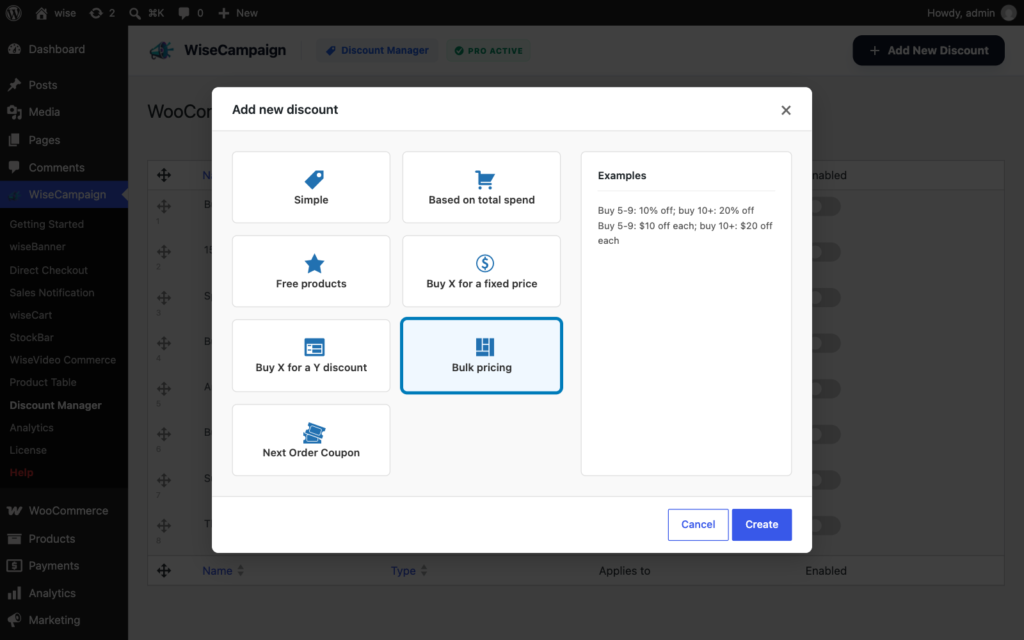
For automatic offers that need no coupon, such as spend-based discounts, bundles or BOGO, use the Discount Manager in wiseCampaign Pro. Set Availability to specific dates, and each discount starts and stops on its own. It can also show the sale dates and a countdown on the product page.
8. Set (or raise) your free shipping minimum
Shoppers expect free shipping during Black Friday, and a minimum order amount turns that expectation into bigger carts. In WooCommerce → Settings → Shipping, add a Free shipping method to your zones and set “Free shipping requires” to A minimum order amount. A good starting point is 20–30% above your current average order value. Then show shoppers how close they are with a progress bar, which wiseCart adds to its slide-out cart for free.
Two weeks before: build the shopping experience
From mid-November, focus on what shoppers will see and feel: how they learn about the sale, why they should buy now, and how quickly they can pay.
9. Prepare your sale banner and countdown
A top bar on every page is the clearest way to announce a sale: what the offer is, the code if there is one, and when it ends. wiseBanner (free in wiseCampaign) adds a sticky top or bottom bar with a live countdown timer, a click-to-copy coupon code and a button. wiseCampaign Pro adds animated Black Friday templates. Set the countdown to the real end of your sale, and choose whether the bar shows sitewide or only on selected pages.
10. Create urgency honestly
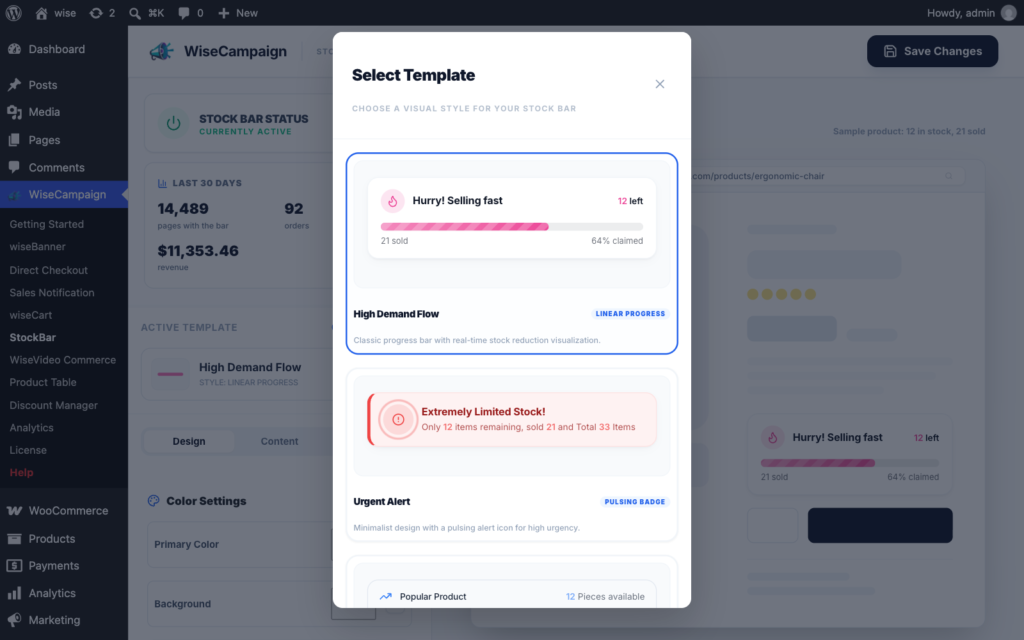
Urgency works because it is true: the sale really ends on Monday, and there really are only 12 left. A countdown that resets every visit or a made-up stock number can break consumer protection rules in many countries, and shoppers notice. StockBar shows a progress bar based on your real WooCommerce stock (“Hurry! Selling fast, 20 left”), which is why stock tracking in step 5 matters.
11. Add social proof
First-time visitors are a big part of Black Friday traffic, and they don’t know your store yet. Show that other people buy from you: product reviews near the Add to Cart button, a few customer photos, and small “just purchased” popups. Sales Notification builds those popups from your real WooCommerce orders, with full control over timing, position and mobile display.
12. Make checkout as short as possible
Every extra field and page is a chance to lose the sale. Before the rush:
- Allow guest checkout under WooCommerce → Settings → Accounts & Privacy.
- Offer express payments such as Apple Pay and Google Pay through your payment gateway.
- Remove checkout fields you don’t need.
- Add a Buy Now button for shoppers who want one product, and a slide-out cart so everyone else can keep shopping without leaving the page.
Our guide on how to reduce cart abandonment in WooCommerce covers more checkout fixes.
13. Test the whole purchase on a phone
Place real test orders, on your phone and on a computer, with every payment method you offer. Apply each coupon, trigger each automatic discount, reach the free shipping minimum and check that every order email arrives. Ask someone who has never used your store to buy something while you watch. Most checkout problems are found in ten minutes of watching a real person.
14. Prepare your emails and early access list
Write and schedule your sale emails now: a teaser, an early access email for subscribers, the launch, a reminder and a last chance message before Cyber Monday ends. Offering early access to subscribers is also a good reason to grow your list during November, with a simple “Get early access to our Black Friday sale” signup form.
15. Get customer support ready
Update your shipping and returns pages with holiday cut-off dates and any extended return window. Write saved replies for the questions you will get most: “Is my order shipped?”, “Can I use two codes?”, “Does the sale apply to X?”. Decide who answers chat and email during the weekend, and when.
Sale week: launch and monitor
16. Start the change freeze
From about November 20, stop installing, updating or redesigning anything. If something is broken, fix only that, and test the fix on staging first. The safest store during Black Friday is the one that was fully tested a week ago.
17. Launch on time, everywhere at once
When the sale starts, check that everything switched on together: the banner, the discounts, the sale prices and the emails. Visit the store in a private browser window as a logged-out shopper, since that is what customers see. Many stores now start before Friday, so decide your launch time early and tell your subscribers.
18. Watch orders, payments and stock in real time
Keep an eye on new orders, failed payments and low stock emails throughout the weekend. A sudden drop in orders usually means something broke, such as a payment gateway or an expired coupon. Use an uptime monitor that alerts you by phone, and keep your host’s support contact ready.
19. Refresh the offer for Cyber Monday
Give returning visitors a reason to come back on Monday: a new product category on sale, an extra bonus above a higher spend, or simply a “last chance” message with a countdown to midnight. Update your top bar so it matches what is happening now, not what happened on Friday.
After the sale: keep the customers
20. Turn Black Friday buyers into repeat customers
Many Black Friday shoppers are buying from you for the first time. Give them a reason to return before Christmas: a thank-you coupon for their next order, valid for a few weeks. wiseCampaign Pro’s Next Order Coupon creates a personal code for each customer and shows it on the Order Received page or sends it by email, automatically.
21. Review results and write down what you learned
Compare this year’s numbers with the goals from step 1: revenue, orders, average order value and conversion rate. Note which offer, email and product did best, what broke, and what you would start earlier. Next November, this note will be the first thing you read.
The whole checklist at a glance
| When | To do |
|---|---|
| Four weeks before | Set goals, back up, update then freeze, test speed and hosting, check stock, choose a margin-safe offer, build and schedule discounts, set a free shipping minimum |
| Two weeks before | Sale banner and countdown, honest urgency, social proof, shorter checkout, mobile test orders, emails and early access, support ready |
| Sale week | Change freeze, launch everywhere at once, watch orders and payments, refresh the offer for Cyber Monday |
| After the sale | Next order coupons for repeat purchases, review results and write down lessons |
Frequently asked questions
When is Black Friday 2026?
Black Friday 2026 is on Friday, November 27, the day after US Thanksgiving. Cyber Monday is on November 30, 2026.
When should I start preparing my WooCommerce store for Black Friday?
Start about four weeks before, in early November. That leaves time to update and test your store, order stock and build discounts before a change freeze about a week before the sale.
How do I schedule a Black Friday sale in WooCommerce?
Open a product, enter a sale price, click Schedule and choose the start and end dates. For coupons, set an expiry date under Marketing → Coupons. For automatic offers such as spend-based discounts, bundles or BOGO, wiseCampaign Pro’s Discount Manager lets you set the exact dates each discount is active.
What is the best Black Friday discount for a WooCommerce store?
There is no single best discount. Offers tied to a bigger order, such as tiered spend discounts, bundles, Buy 2 Get 1 Free or free shipping above a minimum, usually protect your margin better than a flat sitewide percentage. Calculate the profit on a typical order before you decide.
How do I stop my WooCommerce site from slowing down on Black Friday?
Use page caching (excluding cart, checkout and My Account), optimize your images, remove plugins you don’t need, and ask your host whether your plan can handle a traffic spike. Then avoid changes during sale week.
Is wiseCampaign free?
Yes. The free version on WordPress.org includes the wiseBanner top bar with countdown, StockBar, Sales Notification, Direct Checkout, wiseCart and Product Table. wiseCampaign Pro adds the Discount Manager, premium Black Friday banner templates and revenue analytics, from $59 per year with a 14-day money-back guarantee.
Get your store ready this week
You don’t need to finish all 21 steps today. Start with the ones that take the longest: backups, updates, stock and your offer. Then add the sale banner, urgency and social proof with wiseCampaign, test everything on your phone, and you will go into Black Friday knowing your store is ready.

Leave a Reply