

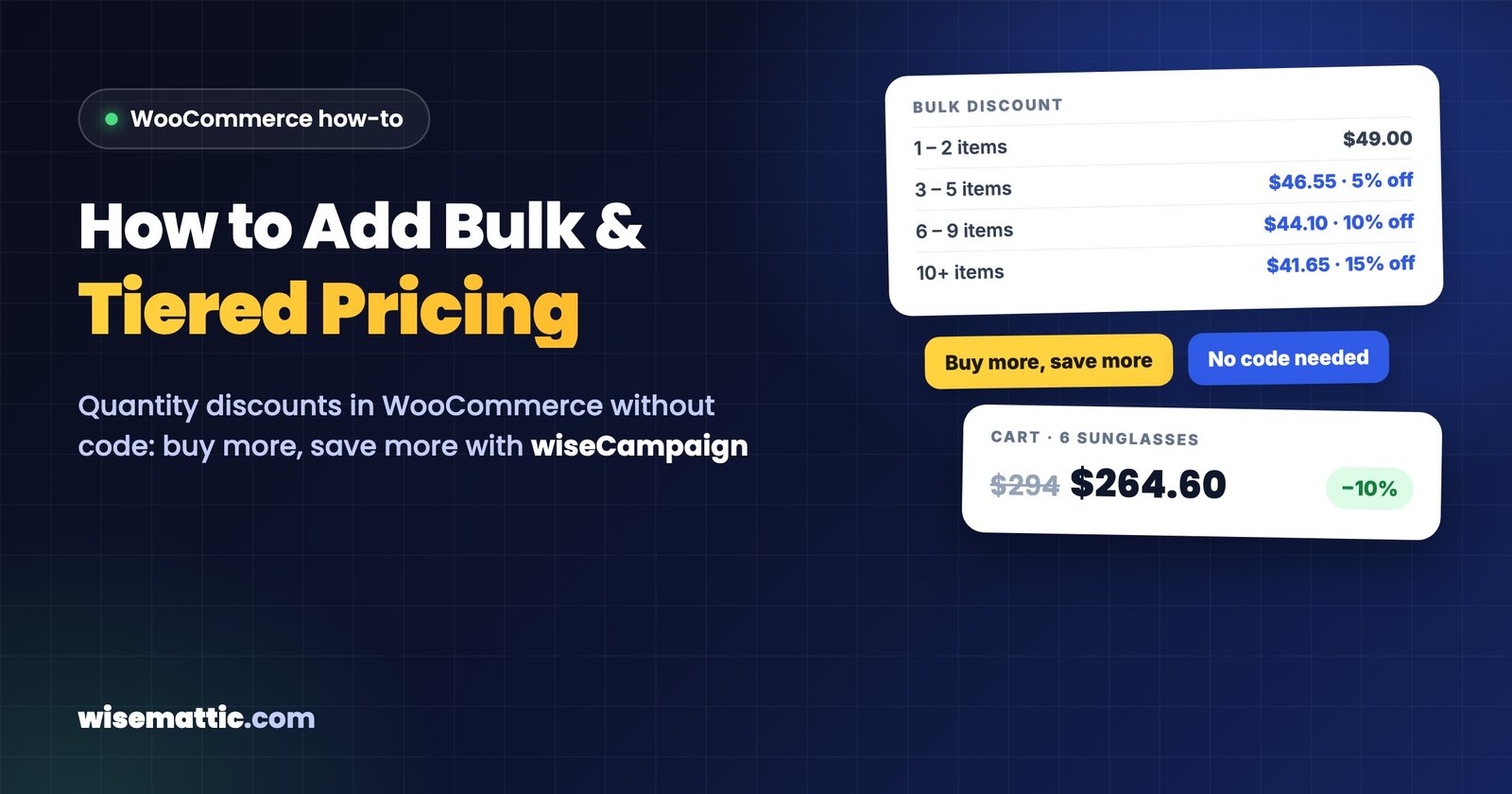
“Buy 3, save 5%. Buy 6, save 10%. Buy 10 or more, save 15%.” Bulk pricing is one of the easiest ways to sell more units per order, especially for products people use up, give as gifts or buy for a team. The problem: WooCommerce has no built-in way to change the price based on quantity.
This guide shows how to add bulk (tiered) pricing to WooCommerce without code, using the Discount Manager in wiseCampaign Pro. You will set up the tiers, show a pricing table on the product page and, if you sell wholesale, limit the tiers to wholesale customers.
Quick answer
- Go to wiseCampaign → Discount Manager and click Add New Discount.
- Choose Bulk pricing, pick Percentage discount or Fixed price per item, and add your tiers (Min, Max and Value).
- Tick Display pricing table on product page, choose the products or categories, and click Save Discount.
What is bulk pricing (tiered pricing)?
Bulk pricing, also called tiered or quantity pricing, lowers the price per item as the shopper buys more. You define quantity ranges, called tiers, and a discount or price for each one. For example:
| Quantity | Discount | Price per item ($49 product) |
|---|---|---|
| 1–2 | None | $49.00 |
| 3–5 | 5% | $46.55 |
| 6–9 | 10% | $44.10 |
| 10+ | 15% | $41.65 |
It works because the saving is easy to see, and the next tier is often only one or two items away. It suits consumables (coffee, supplements, refills), accessories, gifts, promotional products and B2B orders. If you are looking for other ways to grow order size, our guide on increasing WooCommerce average order value compares bulk pricing with bundles, BOGO and spend goals.
Before you start: plan your tiers
- Start just above what people buy now. Check Average items per order in WooCommerce → Analytics → Orders. If most orders have one item, a 2–3 item first tier is reachable; a 10-item first tier is not.
- Use three or four tiers at most. More than that makes the table hard to read.
- Check your margin at the top tier. If a product costs you $25 and sells for $49, 15% off still leaves $16.65 per item. Work out the same for each product the rule covers.
- Decide what counts toward the tiers. You can apply one rule to a whole category, so a shopper mixing different products still reaches the next tier.
Step 1: Turn on the Discount Manager
Install and activate wiseCampaign and wiseCampaign Pro. Then turn on the Discount Manager on wiseCampaign’s Getting Started page, as described in Enable WooCommerce Discount Manager. A Discount Manager item appears in the wiseCampaign menu.
Step 2: Create a bulk pricing discount
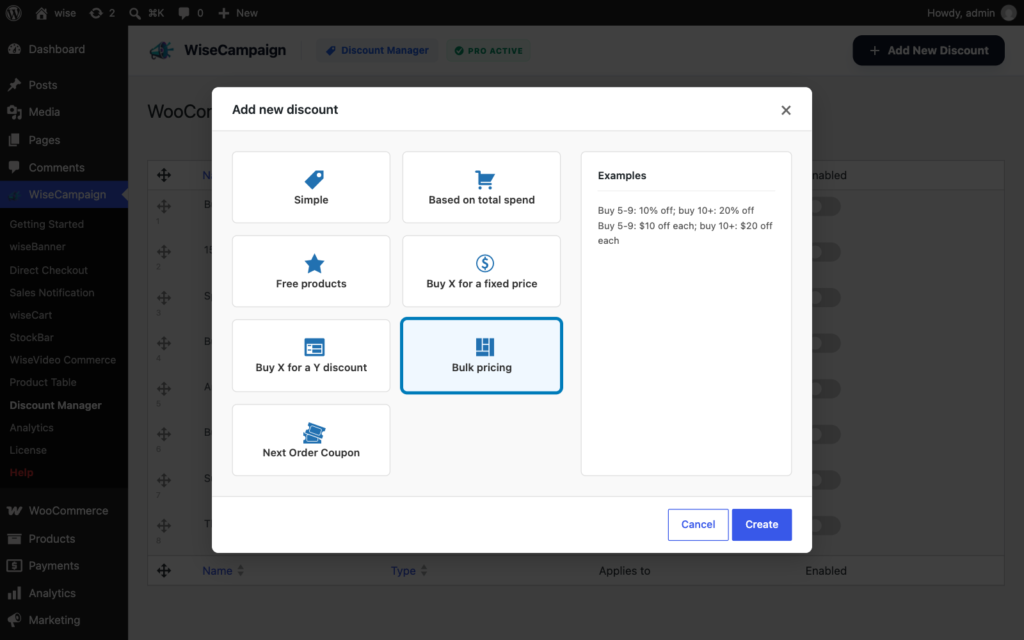
- Go to wiseCampaign → Discount Manager and click Add New Discount.
- In the Add new discount window, choose Bulk pricing. The right side shows examples of what it can do.
- Click Create to open the discount form.
Step 3: Add your pricing tiers
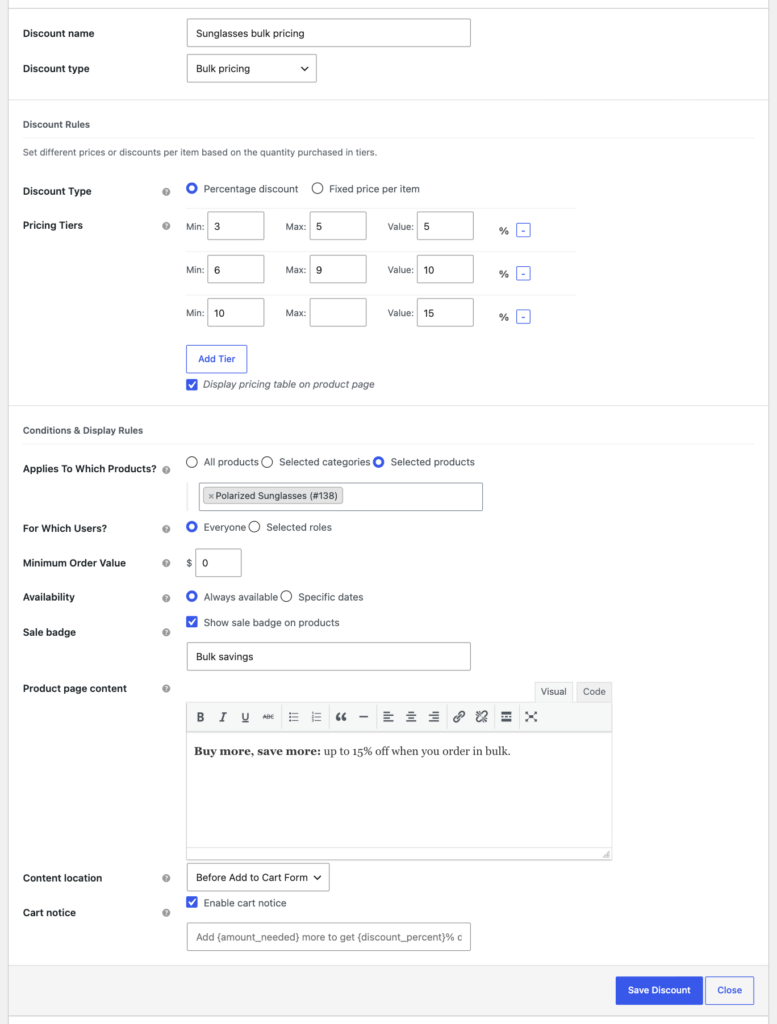
First choose the Discount Type:
- Percentage discount takes a percentage off each item, such as 10% off at 6–9 items. Use it when one rule covers products with different prices.
- Fixed price per item sets the exact price per item in each tier, such as $44 each at 6–9 items. Use it for a single product or products that all cost the same.
Then fill in the Pricing Tiers. For each tier, enter the Min and Max quantity and the Value. Leave Max empty on the last tier to mean “and up”, and click Add Tier for more rows. Finally, tick Display pricing table on product page so shoppers can see the tiers.
Step 4: Choose products, customers and dates
The Conditions & Display Rules section decides where the tiers apply and how they are shown:
- Applies To Which Products? All products, selected categories or selected products.
- For Which Users? Everyone, or only selected user roles, such as Wholesale.
- Minimum Order Value: a cart total needed before the tiers apply. Use 0 for none.
- Availability: always, or only between set dates, for example during a holiday sale.
- Sale badge, Product page content and Cart notice: optional text such as a “Bulk savings” badge or “Buy more, save more: up to 15% off”.
Click Save Discount. The rule appears in the Discount Manager list and starts working right away. Use the switch in the Enabled column to pause it at any time.
What shoppers see
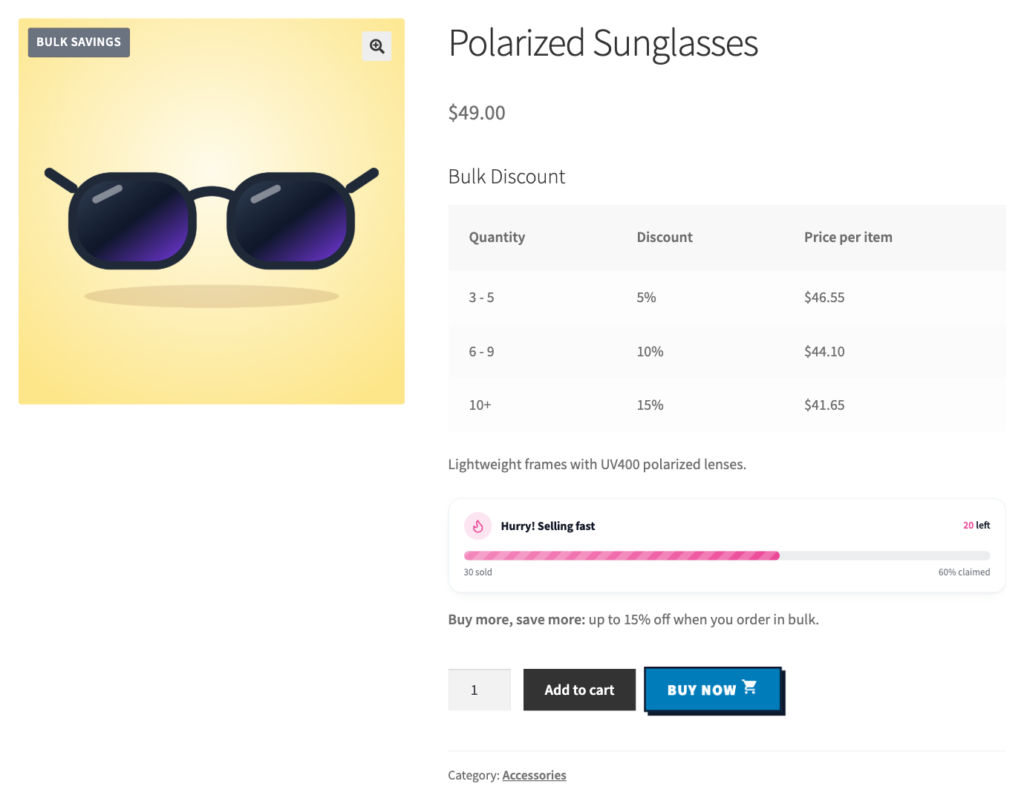
On the product page, a Bulk Discount table lists each quantity range, the discount and the price per item:
In the cart, the saving appears as its own line, so shoppers can see exactly what they saved:
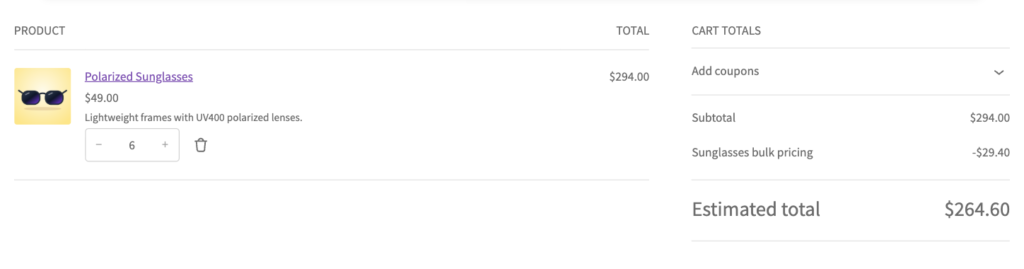
Two details worth knowing:
- Quantities add up across products. All cart items covered by the rule count together. If the rule covers a whole category, 3 sunglasses plus 3 caps reach the 6–9 tier.
- The tier applies to every item. Once the cart reaches a tier, all eligible items get that tier’s price, not just the units above the threshold. Percentage tiers are taken off the price the shopper pays now, including sale prices.
Bulk pricing for wholesale customers only
Many B2B stores want retail shoppers to see normal prices and trade customers to get volume pricing. Create a user role such as Wholesale (with a role editor plugin, or your existing B2B setup), assign it to your trade customers, and set For Which Users? to that role.
Tips for bulk pricing that sells
- Show the saving in money. “Save $29.40 on 6” often feels more concrete than “10% off”. Use the product page content field for that message.
- Use a single step for simple offers. If you only want “Buy 2, save 20%”, the Buy X for a Y discount type is simpler than a one-row tier table.
- Combine with a free shipping goal. Bulk orders often cross your free shipping minimum. Show that with a free shipping progress bar.
- Keep stock in mind. A 10+ tier on a product with 8 in stock frustrates shoppers. Turn on stock tracking, and consider StockBar to show how many are left.
Frequently asked questions
Does WooCommerce support tiered pricing without a plugin?
No. WooCommerce lets you set a regular price and a sale price per product, but not a price that changes with the quantity in the cart. You need a plugin such as wiseCampaign Pro’s Discount Manager to add bulk or tiered pricing.
What is the difference between bulk pricing and tiered pricing?
The terms are usually used for the same thing: a lower price per item as the quantity goes up, defined in quantity ranges called tiers. In wiseCampaign, once the cart reaches a tier, every eligible item gets that tier’s price.
Can I show a bulk pricing table on the product page?
Yes. Tick “Display pricing table on product page” in the bulk pricing discount, and wiseCampaign shows a Bulk Discount table with each quantity range, the discount and the price per item.
Can different products count toward the same tier?
Yes. All cart items covered by the rule are added together. Apply the rule to a category and shoppers can mix products to reach the next tier.
Can I offer bulk pricing only to wholesale customers?
Yes. Set “For Which Users?” to your wholesale user role. Other shoppers see normal prices, and logged-in wholesale customers get the tiers.
Is bulk pricing included in the free version of wiseCampaign?
No. Bulk pricing is part of the Discount Manager in wiseCampaign Pro, which starts at $59 per year with a 14-day money-back guarantee.
Add bulk pricing to your store
Pick three or four of your most re-ordered products, set up three tiers and show the pricing table. Check your average items per order after a few weeks and adjust the tiers from there. The full option reference is in the bulk pricing docs.

Leave a Reply