

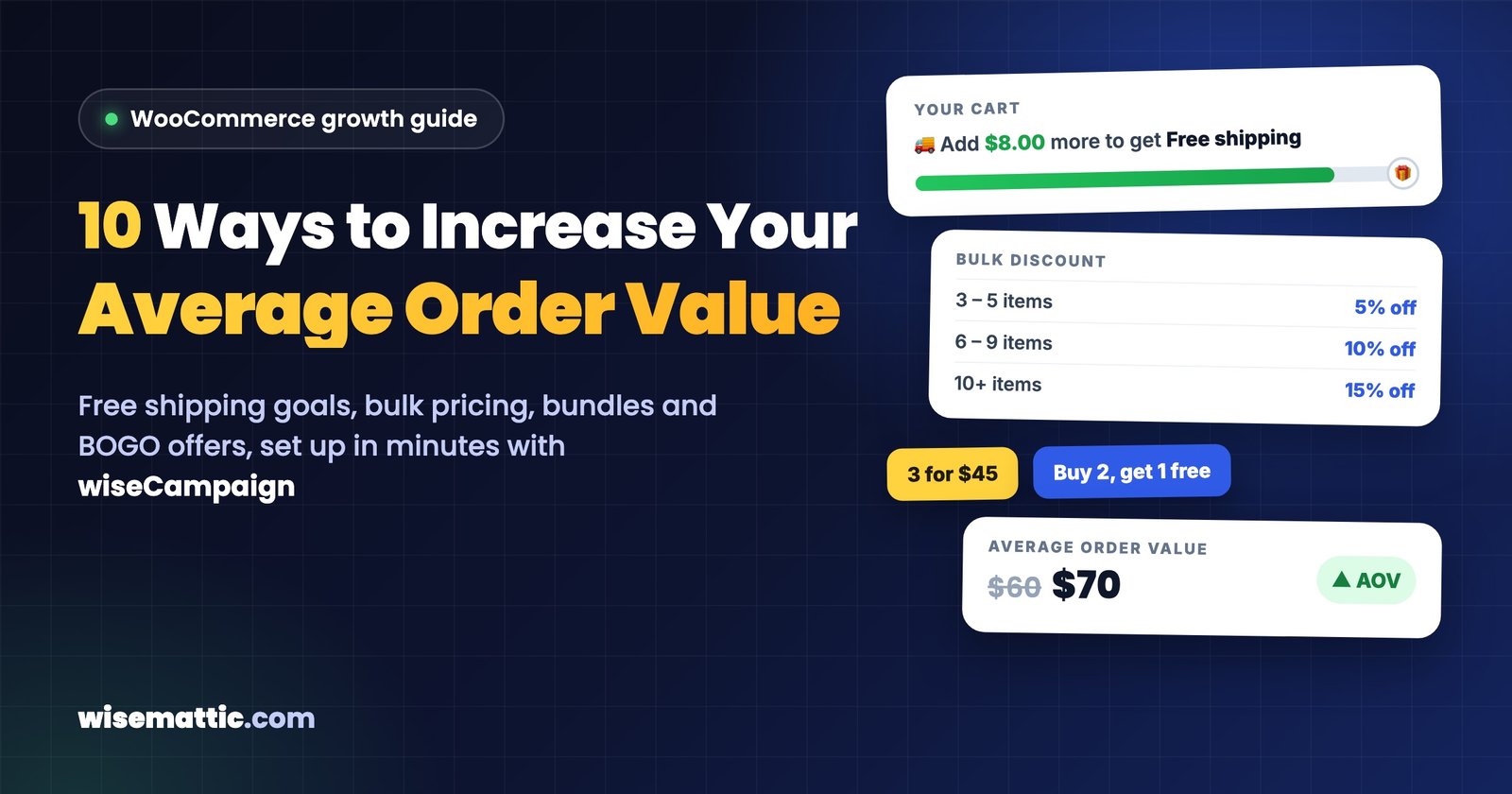
Getting more visitors to your store costs money. Getting each customer to spend a little more usually costs much less. That is what average order value (AOV) measures, and it is one of the few store numbers you can move this week without buying a single extra ad.
This guide covers 10 practical ways to increase your WooCommerce average order value: free shipping goals, spend-based rewards, bulk pricing, bundles, BOGO offers and more. For each one you will see why it works, when to use it and how to set it up with wiseCampaign, our all-in-one sales plugin for WooCommerce. Most of them take less than ten minutes to set up.
Key takeaways
- AOV = total revenue ÷ number of orders. You can find yours in WooCommerce → Analytics → Orders.
- The quickest wins are a free shipping goal with a progress bar in the cart and a spend-based reward set about 20–30% above your current AOV.
- Quantity offers (bulk pricing, “3 for $45” bundles, Buy 2 Get 1 Free) raise the number of items in each order.
- Keep buying easy. If conversion rate drops while AOV goes up, you have not gained anything.
- The free version of wiseCampaign covers the cart progress bar, slide-out cart, product table and top bar. wiseCampaign Pro adds the Discount Manager with seven discount types.
In this guide
- What is average order value?
- How to find your AOV in WooCommerce
- 10 ways to increase WooCommerce average order value
- Which tactic should you use first?
- Keep your conversion rate up while AOV grows
- A simple 30-day plan
- Mistakes to avoid
- Frequently asked questions
What is average order value (AOV)?
Average order value is the average amount a customer spends each time they place an order in your store. You calculate it by dividing your total revenue by the number of orders in the same period:
Copied!Average order value = Total revenue ÷ Number of orders
For example, if your store made $24,000 from 400 orders last month, your AOV is $60.
AOV matters because many of your costs come per order, not per dollar: packing, shipping labels, payment fees and the ad spend it took to bring the shopper in. When the same order carries more products, those costs are spread over a bigger total and more of each sale is profit. Raise that $60 AOV to $70 and the same 400 orders bring in $28,000 instead of $24,000, with no extra traffic.
How to find your AOV in WooCommerce
- In your WordPress dashboard, go to WooCommerce → Analytics → Orders.
- Pick a date range, for example the last 90 days.
- Read the Average order value chart. Next to it you will find Average items per order, the number that quantity offers such as bulk pricing are meant to move.
Write both numbers down before you change anything. They are your baseline, and every tactic below should be judged against them. WooCommerce explains the report in its Orders report documentation.
10 ways to increase WooCommerce average order value with wiseCampaign
The tactics below fall into three groups: spend goals that give shoppers a reason to add one more item (1–2), quantity offers that make buying several items cheaper (3–6), and shopping experience improvements that make it easier to build a bigger cart (7–10). Each one names the wiseCampaign feature that handles it and whether it is in the free or Pro version.
1. Add a free shipping goal with a progress bar in the cart
Why it works: Free shipping is one of the strongest reasons to add one more item. A shopper who is $8 short of free shipping will often add a small product rather than pay $6 for delivery. But they have to know how close they are, and a WooCommerce free shipping rule on its own does not tell them until checkout.
How to set it up with wiseCampaign (free): wiseCart reads the minimum amount from your WooCommerce Free shipping method and shows a progress bar at the top of its slide-out cart, for example “Add $8.00 more to get Free shipping”. When the shopper reaches the goal, the bar changes to “You unlocked Free shipping!”.
- Go to WooCommerce → Settings → Shipping, open your shipping zone and add a Free shipping method. Set “Free shipping requires” to A minimum order amount and enter your goal (see the WooCommerce free shipping guide).
- Go to wiseCampaign → wiseCart, turn wiseCart on and keep the Reward progress bar option enabled.
- Add a product to your cart on the front end and check the message.
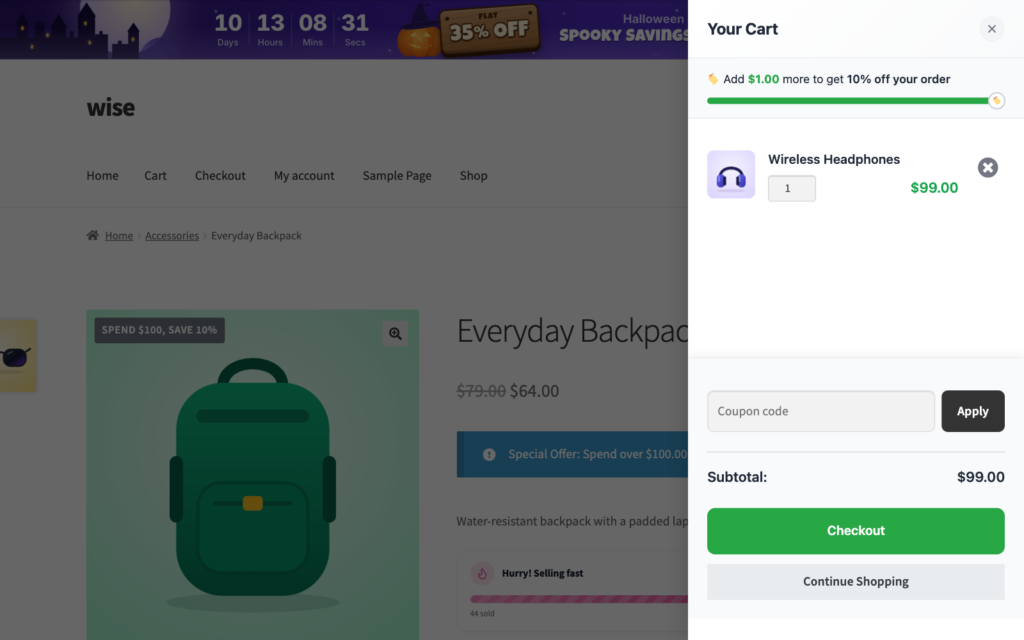
Tip: Set the goal about 20–30% above your current AOV. With a $60 AOV, a $75 goal is one small item away. A $150 goal is out of reach for most shoppers, so they ignore it.
2. Reward bigger carts with a spend-based discount
Why it works: “Spend $100, get 10% off” works like a free shipping goal, but you can use it even if you already ship for free, or stack it as a second, bigger goal. Shoppers see a clear target just above what they planned to spend, and most of them only need one more item to reach it.
How to set it up with wiseCampaign (Pro):
- Go to wiseCampaign → Discount Manager and click Add New Discount.
- Choose Based on total spend, then set Required Spend (for example 100) and the reward (for example 10% off, or a fixed $10 off).
- Turn on the cart notice and use the
{amount_needed}placeholder, for example “Add {amount_needed} more to get {discount_percent}% off”. - Click Save Discount. The offer starts working right away.
Eligible product pages show the offer before shoppers reach the cart, and with wiseCart turned on, the spend goal appears on the same progress bar as free shipping. Each goal becomes a step on the bar, cheapest first. The full walkthrough is in the spend-based discount docs.
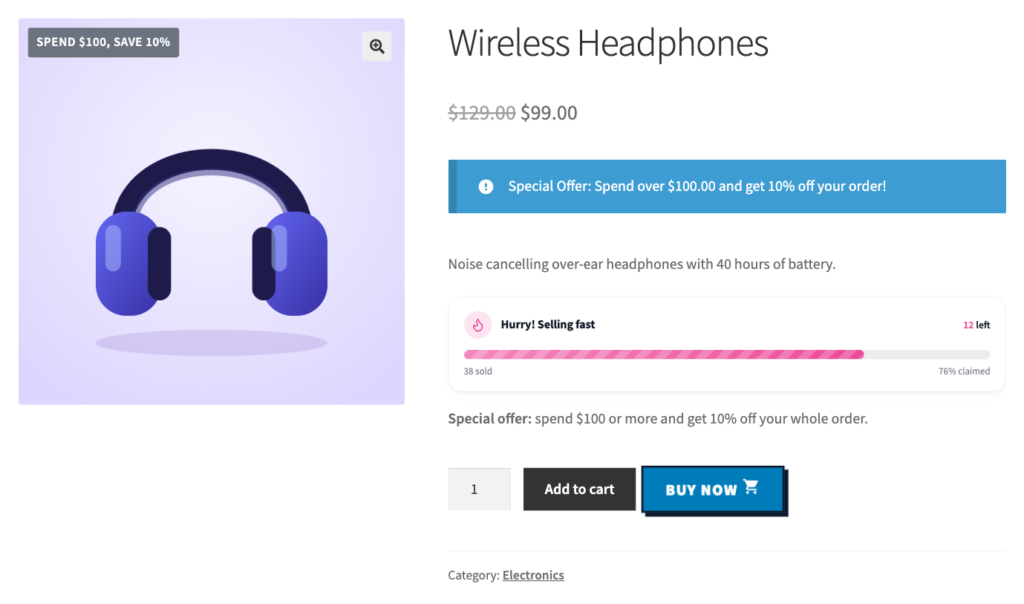
Tip: If your margins are thin, use a fixed reward ($10 off $100) instead of a percentage. A percentage grows with the cart, while a fixed amount keeps your discount capped.
3. Offer tiered bulk pricing
Why it works: A “buy more, save more” table right on the product page turns the saving into something shoppers can see. When the price per item drops at 3, 6 and 10 units, it is natural to round up to the next tier. This works well for consumables, accessories, gifts and B2B orders.
How to set it up with wiseCampaign (Pro): In Discount Manager, add a Bulk pricing discount and enter your tiers, for example 3–5 items at 5% off, 6–9 items at 10% off and 10 or more at 15% off. wiseCampaign adds a Bulk Discount table to the product page with the price per item for each tier, and applies the right price in the cart. See the bulk pricing docs for every option.
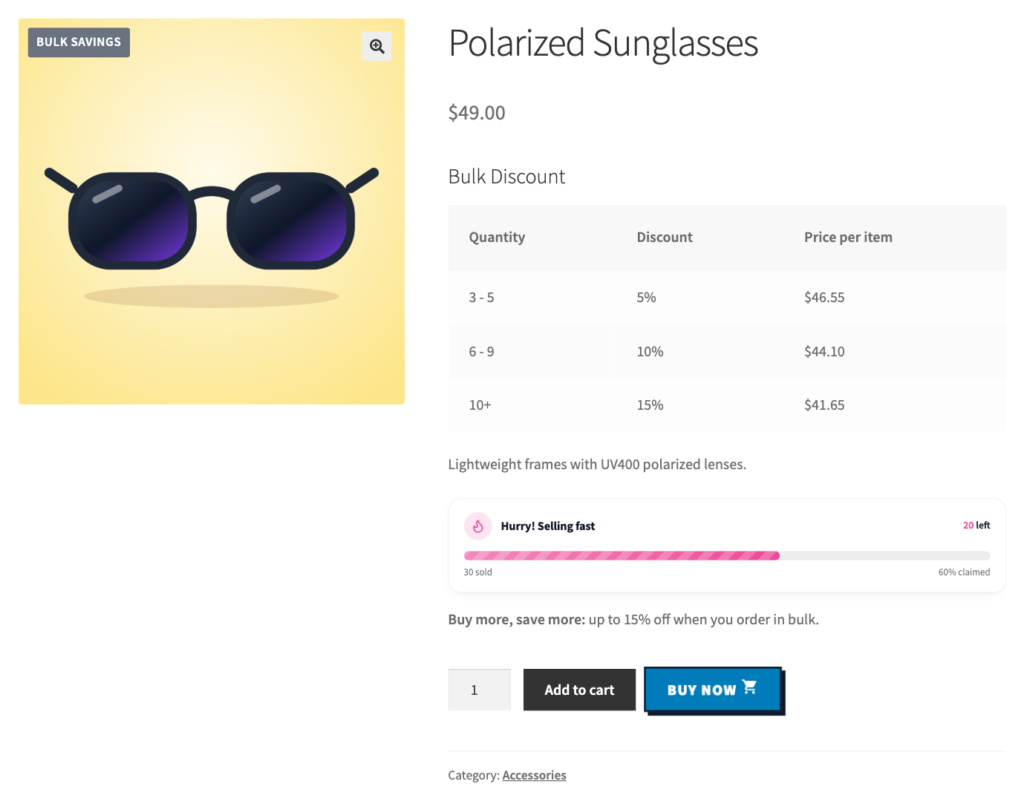
Tip: Start the first tier just above what people already buy. If most orders contain one item, a 2–3 item tier is easy to reach. Save the 10+ tier for wholesale buyers, and use the For Which Users? setting to show wholesale-only tiers to a Wholesale role.
4. Sell fixed-price bundles (“3 for $45”)
Why it works: A round bundle price is easy to understand and feels like a deal. Because it applies to a group of products, shoppers can mix and match, for example any 3 mugs, any 3 candles or any 3 pairs of socks, instead of buying three of the same thing.
How to set it up with wiseCampaign (Pro): Add a Buy X for a fixed price discount, set the quantity and the bundle price, and choose the products or category it covers. A badge such as “3 for $45” appears on product images and the bundle price is applied in the cart. Follow the fixed-price bundle docs for the details.
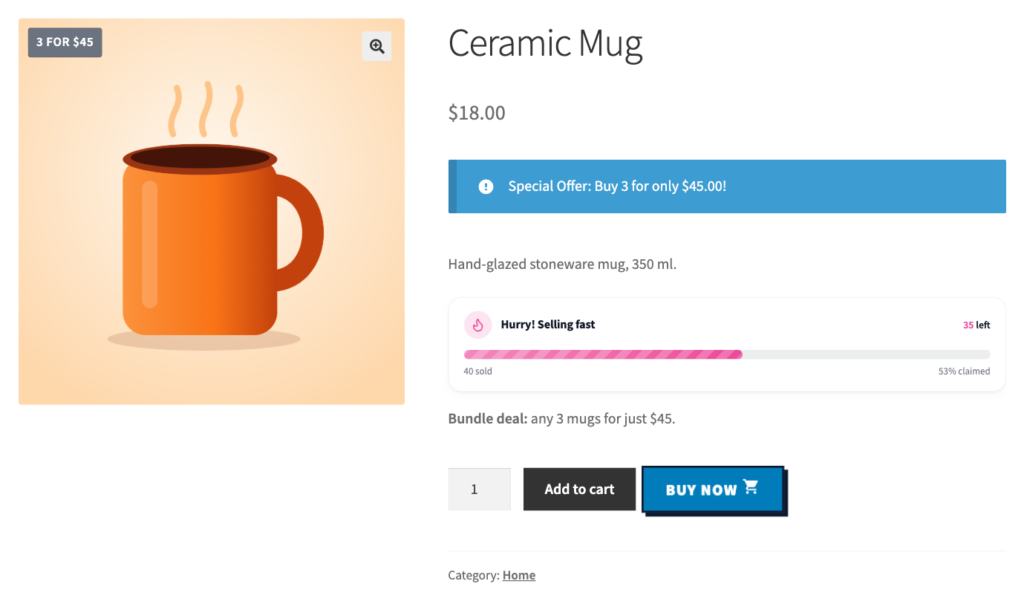
Tip: Make the saving obvious but keep your margin. If mugs sell for $18 each, “3 for $45” saves the shopper $9 (about 17%), which is easy to see and still leaves room for profit.
5. Run “Buy 2, Get 1 Free” (BOGO) offers
Why it works: “Buy 2, get 1 free” costs you the same as 33% off three items, but the word “free” is a much stronger reason to add the third one. It raises the number of items per order while you choose exactly which products are included.
How to set it up with wiseCampaign (Pro): Add a Free products discount and set Paid Quantity to 2 and Free Quantity to 1. With three eligible items in the cart, the price of one comes off automatically. The free products docs walk through it step by step.
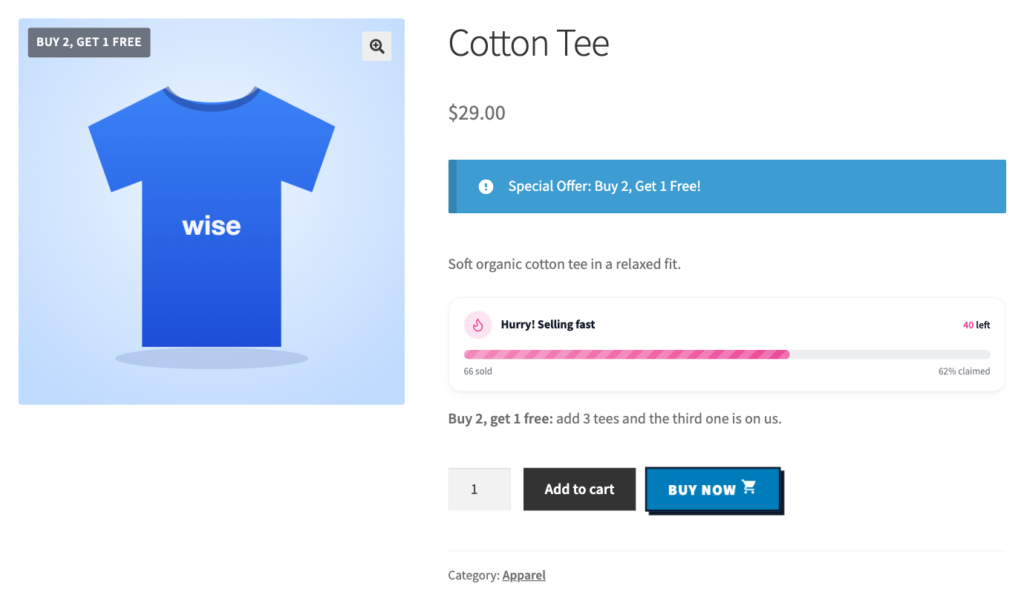
Tip: BOGO offers suit products with healthy margins or stock you want to move. Limit them to selected products or categories rather than the whole store.
6. Give multi-buy discounts (“Buy 2, save 20%”)
Why it works: Some products are naturally bought in twos: water bottles, refills, socks, phone cables, gifts for two people. A simple multi-buy discount nudges one-item shoppers to take the second one now instead of coming back later, or never.
How to set it up with wiseCampaign (Pro): Add a Buy X for a Y discount discount, set Quantity to 2 and the discount to 20%. If you want several quantity steps (buy 3 save 5%, buy 6 save 10% and so on), use bulk pricing from tactic 3 instead. Details are in the Buy X for a Y discount docs.
7. Keep shoppers browsing with a slide-out cart
Why it works: In many WooCommerce themes, adding a product either does nothing visible or sends the shopper to the cart page. Both interrupt shopping. A slide-out cart confirms the add, shows the subtotal and the progress toward your goals, and lets the shopper go straight back to browsing. The more time people spend shopping, the more they add.
How to set it up with wiseCampaign (free): Turn on wiseCart. By default it opens automatically when a product is added, and it includes quantity pickers (so 1 can become 2 without a page load), a coupon field, a Continue Shopping button and the reward progress bar. You can also let it replace the default cart and checkout pages. If cart abandonment is a problem in your store, our guide on how to reduce cart abandonment in WooCommerce covers the other side of the same problem.
8. Let shoppers add several products at once with a product table
Why it works: When a store has many similar items, such as spare parts, refills, restaurant menus or a wholesale catalog, opening every product page one by one is slow. A table with checkboxes and quantity fields lets buyers build a large order in a single pass, and bigger orders follow naturally.
How to set it up with wiseCampaign (free): Go to wiseCampaign → Product Table, create a table and choose which products and columns it shows. Place it on any page with the shortcode. Shoppers tick the products they want and add them all with one button, for example “Add 3 items for $54.00”. The table is searchable and filterable, so it stays usable even with hundreds of products.
9. Announce your offer sitewide with a top bar and countdown
Why it works: Shoppers cannot aim for an offer they do not know about. If your free shipping goal or bundle deal is only mentioned in the cart, people find it too late, after they have already decided what to buy. A top bar on every page states the deal from the first page view: “Free shipping on orders over $75” or “Spend $100, get 10% off, ends Sunday”. For time-limited offers, a countdown adds a real deadline.
How to set it up with wiseCampaign (free): wiseBanner adds a sticky top or bottom bar with a countdown timer, a click-to-copy coupon code and a button. Pick a template, write your offer and choose where it shows: sitewide, on selected pages or on specific products. Built-in analytics show impressions, clicks and coupon copies, and with Pro you also see the orders and revenue each banner brought in. Read more about using countdown timers to boost sales.
10. Turn today’s order into the next one with a next order coupon
Why it works: A thank-you coupon brings customers back, and when you tie it to a minimum order value, it also lifts today’s order. “Spend $75 today and get 15% off your next order” gives shoppers a reason to reach $75 now and a reason to return later.
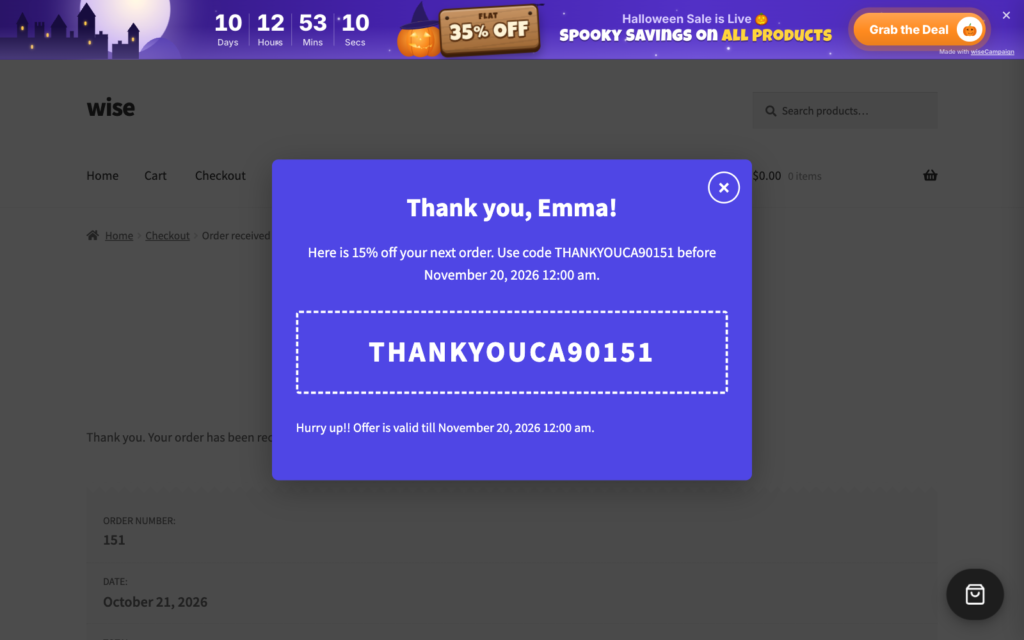
How to set it up with wiseCampaign (Pro): Add a Next Order Coupon discount, choose the reward and how long it stays valid, and set Minimum Order Value under Coupon Generation Rules so only orders above your goal earn a coupon. Each customer gets a personal code in a popup or inline box on the Order Received page, in the WooCommerce order email or in a separate email. The next order coupon docs explain every option.
Which tactic should you use first?
If you are not sure where to start, begin with tactic 1 and tactic 9: a free shipping goal that is visible in the cart and announced on every page. Then add one quantity offer that fits your products. This table sums up all ten:
| Tactic | Best for | wiseCampaign feature | Plan |
|---|---|---|---|
| 1. Free shipping progress bar | Stores that charge for shipping | wiseCart | Free |
| 2. Spend-based discount | Stores that already ship free, or a second goal | Discount Manager: Based on total spend | Pro |
| 3. Tiered bulk pricing | Consumables, accessories, B2B | Discount Manager: Bulk pricing | Pro |
| 4. Fixed-price bundles | Mix-and-match product ranges | Discount Manager: Buy X for a fixed price | Pro |
| 5. Buy 2, Get 1 Free | High-margin or overstocked products | Discount Manager: Free products | Pro |
| 6. Multi-buy discount | Products bought in pairs | Discount Manager: Buy X for a Y discount | Pro |
| 7. Slide-out cart | Every store | wiseCart | Free |
| 8. Product table | Large catalogs, wholesale, menus | Product Table | Free |
| 9. Top bar with countdown | Announcing any offer | wiseBanner | Free (revenue analytics in Pro) |
| 10. Next order coupon | Products people buy again | Discount Manager: Next Order Coupon | Pro |
Keep your conversion rate up while AOV grows
Revenue is traffic × conversion rate × average order value. Raising AOV only helps if conversion rate does not fall at the same time, for example because of a goal that feels out of reach or too many offers fighting for attention. These wiseCampaign features help keep shoppers moving toward checkout:
- StockBar shows real stock levels on product pages (“Hurry! Selling fast, 20 left”), which gives shoppers a reason to buy now instead of later.
- Sales Notification shows small popups of recent orders, which builds trust with first-time visitors.
- Direct Checkout adds a Buy Now button that skips the cart. Use it on products people usually buy one at a time, such as high-priced items, and keep the normal Add to Cart flow on products people buy in multiples. With wiseCart on, Buy Now opens the cart drawer on its checkout form, so shoppers never leave the page. Our post on how quick buy buttons improve conversion rates goes deeper.
To see what is working, open wiseCampaign → Analytics. The Average order with WiseCampaign card shows the average value of orders where shoppers used a wiseCampaign feature. With Pro, it compares that number with your other orders and breaks down orders and revenue by module, so you can see which tactic is actually raising your AOV.
A simple 30-day plan to raise your AOV
- Week 1, measure and set a goal: Note your AOV and items per order for the last 90 days. Install wiseCampaign from WordPress.org, set a free shipping minimum 20–30% above your AOV and turn on wiseCart with the reward progress bar.
- Week 2, announce it: Add a wiseBanner top bar that states the goal on every page, for example “Free shipping on orders over $75”.
- Week 3, add one quantity offer: Pick the 3–5 products people buy most often and add bulk pricing, a “3 for $X” bundle or a Buy 2, Get 1 Free offer to them.
- Week 4, compare and adjust: Check AOV, items per order and conversion rate against your baseline. Keep what worked, then change one thing at a time so you know what caused the result.
Mistakes to avoid
- Setting the goal too high. A threshold far above your AOV does not change behavior. Shoppers simply ignore it.
- Discounting what already sells. Your best sellers may not need a discount. Put quantity offers on products where a second item is a natural add.
- Running every offer at once. Five overlapping deals confuse shoppers and make it impossible to tell which one worked.
- Forgetting your margin. Check the profit on the discounted order, not just the bigger total.
- Not checking on mobile. Most shoppers browse on their phones. Make sure the progress bar, badges and offer messages are easy to read on a small screen.
Frequently asked questions
What is a good average order value for a WooCommerce store?
There is no single good number. AOV depends on what you sell and your price points, so a store selling $15 phone cases cannot be compared with a furniture store. Use your own AOV as the baseline and aim to raise it step by step. A 10–15% increase over a few months is a realistic first goal for many stores.
How do I calculate average order value in WooCommerce?
Divide your total revenue by the number of orders in the same period. WooCommerce does this for you: go to WooCommerce → Analytics → Orders and read the Average order value chart for the date range you choose.
Does a free shipping threshold really increase average order value?
Yes, when the threshold is within reach and shoppers can see it. Set it about 20–30% above your current AOV, announce it on every page and show the remaining amount in the cart. wiseCart’s progress bar does the last part automatically, based on your WooCommerce Free shipping settings.
What is the difference between AOV and items per order?
AOV is how much money each order brings in. Items per order is how many products each order contains. Quantity offers such as bulk pricing and bundles mainly raise items per order, while spend goals raise AOV directly. Track both in WooCommerce → Analytics → Orders.
Will these discounts hurt my profit margin?
They can if they are not tied to a bigger cart. That is why the tactics in this guide reward larger orders: a spend goal, a minimum quantity or a bundle. Check the profit on a discounted order before you launch an offer, and use fixed-amount rewards when margins are thin.
Is wiseCampaign free?
Yes. The free version on WordPress.org includes wiseBanner, StockBar, Direct Checkout, Sales Notification, wiseCart and Product Table. wiseCampaign Pro adds the Discount Manager with seven discount types (simple, spend-based, free products, fixed-price bundles, Buy X for a Y discount, bulk pricing and next order coupons), premium templates and revenue analytics. Pro plans start at $59 per year and include a 14-day money-back guarantee.
Will these features slow down my store?
wiseCampaign is split into modules, and you turn on only the ones you use on its Getting Started page. Modules you turn off are not loaded at all, and the ones you use keep their styles scoped and light.
Start raising your average order value today
You do not need to use all ten tactics. A visible free shipping goal, a top bar that announces it and one quantity offer on your most popular products are enough to see a difference in your next month of orders. Start with the free version of wiseCampaign, then upgrade to Pro when you are ready for spend rewards, bundles and bulk pricing.

Leave a Reply