WooCommerce Stock Progress Bar with Real Low-Stock Urgency
StockBar shows shoppers how many items are left and how many have sold, right on your product and shop pages. Pick one of 5 templates, write your own message with live numbers, or run a flash sale countdown. Free, no code.
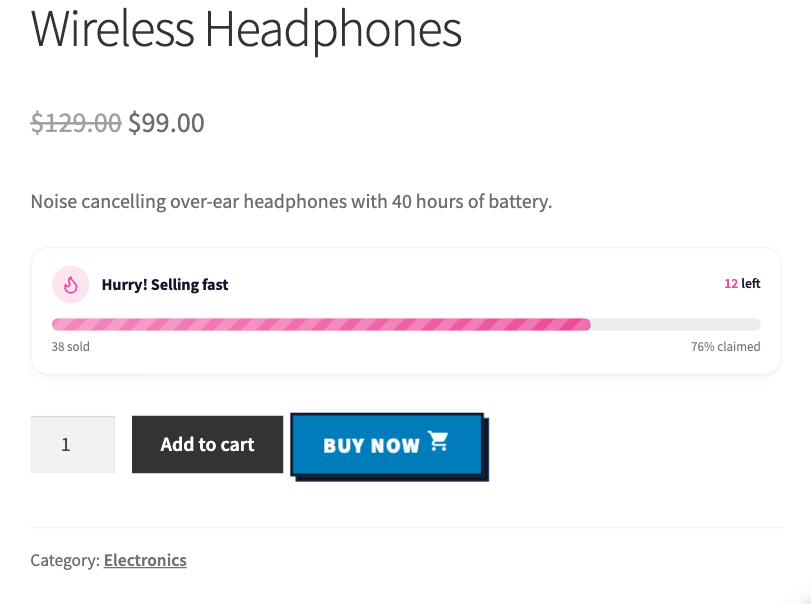
Noise cancelling over-ear headphones with 40 hours of battery.
Hurry! Selling fast7 left
41 sold85% claimed
Extremely limited stock!Only 7 left in stock
Popular product7 available
Flash sale ends in05h42m17s
7left
Limited stock7 left
Out of stock
1Add to cart
Category: Electronics
Try a free template:
A live demo with sample numbers: each order takes one item off and adds one sale. On your store, every product shows its own WooCommerce stock and sales, and the bar steps aside when a product sells out.
At a glance
What is StockBar?
StockBar is the stock scarcity module of wiseCampaign, a WooCommerce plugin by Wisemattic. It adds a stock progress bar, a low stock alert, a counter, a countdown or a badge to your product and shop pages, with the number of items left and sold taken from WooCommerce.
Pick one of 5 templates, write your own message with {stock}, {sold} and {total}, and choose where the bar shows. Use it for limited runs, the last items of a season, best-sellers and flash sales: anywhere a real, visible limit gives shoppers a reason to buy now.
WooCommerce, with stock tracking turned on for the products
Templates
5: High Demand Flow, Urgent Alert, Modern Minimal, Flash Sale Timer and Low Stock Badge
Shows on
Product pages (3 placements) and shop, category and tag pages
Message
Your own text, with {stock}, {sold} and {total} filled in per product
Analytics
Pages that showed the bar (free). Orders and revenue (Pro)
Price
Free on WordPress.org. Every StockBar feature is in the free version
Version
wiseCampaign 2.1.0, November 3, 2026
Why it works
How does a stock progress bar increase sales?
Before they buy, shoppers wonder two things: is this popular, and will it still be here tomorrow? A stock bar answers both with real numbers, so “I’ll come back later” becomes “I’ll order it now”.
A reason to buy now
When only a few are left, waiting has a cost. Low stock turns a product a shopper likes into one they might miss, which cuts the “maybe later” that ends so many visits.
Hurry! Selling fast · 7 left
Proof that others bought it
A sold count and a bar that is mostly full show that other shoppers chose this product. That quietly answers the doubt behind many abandoned product pages: is it any good?
41 sold · 85% claimed
A deadline for your sale
The Flash Sale Timer puts the time left in your sale next to the items left, so shoppers see both limits at once and the bar disappears when the sale ends.
Flash sale ends in 05h 42m 17s · 7 left
What about average order value? StockBar works on the decision to buy, not on the size of the order. To make orders bigger, pair it with the wiseCart free shipping progress bar (free) or a Discount Manager offer such as bulk pricing or “buy 2, save 10%” (Pro). A product that is running low is a good moment to make that offer. More ideas in 10 ways to increase your WooCommerce average order value.
Features
Everything in StockBar, and all of it free
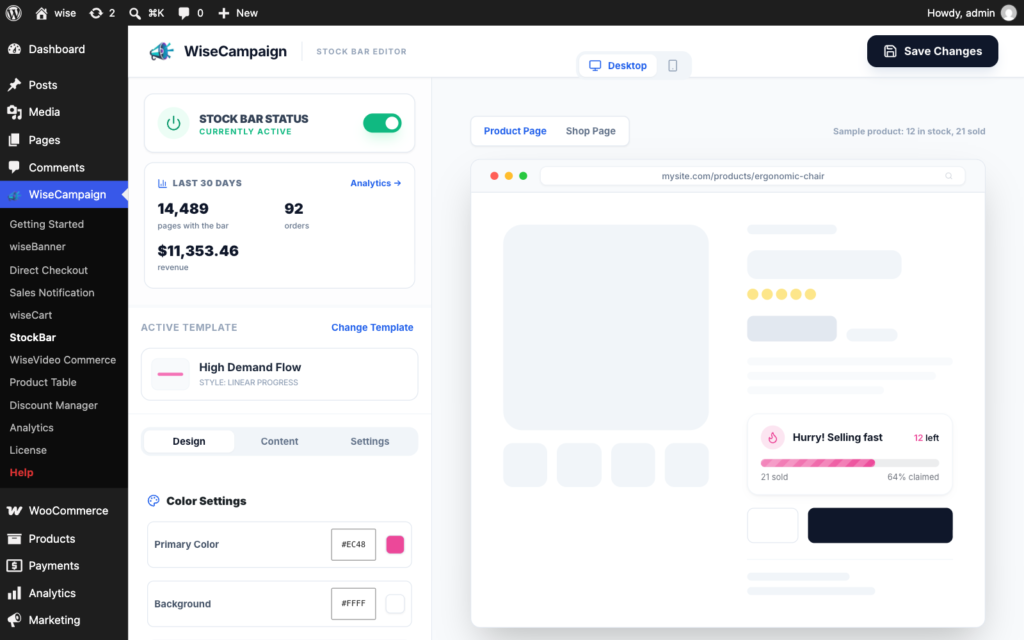
Edit everything in one editor with a live product page and shop page preview, on desktop or mobile. Nothing goes live until you click Save Changes.
5 templatesFreeA progress bar, an urgent alert, a minimal counter, a flash sale countdown and a compact badge.
Live numbers per productFreeWrite your own text with {stock}, {sold} and {total}. Each product fills in its own numbers.
Sold and claimedFreeThe bar fills by the share already sold, and High Demand Flow adds “38 sold” and “76% claimed” below it.
Flash sale countdownFreeCounts down to the end date you set, in your site’s timezone, and removes the bar when time runs out.
Your brandFreePrimary, background, text and border colors, font size and weight, and 13 icons to choose from.
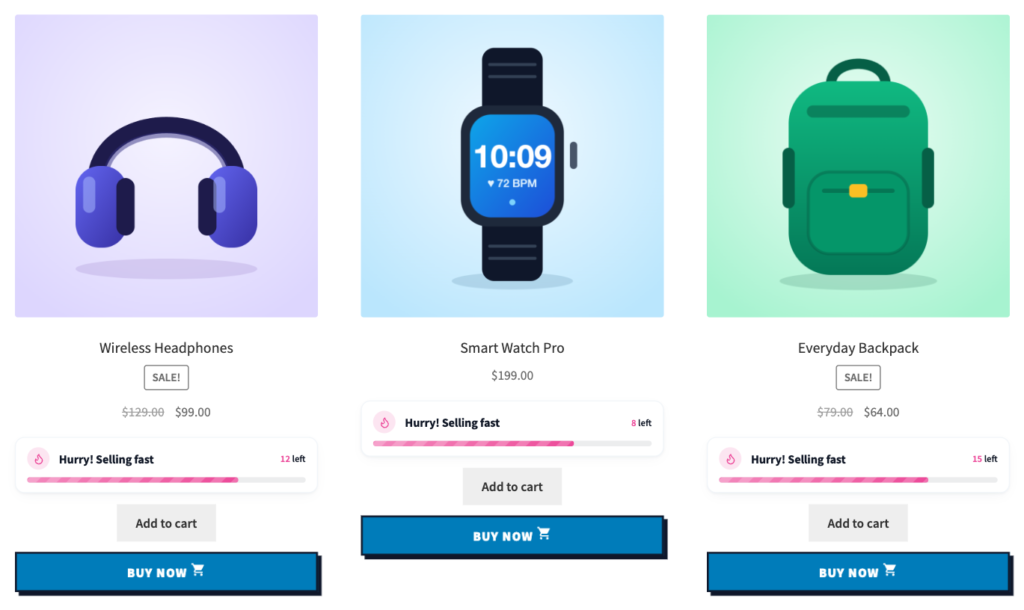
Shop and category pagesFreeA compact bar under each product on the shop, category and tag pages, before the Add to Cart button.
3 product page placementsFreeAfter the price, above the Add to Cart button (recommended) or below it, at full width.
No duplicate stock textFreeHides WooCommerce’s “12 in stock” line where the bar already shows the count. On by default.
Built-in analyticsFreeProPages that showed the bar for free. Orders and revenue with a product added next to the bar with Pro.
Templates
5 stock bar templates for every kind of store
The same sample product as the template picker in the plugin: 12 in stock, 21 sold. Pick one, then make the colors, message and icon your own.
Hurry! Selling fast12 left
21 sold64% claimed
High Demand Flow Linear progress
A striped progress bar that fills as the product sells, with the items left on the right and the sold count and percent claimed below.
Default text: “Hurry! Selling fast” and “{stock} left”
Extremely limited stock!Only 12 left in stock
Urgent Alert Pulsing badge
A bold alert with a red accent border and a pulsing icon, for products that are nearly gone.
Default text: “Extremely limited stock!” and “Only {stock} left in stock”
Popular product12 available
Modern Minimal Simple counter
A quiet counter with a thin bar, for fashion, tech and premium stores where a loud alert would feel off-brand.
Default text: “Popular product” and “{stock} available”
Flash sale ends in05h42m17s
12left
Flash Sale Timer Countdown clock
A countdown to the end date you set, next to the items left. The bar leaves your store when the time runs out.
Default text: “Flash sale ends in” and “left”
Limited stock12 left
Low Stock Badge Status badge
A compact pill with a blinking dot. It takes little room, so it suits busy product pages and tight shop grids.
Default text: “Limited stock” and “{stock} left”
Make it yours
Design tab: primary, background, text and border colors, font size and font weight.
Content tab: main message, subtext and one of 13 icons.
Flash Sale Timer: end date and time, unit labels and where the message sits.
Settings tab: shop pages, product pages and the product page placement.
All free
Live numbers
Write your own low stock message
Type any text and drop in placeholders. StockBar fills them in for each product from your WooCommerce data, so one message works across your whole catalog.
{stock}
Items left: the stock quantity in the product’s Inventory tab.
{sold}
Items sold: the sales count WooCommerce keeps for the product.
{total}
Both together, items left plus items sold.
The bar fills by the share already sold, sold ÷ (sold + left). A product that hasn’t sold yet still shows a small sliver, never an empty bar.
Try it
Hurry! Selling fastOnly 12 left
21 sold64% claimed
Sample product: 12 in stock, 21 sold
On a real store
Where does the stock bar appear?
Screenshots from a Storefront test store with wiseCampaign 2.1. The bar shows on every product that tracks its stock and has at least one item left.
yourstore.com • Product page
Product pages
Right where shoppers decide
On product pages the bar runs full width at the spot you choose. It is on by default, so it starts working as soon as your products track stock.
✓Three placements: after the price, above the Add to Cart button (recommended) or below it.
✓One count, not two: WooCommerce’s own “12 in stock” line is hidden while the bar shows the number.
✓Sold out: the bar steps aside and WooCommerce’s “Out of stock” message shows as usual.
yourstore.com • Shop
Shop, category and tag pages
Scarcity across the whole catalog
Turn on Display on Shop Page and a compact bar appears under each product, after the price and before the Add to Cart button, with each product’s own numbers.
✓Compact by design: a smaller bar that fits narrow product cards.
✓Shop, category and tag archives: one switch covers all three.
✓Pairs with Buy Now: add Direct Checkout and shoppers who feel the urgency can go straight to checkout.
yourstore.com/wp-admin • StockBar editor
The editor
See every change before it goes live
Settings on the left, a live preview on the right. Switch the preview between a product page and a shop page, and between desktop and mobile.
✓Design, Content and Settings tabs: look, text and placement, each in one place.
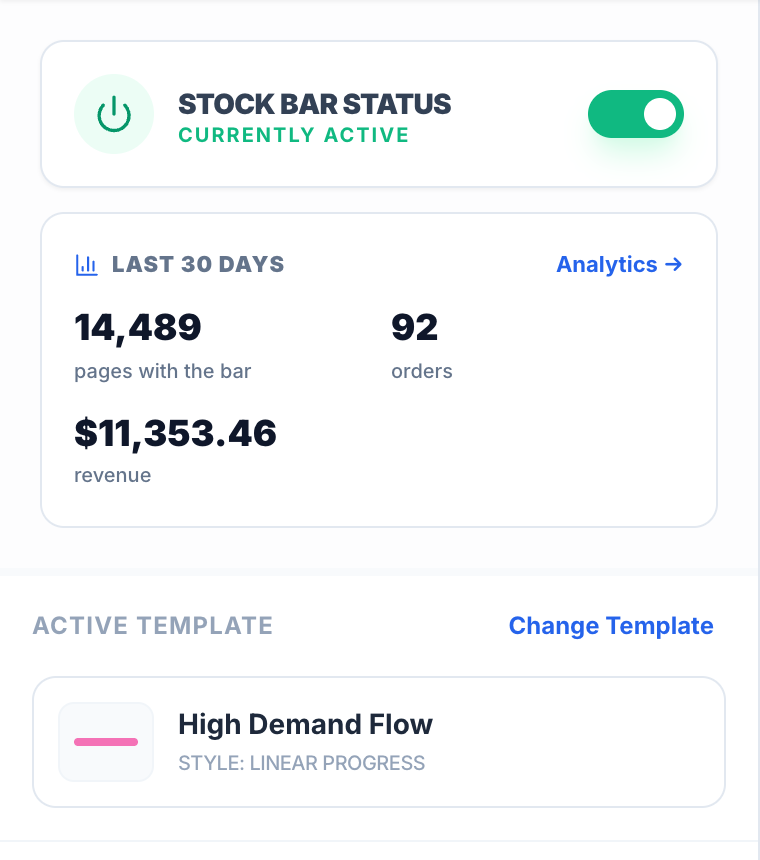
✓Status switch: turn StockBar off and on without losing your settings.
✓Safe edits: nothing reaches your store until you click Save Changes.
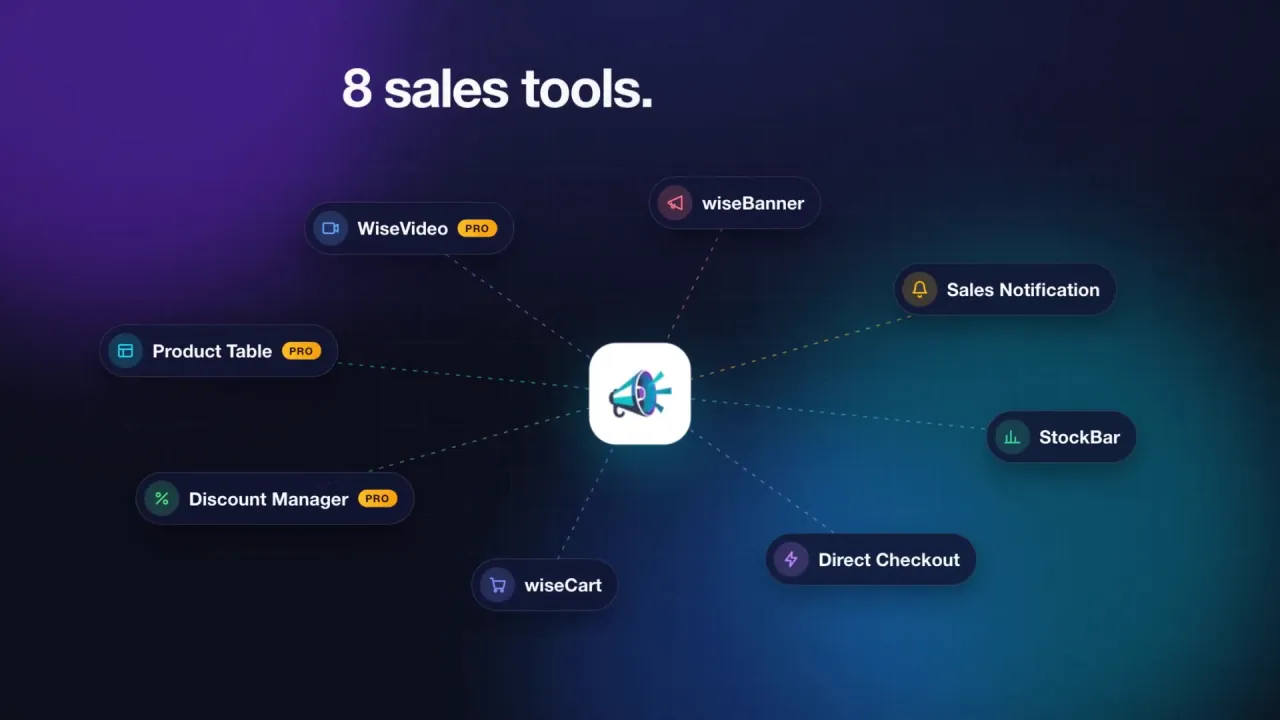
Pro unlocks every wiseCampaign module, from $59 per year, with a 14-day money-back guarantee.
Reviews
What store owners say about wiseCampaign
Reviews from WordPress.org, where wiseCampaign is rated 5.0 out of 5.
★★★★★
Great for Countdown timer and Sales notifications.
wiseCampaign is a useful WooCommerce plugin for running flash sales and promotional campaigns. The countdown timer and sales notification features are particularly impressive, helping create urgency and boost customer engagement. Easy to use and a great addition to any WooCommerce store!
Mahmudur Rahman Labib · ★★★★★
Great Plugin for Boosting WooCommerce Sales
wiseCampaign is an excellent plugin for creating flash sales, countdown timers, and attractive discount offers. The features are useful for increasing customer engagement and encouraging more purchases. Highly recommended for any WooCommerce store owner!
Saiful Islam · ★★★★★
Must-Have Plugin!
wiseCampaign makes creating banners and managing campaigns so easy! Great features, simple setup, and excellent targeting options.
About the stock progress bar, low stock messages and the flash sale countdown.
What is StockBar?
StockBar is the stock scarcity module of wiseCampaign, a WooCommerce plugin by Wisemattic. It shows a stock progress bar, a low stock alert, a counter, a countdown or a badge on product and shop pages, with the number of items left and sold taken from WooCommerce. It has 5 templates, and every feature is free.
How do I add a stock progress bar to WooCommerce products?
Install wiseCampaign from Plugins > Add New. Edit each product, open the Inventory tab, tick Track stock quantity and enter the quantity. Then go to WiseCampaign > StockBar, pick a template with Change Template, write the message in the Content tab, choose the pages in the Settings tab and click Save Changes. The bar shows on product pages by default.
Is StockBar free?
Yes. All 5 templates, the {stock}, {sold} and {total} placeholders, the Flash Sale Timer, colors and icons, product and shop page display, and the count of pages that showed the bar are in the free version on WordPress.org. wiseCampaign Pro, from $59 per year, adds the orders and revenue StockBar took part in, plus Pro modules such as the Discount Manager.
Where do the stock and sold numbers come from?
From WooCommerce. {stock} is the stock quantity in the product’s Inventory tab, {sold} is the sales count WooCommerce keeps for the product, and {total} is the two added together. The bar fills by the share already sold. StockBar never makes numbers up: it shows what WooCommerce has when the page loads.
Why doesn’t the stock bar show on some products?
StockBar shows only on products that track their stock and have at least one item left. Tick Track stock quantity in the product’s Inventory tab, and keep Enable stock management on in WooCommerce > Settings > Products > Inventory. For variable products, stock has to be tracked on the main product, not per variation. Sold-out products show WooCommerce’s usual “Out of stock” message instead, and a Flash Sale Timer bar hides once its end time has passed.
Can I show the stock bar on the shop page?
Yes. Turn on Display on Shop Page in the Settings tab to add a compact bar under each product on the shop, category and tag pages, after the price and before the Add to Cart button. Product pages are on by default, with three placements: after the price, above the Add to Cart button (recommended) or below it.
Can I write my own low stock message?
Yes. Each template has a Main Message and a Subtext. Type any text and add {stock} for items left, {sold} for items sold and {total} for both, for example “Only {stock} left, {sold} already sold”. Each product shows its own numbers. You can also pick one of 13 icons and set the colors, font size and font weight.
How does the Flash Sale Timer countdown work?
Choose the Flash Sale Timer template and set an Expiry Date & Time in the Content tab. The bar counts down to that moment in your site’s timezone, next to the items left, and disappears from your store when the time runs out. You can rename the h, m and s labels and place the message to the left or right of the timer, or above or below it. Without an end date, the bar shows without a timer.
Does StockBar increase average order value?
Not on its own. StockBar works on the decision to buy: real low-stock numbers and a sold count give shoppers a reason to order now instead of later. To make orders bigger, pair it with the wiseCart free shipping progress bar, which is free, or with Discount Manager offers such as bulk pricing and Buy X get Y free in wiseCampaign Pro. Pro Analytics shows the average order value of wiseCampaign orders next to your other orders.
How do I know if StockBar helps my sales?
Open WiseCampaign > Analytics, or look at the card under the status switch in the StockBar editor. The free version counts the pages that showed the bar over the last 7 days. With Pro you also see the paid orders that include a product added to the cart next to the bar, and their revenue, over 7, 30 or 90 days. Only daily totals are stored, in your own database, without IP addresses.
Add StockBar free from WordPress.org. When you want to see the revenue it brings in, and offers that make each order bigger, upgrade to wiseCampaign Pro.
Cyber Week: 80% off your first year with code BFCM80, applied at checkout until December 5.