
The Free products discount is the classic “Buy one, get one free” (BOGO) offer. Shoppers buy a set number of items and get more free, which moves stock and increases the number of items per order.
Example in this guide: Buy 2 tees, get 1 free.
Step 1: Create the discount
- Go to wiseCampaign → Discount Manager.
- Click Add New Discount in the top right corner.
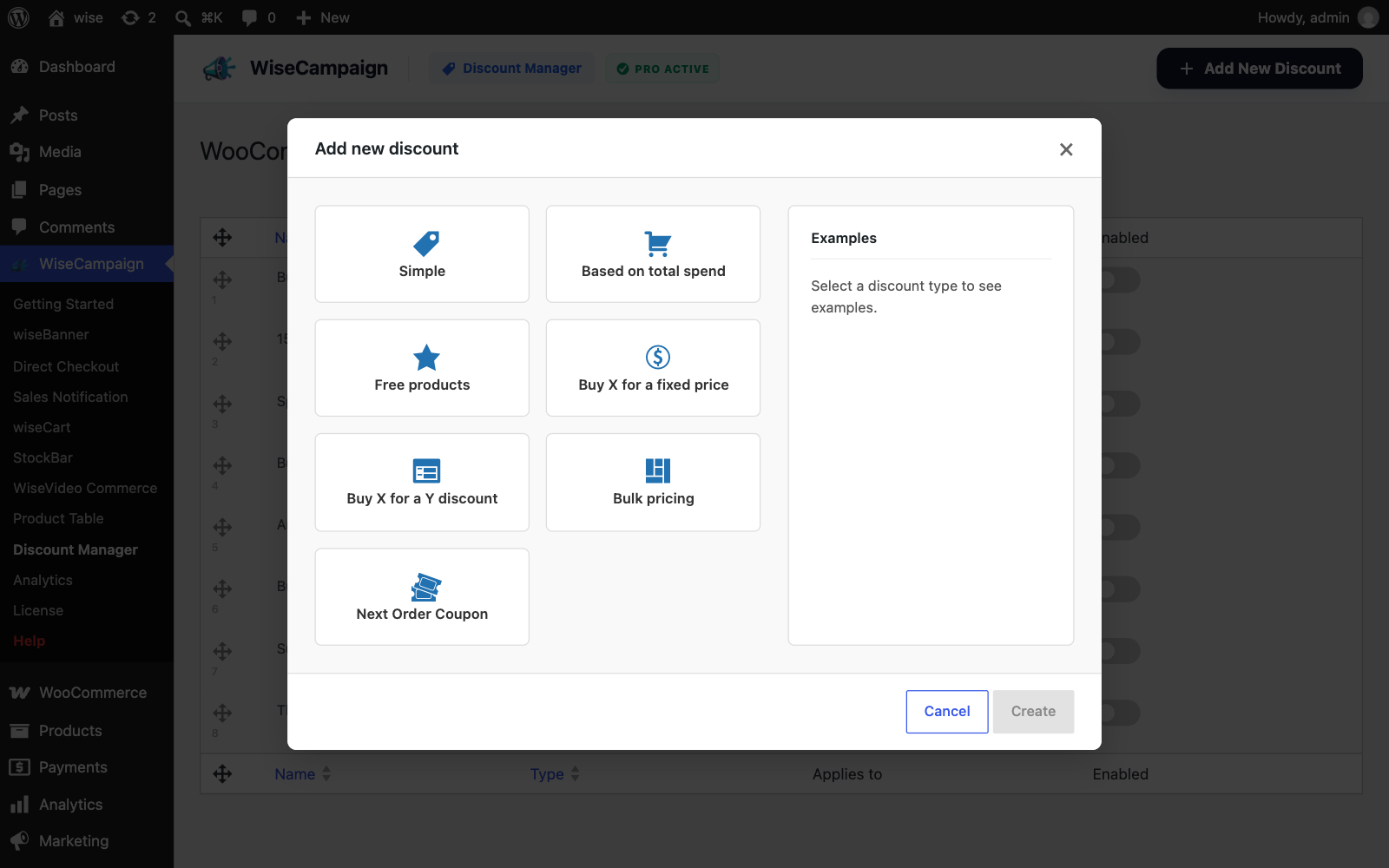
- In the Add new discount window, choose Free products. The right side shows examples of what this type can do.
- Click Create. The discount form opens.
Step 2: Set the offer
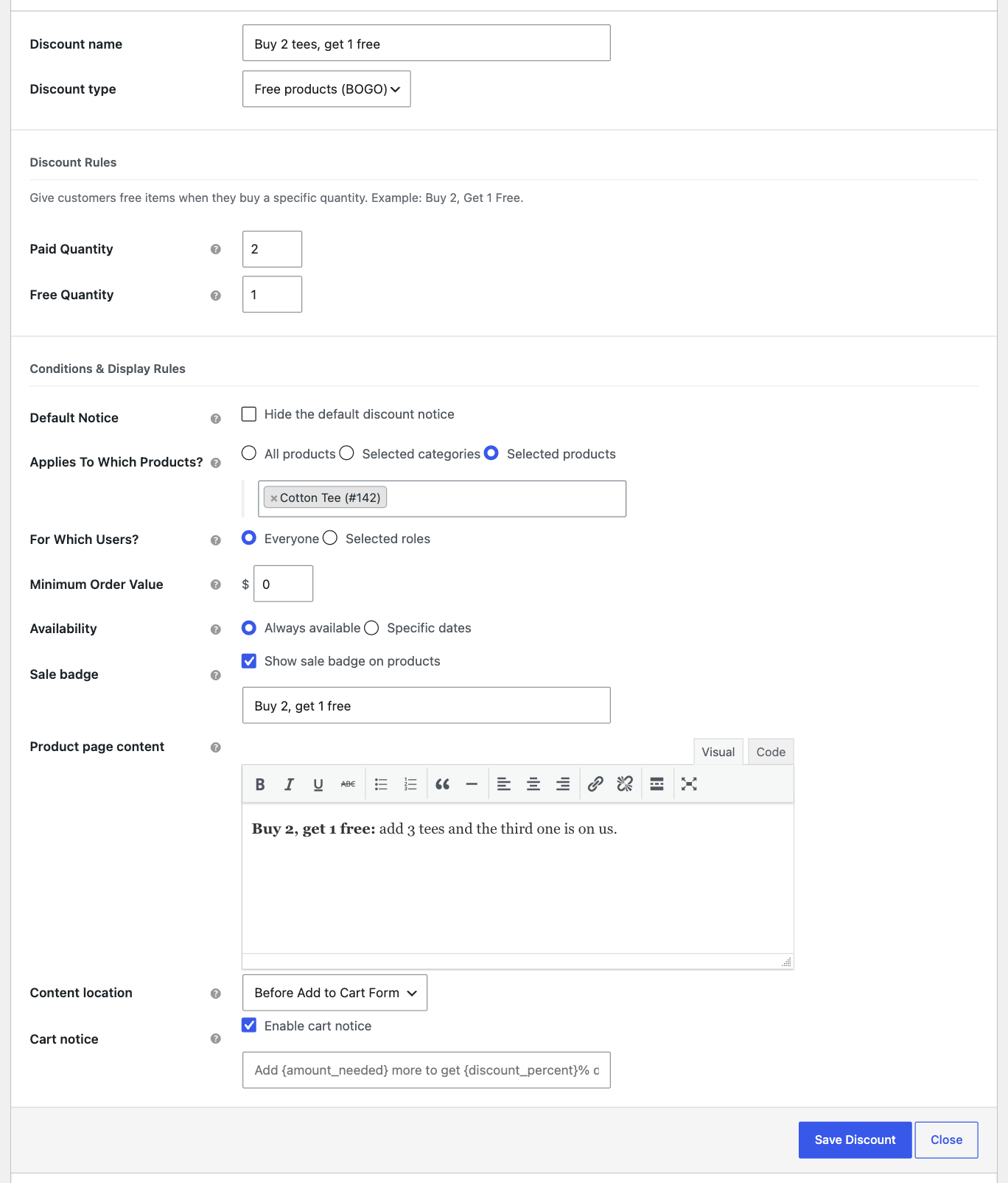
- Paid Quantity: how many items the shopper buys, for example 2.
- Free Quantity: how many they get free, for example 1.
Paid 2 and Free 1 creates a “Buy 2, get 1 free” offer. Use Applies To Which Products? to choose the products or categories it covers.
Step 3: Choose where the discount applies and how it is shown
The Conditions & Display Rules section is the same for every discount type:
- Applies To Which Products? All products, selected categories, or selected products.
- For Which Users? Everyone, or only users with selected roles (for example Customer or Wholesale).
- Minimum Order Value: the cart total needed before the discount applies. Use 0 for no minimum.
- Availability: always available, or only between specific dates. With specific dates you can also show the promotion dates and a countdown timer on the product page.
- Sale badge: shows your badge text on product images in the shop and on the product page.
- Product page content: your own message (text, images, styling) shown on eligible product pages, with Content location to choose where it appears.
- Default Notice: tick Hide the default discount notice if you only want your own message, not the automatic “Special Offer” notice.
-
Cart notice: a notice in the cart and checkout. You can write your own text with the placeholders
{amount_needed},{discount_percent},{discount_amount},{discount_title}and{min_order_value}.
Step 4: Save the discount
Click Save Discount. The new rule appears in the Discount Manager list and starts working right away. Use the switch in the Enabled column to pause or resume it at any time.
How it looks in your store
The badge on the product image and the offer on the product page make the deal clear:

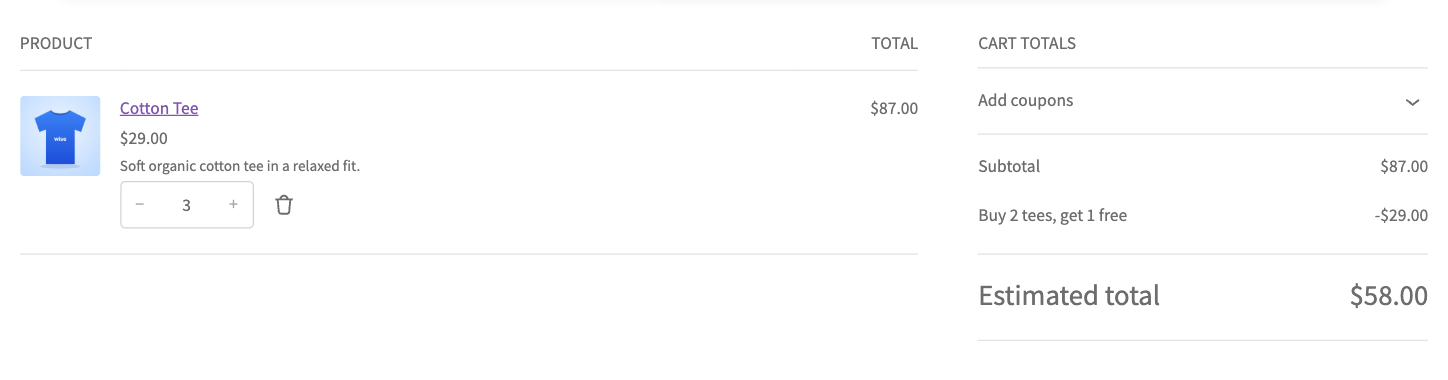
With 3 tees in the cart, the price of one tee comes off:
Why it works
- The word “free” is a strong reason to add one more item.
- It raises the number of items per order while you choose exactly which products are included.
- It is a good way to move slow stock without a store-wide discount.