
wiseRewards is a points and rewards (loyalty) program for WooCommerce. Customers earn points when they buy, sign up and review products, and spend them on their next order in the cart or at checkout.
Points give customers a reason to come back, and a line like “Earn 120 points with this purchase” gives them a reason to buy now. Your customers see your own program name, such as Reward Points. They never see the wiseCampaign name.
wiseRewards is free in wiseCampaign 2.2.0 and later. Features marked PRO (referrals, birthdays, tiers, campaigns and analytics) need an active wiseCampaign Pro 2.2.0 license.
How it works
- Earn: customers get points for every amount they spend (for example 1 point per $1), a welcome bonus when they sign up, and points for reviewing products they bought.
- Use: they pay with points in the cart or at checkout, for example 100 points = $1 off. Points come off like a coupon, after your other coupons and Discount Manager discounts.
- See: product pages show the points a purchase earns, the cart shows what the order earns, and My Account has a Reward Points page with the balance and history.
- Fair: points arrive when the order is completed, refunds take back their share, and points can expire after months without activity.
Turn on wiseRewards
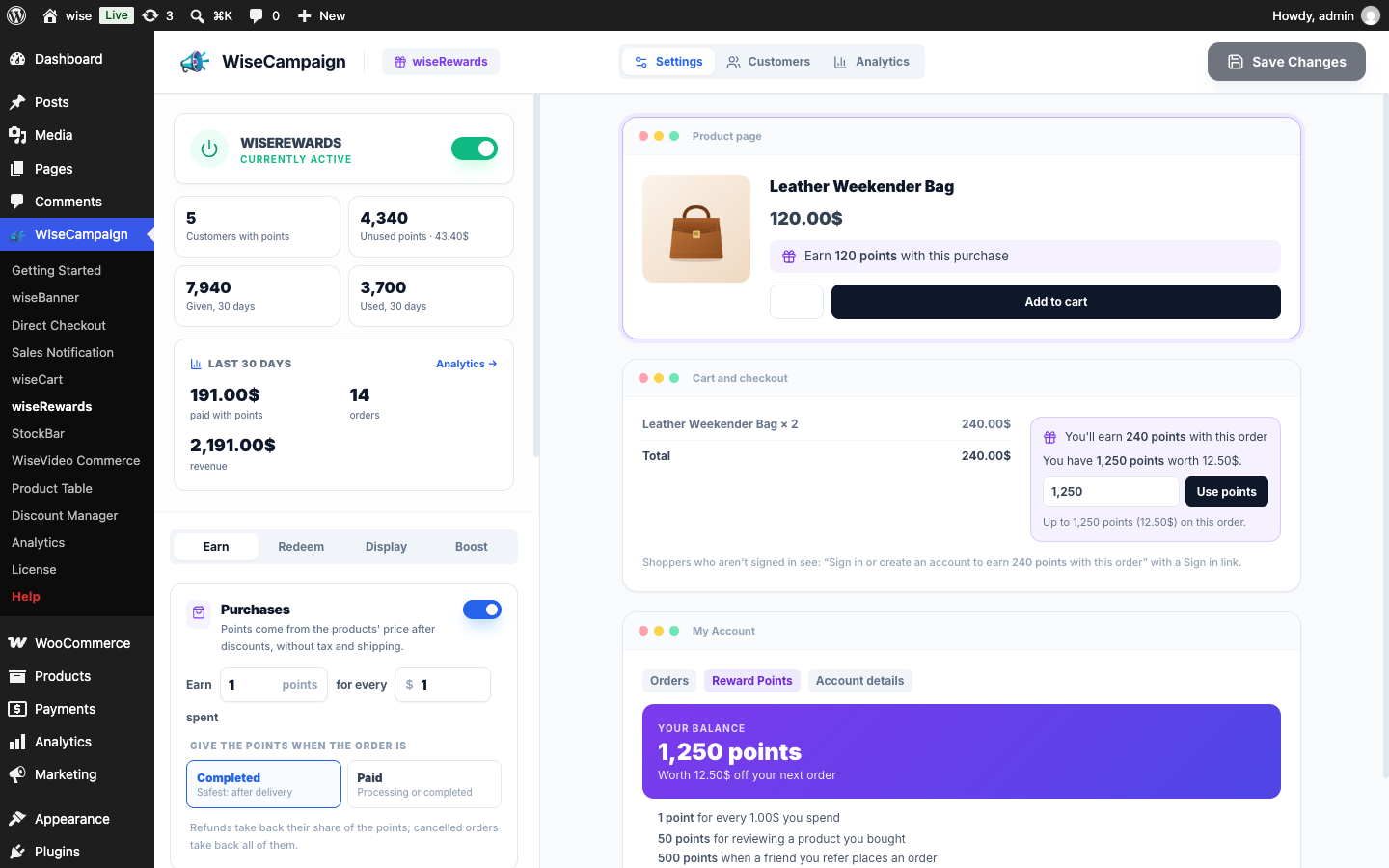
- Go to WordPress Dashboard → WiseCampaign → wiseRewards. If it is not in the menu, turn on wiseRewards on the Getting Started page.
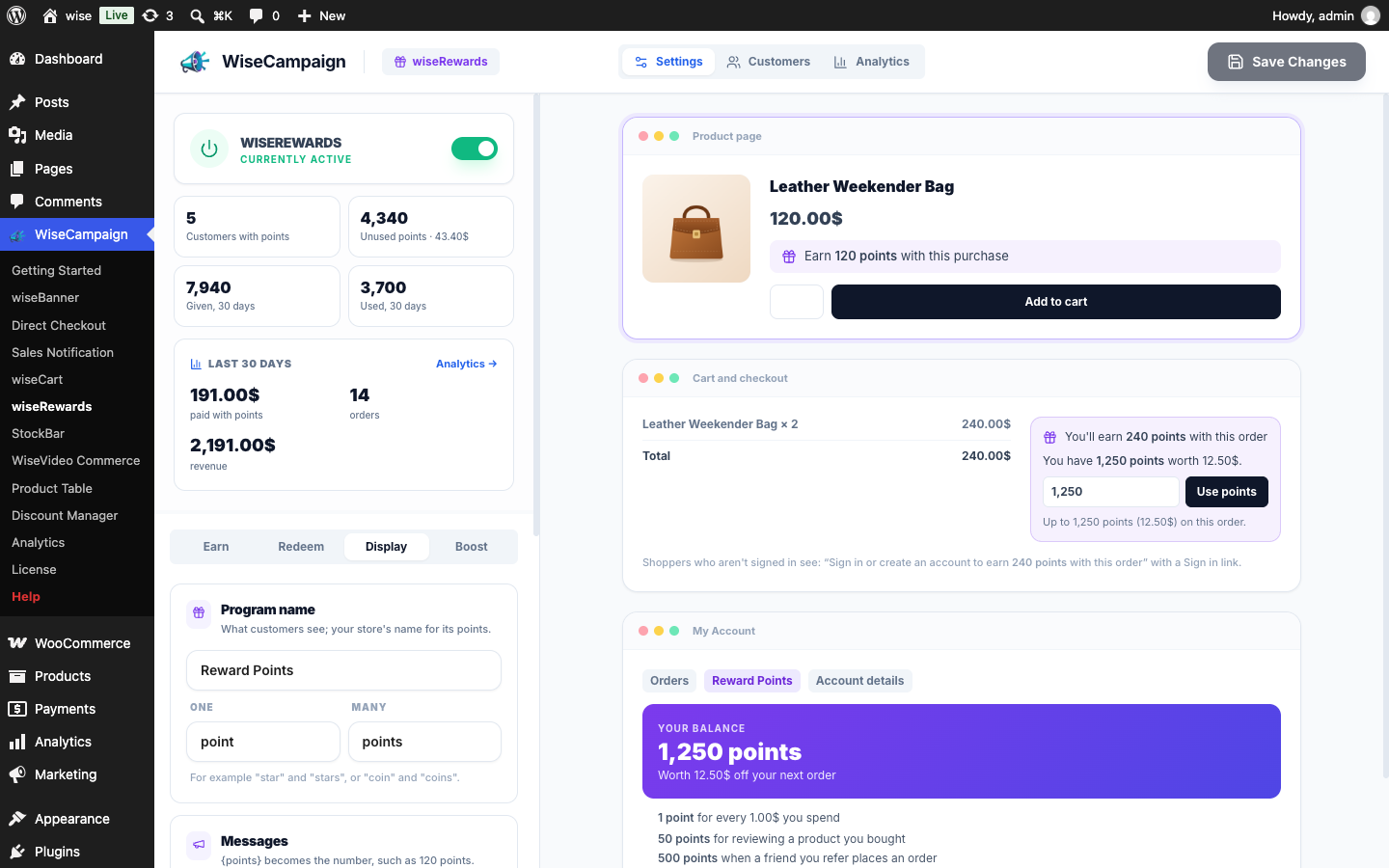
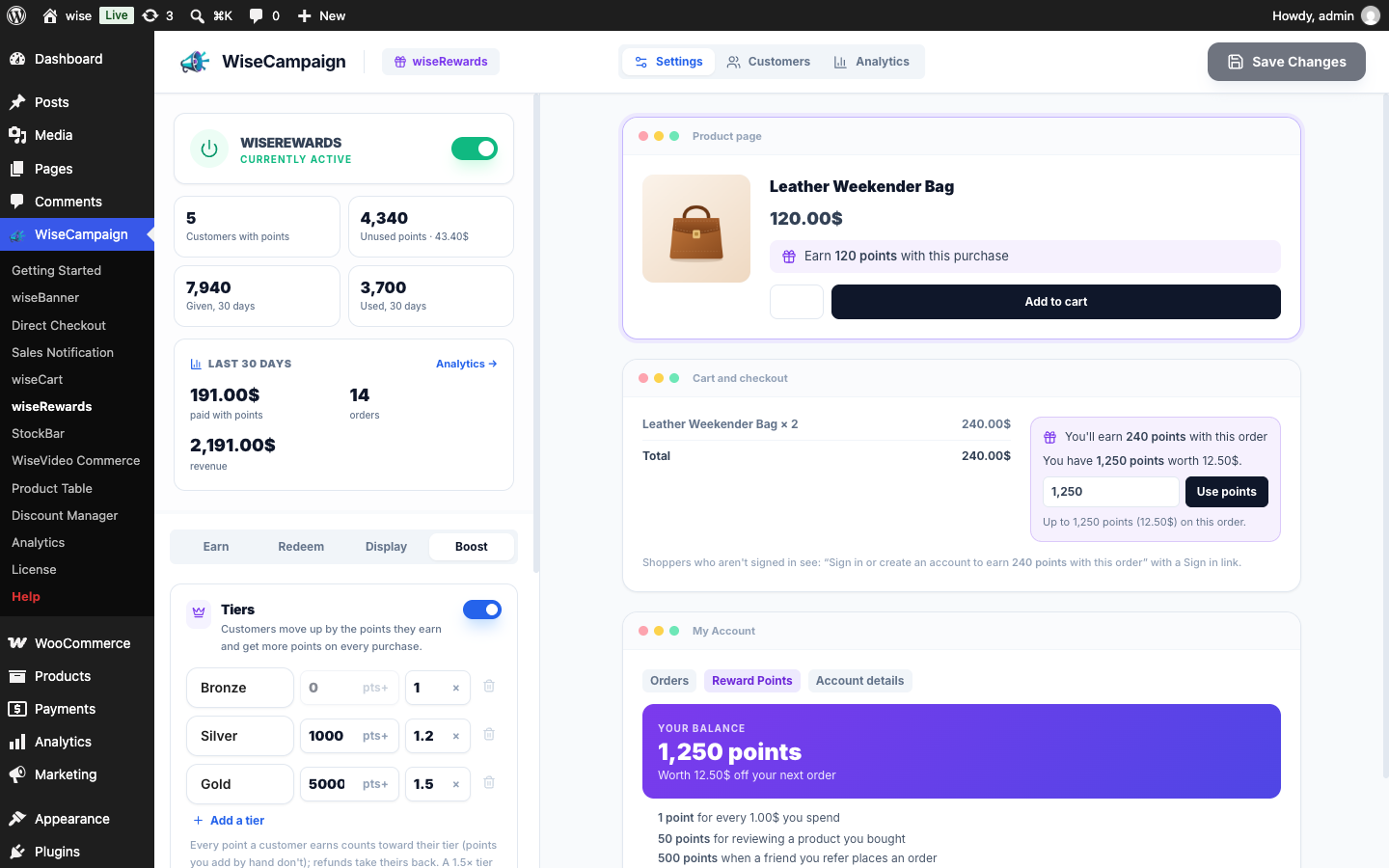
- Set how customers earn and use points on the Earn, Redeem and Display tabs. The preview on the right shows your product page, cart and My Account as you type.
- Click Save Changes.
- Turn on the wiseRewards switch at the top. The program stays off until you do, so updating the plugin never starts giving points by itself.
Points are used like a coupon, so coupons must be on in WooCommerce → Settings → General → Enable the use of coupon codes. The Redeem tab warns you when they are off.
Earn points
Purchases
Set Earn [1] points for every [$1] spent. Points come from the products’ price after discounts, without tax and shipping. The part of an order paid with points earns nothing.
Choose when the points arrive: Completed (safest, after delivery) or Paid (processing or completed). Until then, the customer sees nothing in their balance.
Signup bonus
Give new accounts a welcome bonus, such as 100 points. With Unlock with the first order on, the bonus waits until their first order earns points, so fake accounts collect nothing. Customers see the waiting bonus in My Account.
Product reviews
Give points for each product review once it is approved, one review per product. With Only customers who bought it on, only verified buyers get them. If you unapprove, spam or trash the review, the points are taken back.
Pay with points
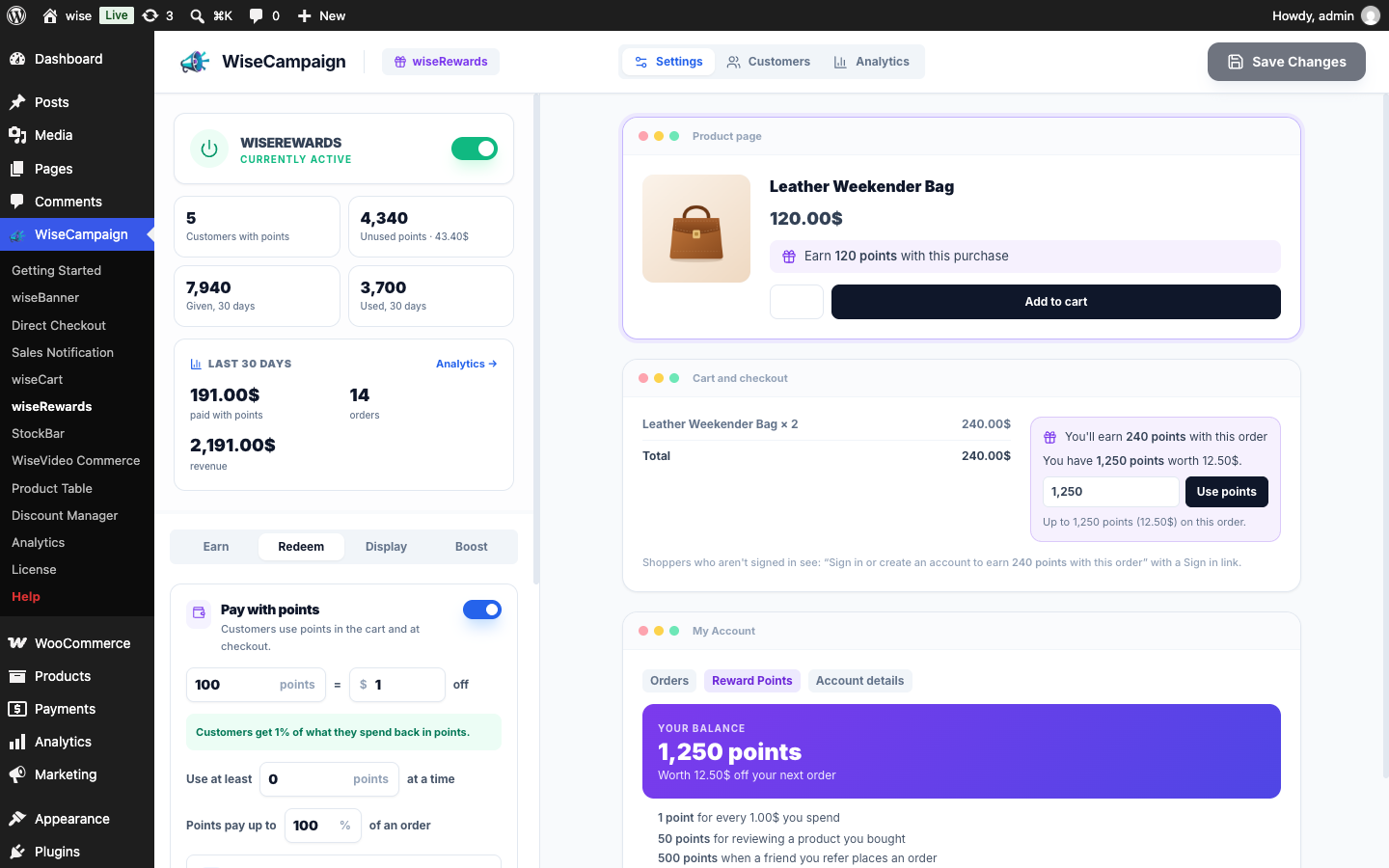
On the Redeem tab, set what points are worth, for example 100 points = $1 off. The tab tells you how much of what customers spend comes back as points; most stores give 1–5%.
- Use at least: the fewest points a customer can use at a time.
- Points pay up to: the largest share of an order that points can pay, such as 50%.
- In the cart and At checkout: where the points box appears. It works in the classic and the block cart and checkout.
Customers type how many points to use and click Use points. The discount shows as Reward Points (500 points) next to the total, and they can remove it any time. If another coupon leaves less to pay than the points are worth, they are only charged the points the discount needs.
Points expire
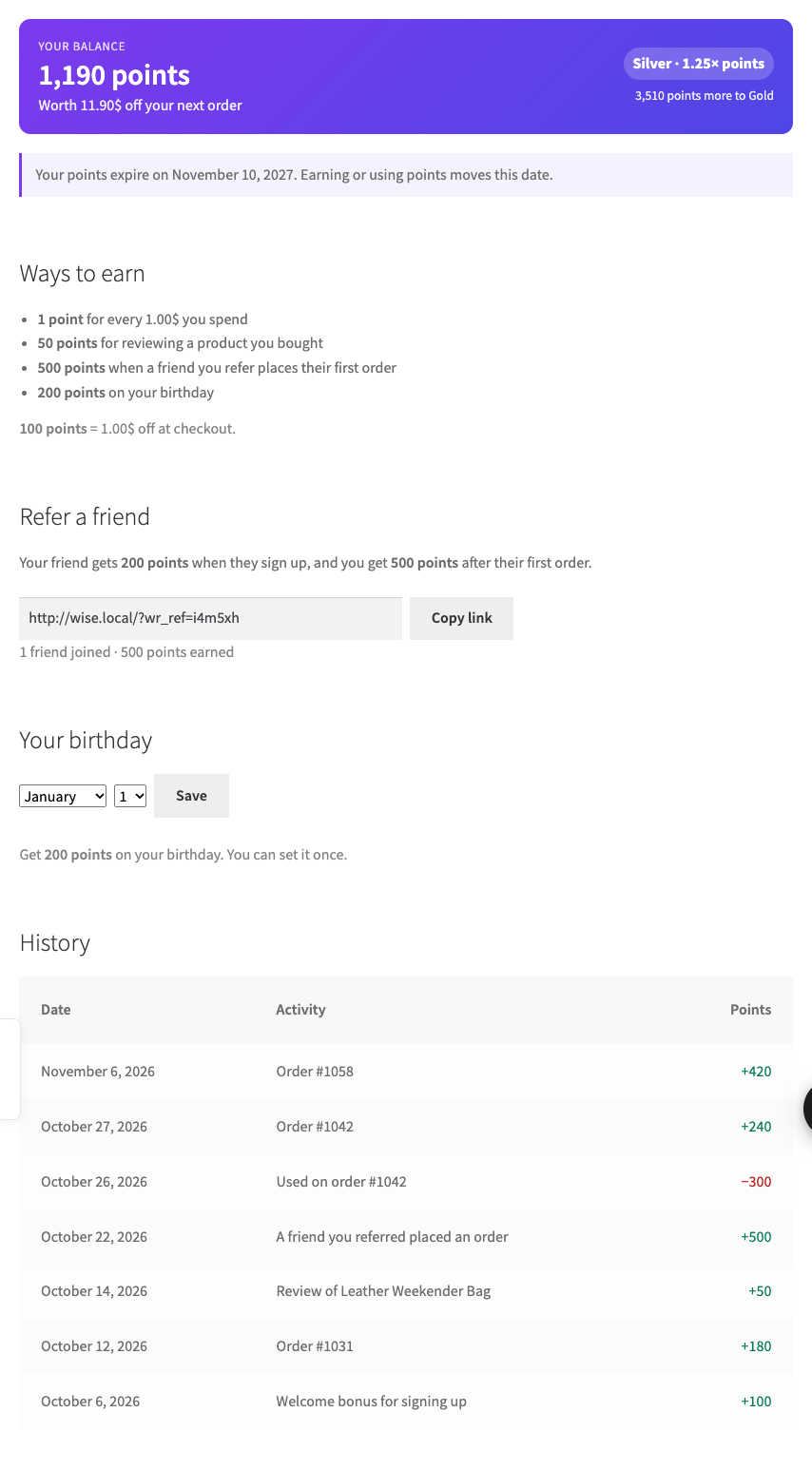
Turn on Points expire and choose the number of months. A customer’s whole balance expires after that many months without earning or using points. Any activity moves the date forward, and customers see the date in My Account. Unused points are a cost on your books, so expiry keeps them in check.
What your customers see
Product pages
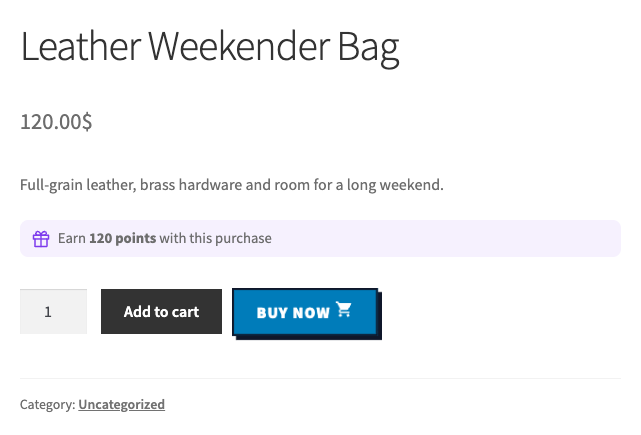
“Earn 120 points with this purchase” appears above the Add to Cart button. On variable products it shows a range, such as “Earn 50–120 points”, and changes to the chosen variation’s points.
Cart and checkout
The points box shows what the order earns and the customer’s balance, with a box to use points. Shoppers who aren’t signed in see a message with a Sign in link instead.
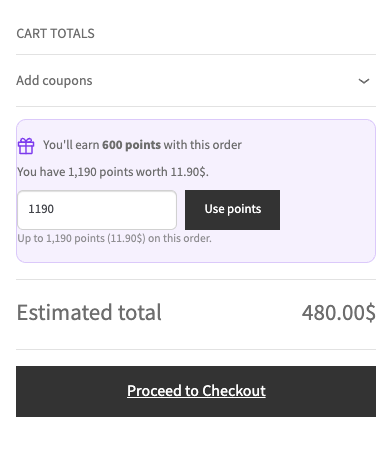
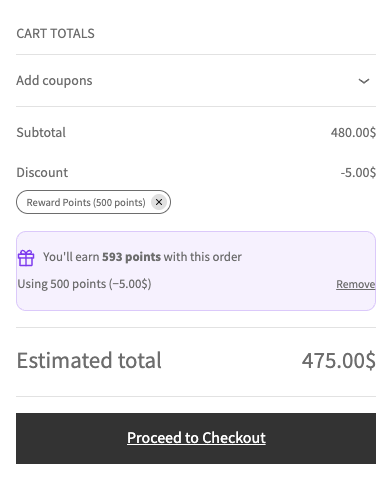
In this example Emma is in the Silver tier PRO, so her order earns 1.25× points.
wiseCart
With wiseCart on, the cart drawer shows what the cart earns and reminds customers to use their points at checkout.
My Account
The Reward Points page shows the balance and what it is worth, when the points expire, ways to earn, the referral link and birthday PRO, and the full history.
Program name and messages
On the Display tab, name your program (for example “Reward Points” or “Lumen Stars”), choose the words for one point and many points (“star” and “stars”), and edit the messages for product pages, the cart and checkout, and shoppers who aren’t signed in. {points} becomes the number, such as “120 points”. You can also turn off the My Account page.
Customers: give or take points
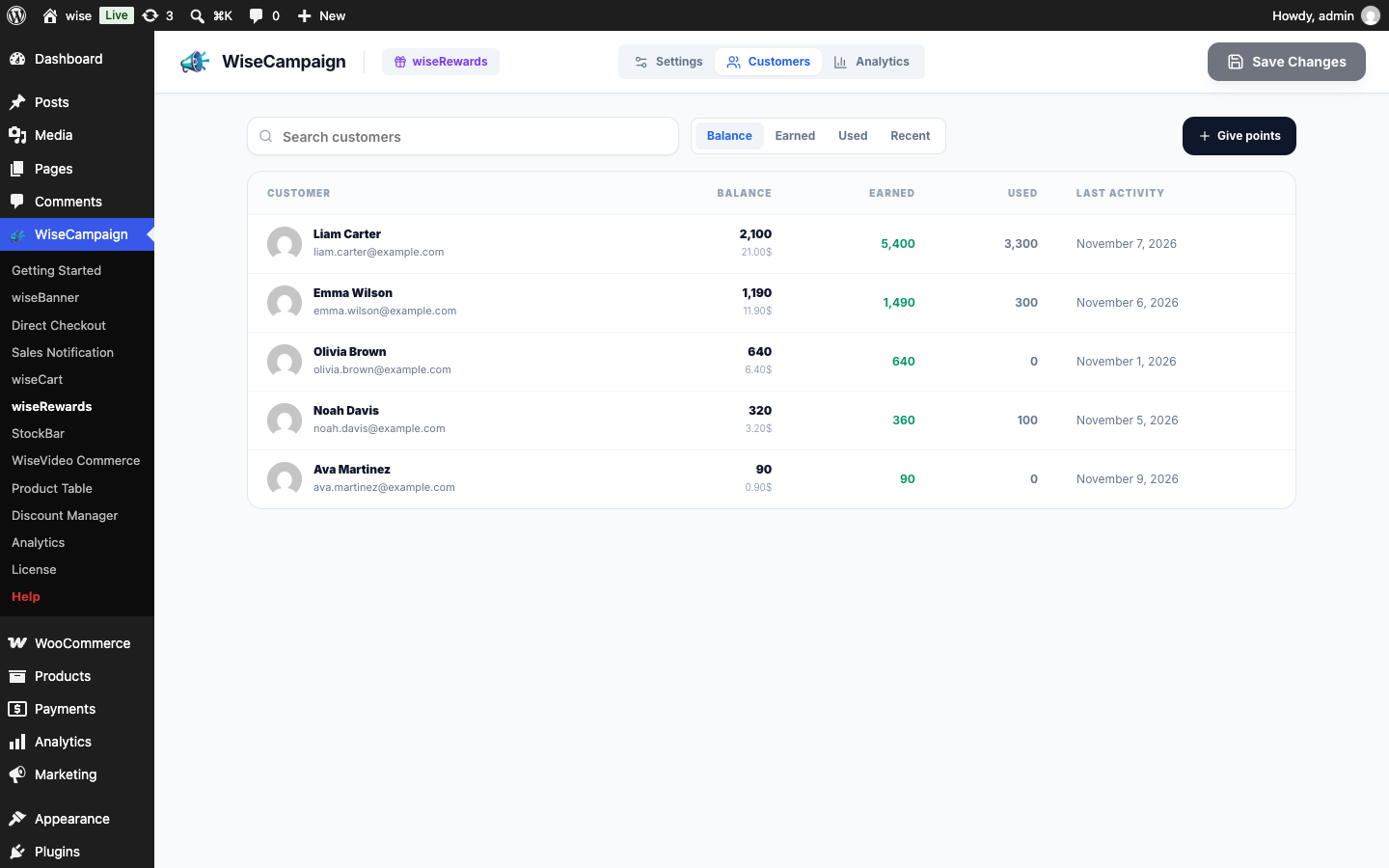
Click Customers at the top to see everyone with points: balance, points earned and used, and last activity. Search by name or email and sort the list.
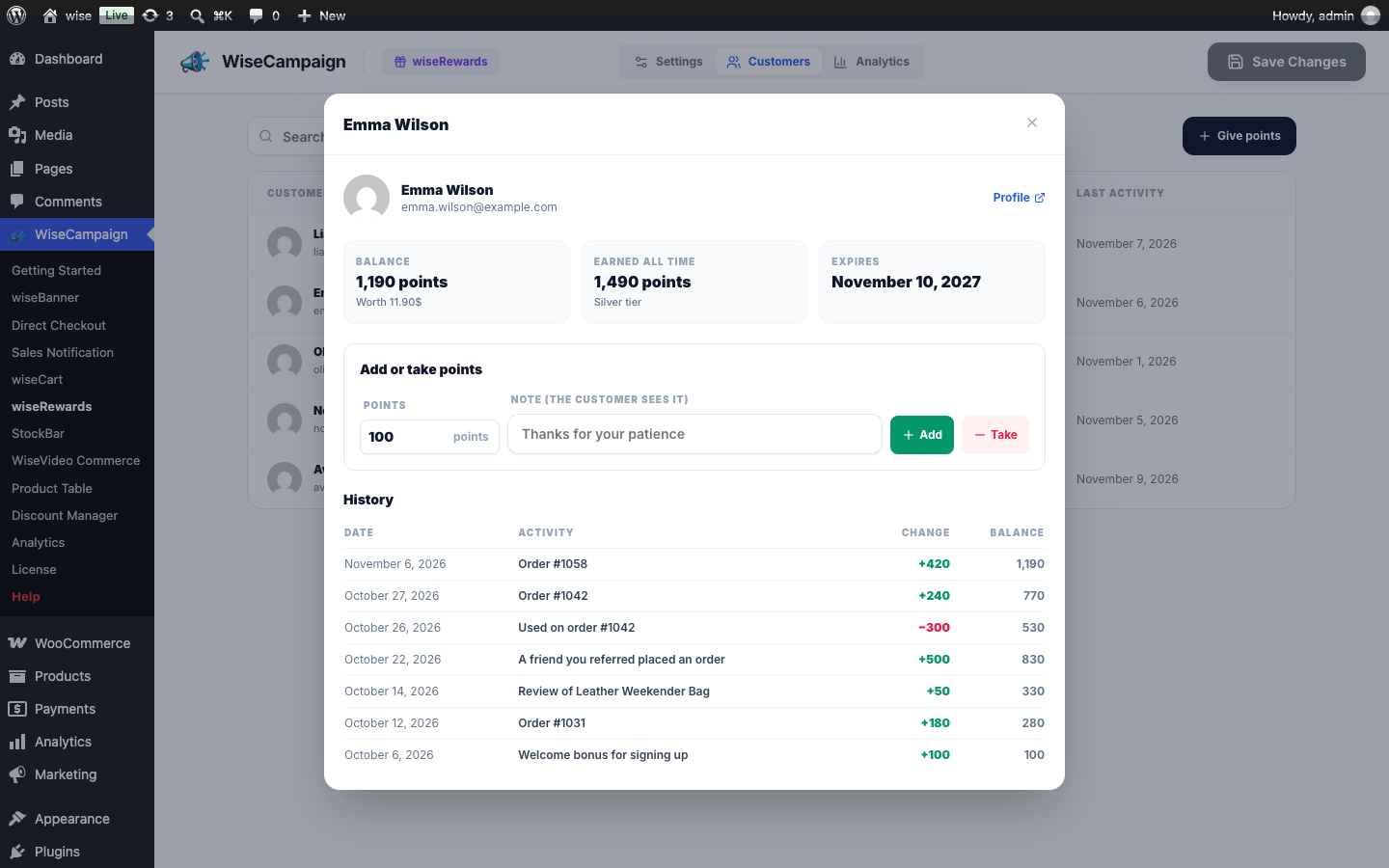
Click a customer to see their balance, the points they have earned, when their points expire and every change. To add points, enter the number and an optional note, then click Add; click Take to remove them. The customer sees the note in their history. To give points to someone without any yet, click Give points and search for their account.
Refunds, cancellations and other rules
- An order’s points arrive when it is completed (or paid). A partial refund takes back its share; a cancelled or fully refunded order takes back all of them.
- Points used on an order are taken when it is placed and given back if the order is cancelled or fully refunded.
- A failed order keeps its points until it is cancelled, because the customer can still pay it from My Account.
- Guests don’t earn points. A shopper who creates an account at checkout earns them for that order.
- Every order gets notes with the points it earned and used.
- Turning wiseRewards off keeps everyone’s points; customers just can’t earn or use them until you turn it on again. Uninstalling the plugin keeps them too.
- The points history is included in WordPress’s personal data export and erased with it (Tools → Export / Erase Personal Data).
Referrals, birthdays, tiers and campaigns PRO
With wiseCampaign Pro, the Earn tab adds two more ways to earn, and the Boost tab adds tiers and campaigns.
- Refer a friend: every customer gets a referral link in My Account. The friend gets points when they sign up (after their first order, if the signup bonus waits for it), and the customer gets points after the friend’s first order. Customers can’t refer themselves.
- Birthday: customers save their birthday once in My Account and get points on the day, once a year.
- Tiers: such as Bronze, Silver and Gold. Customers move up by the points they earn and get more points on every purchase, such as 1.25× or 1.5×. My Account shows their tier and the points to the next one.
- Campaigns: extra points between two dates, such as a double points weekend. With a tier bonus too, the two multiply.
Analytics PRO
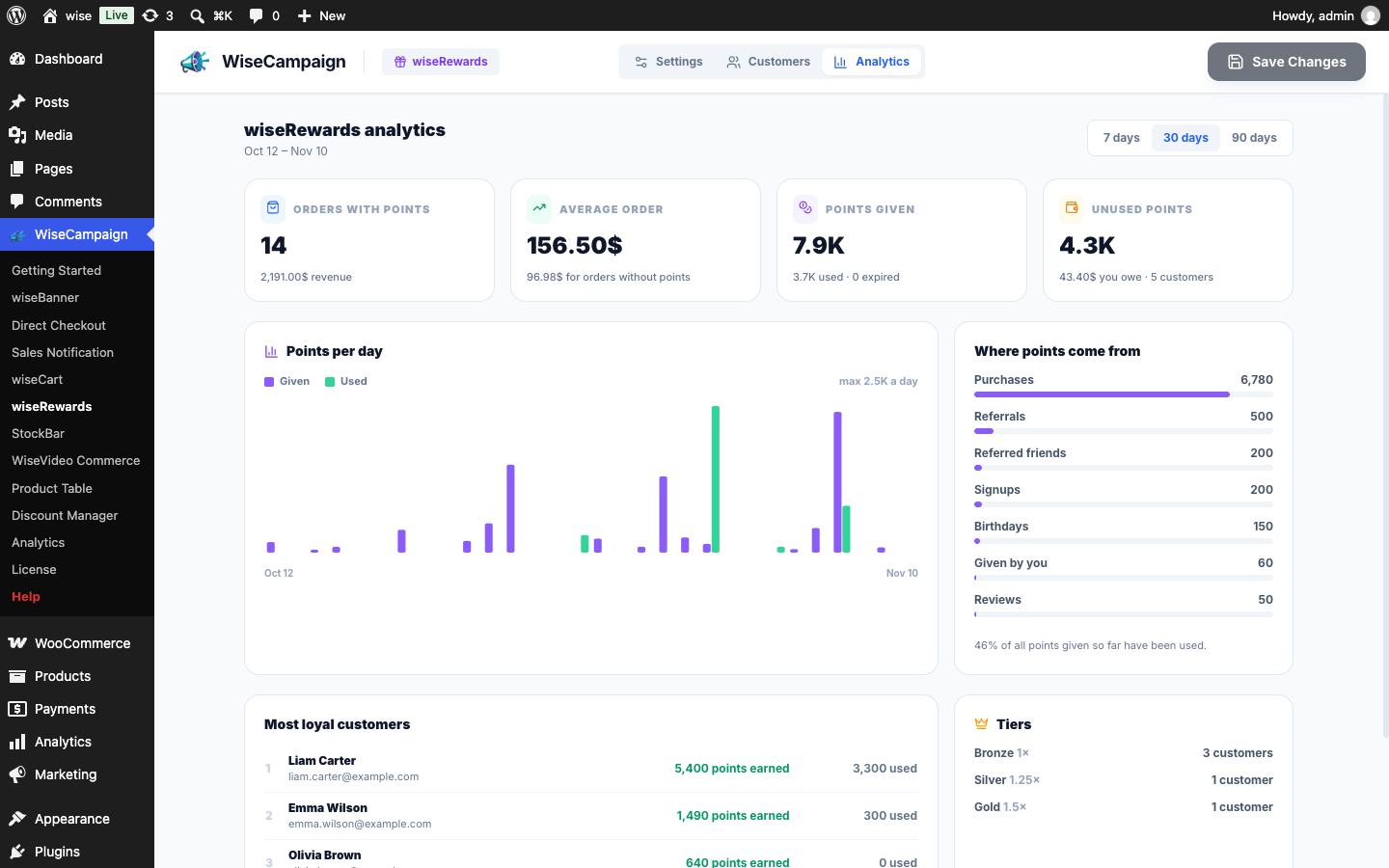
Click Analytics at the top to see what your points bring in over 7, 30 or 90 days:
- Orders paid partly with points, their revenue, and their average order value next to orders without points.
- Points given, used and expired, per day.
- Unused points and what they are worth: what you owe your customers.
- Where points come from, how many customers are in each tier, and your most loyal customers.
In the free version, WiseCampaign → Analytics lists wiseRewards with the other modules.
FAQ
Do I need Pro?
No. Points for purchases, signups and reviews, paying with points, the My Account page, the Customers list and expiry are free. Pro adds referrals, birthdays, tiers, campaigns and analytics. See wiseCampaign Pro.
Why don’t customers see the points box?
Check that wiseRewards is on, Pay with points is on with In the cart or At checkout, coupons are on in WooCommerce, the customer is signed in, and their balance is at least the minimum. The cart must also be big enough for the minimum points.
Can points be used with coupons and Discount Manager discounts?
Yes. Points come off after your other coupons and Discount Manager discounts. A coupon set to Individual use only can’t be combined with points, as with any other coupon.
Does it work with the block cart and checkout?
Yes. It works with the Cart and Checkout blocks and with the classic cart and checkout pages.
Can customers lose points?
Only through the rules you set: a refunded or cancelled order takes back its points, a removed review takes back its points, and with expiry on, a balance expires after months without activity. You can also take points away by hand.